1
Dell OpenManage Server
Administrator
Version 6.5
Installation Guide
Notes and Cautions
NOTE: A NOTE indicates important information that helps you make better use of
your computer.
CAUTION: A CAUTION indicates potential damage to hardware or loss of data if
instructions are not followed.
___________________
Information in this document is subject to change without notice.
© 2011 Dell Inc. All rights reserved.
Reproduction of these materials in any manner whatsoever without the written permission of Dell Inc.
is strictly forbidden.
Trademarks used in this text: Dell™, the DELL™ logo, PowerEdge™, PowerVault™, and
OpenManage™ are trademarks of Dell Inc. Microsoft®, Windows®, Internet Explorer®, Active
Directory®, Windows Server®, and Windows NT® are either trademarks or registered trademarks of
Microsoft Corporation in the United States and/or other countries. EMC® is a registered trademark
of EMC Corporation. Java® is a trademark or registered trademark of Sun Microsystems, Inc. in the
U.S. and other countries. Novell® and SUSE® are registered trademarks of Novell, Inc. in the United
States and other countries. Red Hat® and Red Hat Enterprise Linux® are registered trademarks of Red
Hat, Inc. in the United States and other countries. VMware® is a registered trademark and ESX
Server™ is a trademark of VMware Inc in the United States and/or other jurisdictions. Mozilla® and
Firefox® are registered trademarks of the Mozilla Foundation. Citrix®, Xen®, XenServer® and
XenMotion® are either registered trademarks or trademarks of Citrix Systems, Inc. in the United
States and/or other countries. X Window™ is a trademark of The Open Group. Altiris™ is a trademark
of Altiris, Inc.
Server Administrator includes software developed by the Apache Software Foundation
(www.apache.org). Server Administrator utilizes the OverLIB JavaScript library. This library can be
obtained from www.bosrup.com.
Other trademarks and trade names may be used in this publication to refer to either the entities claiming
the marks and names or their products. Dell Inc. disclaims any proprietary interest in trademarks and
trade names other than its own.
January 2011
Contents
1
Introduction .
. . . . . . . . . . . . . . . . . . . . . .
Dell OpenManage Systems Management
Software . . . . . . . . . . . . . . . . . .
. . . . . . .
12
Dell Systems Management Tools and
Documentation DVD . . . . . . . . .
. . . . . . .
12
. . . . . . . . . . . . .
15
Dell Server Updates DVD .
Dell Management Console DVD
. . . . . . . . . .
15
. . . . . . . . . . .
16
. . . . . . . . . . . .
18
Other Documents You Might Need
Obtaining Technical Assistance
2
11
Dell OpenManage Security
Security Features
. . . . . . . . . . .
19
. . . . . . . . . . . . . . . . . . . .
19
Security Management .
RBAC
. . . . . . . . . . . . . . . . .
20
. . . . . . . . . . . . . . . . . . . . . . . .
20
User Privileges
. . . . . . . . . . . . . . . . . . .
Privilege Levels to Access
Server Administrator Services .
. . . . . . . . . .
21
. . . . . . . . . . . . . . . . . . .
22
. . . . . . . . . . . . . . . . . . . . .
23
Authentication
Encryption
20
Microsoft Active Directory .
. . . . . . . . . . . .
Authentication Protocols for Linux
Operating Systems . . . . . . . . .
. . . . . . . .
Contents
23
23
3
3
Setup and Administration
Before You Begin .
. . . . . . . . . . .
. . . . . . . . . . . . . . . . . . . .
Installation Requirements
. . . . . . . . . . . . . . . .
Supported Operating Systems and
Web Browsers . . . . . . . . . .
System Requirements .
25
26
. . . . .
28
. . . . . . . . . . . . . . . . .
29
Viewing Localized Versions of the
Web-Based Interface . . . . . . .
Configuring the SNMP Agent
. . . . . . . .
30
. . . . . . . . .
30
. . . . . . . . . . . . .
30
. . . . . . . . . . . . . .
30
Microsoft Active Directory
Configuring the SNMP Agent for Systems
Running Supported Windows
Operating Systems . . . . . . . . . . . .
. . . . .
Configuring the SNMP Agent on Systems
Running Supported Red Hat Enterprise Linux
Operating Systems . . . . . . . . . . . . . .
31
. . .
35
Configuring the SNMP Agent on Systems
Running Supported SUSE Linux Enterprise Server
Operating Systems . . . . . . . . . . . . . . . . .
40
Secure Port Server and Security Setup
. . . . . . . . .
44
. . . . . . .
44
X.509 Certificate Management
. . . . . . . . . . .
46
Deployment Scenarios for
Server Administrator . . . . .
. . . . . . . . . . .
49
Setting User and Server Preferences
Server Administrator Components on
Managed System . . . . . . . . . . . .
4
25
. . . . . . . . .
Configuring a Supported Web Browser .
4
25
. . . . . . . . . . . . . . .
Windows Server 2003 R2 and the R2 IPMI
Device Driver . . . . . . . . . . . . . . .
Digital Certificates
25
Contents
. . . . . . . . .
50
5
Installing Managed System Software
on Microsoft Windows
Operating Systems . . . . . . . . . . . . . . .
Overview .
. .
55
. . . . . . . . . . . . . . . . . . . . . . . .
55
. . . .
55
. . . . .
56
. . . . . . . . . . .
57
. . . . . . . . . . . . . . . . .
57
Unattended and Scripted Silent Installation
Installation Procedures Prerequisite Checker
Remote Enablement Requirements
Installing WinRM .
Certificate Authority - Signed/Self-Signed
Certificate . . . . . . . . . . . . . . . . . .
. . . .
57
. . . . . . .
58
. . . . . . . .
58
Using a Certificate Signed by the CA .
Using the SelfSSL Tool to Generate
Self-signed Certificates. . . . . . .
Configuring User Authorization for WinRM
and WMI Servers . . . . . . . . . . . . . .
Configuring the Windows Firewall
for WinRM . . . . . . . . . . . .
. . . .
61
. . . . . . . . .
62
Configuring the Envelope Size for WinRM .
. . . .
62
Installing and Upgrading Server Administrator .
. . . .
63
. . . . . . . . . . . . . . . . .
64
Typical Installation
Custom Installation .
. . . . . . . . . . . . . . . .
Server Administrator Installation With
Citrix Application Server . . . . . . . .
Upgrade .
. . . . . .
66
. . . . . . . . .
67
. . . . . . . . . . . . . . .
67
Upgrading Managed System Software
Upgrading Guidelines .
64
. . . . . . . . . . . . . . . . . . . . . .
68
Modify.
. . . . . . . . . . . . . . . . . . . . . . .
69
Repair .
. . . . . . . . . . . . . . . . . . . . . . .
70
. . . . . . . .
71
. . . . . . . . . . . . . . . . . . .
72
System Recovery on Failed Installation .
Failed Updates
Contents
5
Windows Installer Logging
. . . . . . . . . . . . . . .
Performing an Unattended Installation of
Managed System Software . . . . . . . .
. . . . . . .
73
Creating and Distributing the Typical
Unattended Installation Package . . .
. . . . . . .
73
. . . . . . . . .
75
. . . . . . . . . . .
76
Creating and Distributing Custom
Unattended Installation Packages
Specifying Log File Locations .
Unattended Installation Features .
. . . . . . . . .
76
. . . . . . . . . . . . .
79
. . . . . . . . . . . . . . . . . .
81
Customization Parameters
MSI Return Code
Uninstalling Managed System Software
. . . . . . . .
. . . . . .
81
Uninstalling Managed System Software
Features Using the Operating System .
. . . . . .
83
. .
83
Performing an Unattended Uninstallation
of Managed System Software . . . . . .
. . . . .
83
Managed System Software Installation Using
Third-Party Deployment Software . . . . . . .
. . . . .
85
Installing Dell OpenManage Software
On Microsoft Windows Server 2008
Core and Microsoft Hyper-V Server . .
Installing Managed System and
Management Station Software .
. .
87
. . . . . . . . . . . .
88
Running PreReqChecker In CLI Mode
. . . . . . .
88
Installing Managed System Software
In CLI Mode . . . . . . . . . . . . . .
. . . . . . .
89
Uninstalling Systems Management Software
6
Contents
81
Uninstalling Managed System Software
Using Dell-provided Media . . . . . . .
Unattended Uninstall Using the Product GUID .
6
72
. . .
90
7
Installing Managed System Software
on Supported Linux
Operating Systems . . . . . . . . . . . . . . .
Software License Agreement
. .
91
. . . . . . . . . . . . . .
93
Server Administrator Device Drivers
Dynamic Kernel Support .
. . . . . . . . . .
93
. . . . . . . . . . . . . . . .
93
Determining the Running Kernel
. . . . . . . . . .
Dynamic Kernel Support Prerequisites
Using Dynamic Kernel Support After
Server Administrator Installation . . .
. . . . . .
94
. . . . . . .
94
Copying a Dynamically Built Device Driver
to Systems Running the Same Kernel . . .
OpenIPMI Device Driver .
94
. . . .
95
. . . . . . . . . . . . . . . .
96
Degradation of Functionality When the
Server Administrator Instrumentation Service
is Started . . . . . . . . . . . . . . . . . . . .
Installing Managed System Software .
. .
96
. . . . . . . . .
97
Prerequisites for Installing Managed System
Software . . . . . . . . . . . . . . . . . . .
. . .
97
Installing Managed System Software Using
Dell-Provided Media . . . . . . . . . . . . .
. . .
98
Determining the OpenManage Server Administrator
Architecture . . . . . . . . . . . . . . . . . . . . 105
Dependent RPMs for Remote Enablement
Installing Dependent RPMs
. . . . . . .
106
. . . . . . . . . . . .
106
Post-Installation Configuration for
Remote Enablement . . . . . . . .
. . . . . . . . . . .
Creating Server Certificate for WSMAN .
. . . . .
108
. . . .
109
. . . . . . . . . .
109
Configuring CRL for the openwsman Client
Running sfcb and openwsman .
108
Contents
7
Winbind Configuration for openwsman and
sfcb for Red Hat Enterprise Linux
Operating Systems . . . . . . . . . . . . .
. . .
110
Winbind Configuration for openwsman and
sfcb for SUSE Linux Enterprise Server
Operating Systems . . . . . . . . . . . . .
. . .
111
. . . . . . . . .
112
Workaround for the Libssl Issue
Uninstalling Managed System Software
. . . . . . .
Uninstalling Managed System Software
Using the Uninstall Script . . . . . . . .
. . . . .
113
Uninstalling Managed System Software
Using the RPM Command . . . . . . . .
. . . . .
113
. . .
113
. . . . . . .
115
Using Dell OpenManage with Citrix XenServer.
Managed System Software Installation
Using Third-Party Deployment Software
8
113
Dell OpenManage on VMware ESXi
. . .
117
. . . . . . .
117
. . . . . . . . . . . . . .
117
Dell OpenManage on VMware ESXi 4.0
and ESXi 4.1 . . . . . . . . . . . . . . .
Using the vSphere CLI
Using the VMware vSphere
Management Assistant . . .
Troubleshooting .
. . . . . . . . . . .
118
. . . . . . . . . . . . . . . . .
119
Enabling Server Administrator Services on
the Managed System . . . . . . . . . . . . .
. . . . .
120
Enabling CIM OEM Providers Using vSphere Client
(for VMware ESXi 4.0/ESXi 4.1) . . . . . . . . . . 120
8
Contents
Enabling CIM OEM Providers Using vSphere CLI
(for VMware ESXi 4.0/ESXi 4.1) . . . . . . . . . .
121
Enabling CIM OEM Providers Using vMA
(for VMware ESXi 4.0/ESXi 4.1) . . . . . .
121
. . . .
Configuring the SNMP Agent on Systems Running
VMware ESXi 4/ESXi 4.1 . . . . . . . . . . . . . . .
Configuring Your System to Send Traps to a
Management Station Using the vSphere CLI.
9
Using Microsoft Active Directory
Controlling Access to Your Network
122
. . . . .
125
. . . . . . . .
133
. . . . . . . . .
134
. . . . . . . . . . . .
139
Adding Users and Privileges to
Active Directory . . . . . . . .
140
. . . . . . . . . .
Configuring Your Systems or Devices
143
. . . . . . .
. . . . . . . . . . . . . .
Command Line Operation of the
Prerequisite Checker . . . . . .
125
125
Using the Dell Schema Extender .
145
145
. . . . . . . . . . . .
11 Frequently Asked Questions
General .
. . .
. . . . . . .
Extending the Active Directory Schema
10 Prerequisite Checker
122
. . . . . . . . . .
Active Directory Schema Extensions
Active Directory Users and
Computers Snap-In . . . . .
. .
. . . . . . . . .
149
. . . . . . . . . . . . . . . . . . . . . . . . .
Microsoft Windows
. . . . . . . . . . . . . . . . . . .
Red Hat Enterprise Linux or SUSE Linux
Enterprise Server . . . . . . . . . . . .
. . . . . . . .
Contents
149
149
156
9
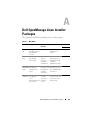
A Dell OpenManage Linux Installer
Packages . . . . . . . . . . . . . . . . . . . . .
Index
10
. . . . .
169
. . . . . . . . . . . . . . . . . . . . . . . . . . . . . .
185
Contents
1
Introduction
This guide contains information to help you install Dell OpenManage Server
Administrator on managed systems. A managed system has supported
instrumentation agents installed that allow the system to be discovered and
polled for status through Server Administrator. Server Administrator provides
easy-to-use management and administration of local and remote systems
through a comprehensive set of integrated management services. For more
information on Server Administrator, see "Dell OpenManage Server
Administrator".
This document also contains information on installing and using the Remote
Enablement feature of Dell OpenManage Server Administrator. It contains
information on using the Dell OpenManage Server Administrator Web Server
to manage remote systems. The Remote Enablement feature is currently
supported on Microsoft Windows, Microsoft Hyper-V, Hyper-V Server, Red
Hat Enterprise Linux, Suse Enterprise Linux, VMware ESXi, ESX, and Citrix
XenServer 5.6 operating systems.
In addition, this guide provides information and instructions for configuring
your systems before and during a deployment or upgrade. The following
topics are covered in this document:
•
Dell OpenManage Security
•
Setup and Administration
•
Deployment Scenarios for Server Administrator
•
Installing Managed System Software on Microsoft Windows Operating
Systems
•
Installing Dell OpenManage Software On Microsoft Windows Server 2008
Core and Microsoft Hyper-V Server
•
Installing Managed System Software on Supported Linux Operating
Systems
Introduction
11
•
Dell OpenManage on VMware ESXi
•
Using Microsoft Active Directory
•
Prerequisite Checker
•
Frequently Asked Questions
NOTE: If you install management station and managed system software on the
same system, install identical software versions to avoid system conflicts.
Dell OpenManage Systems Management
Software
Dell OpenManage systems management software is a suite of applications
for your Dell systems that enables you to manage your systems with proactive
monitoring, diagnosis, notification, and remote access.
Dell systems management software comprises of 3 DVDs:
•
Dell Systems Management Tools and Documentation DVD
•
Dell Server Updates DVD
•
Dell Management Console DVD
Dell Systems Management Tools and Documentation DVD
From the purpose of using the Dell Systems Management Tools and
Documentation DVD, a system can be classified into:
•
Managed System
A managed system is any system that is monitored and managed using
Dell OpenManage Server Administrator (one of the systems management
tools on the DVD). You can manage systems running Server Administrator
locally or remotely through a supported Web browser. For more
information on Server Administrator, see "Dell OpenManage Server
Administrator".
•
Management Station
A management station can be any computer (laptop, desktop, or server)
that you can use to remotely manage one or more managed systems from a
central location.
12
Introduction
The following applications comprise the Dell management station
software that you can install using the Dell Systems Management Tools
and Documentation DVD:
•
Active Directory Snap-In
•
BMC Utilities
•
DRAC Tools
For information about installing these applications, see the Dell
OpenManage Management Station Software Installation Guide available on
the Dell Systems Management Tools and Documentation DVD or at
support.dell.com/support/edocs/software/omswrels/index.htm. This link
also contains user documentation on Dell OpenManage applications.
The Dell Systems Management Tools and Documentation DVD also contains
the following products:
Dell Systems Build and Update Utility
Functionality
You can use the Dell Systems Build and Update Utility to:
•
Update your system firmware and install an operating system.
•
Update the firmware and BIOS in a pre-operating system environment on
multiple systems.
•
Configure your system hardware.
•
Customize the Server Update Utility (SUU) and use it to update your
system.
For information on performing these tasks and details on the Dell Systems
Build and Update Utility, see the Dell Systems Build and Update Utility User's
Guide at support.dell.com/support/edocs/software/omswrels/index.htm.
Location on the DVD
<DVD root>
Introduction
13
Dell OpenManage Server Administrator
Functionality
Dell OpenManage Server Administrator provides a comprehensive set of
integrated management services designed for system administrators to
manage systems locally and remotely on a network. Server Administrator is
the sole installation on the managed system and is accessible both locally and
remotely from the Server Administrator Home page. Remotely monitored
systems may be accessed by dial-in, LAN, or wireless connections. Server
Administrator ensures the security of its management connections through
role-based access control (RBAC), authentication, and industry-standard
secure socket layer (SSL) encryption.
For information on installing Server Administrator, see "Installing Managed
System Software on Microsoft Windows Operating Systems" or "Installing
Managed System Software on Supported Linux Operating Systems".
For details on using Server Administrator, see the Dell OpenManage Server
Administrator User's Guide at
support.dell.com/support/edocs/software/omswrels/index.htm.
The Storage Management Service provides enhanced features for managing
a system's locally-attached RAID and non-RAID disk storage.
The Storage Management Service provides the following features:
•
Enables you to view the status of the local and remote storage attached to
a monitored system.
•
Supports SAS, SCSI, SATA, and ATA, but does not support Fibre Channel.
•
Allows you to perform controller and enclosure functions for all supported
RAID and non-RAID controllers and enclosures from a single graphical
interface or a CLI, without the use of the controller BIOS utilities.
•
Protects your data by configuring data redundancy, assigning hot spares,
or rebuilding failed drives.
Location on the DVD
<DVD_drive>\SYSMGMT\srvadmin
14
Introduction
Dell Server Updates DVD
The Dell Server Updates DVD is a part of the Dell OpenManage subscription
service kit along with the Dell Systems Management Tools and Documentation
DVD. The Dell Server Updates DVD is available only to those customers who
have subscribed to the subscription service.
The Dell Server Updates DVD contains Dell Update Packages (DUPs) and
Dell OpenManage Server Update Utility (SUU). DUPs allow administrators
to update a wide range of system components simultaneously and apply
scripts to similar sets of Dell systems to bring system software components up
to the same version levels.
SUU is an application that identifies and applies updates to your system.
You can use SUU to update your Dell system or to view the updates available
for any system supported by SUU.
In addition to helping you install, configure, and update programs and
operating systems, the Dell Server Updates DVD also provides newer versions
of software for your system.
For more information on DUPs and SUU, see the Dell Update Packages User’s
Guide and the Dell OpenManage Server Update Utility User's Guide at
support.dell.com/support/edocs/software/omswrels/index.htm.
For more information on the subscription service, see
www.dell.com/openmanagesubscription or contact your sales representative.
Dell Management Console DVD
The Dell Management Console is a Web-based systems management
software that enables you to discover and inventory devices on your network.
It also provides advanced functions, such as health and performance
monitoring of networked devices and patch management capabilities for Dell
systems.
The Dell Management Console DVD is available with all Dell xx0x and later
systems. You can also download the Dell Management Console from
www.dell.com/openmanage.
Introduction
15
Other Documents You Might Need
In addition to this guide, you can access the following guides available on the
Dell Systems Management Tools and Documentation DVD or at
support.dell.com/manuals. On the Manuals page, click Software Systems
Management. Click on the appropriate product link on the right-side to access
the documents.
16
•
The Dell Unified Server Configurator User’s Guide provides information on
using Unified Server Configurator.
•
The Dell Management Console User’s Guide has information about
installing, configuring, and using Dell Management Console. Dell
Management Console is a Web-based systems management software that
enables you to discover and inventory devices on your network. It also
provides advanced functions, such as health and performance monitoring
of networked devices and patch management capabilities for Dell systems.
•
The Dell Systems Build and Update Utility User’s Guide provides
information on using the Systems Build and Update Utility.
•
The Dell Systems Software Support Matrix provides information about
the various Dell systems, the operating systems supported by these
systems, and the Dell OpenManage components that can be installed
on these systems.
•
The Dell OpenManage Server Administrator User's Guide describes the
installation and use of Server Administrator. Server Administrator provides
easy-to-use management and administration of local and remote systems
through a comprehensive set of integrated management services.
•
The Dell OpenManage Server Administrator SNMP Reference Guide
documents the Simple Network Management Protocol (SNMP)
management information base (MIB). The SNMP MIB defines variables
that extend the standard MIB to cover the capabilities of systems
management agents.
•
The Dell OpenManage Server Administrator CIM Reference Guide
documents the Common Information Model (CIM) provider, which is an
extension of the standard management object format (MOF) file.
This guide explains the supported classes of management objects.
Introduction
•
The Dell OpenManage Server Administrator Messages Reference Guide lists
the messages that are displayed in the Server Administrator home page
Alert log, or on your operating system’s event viewer. This guide explains
the text, severity, and cause of each alert message that Server
Administrator issues.
•
The Dell OpenManage Server Administrator Command Line Interface
User's Guide documents the complete command line interface for Server
Administrator, including an explanation of CLI commands to view system
status, access logs, create reports, configure various component
parameters, and set critical thresholds.
•
The Dell OpenManage IT Assistant User’s Guide has information about
installing, configuring, and using IT Assistant. IT Assistant provides
a central point of access to monitor and manage systems on a local area
network (LAN) or wide area network (WAN). By allowing an
administrator a comprehensive view across the enterprise, IT Assistant
can increase system uptime, automate repetitive tasks, and prevent
interruption in critical business operations.
•
The Dell Remote Access Controller 5 User’s Guide provides complete
information about installing and configuring a DRAC 5 controller and
using DRAC 5 to remotely access an inoperable system.
•
The Integrated Dell Remote Access Controller User's Guide provides
complete information about configuring and using an Integrated
Dell Remote Access Controller to remotely manage and monitor your
system and its shared resources through a network.
•
The Dell Update Packages User's Guide provides information about
obtaining and using Dell Update Packages for Windows and Linux as part
of your system update strategy.
•
The Dell OpenManage Server Update Utility User's Guide provides
information on using the Dell OpenManage Server Update Utility.
•
The software kit (DVD) contain readme files for applications found on
the media.
Introduction
17
Obtaining Technical Assistance
If at any time you do not understand a procedure described in this guide,
or if your product does not perform as expected, different types of help are
available. For more information, see "Getting Help" in your system's Hardware
Owner’s Manual.
Additionally, Dell Enterprise Training and Certification is available; see
www.dell.com/training for more information. This service might not be
offered in all locations.
18
Introduction
Dell OpenManage Security
2
Security Features
Dell OpenManage systems management software components provide the
following security features:
•
Authentication for users through hardware-stored user IDs and passwords,
or by using the optional Microsoft Active Directory.
•
Support for Network Information Services (NIS), Winbind, Kerberos, and
Lightweight Directory Access Protocol (LDAP) authentication protocols
for Linux operating systems.
•
Role-based authority that allows specific privileges to be configured
for each user.
•
User ID and password configuration through the Web-based interface or
the command line interface (CLI), in most cases.
•
SSL encryption of 128-bit and 40-bit (for countries where 128-bit
is not acceptable).
NOTE: Telnet does not support SSL encryption.
•
Session time-out configuration (in minutes) through the Web-based
interface or Command Line Interface (CLI).
•
Port Configuration to allow Dell OpenManage systems management
software to connect to a remote device through firewalls.
NOTE: For information about ports that various Dell OpenManage systems
management components use, see the User Guide for that component.
Dell OpenManage Security
19
Security Management
Dell provides security and access administration through role-based access
control (RBAC), authentication, and encryption, or through Active Directory
(or through Winbind, Kerberos, LDAP, or NIS on Linux operating systems)
for both the Web-based and command line interfaces.
RBAC
RBAC manages security by determining the operations that can be executed
by users in specific roles. Each user is assigned one or more roles, and each
role is assigned one or more user privileges that are permitted to users in that
role. With RBAC, security administration can correspond closely to an
organization's structure. For information about setting up users, see your
operating system documentation.
User Privileges
Server Administrator grants different access rights based on the user's
assigned group privileges. The three user levels are User, Power User, and
Administrator.
Users can view most information.
Power Users can set warning threshold values and configure which alert
actions are to be taken when a warning or failure event occurs.
Administrators can configure and perform shutdown actions, configure Auto
Recovery actions in case a system has a non-responsive operating system, and
clear hardware, event, and command logs. Administrators can configure alert
actions, including sending e-mail messages when an alert is generated.
20
Dell OpenManage Security
Server Administrator grants read-only access to users logged in with User
privileges; read and write access to users logged in with Power User privileges;
and read, write, and administrator access to users logged in with
Administrator privileges. See Table 2-1.
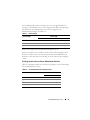
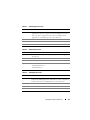
Table 2-1. User Privileges
User Privileges
Access Type
Admin
Write
Read
User
X
Power User
Administrator
X
X
X
X
X
Admin access allows you to shut down the managed system.
Write access allows you to modify or set the values on the managed system.
Read access allows you to view the data reported by Server Administrator.
Read access does not allow you to change or set the values on the managed
system.
Privilege Levels to Access Server Administrator Services
Table 2-2 summarizes which user levels have privileges to access and manage
Server Administrator Services.
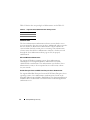
Table 2-2. Server Administrator User Privilege Levels
Service
User Privilege Level Required
View
Manage
Instrumentation
U, P, A
P, A
Remote Access
U, P, A
A
Update
U, P, A
A
Storage Management
U, P, A
A
Dell OpenManage Security
21
Table 2-3 defines the user privilege level abbreviations used in Table 2-2.
Table 2-3. Legend for Server Administrator User Privilege Levels
U
User
P
Power User
A
Administrator
Authentication
The Server Administrator authentication scheme ensures that the access
types are assigned to the correct user privileges. Additionally, when you invoke
the CLI, the Server Administrator authentication scheme validates the
context within which the current process is running. This authentication
scheme ensures that all Server Administrator functions, whether accessed
through the Server Administrator home page or CLI, are properly
authenticated.
Microsoft Windows Authentication
For supported Windows operating systems, Server Administrator
authentication uses Integrated Windows Authentication (formerly
called NTLM) to authenticate. This authentication system allows Server
Administrator security to be incorporated in an overall security scheme
for your network.
Red Hat Enterprise Linux and SUSE Linux Enterprise Server Authentication
For supported Red Hat Enterprise Linux and SUSE Linux Enterprise Server
operating systems, Server Administrator authentication is based on the
Pluggable Authentication Modules (PAM) library. This documented library of
functions allows an administrator to determine how individual applications
authenticate users.
22
Dell OpenManage Security
Encryption
Access to Server Administrator is enabled over a secure HTTPS connection
using secure socket layer (SSL) technology to ensure and protect the identity
of the system being managed. Java Secure Socket Extension (JSSE) is used by
supported Windows, Red Hat Enterprise Linux, and SUSE Linux Enterprise
Server operating systems to protect the user credentials and other sensitive
data that is transmitted over the socket connection when a user accesses the
Server Administrator.
Microsoft Active Directory
The Active Directory Service (ADS) software acts as the central authority for
network security. ADS allows the operating system to verify a user's identity
and control that user’s access to network resources. For Dell OpenManage
applications running on supported Windows platforms, Dell provides schema
extensions for customers to modify their Active Directory database to support
remote management authentication and authorization. IT Assistant, Server
Administrator, and Dell Remote Access Controllers can interface with Active
Directory to add and control users and privileges from one central database.
For information about using Active Directory, see "Using Microsoft Active
Directory."
Authentication Protocols for Linux Operating Systems
Dell OpenManage applications (version 5.2 and later) support Network
Information Services (NIS), Winbind, Kerberos, and Lightweight Directory
Access Protocol (LDAP) authentication protocols for Linux operating systems.
Dell OpenManage Security
23
24
Dell OpenManage Security
Setup and Administration
3
Before You Begin
•
Read the Installation Requirements to ensure that your system meets or
exceeds the minimum requirements.
•
Read the applicable Dell OpenManage readme files and the Dell Systems
Software Support Matrix located at
support.dell.com/support/edocs/software/omswrels/index.htm. These files
contain the latest information about software, firmware, and driver versions,
in addition to information about known issues.
•
If you are running any application on the media, close the application
before installing Server Administrator applications.
•
Read the installation instructions for your operating system.
•
On Linux operating systems, ensure that all operating system RPM
packages that the Server Administrator RPMs require are installed.
Installation Requirements
This section describes the general requirements of the Dell OpenManage
Server Administrator and includes information on:
•
"Supported Operating Systems and Web Browsers "
•
"System Requirements"
Prerequisites specific to an operating system are listed as part of the
installation procedures.
Supported Operating Systems and Web Browsers
For supported operating systems and Web browsers, see the Dell Systems
Software Support Matrix located at
support.dell.com/support/edocs/software/omswrels/index.htm.
Setup and Administration
25
NOTE: The Dell OpenManage installer offers Multilingual User Interface support
on Microsoft Windows Storage Server 2003 R2, Microsoft Windows Storage Server
2003 R2, Express x64 Edition with Unified Storage, Microsoft Windows Storage
Server 2003 R2, Workgroup x64 Edition with Unified Storage, and Windows Server
2008 (x86 and x64) R2 operating systems. The Multilingual User Interface Pack is a
set of language specific resource files that can be added to the English version of a
supported Windows operating system. However, the Dell OpenManage 6.5 installer
supports only six languages: English, German, Spanish, French, Simplified Chinese,
and Japanese.
NOTE: When Multilingual User Interface (MUI) is set to non-Unicode languages
like Simplified Chinese or Japanese, set the system locale to Simplified Chinese or
Japanese. This enables the Prerequisite Checker messages to be displayed. This is
because any non-Unicode application runs only when the system locale
(also called Language for non-Unicode Programs on XP) is set to match the
application's language.
System Requirements
Dell OpenManage Server Administrator must be installed on each system to
be managed. You can then manage each system running Server Administrator
locally or remotely through a supported Web browser.
Managed System Requirements
26
•
One of the "Supported Operating Systems and Web Browsers"
•
A minimum of 2 GB of RAM
•
A minimum of 512 MB of free hard drive space
•
Administrator rights
•
A TCP/IP connection on the managed system and the remote system to
facilitate remote system management
•
One of the supported systems management protocol standards
(see "Supported Systems Management Protocol Standards")
•
A mouse, keyboard, and monitor to manage a system locally. The monitor
requires a minimum screen resolution of 800 x 600. The recommended
screen resolution is 1024 x 768
Setup and Administration
•
The Server Administrator Remote Access Controller service requires that a
remote access controller (RAC) be installed on the system to be managed.
See the relevant Dell Remote Access Controller User’s Guide for complete
software and hardware requirements
NOTE: The RAC software is installed as part of the Typical Setup installation
option, when installing managed system software, provided that the managed
system meets all of the RAC installation prerequisites. See the relevant Dell
Remote Access Controller User’s Guide for complete software and hardware
requirements.
•
The Server Administrator Storage Management Service requires that Dell
OpenManage Server Administrator be installed on the system in order to
be properly managed. See the Dell OpenManage Server Administrator
Storage Management User’s Guide for complete software and
hardware requirements.
•
Microsoft Software Installer (MSI) version 3.1 or later
NOTE: Dell OpenManage software detects the MSI version on your system.
If the version is lower than 3.1, the Prerequisite Checker prompts you to
upgrade to MSI version 3.1. After upgrading the MSI to version 3.1, you may
have to reboot the system in order to install other software applications such
as Microsoft SQL Server.
Supported Systems Management Protocol Standards
A supported systems management protocol must be installed on the managed
system before installing your management station or managed system
software. On supported Windows and Linux operating systems, Dell
OpenManage software supports: Common Information Model (CIM),
Windows Management Instrumentation (WMI), and Simple Network
Management Protocol (SNMP). You must install the SNMP package provided
with the operating system.
NOTE: For information about installing a supported systems management protocol
standard on your managed system, see your operating system documentation.
Setup and Administration
27
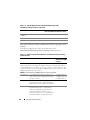
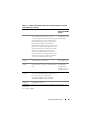
Table 3-1 shows the availability of the systems management standards for
each supported operating system.
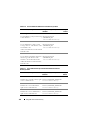
Table 3-1. Availability of Systems Management Protocol by Operating Systems
Operating System
SNMP
CIM/WMI
Supported Microsoft
Windows operating
systems.
Available from the operating system
installation media.
Always installed
Supported Red Hat
Install the SNMP package provided
Enterprise Linux operating with the operating system.
systems.
Available.
Install the CIM
packages
provided on the
Dell Systems
Management
Tools and
Documentation
DVD SFCB/SFCC/
CMPI-Devel
Supported SUSE Linux
Install the SNMP package provided
Enterprise Server operating with the operating system.
systems.
Available.
Install the CIM
packages
provided on the
Dell Systems
Management
Tools and
Documentation
DVD SFCB/SFCC/
CMPI-Devel
Windows Server 2003 R2 and the R2 IPMI Device Driver
The information in this section is applicable only to Dell PowerVault x00
systems and Dell PowerEdge x8xx systems and later.
Windows Server 2003 R2 and Windows Storage Server R2 contain an
optional component called Hardware Management. This component
contains an IPMI driver. During installation, the component installs and
enables its IPMI driver.
28
Setup and Administration
When you launch Server Administrator, it first determines if the
Windows Server 2003 R2 IPMI driver is enabled. If the driver is enabled,
Server Administrator uses the Windows Server 2003 R2 IPMI driver to
provide its IPMI-based functionality. If the Windows Server 2003 R2 IPMI
driver is not enabled, Server Administrator uses its own internal IPMI support
to provide its IPMI-based functionality. For Server Administrator, it is
recommended that you use the Windows Server 2003 R2 IPMI driver instead of
the internal IPMI support. If your system is running Windows Server 2003 R2
or Windows Storage Server R2, it is recommended that after you install Server
Administrator, you also install the optional Hardware Management component
of R2.
To install the Windows Server 2003 R2 IPMI driver on Dell PowerVault x00
systems, perform the following additional step:
•
From a command shell, execute the following command:
Rundll32 ipmisetp.dll, AddTheDevice
After installing the Hardware Management component of
Windows Server 2003 R2, restart the DSM SA Data Manager service so that
Server Administrator can switch over from using its own internal IPMI support to
using the Windows Server 2003 R2 IPMI driver. To restart the service, you can
either manually restart the service or reboot the system.
If you uninstall the Windows Server 2003 R2 IPMI driver later, either by
manually uninstalling it or by uninstalling the Hardware Management
component (which uninstalls the driver), restart the DSM SA Data Manager
service so that Server Administrator can switch over from using the Windows
Server 2003 R2 IPMI driver to using its own internal IPMI support. To restart
the service, you can either manually restart the service or reboot the system.
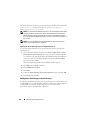
Digital Certificates
All Server Administrator packages for Microsoft are digitally signed with a
Dell certificate that helps guarantee the integrity of the installation packages.
If these packages are repackaged, edited, or manipulated in other ways,
the digital signature is invalidated. This manipulation results in an
unsupported installation package and the Prerequisite Checker does not
allow you to install the software.
Setup and Administration
29
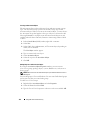
Configuring a Supported Web Browser
For a list of supported Web browsers, see "Supported Operating Systems and
Web Browsers."
NOTE: Ensure that the Web browser is configured to bypass the proxy server for
local addresses.
Viewing Localized Versions of the Web-Based Interface
Use Regional and Language Options in the Windows Control Panel to view
localized versions of the Web-based interface, on systems running Windows
operating systems.
Microsoft Active Directory
If you use Active Directory service software, you can configure it to control
access to your network. Dell has modified the Active Directory database to
support remote management authentication and authorization. Dell
OpenManage Server Administrator, IT Assistant, and Dell Remote Access
Controllers, can interface with Active Directory. With this tool, you can add
and control users and privileges from one central database. If you use Active
Directory to control user access to your network, see "Using Microsoft Active
Directory."
Configuring the SNMP Agent
Dell OpenManage software supports the SNMP systems management
standard on all supported operating systems. The SNMP support may or may
not be installed depending on your operating system and how the operating
system was installed. An installed supported systems management protocol
standard, such as SNMP, is required before installing Dell OpenManage
software. See "Installation Requirements" for more information.
You can configure the SNMP agent to change the community name, enable
Set operations, and send traps to a management station. To configure your
SNMP agent for proper interaction with management applications such as
IT Assistant, perform the procedures described in the following sections.
NOTE: The default SNMP agent configuration usually includes an SNMP
community name such as public. For security reasons, change the default SNMP
community names. For information about changing SNMP community names, see
30
Setup and Administration
the appropriate section below for your operating system. For additional guidelines,
see the Securing an SNMP Environment article, dated May 2003, in the Dell Power
Solutions magazine. This magazine is also available at
www.dell.com/powersolutions.
The following sections provide step-by-step instructions for configuring the
SNMP agent for each supported operating system:
•
Configuring the SNMP Agent for Systems Running Supported Windows
Operating Systems
•
Configuring the SNMP Agent on Systems Running Supported Red Hat
Enterprise Linux Operating Systems
•
Configuring the SNMP Agent on Systems Running Supported SUSE
Linux Enterprise Server Operating Systems
Configuring the SNMP Agent for Systems Running Supported Windows
Operating Systems
The Dell OpenManage software uses the SNMP services provided by the
Windows SNMP agent. SNMP is one of the two supported ways of
connecting to a System Administrator session; the other is CIM/WMI.
You can configure the SNMP agent to change the community name, enable
Set operations, and send traps to a management station. To configure your
SNMP agent for proper interaction with management applications such as
IT Assistant, perform the procedures described in the following sections.
NOTE: See your operating system documentation for additional details on SNMP
configuration.
Enabling SNMP Access By Remote Hosts on Windows Server 2003
Windows Server 2003, by default, does not accept SNMP packets from
remote hosts. For systems running Windows Server 2003, you must configure
the SNMP service to accept SNMP packets from remote hosts if you plan to
manage the system by using SNMP management applications from remote
hosts.
NOTE: Rebooting your system for change management functionality does not
require SNMP Set operations.
Setup and Administration
31
To enable a system running the Windows Server 2003 operating system to
receive SNMP packets from a remote host, perform the following steps:
1 Open the Computer Management window.
2 Expand the Computer Management icon in the window, if necessary.
3 Expand the Services and Applications icon and click Services.
4 Scroll down the list of services until you find SNMP Service, right-click
SNMP Service, and then click Properties.
The SNMP Service Properties window appears.
5 Click the Security tab.
6 Select Accept SNMP packets from any host, or add the IT Assistant host
to the Accept SNMP packets from these hosts list.
Changing the SNMP Community Name
Configuring the SNMP community names determines which systems are able
to manage your system through SNMP. The SNMP community name used
by management station applications must match the SNMP community
name configured on the Dell OpenManage software system so that the
management applications can retrieve systems management information
from the Dell OpenManage software.
1 Open the Computer Management window.
2 Expand the Computer Management icon in the window, if necessary.
3 Expand the Services and Applications icon and click Services.
4 Scroll down the list of services to SNMP Service, right-click SNMP
Service, and click Properties.
The SNMP Service Properties window appears.
5 Click the Security tab to add or edit a community name.
a
To add a community name, click Add under the Accepted
Community Names list.
The SNMP Service Configuration window appears.
b
Type the community name of the management station (the default is
public) in the Community Name text box and click Add.
The SNMP Service Properties window appears.
32
Setup and Administration
c
To change a community name, select a community name in the
Accepted Community Names list and click Edit.
The SNMP Service Configuration window appears.
d
Edit the community name of the management station in the
Community Name text box, and click OK.
The SNMP Service Properties window appears.
6 Click OK to save the changes.
Enabling SNMP Set Operations
Enable SNMP Set operations on the system running Dell OpenManage
software, to change Dell OpenManage software attributes using IT Assistant.
To enable remote shutdown of a system from IT Assistant, enable SNMP
Set operations.
NOTE: Rebooting your system for change management functionality does not
require SNMP Set operations.
1 Open the Computer Management window.
2 Expand the Computer Management icon in the window, if necessary.
3 Expand the Services and Applications icon, and click Services.
4 Scroll down the list of services to SNMP Service, right-click SNMP
Service, and click Properties.
The SNMP Service Properties window appears.
5 Click the Security tab to change the access rights for a community.
6 Select a community name in the Accepted Community Names list,
and then click Edit.
The SNMP Service Configuration window appears.
7 Set the Community Rights to READ WRITE or READ CREATE,
and click OK.
The SNMP Service Properties window appears.
8 Click OK to save the changes.
NOTE: In Dell OpenManage Server Administrator version 5.3 and later, SNMP Set
Operations are disabled by default in Server Administrator. Server Administrator
provides support to enable or disable SNMP Set operations. You can use the Server
Setup and Administration
33
Administrator SNMP Configuration page under Preferences or the Server
Administrator command line interface (CLI) to enable or disable SNMP Set
Operations. For more information on enabling or disabling SNMP Set operations in
Server Administrator, see the Dell OpenManage Server Administrator User’s Guide
or the Dell OpenManage Server Administrator Command Line Interface User's Guide.
Configuring Your System to Send SNMP Traps to a Management Station
The Dell OpenManage software generates SNMP traps in response to
changes in the status of sensors and other monitored parameters. You must
configure one or more trap destinations on the Dell OpenManage software
system for SNMP traps to be sent to a management station.
1 Open the Computer Management window.
2 Expand the Computer Management icon in the window, if necessary.
3 Expand the Services and Applications icon and click Services.
4 Scroll down the list of services to SNMP Service, right-click SNMP
Service, and click Properties.
The SNMP Service Properties window appears.
5 Click the Traps tab to add a community for traps or to add a trap
destination for a trap community.
a
To add a community for traps, type the community name in the
Community Name box and click Add to list, which is located next to
the Community Name box.
b
To add a trap destination for a trap community, select the community
name from the Community Name drop-down box and click Add
under the Trap Destinations box.
The SNMP Service Configuration window appears.
c
Type the trap destination and click Add.
The SNMP Service Properties window appears.
6 Click OK to save the changes.
34
Setup and Administration
Configuring the SNMP Agent on Systems Running Supported Red Hat
Enterprise Linux Operating Systems
Server Administrator uses the SNMP services provided by the ucd-snmp or
net-snmp agent. You can configure the SNMP agent to change the
community name, enable Set operations, and send traps to a management
station. To configure your SNMP agent for proper interaction with
management applications such as IT Assistant, perform the procedures
described in the following sections.
NOTE: See your operating system documentation for additional details about
SNMP configuration.
SNMP Agent Access Control Configuration
The management information base (MIB) branch implemented by Server
Administrator is identified by the 1.3.6.1.4.1.674 OID. Management station
applications must have access to this branch of the MIB tree to manage
systems running Server Administrator.
For supported Red Hat Enterprise Linux operating systems, the default
SNMP agent configuration gives read-only access for the public community
only to the MIB-II system branch (identified by the 1.3.6.1.2.1.1 OID) of the
MIB tree. This configuration does not allow management applications to
retrieve or change Server Administrator or other systems management
information outside of the MIB-II system branch.
Server Administrator SNMP Agent Install Actions
If Server Administrator detects the default SNMP configuration during
installation, it attempts to modify the SNMP agent configuration to give
read-only access to the entire MIB tree for the public community.
Server Administrator modifies the /etc/snmp/snmpd.conf SNMP agent
configuration file in two ways.
The first change is to create a view to the entire MIB tree by adding the
following line if it does not exist:
view all included .1
Setup and Administration
35
The second change is to modify the default access line to give read-only access
to the entire MIB tree for the public community. Server Administrator looks
for the following line:
access notConfigGroup "" any noauth exact systemview
none none
If Server Administrator encounters this line, it modifies the line as follows:
access notConfigGroup "" any noauth exact all none
none
These changes to the default SNMP agent configuration give read-only access
to the entire MIB tree for the public community.
NOTE: To ensure that Server Administrator is able to modify the SNMP agent
configuration to provide proper access to systems management data, it is
recommended that any other SNMP agent configuration changes be made after
installing Server Administrator.
Server Administrator SNMP communicates with the SNMP agent using the
SNMP Multiplexing (SMUX) protocol. When Server Administrator SNMP
connects to the SNMP agent, it sends an object identifier to the SNMP agent
to identify itself as a SMUX peer. Because that object identifier must be
configured with the SNMP agent, Server Administrator adds the following
line to the SNMP agent configuration file, /etc/snmp/snmpd.conf, during
installation if it does not exist:
smuxpeer .1.3.6.1.4.1.674.10892.1
Changing the SNMP Community Name
Configuring the SNMP community names determines which systems are able
to manage your system through SNMP. The SNMP community name used
by systems management applications must match an SNMP community
name configured on the Server Administrator software system, so the systems
management applications can retrieve management information from Server
Administrator.
36
Setup and Administration
To change the SNMP community name used for retrieving management
information from a system running Server Administrator, edit the SNMP
agent configuration file, /etc/snmp/snmpd.conf, and perform the following
steps:
1 Find the line that reads:
com2sec publicsec default public
or
com2sec notConfigUser default public
2 Edit this line, replacing public with the new SNMP community name.
When edited, the new line should read:
com2sec publicsec default community_name
or
com2sec notConfigUser default community_name
3 To enable SNMP configuration changes, restart the SNMP agent by
typing:
service snmpd restart
Enabling SNMP Set Operations
Enable SNMP Set operations on the system running Server Administrator in
order to change Server Administrator software attributes using IT Assistant.
To enable remote shutdown of a system from IT Assistant, enable SNMP
Set operations.
NOTE: Rebooting your system for change management functionality does not
require SNMP Set operations.
Setup and Administration
37
To enable SNMP Set operations on the system running Server Administrator,
edit the /etc/snmp/snmpd.conf SNMP agent configuration file and perform
the following steps:
1 Find the line that reads:
access publicgroup "" any noauth exact all none
none
or
access notConfigGroup "" any noauth exact all none
none
2 Edit this line, replacing the first none with all. When edited, the new
line should read:
access publicgroup "" any noauth exact all all
none
or
access notConfigGroup "" any noauth exact all all
none
3 To enable SNMP configuration changes, restart the SNMP agent by typing:
service snmpd restart
Configuring Your System to Send Traps to a Management Station
Server Administrator generates SNMP traps in response to changes in the
status of sensors and other monitored parameters. One or more trap
destinations must be configured on the system running Server Administrator
for SNMP traps to be sent to a management station.
38
Setup and Administration
To configure your system running Server Administrator to send traps to
a management station, edit the /etc/snmp/snmpd.conf SNMP agent
configuration file and perform the following steps:
1 Add the following line to the file:
trapsink IP_address community_name
where IP_address is the IP address of the management station and
community_name is the SNMP community name
2 To enable SNMP configuration changes, restart the SNMP agent by
typing:
service snmpd restart
Firewall Configuration on Systems Running Supported Red Hat Enterprise Linux
Operating Systems
If you enable firewall security when installing Red Hat Enterprise Linux,
the SNMP port on all external network interfaces is closed by default.
To enable SNMP management applications such as IT Assistant to discover
and retrieve information from Server Administrator, the SNMP port on at
least one external network interface must be open. If Server Administrator
detects that the SNMP port is not open in the firewall for any external
network interface, Server Administrator displays a warning message and logs
a message to the system log.
You can open the SNMP port by disabling the firewall, opening an entire
external network interface in the firewall, or opening the SNMP port for at
least one external network interface in the firewall. You can perform this
action before or after Server Administrator is started.
To open the SNMP port using one of the previously described methods,
perform the following steps:
1 At the Red Hat Enterprise Linux command prompt, type setup and
press <Enter> to start the Text Mode Setup Utility.
NOTE: This command is available only if you have performed a default
installation of the operating system.
The Choose a Tool menu appears.
2 Select Firewall Configuration using the down arrow and press <Enter>.
The Firewall Configuration screen appears.
Setup and Administration
39
3 Select the Security Level. The selected Security Level is indicated by an
asterisk.
NOTE: Press <F1> for more information about the firewall security levels.
The default SNMP port number is 161. If you are using the X Windows GUI,
pressing <F1> may not provide information about firewall security levels on
newer versions of the Red Hat Enterprise Linux operating system.
a
To disable the firewall, select No firewall or Disabled and go to step 7.
b
To open an entire network interface or the SNMP port, select High,
Medium, or Enabled.
4 Select Customize and press <Enter>.
The Firewall Configuration - Customize screen appears.
5 Chosse whether to open an entire network interface or just the SNMP port
on all network interfaces.
a
To open an entire network interface, select one of the Trusted Devices
and press the spacebar. An asterisk in the box to the left of the device
name indicates that the entire interface is opened.
b
To open the SNMP port on all network interfaces, select Other ports
and type snmp:udp.
6 Select OK and press <Enter>.
The Firewall Configuration screen appears.
7 Select OK and press <Enter>.
The Choose a Tool menu appears.
8 Select Quit and press <Enter>.
Configuring the SNMP Agent on Systems Running Supported SUSE Linux
Enterprise Server Operating Systems
Server Administrator uses the SNMP services provided by the ucd-snmp or
net-snmp agent. You can configure the SNMP agent to enable SNMP access
from remote hosts, change the community name, enable Set operations, and
send traps to a management station. To configure your SNMP agent for
proper interaction with systems management applications such as
IT Assistant, perform the procedures described in the following sections.
40
Setup and Administration
NOTE: On SUSE Linux Enterprise Server (version 10), the SNMP agent
configuration file is located at /etc/snmp/snmpd.conf.
NOTE: See your operating system documentation for additional details about
SNMP configuration.
Sever Administrator SNMP Install Actions
Server Administrator SNMP communicates with the SNMP agent using the
SNMP Multiplexing (SMUX) protocol. When Server Administrator SNMP
connects to the SNMP agent, it sends an object identifier to the SNMP agent
to identify itself as a SMUX peer. Since the object identifier must be
configured with the SNMP agent, Server Administrator adds the following
line to the SNMP agent configuration file, /etc/snmpd.conf or
/etc/snmp/snmpd.conf, during installation if it does not exist:
smuxpeer .1.3.6.1.4.1.674.10892.1
Enabling SNMP Access From Remote Hosts
The default SNMP agent configuration on SUSE Linux Enterprise Server
operating systems gives read-only access to the entire MIB tree for the public
community from the local host only. This configuration does not allow
SNMP management applications such as IT Assistant running on other hosts
to discover and manage Server Administrator systems properly. If Server
Administrator detects this configuration during installation, it logs a message
to the operating system log file, /var/log/messages, to indicate that SNMP
access is restricted to the local host. You must configure the SNMP agent to
enable SNMP access from remote hosts if you plan to manage the system by
using SNMP management applications from remote hosts.
NOTE: For security reasons, it is advisable to restrict SNMP access to specific
remote hosts if possible.
Setup and Administration
41
To enable SNMP access from a specific remote host to a system running
Server Administrator, edit the SNMP agent configuration file,
/etc/snmpd.conf or /etc/snmp/snmpd.conf, and perform the following steps:
1 Find the line that reads:
rocommunity public 127.0.0.1
2 Edit or copy this line, replacing 127.0.0.1 with the remote host IP address.
When edited, the new line should read:
rocommunity public IP_address
NOTE: You can enable SNMP access from multiple specific remote hosts by
adding a rocommunity directive for each remote host.
3 To enable SNMP configuration changes, restart the SNMP agent by
typing:
/etc/init.d/snmpd restart
To enable SNMP access from all remote hosts to a system running Server
Administrator, edit the SNMP agent configuration file, /etc/snmpd.conf or
/etc/snmp/snmpd.conf, and perform the following steps:
1 Find the line that reads:
rocommunity public 127.0.0.1
2 Edit this line by removing 127.0.0.1. When edited, the new line should
read:
rocommunity public
3 To enable SNMP configuration changes, restart the SNMP agent
by typing:
/etc/init.d/snmpd restart
Changing the SNMP Community Name
Configuring the SNMP community name determines which systems are able
to manage your system through SNMP. The SNMP community name used
by management applications must match an SNMP community name
configured on the Server Administrator system, so the management
applications can retrieve management information from Server
Administrator.
42
Setup and Administration
To change the default SNMP community name used for retrieving
management information from a system running Server Administrator, edit
the SNMP agent configuration file, /etc/snmpd.conf or
/etc/snmp/snmpd.conf, and perform the following steps:
1 Find the line that reads:
rocommunity public 127.0.0.1
2 Edit this line by replacing public with the new SNMP community
name. When edited, the new line should read:
rocommunity community_name 127.0.0.1
3 To enable SNMP configuration changes, restart the SNMP agent by
typing:
/etc/init.d/snmpd restart
Enabling SNMP Set Operations
Enable SNMP Set operations on the system running Server Administrator in
order to change Server Administrator attributes using IT Assistant. To enable
remote shutdown of a system from IT Assistant, enable SNMP Set
operations.
NOTE: Rebooting your system for change management functionality does not
require SNMP Set operations.
To enable SNMP Set operations on the system running Server Administrator,
edit the SNMP agent configuration file, /etc/snmpd.conf or
/etc/snmp/snmpd.conf, and perform the following steps:
1 Find the line that reads:
rocommunity public 127.0.0.1
2 Edit this line by replacing rocommunity with rwcommunity. When
edited, the new line should read:
rwcommunity public 127.0.0.1
3 To enable SNMP configuration changes, restart the SNMP agent by
typing:
/etc/init.d/snmpd restart
Setup and Administration
43
Configuring Your System to Send Traps to a Management Station
Server Administrator generates SNMP traps in response to changes in the
status of sensors and other monitored parameters. One or more trap
destinations must be configured on the system running Server Administrator
for SNMP traps to be sent to a management station.
To configure your system running Server Administrator to send traps to a
management station, edit the SNMP agent configuration file,
/etc/snmpd.conf or /etc/snmp/snmpd.conf, and perform the following steps:
1 Add the following line to the file:
trapsink IP_address community_name
where IP_address is the IP address of the management station and
community_name is the SNMP community name.
2 To enable SNMP configuration changes, restart the SNMP agent by
typing:
/etc/init.d/snmpd restart
Secure Port Server and Security Setup
This section contains the following topics:
•
Setting User and Server Preferences
•
X.509 Certificate Management
Setting User and Server Preferences
You can set user and secure port server preferences for Server Administrator
and IT Assistant from the respective Preferences Web page. Click General
Settings and click either the User tab or Web Server tab.
NOTE: You must be logged in with Administrator privileges to set or reset user or
server preferences.
Perform the following steps to set up your user preferences:
1 Click Preferences on the global navigation bar.
The Preferences home page appears.
2 Click General Settings.
44
Setup and Administration
3 To add a preselected e-mail recipient, type the e-mail address of your
designated service contact in the Mail To: field, and click Apply Changes.
NOTE: Clicking Email in any window sends an e-mail message with an
attached HTML file of the window to the designated e-mail address.
4 To change the home page appearance, select an alternative value in the
skin or scheme fields and click Apply Changes.
Perform the following steps to set up your secure port server preferences:
1 Click Preferences on the global navigation bar.
The Preferences home page appears.
2 Click General Settings, and the Web Server tab.
3 In the Server Preferences window, set options as necessary.
•
The Session Timeout feature can set a limit on the amount of time
that a session can remain active. Select the Enable radio button to
allow a time-out if there is no user interaction for a specified number
of minutes. Users whose sessions time-out must log in again to
continue. Select the Disable radio button to disable the Server
Administrator session time-out feature.
•
The HTTPS Port field specifies the secure port for Server
Administrator. The default secure port for Server Administrator is
1311.
NOTE: Changing the port number to an invalid or in-use port number may
prevent other applications or browsers from accessing Server Administrator
on the managed system.
•
The IP Address to Bind to field specifies the IP address(es) for the
managed system that Server Administrator binds to when starting a
session. Select the All radio button to bind to all IP addresses applicable
for your system. Select the Specific radio button to bind to a specific
IP address.
NOTE: A user with Administrator privileges cannot use Server Administrator
when logged into the system remotely.
NOTE: Changing the IP Address to Bind to value to a value other than All may
prevent other applications or browsers from remotely accessing Server
Administrator on the managed system.
Setup and Administration
45
•
The SMTP Server name and DNS Suffix for SMTP Server fields
specify your organization's Simple Mail Transfer Protocol (SMTP) and
domain name server (DNS) suffix. To enable Server Administrator to
send e-mails, you must type the IP address and DNS suffix for the
SMTP server for your organization in the appropriate fields.
NOTE: For security reasons, your organization might not allow e-mails to be
sent through the SMTP server to outside accounts.
•
The Command Log Size field specifies the largest file size in MB for
the command log file.
•
The Support Link field specifies the Web address for the business
entity that provides support for your managed system.
•
The Custom Delimiter field specifies the character used to separate
the data fields in the files created using the Export button. The ;
character is the default delimiter. Other options are !, @, #, $, %, ^,
*, ~, ?, :,|, and ,.
4 When you finish setting options in the Server Preferences window, click
Apply Changes.
X.509 Certificate Management
Web certificates are necessary to ensure the identity of a remote system and
ensure that information exchanged with the remote system cannot be viewed
or changed by others. To ensure system security, it is strongly recommended
that you either generate a new X.509 certificate, reuse an existing
X.509 certificate, or import a root certificate or certificate chain from a
Certification Authority (CA).
NOTE: You must be logged in with Administrator privileges to perform certificate
management.
You can manage X.509 certificates for Server Administrator and IT Assistant
from the respective Preferences Web page. Click General Settings, select the
Web Server tab, and click X.509 Certificate. Use the X.509 certificate tool to
either generate a new X.509 certificate, reuse an existing X.509 certificate, or
import a root certificate or certificate chain from a CA. Authorized CAs
include Verisign, Entrust, and Thawte.
46
Setup and Administration
Best Practices for X.509 Certificate Management
To ensure that the security of your system is not compromised while using
server administrator, you should keep in mind the following:
•
Unique host name - All systems that have server administrator installed
should have unique host names.
•
Change 'localhost' to unique - All systems with host name set to 'localhost'
should be changed to a unique host name.
Setup and Administration
47
48
Setup and Administration
4
Deployment Scenarios for Server
Administrator
You can install Dell OpenManage Server Administrator in the following ways:
•
Install the Server Administrator Web Server on any system (Dell
PowerEdge system, laptop, or desktop) and the Server Instrumentation on
another supported Dell PowerEdge system
In this method, the Server Administrator Web Server performs the
function of a central Web Server and you can use it to monitor a number
of managed systems. Using this method reduces the Server Administrator
footprint on the managed systems.
•
Continue to install the Server Administrator Web Server and the Server
Instrumentation on the same system
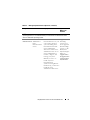
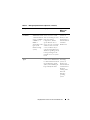
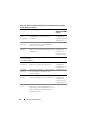
Table 4-1 lists the deployment scenarios for installing and using Server
Administrator and helps you make the right choice while selecting the various
installation options:
Table 4-1. Deployment Scenarios
You want to
Select
Remotely manage and monitor your
Server Administrator Web Server. You
entire network of managed systems
must then install Server Instrumentation
from your system (which maybe a laptop, on the managed systems.
desktop, or server).
Manage and monitor your current system. Server Administrator Web Server +
Server Instrumentation.
Manage and monitor your current system Remote Enablement
using some other remote system.
For systems running on Microsoft
Windows, Remote Enablement is under
the Server Instrumentation option. You
must then install the Server Administrator
Web Server on the remote system.
Deployment Scenarios for Server Administrator
49
Table 4-1. Deployment Scenarios (continued)
You want to
Select
View the status of local and remote
storage attached to a managed system
and obtain storage management
information in an integrated
graphical view.
Storage Management.
Remotely access an inoperable system,
receive alert notifications when a system
is down, and remotely restart a system.
Remote Access Controller.
NOTE: Install the SNMP agent on your managed system using your operating
system medium before installing the managed system software.
Server Administrator Components on Managed
System
The setup program provides both, a Custom Setup option and a Typical Setup
option.
The custom setup option enables you to select the software components you
want to install. Table 4-2 lists the various managed system software
components that you can install during a custom installation. For details
about the custom setup option, see the "Custom Installation."
Table 4-2. Managed System Software Components
Component
What is Installed
Deployment Scenario
Systems on
Which to be
Installed
Server
Administrator
Web Server
Web-based
systems
management
functionality that
allows you to
manage systems
locally or remotely
Install only the Server
Administrator Web Server
if you want to remotely
monitor the managed
system from your system.
You need not have
physical access to the
managed system.
Any system.
For example,
laptops,
desktops, or Dell
PowerEdge
systems.
50
Deployment Scenarios for Server Administrator
Table 4-2. Managed System Software Components (continued)
Component
What is Installed
Deployment Scenario
Systems on
Which to be
Installed
NOTE: If you want to remotely manage multiple systems running on Windows and Linux
operating systems, it is recommended that you install the Server Administrator Web
Sever on a Windows operating system.
Server
Server
Instrumentation Administrator
CLI +
Instrumentation
Service
Install Server
Instrumentation to use your
system as the managed
system. Installing Server
Instrumentation and the
Server Administrator
Web Server installs Server
Administrator. You can use
Server Administrator to
monitor, configure, and
manage your system.
Note: If you choose to
install only Server
Instrumentation
(without selecting Remote
Enablement), you must also
install the Server
Administrator Web Server.
Supported Dell
PowerEdge
systems. For a
list of supported
Dell PowerEdge
systems, see the
Dell Systems
Software Support
Matrix on
support.dell.co
m/support/edocs
/software/omswr
els/index.htm.
Deployment Scenarios for Server Administrator
51
Table 4-2. Managed System Software Components (continued)
Component
What is Installed
Deployment Scenario
Systems on
Which to be
Installed
Storage
Management
Server
Administrator
Storage
Management
Install the Storage
Management to implement
hardware RAID solutions
and configure the storage
components attached to
your system. For more
information on the Storage
Management, see the
Dell OpenManage Server
Administrator Storage
Management User’s Guide
in the docs directory or on
support.dell.com/support/e
docs/software/omswrels/ind
ex.htm.
Only those
systems on
which you have
installed Server
Instrumentation
or Remote
Enablement.
Remote
Enablement
Server
Administrator
CLI +
Instrumentation
Service + CIM
Provider
Install Remote Enablement
to perform remote systems
management tasks. You can
install Remote Enablement
on your system and install
only the Server
Administrator Web Server
on another system (say,
system X). You can then use
system X to remotely
monitor and manage your
system. You can use system
X to manage any number of
systems on which Remote
Enablement is installed.
Supported
Dell PowerEdge
systems. For a
list of supported
Dell PowerEdge
systems, see the
Dell Systems
Software Support
Matrix on
support.dell.co
m/support/edocs
/software/omswr
els/index.htm.
52
Deployment Scenarios for Server Administrator
Table 4-2. Managed System Software Components (continued)
Component
What is Installed
Deployment Scenario
Systems on
Which to be
Installed
Remote Access
Controller
Server
Administrator CLI
+ Instrumentation
Service + iDRAC
or DRAC 5, or
DRAC 4
(depending on the
type of your
Dell PowerEdge
system)
Install Remote Access
Service to receive e-mail
alerts for warnings or errors
related to voltages,
temperatures, and fan
speeds. Remote Access
Service also logs event data
and the most recent crash
screen (available only on
systems running Microsoft
Windows operating system)
to help you diagnose the
probable cause of a system
crash.
Only those
systems on
which you have
installed Server
Instrumentation
or Remote
Enablement.
Intel SNMP
Agent
Intel SNMP Agent Install this SNMP agent to
enable Server Administrator
to obtain information about
Network Interface Cards
(NICs). This SNMP agent
helps identify the NICs.
Only on Dell
PowerEdge
systems on
which Server
Instrumentation
is installed and
which are
running on the
Microsoft
Windows
operating
system.
Deployment Scenarios for Server Administrator
53
Table 4-2. Managed System Software Components (continued)
Component
What is Installed
Deployment Scenario
Systems on
Which to be
Installed
Broadcom
SNMP Agent
Broadcom SNMP
Agent
Install this SNMP agent to
enable Server Administrator
to obtain information about
NICs. This SNMP agent
helps identify the NICs.
Only on Dell
PowerEdge
systems on
which Server
Instrumentation
is installed and
which are
running on the
Microsoft
Windows
operating
system.
54
Deployment Scenarios for Server Administrator
Installing Managed System
Software on Microsoft Windows
Operating Systems
5
Overview
This section contains the procedure to install managed system software on
systems running Microsoft Windows operating systems.
On Microsoft Windows operating systems, an autorun utility appears when
you insert the Dell Systems Management Tools and Documentation DVD.
This utility allows you to choose the systems management software you want
to install on your system.
If the autorun program does not start automatically, use the setup program in
the SYSMGMT\srvadmin\windows directory on the Dell Systems
Management Tools and Documentation DVD. You can uninstall the features
through the operating system. See the Dell Systems Software Support Matrix
for a list of operating systems currently supported.
Unattended and Scripted Silent Installation
You can use the Dell Systems Management Tools and Documentation DVD to
perform an unattended and scripted silent installation of the managed system
software. Additionally, you can install and uninstall the features from the
command line.
Installing Managed System Software on Microsoft Windows Operating Systems
55
Installation Procedures Prerequisite Checker
NOTE: If you want to use supporting agents for the Simple Network Management
Protocol (SNMP), you must install the operating system support for the SNMP
standard before or after you install Server Administrator. For more information
about installing SNMP, see the installation instructions for the operating system you
are running on your system.
The setup program (located at \SYSMGMT\srvadmin\windows) starts the
Prerequisite Checker program. The Prerequisite Checker program examines
the prerequisites for software components without launching the actual
installation. This program displays a status window that provides information
about your system’s hardware and software that may affect the installation
and operation of software features.
The Prerequisite Checker displays three types of messages: informational,
warning, and error.
An informational message describes a condition, but does not prevent a
feature from being installed.
A warning message describes a condition that prevents a software product
from being installed during a Typical installation. It is recommended that you
resolve the condition causing the warning before proceeding with the
installation of that software. If you decide to continue, you can select and
install the software using the Custom installation. For example, if an Intel
Network Interface Card (NIC) is not detected on the system, the following
message is displayed:
An Intel(R) NIC was not detected on this system.
This will disable the "Typical" installation of
the Intel(R) SNMP Agent.
Use the "Custom" installation setup type later
during installation to select this feature if you
have an Intel(R) NIC installed.
56
Installing Managed System Software on Microsoft Windows Operating Systems
An error message describes a condition that prevents the software feature
from being installed. You must resolve the condition causing the error before
proceeding with the installation of the software feature. If you do not resolve
the issue, the software feature is not installed.
Use the RunPreReqChecks.exe /s command (at
\SYSMGMT\srvadmin\windows\PreReqChecker) to run the prerequisite
check silently. For more information, see "Prerequisite Checker."
Remote Enablement Requirements
To install the Remote Enablement feature, the following must be configured
on your system:
•
Windows Remote Management (WinRM)
•
CA/Self-Signed Certificate
•
WinRM HTTPS Listener Port
•
Authorization for WinRM and Windows Management
Instrumentation (WMI) Servers
Installing WinRM
Install WinRM version 1.1 if you are using the Windows Server 2003
operating system. You can download and install WinRM version 1.1 from
microsoft.com/downloads/details.aspx?familyid=845289ca-16cc-4c73-8934dd46b5ed1d33&displaylang=en
On Windows Server 2008 R2 and Windows 7, WinRM version 2.0 is installed
by default. WinRM version 1.1 is installed by default on Windows Server
2008.
Certificate Authority - Signed/Self-Signed Certificate
You need a certificate signed by the Certificate Authority (CA) or a
self-signed certificate to install and configure the Remote Enablement
feature on your system. It is recommended that you use a certificate signed by
the CA. You can also use the SelfSSL tool to generate self-signed certificates.
Installing Managed System Software on Microsoft Windows Operating Systems
57
Using a Certificate Signed by the CA
1 Requesting a Valid CA Signed Certificate
2 Creating the HTTPS Listener With the Valid CA Signed Certificate
Requesting a Valid CA Signed Certificate
1 Click Start Run.
2 Type mmc and click OK.
3 Click File Add/Remove Snap-in.
4 Select the certificate and shift it to the right side.
5 In the new dialog box, select Computer Account, click Next, and then
click Finish.
6 Click OK.
7 Expand Certificates from the newly-added tree.
8 Right-click Personal, select All tasks Request New Certificate.
9 Click Next.
10 Select the appropriate certificate type, Mostly (Computer) and click
Enroll.
11 Click Finish.
Creating the HTTPS Listener With the Valid CA Signed Certificate
Run the installer and click the link on the prerequisite checker to create the
HTTPS listener.
Using the SelfSSL Tool to Generate Self-signed Certificates
1 Creating a Certificate
2 Adding a Certificate and Taking a Thumbprint
3 Creating the WinRM HTTPS Listener
4 Configuring the Envelope Size for WinRM
58
Installing Managed System Software on Microsoft Windows Operating Systems
Creating a Certificate
1 Download IIS Resource Kit from
microsoft.com/downloads/details.aspx?FamilyID=56fc92ee-a71a-4c73b628-ade629c89499&displaylang.
2 Run iis60rkt.exe.
3 Click Next.
4 Select I Agree in the End-User License Agreement screen and click Next.
5 Click Next.
6 In the Select Type screen, select Custom and click Next.
7 Click Next.
8 In the Select Features screen, select SelfSSL 1.0 and click Next.
9 Click Next.
10 Click Finish.
The SelfSSl is installed.
11 Click Start Programs IIS Resource SelfSSL SelfSSL.
12 Type
selfssl /T /N:CN=<computer_name or domain_name>.
Adding a Certificate and Taking a Thumbprint
If Internet Information Service (IIS) is already installed on your system, then
the value of CertificateThumbprint must be an empty string and you
need not perform the steps in this section. For example:
winrm create winrm/config/Listener?Address=
*+Transport=HTTPS @{Hostname=
"<host_name>";CertificateThumbprint=""}
1 Click Start Run.
2 Type mmc and click OK.
3 Click File Add/Remove Snap-in.
4 Click Add.
5 Choose Certificates and click Add.
6 Select Computer account option and click Next.
Installing Managed System Software on Microsoft Windows Operating Systems
59
7 Select Local Computer and click Finish.
8 Click Close.
9 Click OK.
10 In the Console screen, expand Certificates (Local Computer) in the left
navigation pane.
11 Expand Personal.
12 Select Certificates.
13 In the right-hand pane, double-click the required certificate.
The Certificate screen displays.
14 Click Details tab.
15 Select Thumbprint.
Copy the thumbprint to the clipboard. You can use this parameter while
creating the HTTPS listener.
16 Click OK.
Creating the WinRM HTTPS Listener
To enable the HTTPS listener on WinRM, type the following command:
winrm create winrm/config/Listener?Address=
*+Transport=HTTPS @{Hostname=
"<host_name>";CertificateThumbprint=
"6e132c546767bf16a8acf4fe0e713d5b2da43013"}
If you are using Windows Server 2008 Small Business Server, leave the value
of CertificateThumbprint blank as follows:
winrm create winrm/config/Listener?Address=
*+Transport=HTTPS @{Hostname=
"<host_name>";CertificateThumbprint=""}
NOTE: Ensure that the values of the Hostname and
CertificateThumbprint are correct.
The HTTP listener is enabled by default and listens at port 80.
60
Installing Managed System Software on Microsoft Windows Operating Systems
Configuring User Authorization for WinRM and WMI Servers
To provide access rights to WinRM and WMI services, users must be
explicitly added with the appropriate access levels.
NOTE: To configure user authorization
- For WinRM and WMI Servers, you must login with administrator privileges .
- For Windows Server 2008 operating system flavours, you must login with built-in
administrator privileges
NOTE: The administrator is configured by default.
WinRM:
1 Click Start and click Run.
2 Type winrm configsddl and click OK.
If you are using WinRM version 2.0, type winrm configsddl
default.
3 Click Add and add the required users or groups (local/domain) to the list.
4 Provide the appropriate permission(s) to the respective users and click OK.
WMI:
1 Click Start and Click Run.
2 Type wmimgmt.msc and click OK.
The Windows Management Infrastructure (WMI) screen displays.
3 Right-click on the WMI Control (Local) node in the left pane and click
Properties.
The WMI Control (Local) Properties screen displays.
4 Click Security and expand the Root node in the namespace tree.
5 Navigate to Root DCIM sysman.
6 Click Security.
The Security screen displays.
Installing Managed System Software on Microsoft Windows Operating Systems
61
7 Click Add and add the required users or groups (local/domain) to the list.
8 Provide the appropriate permission(s) to the respective users and click OK.
9 Click OK.
10 Close the Windows Management Infrastructure (WMI) screen.
Configuring the Windows Firewall for WinRM
1 Open the Control Panel.
2 Click Windows Firewall.
3 Click the Exceptions tab.
4 Select the Windows Remote Management check box. If you do not
see the check box, click the Add Program button to add Windows Remote
Management.
Configuring the Envelope Size for WinRM
1 Open a command prompt.
2 Type winrm g winrm/config.
3 Check the value of the MaxEnvelopeSizekb attribute. If the value is
less than 4608, type the following command:
winrm s winrm/config @{MaxEnvelopeSizekb="4608"}
4 Set the value of MaxTimeoutms to 3 minutes:
winrm s winrm/config @{MaxTimeoutms ="180000"}
On WinRM version 2.0, enable the compatibility mode for WinRM version
2.0 to use port 443. WinRM version 2.0 uses port 5986 by default. To enable
the compatibility mode, use the following command:
winrm s winrm/config/Service
@{EnableCompatibilityHttpsListener="true"}
62
Installing Managed System Software on Microsoft Windows Operating Systems
Installing and Upgrading Server Administrator
This section explains how to install the Server Administrator using two
installation options:
•
Using the setup program at \SYSMGMT\srvadmin\windows on the
Dell Systems Management Tools and Documentation DVD to install Server
Administrator and other managed system software.
•
Using the unattended installation method through the Windows Installer
Engine msiexec.exe (see Table 5-1) to install Server Administrator and other
managed system software on multiple systems.
NOTE: Simple Network Management Protocol (SNMP) service are stopped and
started during Systems Management Installation and uninstallation. As a result,
services like DSM IT Assistant Connection Service, DSM IT Assistant Network
Monitor and other third party services, dependent on SNMP stops. IT Assistant
services is started at the end of Systems Management Installation or uninstallation,
if the third party services are stopped, these services needs to be manually
restarted.
NOTE: For modular systems, you must install Server Administrator on each server
module installed in the chassis.
NOTE: After you have installed Server Administrator on PowerEdge 800, 830, 850,
and 1800 systems, you may be prompted to reboot your system if you have chosen to
install the Storage Management Service.
NOTE: During installation of Server Administrator on supported Windows systems,
if an Out of Memory error message displays, you must exit the installation and free
up memory. Close other applications or perform any other task that frees up
memory, before re-attempting Server Administrator installation.
The setup program invokes the Prerequisite Checker, which uses your
system's PCI bus to search for installed hardware such as controller cards.
The Dell OpenManage installer features a Typical Setup option and a
Custom Setup option for installing Server Administrator and other managed
system software.
For information on the various components of Server Administrator available
in Dell OpenManage and to help you choose the required components to
install, see "Deployment Scenarios for Server Administrator."
Installing Managed System Software on Microsoft Windows Operating Systems
63
Typical Installation
When you launch the Server Administrator installation from the Prerequisite
Checker and select the Typical Setup option, the setup program installs the
following managed system software features:
•
Server Administrator Web Server
•
Server Instrumentation
•
Remote Access Controller
•
Intel SNMP Agent
•
Broadcom SNMP Agent.
During a Typical installation, individual management station services are not
installed on managed systems that do not meet the specific hardware and
software requirements for that service. For example, the Dell OpenManage
Server Administrator Remote Access Controller service software module is
not installed during a Typical installation unless the managed system has a
remote access controller installed on it. You can, however, go to Custom
Setup and select the Remote Access Controller software module for
installation.
NOTE: The Remote Enablement feature is available only through the Custom Setup
option.
NOTE: Server Administrator installation also installs some of the required
Visual C++ runtime components on your system.
Custom Installation
The sections that follow show how to install Server Administrator and other
managed system software using the Custom Setup option.
NOTE: Management station and managed system services can be installed in the
same or in different directories. You can select the directory for installation.
1 Log on with built-in administrator privileges to the system on which you
want to install the system management software.
2 Close all open applications and disable any virus-scanning software.
3 Insert the Dell Systems Management Tools and Documentation DVD into
your system's DVD drive. The autorun menu appears.
64
Installing Managed System Software on Microsoft Windows Operating Systems
4 Select Dell OpenManage Server Administrator from the autorun menu
and click Install.
If the autorun program does not start automatically, go to the
SYSMGMT\srvadmin\windows directory on the DVD, and run the
setup.exe file.
The Dell OpenManage Server Administrator prerequisite status screen
appears and runs the prerequisite checks for the managed system. Any
relevant informational, warning, or error messages are displayed. Resolve
all error and warning situations, if any.
5 Click the Install, Modify, Repair, or Remove Server Administrator option.
The Welcome to the Install Wizard for Dell OpenManage Server
Administrator screen appears.
6 Click Next.
The Dell Software License Agreement appears.
7 Click I accept the terms in the license agreement and Next if you agree.
The Setup Type dialog box appears.
8 Select Custom and click Next.
The Custom Setup dialog box appears.
See Table 4-1and Table 4-2 to help you select the Server Administrator
components for your system.
If you are installing Server Administrator on a non-Dell PowerEdge system,
the installer displays only the Server Administrator Web Server option.
A selected feature has a hard drive icon depicted next to it. A deselected
feature has a red X depicted next to it. By default, if the Prerequisite
Checker finds a software feature with no supporting hardware, the checker
deselects them.
To accept the default directory path to install managed system software,
click Next. Otherwise, click Change and navigate to the directory where
you want to install your managed system software, and click OK. You are
returned to the Custom Setup dialog box.
9 Click Next to accept the selected software features for installation.
The Ready to Install the Program dialog box appears.
Installing Managed System Software on Microsoft Windows Operating Systems
65
NOTE: You can cancel the installation process by clicking Cancel.
The installation rolls back the changes that you made. If you click Cancel after
a certain point in the installation process, the installation may not roll back
properly, leaving the system with an incomplete installation. See "System
Recovery on Failed Installation."
10 Click Install to install the selected software features.
The Installing Dell OpenManage Server Administrator screen appears
and provides the status and progress of the software features being
installed. After the selected features are installed, the Install Wizard
Completed dialog box appears.
11 Click Finish to exit the Server Administrator installation.
If you are prompted to reboot your system, reboot it to make the installed
managed system software services available for use. If you are prompted to
reboot your system, select a reboot option:
•
Yes, reboot my system now.
•
No, I will reboot my system later.
NOTE: If you have selected Remote Enablement during installation, an error
message "A provider, WinTunnel, has been registered in the Windows Management
Instrumentation namespace ROOT\dcim\sysman to use the LocalSystem account.
This account is privileged and the provider may cause a security violation if it does
not correctly impersonate user requests." is logged in Windows Event Log. You can
safely ignore this message and continue with installation.
Server Administrator Installation With Citrix Application Server
Citrix remaps all your hard drive letters when installed. For example, if you
install Server Administrator on drive C: and then install Citrix, it may change
your drive letter C: to M:. Server Administrator may not work properly
because of the remapping.
In order to avoid this problem, select one of these options:
Option 1:
1 Uninstall Server Administrator.
2 Install Citrix.
3 Reinstall Server Administrator.
66
Installing Managed System Software on Microsoft Windows Operating Systems
Option 2:
After installing Citrix, type the following command:
msiexec.exe /fa SysMgmt.msi
Upgrading Managed System Software
The Dell OpenManage installer provides an Upgrade option for upgrading
Server Administrator and other managed system software.
The setup program runs the Prerequisite Checker, which uses your system's
PCI bus to search for installed hardware, such as controller cards.
The setup program installs or upgrades all of the managed system software
features that are appropriate for your particular system's hardware
configuration.
CAUTION: Dell OpenManage Array Manager is no longer supported. If you are
upgrading a system (installed with Dell OpenManage version 5.0 or later) with
Array Manager installed, Array Manager is removed during the upgrade process.
You can use the Storage Management Service instead.
NOTE: All user settings are preserved during upgrades.
The following procedures show how to upgrade Server Administrator and
other managed system software.
Upgrading Guidelines
•
You can upgrade to the latest version of Dell OpenManage Server
Administrator from any of the previous three versions. For example,
upgrade to Dell OpenManage Server Administrator 6.5 is supported only
for Dell OpenManage Server Administrator versions 6.1 and later.
•
Upgrading from Server Administrator versions earlier than version 6.1 to
version 6.5 is not supported. For older versions, uninstall the existing
Server Administrator and reinstall the latest Server Administrator.
NOTE: Uninstalling Server Administrator deletes its user settings. Re-install Server
Administrator and apply the user settings.
•
When upgrading an operating system to a major version, uninstall the
existing OpenManage software and reinstall the latest OpenManage
software. When upgrading only to an update level change (for example,
Installing Managed System Software on Microsoft Windows Operating Systems
67
Red Hat Enterprise Linux 5 Update 4 to Red Hat Enterprise Linux 5
Update 5), upgrade to the latest OpenManage software; all user settings
are preserved.
NOTE: Uninstalling OpenManage software deletes its user settings. Re-install
OpenManage software and apply the user settings.
•
If you have installed Server Administrator Web Server version 6.5, ensure
that you install Server Instrumentation version 6.5 on your managed
system. Accessing an earlier version of Server Administrator using Server
Administrator Web Server version 6.5 may display an error.
Upgrade
1 Insert the Dell Systems Management Tools and Documentation DVD into
your system's DVD drive. The autorun menu appears.
2 Select Dell OpenManage Server Administrator and click Install.
If the autorun program does not start automatically, go to the
SYSMGMT\srvadmin\windows directory on the DVD, and run the
setup.exe file.
The Dell OpenManage Server Administrator prerequisite status screen
appears and runs the prerequisite checks for the managed station. Any
relevant informational, warning, or error messages are displayed.
3 Click the Install, Modify, Repair, or Remove Server Administrator option.
The Welcome to the Install Wizard for Dell OpenManage Server
Administrator screen appears.
4 Click Next.
The Dell Software License Agreement appears.
5 Click I accept the terms in the license agreement and Next if you agree.
The Setup Type dialog box appears.
6 Continue the installation as mentioned in the custom installation section
from "step 8" onwards.
68
Installing Managed System Software on Microsoft Windows Operating Systems
Modify
If you want to add/remove Server Administrator components:
1 Navigate to the Windows Control Panel.
2 Double-click Add/Remove Programs.
3 Click Dell OpenManage Server Administrator and click Change.
The Welcome to the Install Wizard for Dell OpenManage Server
Administrator dialog box appears.
4 Click Next.
The Program Maintenance dialog box appears.
5 Select the Modify option and click Next.
The Custom Setup dialog box appears.
6 To select a specific managed system software application, click on the
drop-down arrow beside the listed feature and select either This feature
will be installed… to install the feature, or This feature will not be
available to ignore the feature.
A selected feature has a hard drive icon depicted next to it. A deselected
feature has a red X next to it. By default, if the Prerequisite Checker finds a
software feature with no supporting hardware, the checker deselects the
feature.
7 Click Next to accept the selected software features for installation.
The Ready to Modify the Program dialog box appears.
8 Click Install to install the selected software features.
The Installing Dell OpenManage Server Administrator screen appears.
Messages give the status and progress of the software features being
installed.
When the selected features are installed, the Install Wizard Completed
dialog box appears.
9 Click Finish to exit the Server Administrator installation.
If you are prompted to reboot your system, you must do so to make the
installed managed system software services available for use. If you are
prompted to reboot your system, select a reboot option:
Installing Managed System Software on Microsoft Windows Operating Systems
69
•
Yes, reboot my system now.
•
No, I will reboot my system later.
NOTE: If you run the installer from another system and try to add a component
using the Modify option, the installer may display an error. A corrupt source on the
system that you run the installer from may have caused the error. You can verify this
by checking the following registry entry:
HKLM\Software\Classes\Installer\Products\<GUID>\sourcelist\lastusedsource. If
the value of lastusedsource is a negative number, it means that the source is
corrupt.
Repair
If you want to repair an installed Server Administrator component that may
be damaged:
1 Navigate to the Windows Control Panel.
2 Double-click Add/Remove Programs.
3 Click Dell Server Administrator and click Change.
The Welcome to the Install Wizard for Dell OpenManage Server
Administrator dialog box appears.
4 Click Next.
The Program Maintenance dialog box appears.
5 Select the Repair option and click Next.
The Ready to Repair the Program dialog box appears.
6 Click Install to install the selected software features.
The Installing Dell OpenManage Server Administrator screen appears.
Messages provide the status and progress of the software features being
installed.
When the selected features are installed, the Install Wizard Completed
dialog box appears.
7 Click Finish to exit the Server Administrator installation.
If you are prompted to reboot your system, select a reboot option:
70
•
Yes, reboot my system now.
•
No, I will reboot my system later.
Installing Managed System Software on Microsoft Windows Operating Systems
System Recovery on Failed Installation
The Microsoft Software Installer (MSI) provides the ability to return a system
to its fully working condition after a failed installation. MSI does this by
maintaining an undo operation for every Standard Action it performs during
an install, upgrade, or uninstall. This operation includes restoration of deleted
or overwritten files, registry keys, and other resources. Windows temporarily
saves any files that it deletes or overwrites during the course of an installation
or removal, so they can be restored if necessary, which is a type of rollback.
After a successful installation finishes, Windows deletes all of the temporary
backup files.
In addition to the rollback of MSI Standard Actions, the Dell OpenManage
library also has the ability to undo commands listed in the INI file for each
application if a rollback occurs. All files that are modified by the Dell
OpenManage installation actions are restored to their original state if
a rollback occurs.
When the MSI engine is going through the installation sequence, it ignores
all actions that are scheduled as rollback actions. If a Custom Action,
MSI Standard Action, or a Dell OpenManage installation action fails, then a
rollback starts.
An installation cannot be rolled back once it is completed; transacted
installation is only intended as a safety net that protects the system during
an installation session. If you want to remove an installed application,
for instance, you should simply uninstall that application.
NOTE: Driver installation and removal is not executed as part of the installation
transaction and therefore cannot be rolled back if a fatal error occurs during
execution.
NOTE: Installations, uninstallations, and upgrades that you cancel during installer
cleanup, or after the installation transaction is completed, are not rolled back.
Installing Managed System Software on Microsoft Windows Operating Systems
71
Failed Updates
MSI patches and updates provided by vendors must be applied to the original
vendor MSI packages provided. If you intentionally or accidentally repackage
an MSI package, or make changes to it directly, patches and updates might
fail. MSI packages must not be repackaged; doing so changes the feature
structure and GUIDs, which break any provided patches or updates. When it
is necessary to make any changes to a vendor-provided MSI package, a .mst
transform file should always be used to do so.
Windows Installer Logging
Windows includes a registry-activated logging service to help diagnose
Windows Installer issues. To enable this logging service during a silent install,
open the registry editor and create the following path and keys:
HKEY_LOCAL_MACHINE\Software\Policies\Microsoft\Window
s\Installer
Reg_SZ: Logging
Value: voicewarmup
The letters in the value field can be in any order. Each letter turns on a
different logging mode. Each letter's actual function is as follows for MSI
version 3.1:
v - Verbose output
o - Out-of-disk-space messages
i - Status messages
c - Initial UI parameters
e - All error messages
w - Non-fatal warnings
a - Startup of actions
r - Action-specific records
m - Out-of-memory or fatal exit information
u - User requests
p - Terminal properties
+ - Append to existing file
! - Flush each line to the log
"*" - Wildcard, log all information except for the v option. To include the
v option, specify "/l*v".
72
Installing Managed System Software on Microsoft Windows Operating Systems
Once activated, you can find the log files that are generated in your
%TEMP% directory. Some log files generated in this directory are:
•
Managed System Installation
–
•
SysMgmt.log
Management Station Installation
–
MgmtSt.log
These particular log files are created by default if the Prerequisite Checker
user interface (UI) is running.
Performing an Unattended Installation of
Managed System Software
The Dell OpenManage installer features a Typical Setup option and a
Custom Setup option for the unattended installation procedure.
Unattended installation enables you simultaneously to install Server
Administrator on multiple systems. You can perform an unattended
installation by creating an unattended installation package that contains all
of the necessary managed system software files. The unattended installation
option also provides several features that enable you to configure, verify,
and view information about unattended installations.
The unattended installation package is distributed to the remote systems
using a software distribution tool from an independent software vendor (ISV).
When the package is distributed, the installation script executes to install the
software.
Creating and Distributing the Typical Unattended Installation Package
The Typical Setup unattended installation option uses the Dell Systems
Management Tools and Documentation DVD as the unattended installation
package. The msiexec.exe /i SysMgmt.msi /qb command accesses
the DVD to accept the software license agreement and install all
required Server Administrator features on selected remote systems.
The msiexec.exe /i SysMgmt.msi /qb command installs Server
Administrator features on each remote system based on the system's hardware
configuration.
Installing Managed System Software on Microsoft Windows Operating Systems
73
NOTE: After an unattended installation is complete, in order to use the command
line interface (CLI) feature of Server Administrator, you must open a new console
window and execute CLI commands from there. Executing CLI commands from the
same console window in which Server Administrator was installed does not work.
You can make the DVD image available to the remote system by either
distributing the entire contents of the media, or by mapping a drive from the
target system to the location of the DVD image.
Mapping a Drive to Act as the Typical Unattended Installation Package
1 Share an image of the Dell Systems Management Tools and Documentation
DVD with each remote system on which you want to install Server
Administrator.
You can accomplish this task by directly sharing the DVD or by copying the
entire DVD to a drive and sharing the copy.
2 Create a script that maps a drive from the remote systems to the shared
drive described in step 1. This script should execute msiexec.exe
/i Mapped Drive\SYSMGMT\srvadmin\windows\
SystemsManagement\SysMgmt.msi /qb after the drive has
been mapped.
3 Configure your ISV distribution software to distribute and execute the
script created in step 2.
4 Distribute this script to the target systems by using your ISV software
distribution tools.
The script executes to install Server Administrator on each remote system.
5 Reboot each remote system to enable Server Administrator.
74
Installing Managed System Software on Microsoft Windows Operating Systems
Distributing the Entire DVD as the Typical Unattended Installation Package
1 Distribute the entire image of the Dell Systems Management Tools and
Documentation DVD to your target systems.
2 Configure your ISV distribution software to execute the
msiexec.exe /i DVD
Drive\SYSMGMT\srvadmin\windows\SystemsManagement\
SysMgmt.msi /qb command from the DVD image.
The program executes to install Server Administrator on each
remote system.
3 Reboot each remote system to enable Server Administrator.
Creating and Distributing Custom Unattended Installation Packages
To create a custom unattended installation package, perform the following
steps:
1 Copy the SYSMGMT\srvadmin\windows directory from the DVD to the
system hard drive.
2 Create a batch script that executes the installation using the Windows
Installer Engine (msiexec.exe).
NOTE: For Customized Unattended Installation, each required feature must
be included as a command line interface (CLI) parameter for it to be installed.
An example is msiexec.exe /i SysMgmt.msi ADDLOCAL=
SA,IWS,BRCM /qb. (See "Customization Parameters" for more details
and available feature identifications.)
3 Place the batch script in the windows directory on the system hard drive.
Installing Managed System Software on Microsoft Windows Operating Systems
75
Distributing Custom Unattended Installation Packages
NOTE: The SysMgmt.msi installation package for Server Administrator used in the
Custom Setup unattended installation (see "Creating and Distributing Custom
Unattended Installation Packages") is located in the
SYSMGMT\srvadmin\windows\SystemsManagement directory in the DVD.
1 Configure your ISV distribution software to execute the batch script once
your installation package has been distributed.
2 Use your ISV distribution software to distribute the custom unattended
installation package to the remote systems.
The batch script installs Server Administrator along with specified features
on each remote system.
3 Reboot each remote system to enable Server Administrator.
Specifying Log File Locations
For managed system MSI installation, run the following command to perform
an unattended installation while specifying the log file location:
msiexec.exe /i SysMgmt.msi /l*v
"C:\openmanage\logs\SysMgmt.log"
Unattended Installation Features
Unattended installation provides the following features:
76
•
A set of optional command line settings to customize an unattended
installation
•
Customization parameters to designate specific software features for
installation
•
A Prerequisite Checker program that examines the dependency status of
selected software features without having to perform an actual installation
Installing Managed System Software on Microsoft Windows Operating Systems
Optional Command Line Settings
Table 5-1 shows the optional settings available for the msiexec.exe MSI
installer. Type the optional settings on the command line after msiexec.exe
with a space between each setting.
NOTE: See support.microsoft.com for full details about all the command line
switches for the Windows Installer Tool.
Table 5-1. Command Line Settings for MSI Installer
Setting
Result
This command installs or configures a product.
/i
<Package|Product /i SysMgmt.msi – Installs the Server Administrator
Code>
software.
/i SysMgmt.msi
/qn
This command carries out a fresh installation of version 6.1.
This command uninstalls a product.
/x
<Package|Product /x SysMgmt.msi – Uninstalls the Server Administrator
Code>
software.
/q[n|b|r|f]
This command sets the user interface (UI) level.
/q or /qn – no UI. This option is used for silent and
unattended installation.
/qb – basic UI. This option is used for unattended but
not silent installation.
/qr – reduced UI. This option is used for unattended
installation while displaying a modal dialog box showing
install progress.
/qf – full UI. This option is used for standard
attended installation.
Installing Managed System Software on Microsoft Windows Operating Systems
77
Table 5-1. Command Line Settings for MSI Installer (continued)
Setting
Result
/f[p|o|e|d|c|a|u This command repairs a product.
|m|s|v]<Package| /fp – This option reinstalls a product only if a file is
ProductCode>
missing.
/fo – This option reinstalls a product if a file is missing or
if an older version of a file is installed.
/fe – This option reinstalls a product if a file is missing or
an equal or older version of a file is installed.
/fd – This option reinstalls a product if a file is missing or
a different version of a file is installed.
/fc – This option reinstalls a product if a file is missing or the
stored checksum value does not match the calculated value.
/fa – This option forces all files to be reinstalled.
/fu – This option rewrites all required user-specific
registry entries.
/fm – This option rewrites all required system-specific
registry entries.
/fs – This option overwrites all existing shortcuts.
/fv – This option runs from the source and re-caches the
local package. Do not use the /fv reinstall option for the
first installation of an application or feature.
INSTALLDIR=<path>
This command installs a product to a specific location. If
you specify an install directory with this switch, it must be
created manually prior to executing the CLI install
commands or they fail with no error or message as to why
they failed.
/i SysMgmt.msi INSTALLDIR=c:\OpenManage
/qn – installs a product to a specific location using
c:\OpenManage as the install location.
For example, running msiexec.exe /i SysMgmt.msi /qn installs
Server Administrator features on each remote system based on the system's
hardware configuration. This installation is done silently and unattended.
78
Installing Managed System Software on Microsoft Windows Operating Systems
Customization Parameters
NOTE: Type the REINSTALL, and REMOVE CLI parameters in upper case, as they are
case-sensitive.
REINSTALL and REMOVE customization CLI parameters provide a way to
customize the exact software features to install, reinstall, or uninstall when
running silently or unattended. With the customization parameters, you can
selectively install, reinstall, or uninstall software features for different systems
using the same unattended installation package. For example, you can choose
to install Server Administrator, but not Remote Access Controller service on a
specific group of servers, and choose to install Server Administrator, but not
Storage Management Service, on another group of servers. You can also
choose to uninstall one or multiple features on a specific group of servers.
NOTE: The software feature IDs mentioned in Table 5-2 are case-sensitive.
Table 5-2. Software Feature IDs
Feature ID
Description
ALL
All features
BRCM
Broadcom NIC Agent
INTEL
Intel NIC Agent
IWS
Dell OpenManage Server Administrator
Web Server
OMSM
Server Administrator Storage
Management Service
RmtMgmt
Remote Enablement
RAC4
Remote Access Controller (DRAC 4)
RAC5
Remote Access Controller (DRAC 5)
iDRAC
Integrated Dell Remote Access Controller
SA
Server Administrator
NOTE: Only iDRAC6 is supported on xx1x systems.
Installing Managed System Software on Microsoft Windows Operating Systems
79
You can include the REINSTALL customization parameter on the command
line and assign the feature ID (or IDs) of the software feature that you would
like to reinstall. An example is
msiexec.exe /i SysMgmt.msi REINSTALL=BRCM /qb.
This command runs the installation for Dell OpenManage Systems
Management and reinstall only the Broadcom agent, in an unattended but
not silent mode.
You can include the REMOVE customization parameter on the command
line and assign the feature ID (or IDs) of the software feature that you would
like to uninstall. An example is
msiexec.exe /i SysMgmt.msi REMOVE=BRCM /qb.
This command runs the installation for Dell OpenManage Systems
Management and uninstalls only the Broadcom agent, in an unattended but
not silent mode.
You can also choose to install, reinstall, and uninstall features with one
execution of the msiexec.exe program. An example is
msiexec.exe /i SysMgmt.msi REMOVE=BRCM /qb
This command runs the installation for managed system software, and uninstalls
the Broadcom agent. This execution is in an unattended but not silent mode.
NOTE: A Globally Unique Identifier (GUID) is 128 bits long, and the algorithm used
to generate a GUID guarantees each GUID to be unique. The product GUID uniquely
identifies the application. In this case, the product GUID for Server Administrator is
{54C04D53-C3C3-46EA-A75F-7AFF4BEB727C}.
80
Installing Managed System Software on Microsoft Windows Operating Systems
MSI Return Code
An application event log entry is recorded in the SysMgmt.log file. Table 5-3
shows some of the error codes returned by the msiexec.exe Windows Installer
Engine.
Table 5-3. Windows Installer Return Codes
Error Code
Value
Description
ERROR_SUCCESS
0
The action is completed
successfully.
ERROR_INVALID_PARAMETER
87
One of the parameters was
invalid.
ERROR_INSTALL_USEREXIT
1602 The user canceled the
installation.
ERROR_SUCCESS_REBOOT_REQUIRED
3010 A restart is required to
complete the installation.
This message is indicative of a
successful installation.
NOTE: See support.microsoft.com for full details on all the error codes returned by
the msiexec.exe and InstMsi.exe Windows Installer functions.
Uninstalling Managed System Software
You can uninstall managed system software features by using the Dell Systems
Management Tools and Documentation DVD, or your operating system.
Additionally, you can simultaneously perform an unattended uninstallation
on multiple systems.
Uninstalling Managed System Software Using Dell-provided Media
1 Insert the Dell Systems Management Tools and Documentation DVD into
your system's DVD drive.
If the setup program does not start automatically, run the setup.exe in the
SYSMGMT\srvadmin\windows directory on the DVD.
The Dell OpenManage Server Administrator prerequisite status screen
appears and runs the prerequisite checks for the managed system. Any
Installing Managed System Software on Microsoft Windows Operating Systems
81
relevant informational, warning, or error messages detected during
checking are displayed.
2 Click the Install, Modify, Repair, or Remove Server Administrator option.
The Welcome to the Install Wizard for Dell OpenManage Server
Administrator screen appears.
3 Click Next.
The Program Maintenance dialog box appears.
This dialog enables you to modify, repair, or remove the program.
4 Select the Remove option and click Next.
The Remove the Program dialog box appears.
5 Click Remove.
The Uninstalling Dell OpenManage Server Administrator screen appears
and provides the status and progress of the software features being
uninstalled.
When the selected features are uninstalled, the Install Wizard Completed
dialog box appears.
6 Click Finish to exit the Server Administrator uninstallation.
If you are prompted to reboot your system, you must reboot your system in
order for the uninstallation to be successful. If you are prompted to reboot
your system, select a reboot option:
•
Yes, reboot my system now.
•
No, I will reboot my system later.
All Server Administrator features are uninstalled.
82
Installing Managed System Software on Microsoft Windows Operating Systems
Uninstalling Managed System Software Features Using the Operating
System
1 Navigate to the Windows Control Panel.
2 Double-click Add/Remove Programs.
3 Click Dell OpenManage Server Administrator and click Remove.
The Add or Remove Programs dialog box appears.
4 Click Yes to confirm uninstallation of Server Administrator.
The Dell OpenManage Server Administrator screen appears and provides
the status and progress of the software features being uninstalled.
If you are prompted to reboot your system, you must do so in order for the
uninstallation to be successful. If you are prompted to reboot your system,
select a reboot option:
•
Yes, reboot my system now.
•
No, I will reboot my system later.
All Server Administrator features are uninstalled.
Unattended Uninstall Using the Product GUID
If you do not have the installation DVD or the MSI package available during
an uninstallation, you can use the following command line to uninstall
Dell OpenManage systems management software on managed systems or
management stations running Windows. For these cases, you can use the
package GUIDs to uninstall the product.
For managed systems, use this command:
msiexec.exe /x {54C04D53-C3C3-46EA-A75F-7AFF4BEB727C}
Performing an Unattended Uninstallation of Managed System Software
The Dell OpenManage installer features an unattended uninstallation
procedure. Unattended uninstallation enables you simultaneously to
uninstall managed systems software from multiple systems. The unattended
uninstallation package is distributed to the remote systems using a software
distribution tool from an ISV. When the package is distributed,
the uninstallation script executes to uninstall the software.
Installing Managed System Software on Microsoft Windows Operating Systems
83
Distributing the Unattended Uninstallation Package
The Dell Systems Management Tools and Documentation DVD is
pre-configured to act as the unattended uninstallation package. To distribute
the package to one or more systems, perform the following steps:
1 Configure your ISV distribution software to execute the
msiexec.exe /x DVD
Drive\SYSMGMT\srvadmin\windows\SystemsManagement\
SysMgmt.msi /qb command, if you are using the DVD, after the
unattended uninstallation package has been distributed.
2 Use your ISV distribution software to distribute the Typical unattended
uninstallation package to the remote systems.
The program executes to uninstall managed systems software on each
remote system.
3 Reboot each remote system to complete the uninstallation process.
Unattended Uninstall Command Line Settings
Table 5-1 shows the unattended uninstall command line settings available for
unattended uninstallation. Type the optional settings on the command line
after msiexec.exe /x SysMgmt.msi with a space between each setting.
For example, running msiexec.exe /x SysMgmt.msi /qb runs the
unattended uninstallation, and displays the unattended installation status
while it is running.
Running msiexec.exe /x SysMgmt.msi /qn runs the unattended
uninstallation, but silently (without display windows).
84
Installing Managed System Software on Microsoft Windows Operating Systems
Managed System Software Installation Using
Third-Party Deployment Software
You can use third-party deployment software, such as Altiris Deployment
Solution, to install managed systems software onto supported Dell systems.
To distribute and install Server Administrator using Altiris, start your Altiris
application and import OpenManage_Jobs.bin located at
SYSMGMT\srvadmin\support\Altiris on the Dell Systems Management Tools
and Documentation DVD. Specify a job folder into which to import
OpenManage_Jobs.bin. You might need to modify the Run Script and Copy
File tasks to match your deployment environment. When complete, you can
then schedule your job to run on the supported Dell systems that are
managed from within your Altiris Deployment Solution.
Installing Managed System Software on Microsoft Windows Operating Systems
85
86
Installing Managed System Software on Microsoft Windows Operating Systems
Installing Dell OpenManage
Software On Microsoft
Windows Server 2008 Core and
Microsoft Hyper-V Server
6
The Server Core installation option of the Microsoft Windows Server 2008
and Hyper-V Server operating system provides a minimal environment for
running specific server roles that reduces the maintenance and management
requirements and the attack surface for those server roles. A Windows Server
2008 Core or Hyper-V Server installation installs only a subset of the binaries
that are required by the supported server roles. For example, the Explorer
shell is not installed as part of a Windows Server 2008 Core or Hyper-V Server
installation. Instead, the default user interface for a Windows Server 2008
Core or Hyper-V Server installation is the command prompt.
NOTE: Windows Server 2008 Core or Hyper-V Server operating system does not
support a graphical user interface (GUI) based installation of Dell OpenManage
software components. You need to install OpenManage software in the Command
Line Interface (CLI) mode on Server Core. For more information on Server Core see
microsoft.com.
NOTE: On Windows 7, to install the systems management software successfully,
you must be logged in using an account which belongs to the "Administrators
Group" and the setup.exe should be executed using the option "Run as
administrator" on the right click menu.
NOTE: You have to be logged on as a built-in Administrator to install systems
management software on Windows Server 2008 and Windows Vista. See the
Windows Server 2008 Help for information about the built-in Administrator account.
Installing Dell OpenManage Software On Windows Server 2008
87
Installing Managed System and Management
Station Software
This section provides instructions on installing managed system and
management station software on Windows Server 2008 Core or
Hyper-V Server operating system, in the CLI mode.
Running PreReqChecker In CLI Mode
Run the PreReqChecker before you install Dell OpenManage software.
See "Prerequisite Checker" for more information on running Prerequisite
Checker in the CLI mode.
On Windows Server 2008 Core or Hyper-V Server, as a GUI is not available,
you need run the pre-requisite checker in the CLI mode.
•
Managed System Software: Type runprereqchecks.exe /s in the
command prompt. The file runprereqchecks.exe is located at
SYSMGMT\srvadmin\windows\prereqchecker on the Dell Systems
Management Tools and Documentation DVD.
NOTE: A negative return code (-1 through -10) indicates a failure in running
the prerequisite checker tool itself. Probable causes for negative return codes
include software policy restrictions, script restrictions, lack of folder
permissions, and size constraints. See "Return Codes While Running the
Prerequisite Check Silently," for more information on PreReqChecker
return codes.
NOTE: If you encounter a return value of 2 or 3, it is recommended that you
inspect the omprereq.htm file in the windows temporary folder %TEMP%.
To find %TEMP%, run the echo %TEMP% command.
NOTE: omprereq.htm is an html file. Transfer this file to another computer
with a browser installed to read this file.
Common causes for a return value of 2 from the prerequisite checker:
88
•
One of your storage controllers or drivers has outdated firmware or driver.
See firmwaredriverversions_<lang>.html (where <lang> stands for
language) or firmwaredriverversions.txt found in the %TEMP% folder.
To find %TEMP%, run the echo %TEMP% command.
•
RAC component software version 4 is not selected for a default install
unless the device is detected on the system. The prerequisite checker
generates a warning message in this case.
Installing Dell OpenManage Software On Windows Server 2008
•
Intel and Broadcom agents are selected for a default install only if the
corresponding devices are detected on the system. If the corresponding
devices are not found, prerequisite checker generates a warning message.
•
DNS or WINS server running on your system can cause a warning
condition for RAC software. See the relevant section in Server
Administrator readme for more information.
•
Do not install managed system and management station RAC
components on the same system. Install only the managed system RAC
components, as they offer the required functionality.
Common causes for a return code of 3 (failure) from the prerequisite checker:
•
You are not logged in with built-in Administrator privileges.
•
The MSI package is corrupt or one of the required XML files are corrupt.
•
Error during copying from a DVD and network access problems while
copying from a network share.
•
Prerequisite checker detects that another MSI package installation is
currently running or that a reboot is pending:
HKEY_LOCAL_MACHINE\\SOFTWARE\\Microsoft\Windows\Current
Version\Installer\InProgress indicates another MSI package installation is in
progress.
HKEY_LOCAL_MACHINE\\SYSTEM\\CurrentControlSet\\Control\
\Session Manager\\PendingFileRenameOperations indicates that a
reboot is pending.
•
Running the 64-bit version of Windows Server 2008 Core, since some of
the components are disabled from being installed.
Ensure that any error or warning situation is corrected before you proceed to
install Dell OpenManage software components.
Installing Managed System Software In CLI Mode
1 Ensure that all errors or warnings that PreReqChecker detects are
corrected before you install managed system components.
2 Launch the MSI file from the command prompt using the command
msiexec /i SysMgmt.msi The MSI file SysMgmt.msi is located at
SYSMGMT\srvadmin\windows\SystemsManagement on the Dell Systems
Management Tools and Documentation DVD.
Installing Dell OpenManage Software On Windows Server 2008
89
To install the localized version of the managed system software, type
msiexec /I SysMgmt.msi TRANSFORMS=
<languauge_transform>.mst in the command prompt. Replace
<language_transform>.mst with the appropriate language file:
•
1031.mst (German)
•
1034.mst (Spanish)
•
1036.mst (French)
•
1041.mst (Japanese)
•
2052.mst (Simplified Chinese)
NOTE: See "Command Line Settings for MSI Installer," for more information on
optional, command line settings for the MSI installer.
Uninstalling Systems Management Software
To uninstall managed system software, execute the msiexec /x
sysmgmt.msi command in the command prompt.
90
Installing Dell OpenManage Software On Windows Server 2008
Installing Managed System
Software on Supported Linux
Operating Systems
7
The Dell OpenManage installer supports both 32-bit and 64-bit architecture.
The following table explains the operating system installation matrix for Dell
OpenManage.
Table 7-1. Operating System Installation Matrix for Dell OpenManage
Operating System
Architecture
OpenManage 32-bit Architecture
OpenManage 64-bit
Architecture
Red Hat Enterprise I/UP
Linux 5 32-bit
NS
Red Hat Enterprise UP (Upgrade is supported from
Linux 5 64-bit
N-2 and N-3)
I/UP (Upgrade is supported
from N-1)
Red Hat Enterprise NS
Linux 6 64-bit
I
SUSE Linux
Enterprise Server
(SLES) 10 64-bit
UP (Upgrade is supported from
N-2 and N-3)
I/UP (Upgrade is supported
from N-1)
SUSE Linux
Enterprise Server
(SLES) 11 64-bit
UP (Upgrade is supported from
N-2 and N-3)
I/UP (Upgrade is supported
from N-1)
ESX 4.0 64-bit
I/UP
NS
ESX 4.1 64-bit
I/UP
NS
UP - Upgrade; I/UP - Install or Upgrade; I - Install; NS - Not supported
NOTE: On a Dell OpenManage upgrade, it is recommended that you upgrade to the
latest open source components available on the DVD.
NOTE: With scripted installation using srvadmin-install.sh OR Yum repository
based installations, the srvadmin-cm RPM that provides 32-bit Inventory Collector
does not get installed on a 64-bit OM. Inventory Collector utility feeds software
Installing Managed System Software on Supported Linux Operating Systems
91
inventory data to management station applications like ITA. If required, srvadmincm package can be installed from appropriate subfolders under
SYSMGMT/srvadmin/linux/RPMS/supportRPMS/srvadmin from the Dell Systems
Management Tools and Documentation DVD. Since srvadmin-cm RPM requires 32bit version of zlib and compat-libstdc++ libraries, ensure that these libraries are
installed on the system.
NOTE: If you are upgrading the operating system to a major version (example, SLES
10 to SLES 11), uninstall the existing version of Dell OpenManage and install the
supported version.
NOTE: Before you migrate to a 64-bit version of Dell OpenManage software,
uninstall the 32-bit Dell OpenManage that is installed and other OpenSource
components (openwsman-server, openwsman-client, libwsman1, sblim-sfcb, sblimsfcc, libcmpiCppImpl0, libsmbios2, smbios-utils-bin) installed as part of 32-bit Dell
OpenManage
The installation scripts and RPM packages specific to your operating system
are provided to install and uninstall Dell OpenManage Server Administrator
and other managed system software components. These installation scripts
and RPMs are located in the SYSMGMT/srvadmin/linux/ directory in the
Dell Systems Management Tools and Documentation DVD.
The install script srvadmin-install.sh allows silent or interactive installation.
By including the srvadmin-install.sh script in your Linux scripts, you can
install Server Administrator on single or multiple systems and locally or across
a network.
The second install method uses the Server Administrator RPM packages
provided in the custom directories and the Linux rpm command. You can
write Linux scripts that install Server Administrator on a single or multiple
systems locally or across a network.
Using a combination of the two install methods is not recommended and may
require that you manually install required Server Administrator RPM
packages provided in the custom directories, using the Linux rpm command.
For information on supported platforms and supported operating systems, see
the Dell Systems Software Support Matrix at
support.dell.com/support/edocs/software/omswrels/index.htm.
92
Installing Managed System Software on Supported Linux Operating Systems
Software License Agreement
The software license for the Red Hat Enterprise Linux and SUSE Linux
Enterprise Server version of the Dell OpenManage software is located on the
Dell Systems Management Tools and Documentation DVD. Read the license.txt
file. By installing or copying any of the files on the Dell-provided media, you
are agreeing to the terms found in this file. This file is also copied to the root of
the software tree where you choose to install the Dell OpenManage software.
Server Administrator Device Drivers
Server Administrator includes two device drivers for Linux: Systems
Management Base Driver (dcdbas) and BIOS Update Driver (dell_rbu).
Server Administrator uses these drivers to perform its systems management
functions on supported Linux operating systems. Depending on the system,
Server Administrator loads one or both of these drivers if required.
The device drivers for Linux have been released as open source under the
GNU General Public License v2.0. They are available in Linux kernels from
kernel.org starting with kernel 2.6.14.
If the Server Administrator drivers are available with the operating system,
Server Administrator uses those versions of the drivers. If the Server
Administrator drivers are not available with the operating system, Server
Administrator uses its Dynamic Kernel Support (DKS) feature to build the
drivers when needed. For more information about DKS, see the "Dynamic
Kernel Support" section.
Dynamic Kernel Support
Server Administrator includes DKS, a feature that Server Administrator uses
to build its device drivers automatically for a running kernel if needed.
If you see the following message during Server Administrator Device Drivers
startup, then Server Administrator has attempted to use its DKS feature,
but was unable to use the feature because certain prerequisites were not met:
Building <driver> using DKS... [FAILED]
where <driver> is dcdbas or dell_rbu
NOTE: Server Administrator logs messages to the /var/log/messages log file.
Installing Managed System Software on Supported Linux Operating Systems
93
To use DKS, identify which kernel is running on the managed system, and
check the DKS prerequisites.
Determining the Running Kernel
1 Log in as root.
2 Type the following command at a console and press <Enter>:
uname -r
The system displays a message identifying the running kernel.
Dynamic Kernel Support Prerequisites
For managed system software to use DKS, the following dependencies must
be met before starting Server Administrator.
•
The running kernel must have loadable module support enabled.
•
The source for building kernel modules for the running kernel must be
available from /lib/modules/`uname –r`/build. On systems running SUSE
Linux Enterprise Server, the kernel-source RPM provides the necessary
kernel source. On systems running Red Hat Enterprise Linux, the kernel devel RPMs provide the necessary kernel source for building kernel
modules.
•
The GNU make utility must be installed. The make RPM provides this
utility.
•
The GNU C compiler (gcc) must be installed. The gcc RPM provides this
compiler.
•
The GNU linker (ld) must be installed. The binutils RPM provides this
linker.
When these prerequisites have been met, DKS automatically builds a device
driver when needed during Server Administrator startup.
Using Dynamic Kernel Support After Server Administrator Installation
To enable Server Administrator to support a kernel that is not supported by
a precompiled device driver and is loaded after Server Administrator has been
installed, perform the following steps: Ensure that the DKS prerequisites are
met on the system to be managed and boot the new kernel on the system.
94
Installing Managed System Software on Supported Linux Operating Systems
Server Administrator builds a device driver for the kernel running on the
system the first time that Server Administrator starts after the kernel is loaded.
By default, Server Administrator starts during system startup.
Copying a Dynamically Built Device Driver to Systems Running the
Same Kernel
When Server Administrator dynamically builds a device driver for the
running kernel, it installs the device driver into the
/lib/modules/<kernel>/kernel/drivers/firmware directory, where <kernel> is
the kernel name (returned by typing uname -r). If you have a system
running the same kernel for which a device driver was built, you can copy the
newly built device driver to the /var/omsa/dks/<kernel> directory on the other
system for use by Server Administrator. This action allows Server
Administrator to use DKS on multiple systems without having to install the
kernel source on every system.
An example is the following scenario: System A is running a kernel that is not
supported by one of the Server Administrator precompiled device drivers.
System B is running the same kernel. Perform the following steps to build a
device driver on system A and copy the device driver to system B for use by
Server Administrator:
1 Ensure that the DKS prerequisites are met on system A.
2 Start Server Administrator on system A.
Server Administrator builds a device driver for the kernel running on
system A during startup.
3 Type uname -r on system A to determine the name of the running
kernel.
4 Copy any dcdbas.* or dell_rbu.* files in the
/lib/modules/<kernel>/kernel/drivers/firmware directory on system A to
the /var/omsa/dks/<kernel> directory on system B, where <kernel> is the
kernel name returned by typing uname -r in step 3.
NOTE: The /lib/modules/<kernel>/kernel/drivers/firmware directory may
contain one or more of the following files: dcdbas.* or dell_rbu.*
NOTE: You might have to create the /var/omsa/dks/<kernel> directory on
system B. For example, if the kernel name is 1.2.3-4smp, you can create the
directory by typing: mkdir -p /var/omsa/dks/1.2.3-4smp
Installing Managed System Software on Supported Linux Operating Systems
95
5 Start Server Administrator on system B.
Server Administrator detects that the device driver you copied to the
/var/omsa/dks/<kernel> directory supports the running kernel and uses
that device driver.
NOTE: When you have uninstalled Server Administrator from system B, the
/var/omsa/dks/<kernel>/*. files that you copied to system B are not removed.
You must remove the files if they are no longer needed.
OpenIPMI Device Driver
The Server Instrumentation feature of Server Administrator requires the
OpenIPMI device driver that provides IPMI-based information and
functionality.
All supported Linux systems contain the required version of IPMI module in
the default kernel itself. You do not need to install the IPMI RPM. For more
information on supported systems, see the Dell Systems Software Support
Matrix available at
support.dell.com/support/edocs/software/omswrels/index.htm.
Degradation of Functionality When the Server Administrator
Instrumentation Service is Started
After Server Administrator is installed, the Server Administrator
Instrumentation Service performs a run-time check of the OpenIPMI device
driver whenever it is started. The Server Administrator Instrumentation
Service is started whenever you run either the srvadmin-services.sh start or
srvadmin-services.sh restart commands, or you restart the system (during
which the Server Administrator Instrumentation Service is started).
Server Administrator installation blocks the installation of Server
Administrator packages if an appropriate version of the OpenIPMI device
driver is not currently installed on the system. However, it is still possible,
though not typical, that you can uninstall or replace a sufficient version of the
OpenIPMI device driver after Server Administrator has been installed. Server
Administrator cannot prevent this.
To account for a user uninstalling or replacing a sufficient version of the
OpenIPMI device driver after Server Administrator has been installed, the
Server Administrator Instrumentation Service checks the OpenIPMI device
driver version whenever it is started. If a sufficient version of the OpenIPMI
96
Installing Managed System Software on Supported Linux Operating Systems
device driver is not found, the Server Administrator Instrumentation Service
degrades itself so that it does not provide any of its IPMI-based information
or functionality. Primarily, this means that it does not provide any probe data
(for example, fans, temperatures, and voltage probe data).
Installing Managed System Software
This section explains how to install managed system software using the
following installation options:
•
Using the srvadmin-install.sh shell script
NOTE: If you have downloaded the managed system software installer
(available as a .tar.gz file) from support.dell.com, the srvadmin-install.sh shell
script is present as setup.sh in the root directory.
•
Using the RPM command
For information on the various components of Server Administrator available
in Dell OpenManage version 6.5 and to help you choose the required
components to install, see "Deployment Scenarios for Server Administrator".
Prerequisites for Installing Managed System Software
•
You must be logged in as root.
•
The running kernel must have loadable module support enabled.
•
The /opt directory must have at least 250 MB of free space, and the /tmp,
/etc, and /var directories must each have at least 20 MB of free space.
•
The ucd-snmp or net-snmp package that is provided with the operating
system must be installed if you use SNMP to manage your server. If you
want to use supporting agents for the ucd-snmp or net-snmp agent,
you must install the operating system support for the SNMP standard
before you install Server Administrator. For more information about
installing SNMP, see the installation instructions for the operating system
you are running on your system.
NOTE: When installing RPM packages, to avoid warnings concerning the
RPM–GPG key, import the key with a command similar to the following:
rpm --import <OM DVD mountpoint>/SYSMGMT/srvadmin/
linux/RPM-GPG-KEY
Installing Managed System Software on Supported Linux Operating Systems
97
•
In case of Red Hat Enterprise Linux 6, install the wsman and sblim
packages from the operating system DVD. To install these packages:
a
In the Package selection screen, select Basic Server.
b
Select Customize now and click Next.
c
Select the System Management group
d
From the sub-category, select the Web-based Enterprise Management
Optional Packages option.
The default selected packages are:
•
openwsman-client
•
sblim-sfcb
•
sblim-wbemcli
•
wsmancli
Deselect the sblim-wbemcli package from the above list.
e
Select the openwsman-server and click Next.
f
After the operating system installation, install the below packages
from the operating system DVD or through yum utility:
•
•
libcmpiCppImpl0
Install all the prerequisite RPMs required for successful installation.
If your system had VMware ESX (version 4 or 4.1) factory-installed, Red Hat
Enterprise Linux (versions 5.x and 6), or SUSE Linux Enterprise Server
(version 10 and 11), see the "Dependent RPMs for Remote Enablement"
section for information on any RPMs that you need to manually install
prior to installing managed system software. Typically, you may not need to
manually install any RPMs.
Installing Managed System Software Using Dell-Provided Media
The Dell OpenManage installer uses RPMs to install each component.
The media (DVD) is divided into subdirectories to enable easy custom
installation.
NOTE: On the Red Hat Enterprise Linux 5.x operating system, DVDs are automounted with the -noexec mount option. This option does not allow you to run any
executable from the DVD. Manually mount the DVD and then run executables.
98
Installing Managed System Software on Supported Linux Operating Systems
To review the software before you install it, follow this procedure:
1 Load the Dell Systems Management Tools and Documentation DVD into
your system's DVD drive.
2 Mount the DVD, if required.
3 When you have mounted the DVD, navigate to:
<mount point>/SYSMGMT/srvadmin/linux/
The installation script and RPM folder are available under the linux
directory.
Express Install
Use the provided shell script to perform the express installation.
NOTE: On the Red Hat Enterprise Linux 5.x operating system, DVDs are
auto-mounted with the -noexec mount option. This option does not allow you to run
any executable from the DVD. Manually mount the DVD and then run executables.
1 Log on as root to the system running the supported operating system
where you want to install the managed system components.
2 Insert the Dell Systems Management Tools and Documentation DVD into
the DVD drive.
3 Mount the DVD, if required.
4 Navigate to <mount point>/SYSMGMT/srvadmin/linux/supportscripts
directory.
5 Run the srvadmin-install.sh shell script as shown below, which performs an
express installation. The setup program installs following the managed
system software features:
•
Server Administrator Web Server
•
Server Instrumentation
•
Storage Management
•
Remote Access Controller
sh srvadmin-install.sh --express
or
sh srvadmin-install.sh -x
Server Administrator services do not start automatically.
Installing Managed System Software on Supported Linux Operating Systems
99
NOTE: The 32-bit srvadmin-cm RPM is not installed when OpenManage is installed
on a 64-bit operating system.
If required, the srvadmin-cm package can be installed from the appropriate
subfolders under SYSMGMT/srvadmin/linux/RPMS/supportRPMS/srvadmin from
the Dell Systems Management Tools and Documentation DVD. Inventory Collector
utility carried as part of srvadmin-cm rpm feeds software inventory data to Dell
Management Station applications like ITA.
6 Start the Server Administrator services after the installation using the
srvadmin-services.sh script by using the sh srvadmin-services start
command.
Component Specific Install using RPM Command
The RPMs specific to a particular OpenManage component are grouped
together. To facilitate an RPM-based installation, install the RPMs from the
following directories:
•
SYSMGMT/srvadmin/linux/custom/<OS>/Remote-Enablement/<arch>
•
SYSMGMT/srvadmin/linux/custom/<OS>/SA-WebServer/<arch>
•
SYSMGMT/srvadmin/linux/custom/<OS>/ServerInstrumentation/<arch>
•
SYSMGMT/srvadmin/linux/custom/<OS>/add-RAC4/<arch>
•
SYSMGMT/srvadmin/linux/custom/<OS>/add-RAC5/<arch>
•
SYSMGMT/srvadmin/linux/custom/<OS>/addStorageManagement/<arch>
•
SYSMGMT/srvadmin/linux/custom/<OS>/add-iDRAC/<arch>
Where <OS> is the supported operating system and <arch> is 32-bit (i386)
or 64-bit (x86_64).
NOTE: In case of SUSE Linux Enterprise Server version 10 and 11:
32-bit Dell OpenManage rpm packages are provided for upgrade from the previous
32-bit installs only.
If you do not have an existing installation, then you cannot install a 32-bit version of
the software. You must install operating system specific rpms from the 64-bit
directory.
100
Installing Managed System Software on Supported Linux Operating Systems
For example, if you are running Red Hat Enterprise Linux version 5, you can
customize the installation by adding the RPMs from the following directories:
SYSMGMT/srvadmin/linux/custom/RHEL5 Storage Management component packages
/add-StorageManagement/<arch>
for Red Hat Enterprise Linux
SYSMGMT/srvadmin/linux/custom/RHEL5 Server Administrator Web Server
/SAWebServer/<arch>
component packages for Red Hat
Enterprise Linux
SYSMGMT/srvadmin/linux/custom/RHEL5 Server Instrumentation packages for Red
/Server-Instrumentation/<arch>
Hat Enterprise Linux
The DVD provides RPMs that enable repository based installation using
clients such as Yum, Zypper, and Rug. There are RPMs that install the entire
set or you can select individual RPMs to install specific components. The
RPMs are available at:
SYSMGMT/srvadmin/linux/RPMS/supportRPMS/metaRPMS
NOTE: For a comprehensive list of RPMs and their description see the "Dell
OpenManage Linux Installer Packages".
The following list of RPMs enables the installation of a particular RPM set.
Table 7-2. Meta RPMs
Meta RPMs
Details
srvadmin-all
Installs all the components
srvadmin-base
Installs the Server Instrumentation component.
This component needs has to be installed before
installing any of the other specific components.
srvadmin-idrac
Installs the iDRAC component
srvadmin-rac4
Installs the DRAC 4 component
srvadmin-rac5
Installs the DRAC 5 component
srvadmin-standardAgent
Installs the Remote Enablement component
srvadmin-storageservices
Installs the Storage Services component
srvadmin-webserver
Installs the Web Server component
Installing Managed System Software on Supported Linux Operating Systems
101
The following is an example of custom RPMs-based installation of Server
Administrator, including the installation of the Remote Enablement feature
and the Storage Management Service components.
NOTE: On the Red Hat Enterprise Linux 5.x operating system, DVDs are automounted with the -noexec mount option. This option does not allow you to run any
executable from the DVD. You need to manually mount the DVD and then run
executables.
1 Log on as root to the system running the supported operating system
where you want to install the managed system components.
2 Insert the Dell Systems Management Tools and Documentation DVD into
the DVD drive.
3 Navigate to the operating system specific directory corresponding to your
system.
4 Type the following command:
rpm –ivh Server-Instrumentation/<arch>/*.rpm
add-StorageManagement/<arch>/*.rpm
RemoteEnablement/<arch>/*.rpm
Server Administrator services do not start automatically.
NOTE: Ensure that you install Server Instrumentation or Remote Enablement
before installing Remote Access Controller or Storage Management.
NOTE: If you choose to install the Remote Enablement feature, ensure that
you install the dependent RPMs before installing this feature. For more information
on installing dependent RPMs, see "Dependent RPMs for Remote Enablement".
5 Start the Server Administrator services after the installation by using the
command:
sh srvadmin-services start
NOTE: You can install Server Administrator on any system that meets
operating system dependencies. However, after installation, certain Server
Administrator services may not be started on unsupported systems.
NOTE: When Dell OpenManage Server Administrator is installed on a system,
dependency issues related to RPMs may occur. To resolve these issues, install the
missing RPMs from SYSMGMT/srvadmin/linux/RPMS/supportRPMS/opensourcecomponents. If the RPMs are not available in this directory, install these RPMs from
the operating system media. If not available on the media, use the Internet to search
for these RPMs.
102
Installing Managed System Software on Supported Linux Operating Systems
Using the Shell Script to Perform the Custom Installation
You can run the Server Administrator Custom Install script in an interactive
mode.
The basic usage of the script is:
srvadmin-install.sh [OPTION]...
Server Administrator Custom Installation Utility
This utility runs in interactive mode if you do not specify any options, and it
runs silently if you provide one or more options.
The options are:
[-x|--express] installs all components (including RAC, if available) any
other options passed are ignored.
[-d|--dellagent] installs Server Instrumentation components.
[-c|--cimagent] installs Remote Enablement components.
[-s|--storage] installs Storage Management, including Server
Instrumentation.
[-r|--rac] installs applicable RAC components, including Server
Instrumentation.
[-w|--web] installs Server Administrator Web Server.
[-u|--update] updates applicable Server Administrator components.
[-h|--help] displays this help text.
Options that can be used along with the options above:
[-p|--preserve] preserves the screen without clearing off.
NOTE: If you do not use the [-p | --preserve] option during the installation, the
history information on the screen gets cleared off.
[-a|--autostart] starts the installed services after components have been
installed.
Installing Managed System Software on Supported Linux Operating Systems
103
Using the Shell Script to Perform the Installation in Interactive Mode
This installation procedure uses the srvadmin-install.sh to prompt
you for the installation of specific components through the installation.
1 Log in as root to the system running the supported operating system
where you want to install the managed system components.
2 Insert the Dell Systems Management Tools and Documentation DVD into
the DVD drive.
3 Mount the DVD, if required.
4 Navigate to <mount point>/SYSMGMT/srvadmin/linux/supportscripts.
5 Execute the script with the sh srvadmin-install.sh command
and accept the terms of the end-user license agreement.
Executing the command displays a list of component options. If any of the
components are already installed, then those components are listed
separately with a check mark next to them. The Server Administrator
installation options are displayed.
6 Press <c> to copy, <i> to install, <r> to reset and start over, or <q>
to quit. If you press <c>, you are prompted to enter the absolute
destination path.
When the installation is complete, the script has an option for starting the
services.
7 Press <y> to start the services or <enter> to exit.
Using the Install Script To Run in the Silent Mode
The following is an example of a silent installation using the
srvadmin-install.sh shell script:
1 Log on as root to the system running the supported operating system
where you want to install the managed system components.
2 Insert the Dell Systems Management Tools and Documentation DVD into
the DVD drive.
3 Mount the DVD, if required.
4 Navigate to <mount point>/SYSMGMT/srvadmin/linux/supportscripts.
5 To install the Storage Management Service components, type the
following command.
104
Installing Managed System Software on Supported Linux Operating Systems
sh srvadmin-install.sh --storage (these are long options)
or
sh srvadmin-install.sh -s (these are short options)
NOTE: Long options can be combined with short options, and vice-versa.
Server Administrator services do not start automatically.
6 Start Server Administrator services after the installation by using the
command:
sh srvadmin-services start
NOTE: After installing Server Administrator, log out and then log in again to access
the Server Administrator Command Line Interface (CLI).
Determining the OpenManage Server Administrator Architecture
Use the following command to identify if the already installed OpenManage
Server Administrator is of 32-bit or 64-bit architecture:
rpm -q --queryformat "%{NAME} - %{ARCH}\n"
grep srvadmin`
`rpm -qa |
The system displays a message identifying the architecture where, i386 refers
to 32-bit, x86_64 refers to 64-bit and noarch refers to packages that are
architecture independent.
Installing Managed System Software on Supported Linux Operating Systems
105
Dependent RPMs for Remote Enablement
If you choose to install the Remote Enablement feature, you have to install
certain dependent RPMs and configure these RPMs before installing the
feature.
The dependent RPMs are available on the Dell Systems Management Tools and
Documentation DVD at srvadmin\linux\RPMS\supportRPMS\opensourcecomponents\<OS>\<arch>. Install the following RPMs:
•
libcmpiCppImpl0
•
libwsman1
•
openwsman-server
•
sblim-sfcb
•
sblim-sfcc
NOTE: In case of SLES 11 SP1 and Red Hat Enterprise Linux 6, it is recommended
that you install the above RPMs from the operating system media.
Installing Dependent RPMs
1 Check if the dependent RPMs are already installed. If yes, remove the
installed RPMs.
2 Ensure that Pegasus RPMs are uninstalled.
3 Check if the openwsmand and sfcbd binaries are already installed
using make-install. You can check by running the commands:
openwsman
or
sfcbd
or
You can check the existence of the above binaries in the /usr/local/sbin
directory.
4 If the binaries are installed, uninstall these binaries.
106
Installing Managed System Software on Supported Linux Operating Systems
5 Check for the required dependencies for the openwsman and sfcbd
RPMs listed in Table 7-3.
Table 7-3. Required Dependencies
Packages
Red Hat Enterprise Server
SUSE Linux Enterprise Server
Openwsman
• OpenSSL
• LibOpenSSL
• LibXML
• LibXML
• Pkgconfig
• Pkg-config
• CURL
• libCURL
• Chkconfig
• aaa_base
• Initscript
• aaa_base
• SBLIM-SFCC
• SBLIM-SFCC
SBLIM SFCC
CURL
LibCURL
SBLIM SFCB
• zlib
• zlib
• CURL
• LibCURL
• PAM
• PAM
• OpenSSL
• LibOpenSSL
• Chkconfig
• aaa_base
• Initscript
• aaa_base
6 Install the dependent RPMs.
You can install all the RPMs with a single command.
rpm -ivh rpm1 rpm2 rpm3 rpm4 … rpmN
You can also install the RPMs individually.
NOTE: If you are installing RPMs individually, follow the sequence below.
rpm -ivh sblim-sfcb-x.x.x.rpm
rpm -ivh sblim-sfcc-x.x.x.rpm
Installing Managed System Software on Supported Linux Operating Systems
107
NOTE: Install the libwsman and openwsman client RPMs simultaneously as
they have cyclic dependency.
rpm -ivh libwsman1-x.x.x.rpm openwsman-clientx.x.x.rpm
rpm -ivh openwsman-server-x.x.x.rpm
Post-Installation Configuration for Remote
Enablement
This section details the steps to configure the dependent RPMs if you have
installed the Remote Enablement feature.
The post-installation configuration script is available at
/opt/dell/srvadmin/etc/ on the server file system.
After installing all the dependent RPMs and the Remote Enablement feature,
execute the autoconf_cim_component.sh script.
Before executing the autoconf_cim_component.sh script, ensure
Dell OpenManage is installed. For information on installing
Dell OpenManage see, "Installing Managed System Software."
Execute the following command to configure sfbc and openwsman as per
the default configurations:
./ autoconf_cim_component.sh
NOTE: To configure Openwsman on the Managed Node to run on a different port,
use the -p <port> option with autoconf_cim_component.sh. This is optional and by
default the Openwsman is configured to run on port 443.
Creating Server Certificate for WSMAN
You can either create a new certificate for WSMAN or reuse an existing
certificate.
Creating a New Certificate
You can create a new server certificate for WSMAN by executing the
owsmangencert.sh script located at /etc/openwsman. This script is provided
by the openwsman RPM. Follow the steps in the wizard to create the server
certificate.
108
Installing Managed System Software on Supported Linux Operating Systems
Reusing an Existing Certificate
If you have a self-signed or CA-signed certificate, you can use the same
certificate for the openwsman server by updating the ssl_cert_file and
ssl_key_file values, grouped under [server] tag, in
/etc/openwsman/openwsman.conf with your existing certificate values.
Configuring CRL for the openwsman Client
You need to configure the Certificate Revocation List (CRL) used by Server
Administrator Web Server. To do this:
1 Mention a valid CRL file in /etc/openwsman/openwsman_client.conf.
2 If left blank, the CRL check is ignored.
NOTE: CRL support is only present on SUSE Linux Enterprise Server version 11 and
Red Hat Enterprise Linux Server version 5 update 5. For other operating systems,
contact your operating system vendor to provide the required CURL library with CRL
support.
Running sfcb and openwsman
NOTE: In Red Hat Enterprise Linux 6, replace sfcb with sblim-sfcb.
Run sfcb and openwsman:
•
/etc/init.d/sfcb start
•
/etc/init.d/openwsmand start
On Red Hat Enterprise Linux 6 , for the sblim-sfcb and openwsman to
start automatically after a reboot you need to change the run-levels using the
chkconfig utility. For example, if you want to run sblim-sfcb in runlevels 3 and 5, use the following command:
#chkconfig sblim-sfcb on --level 35
Refer to the operating system documentation for more details on
chkconfig and its usage.
The managed system is configured and is ready to be used by the Server
Administrator Web Server.
Installing Managed System Software on Supported Linux Operating Systems
109
Winbind Configuration for openwsman and sfcb for Red Hat Enterprise
Linux Operating Systems
Follow the instructions mentioned below to configure openwsman and sfcb
on 32-bit OMI installation. In case of a 64-bit installation, replace "lib" with
"lib64".
1 Take a backup of the following files:
•
/etc/pam.d/openwsman
•
/etc/pam.d/sfcb
•
/etc/pam.d/system-auth
2 Replace the content of /etc/pam.d/openwsman and /etc/pam.d/sfcb with:
auth required pam_stack.so service=system-auth
auth required /lib/security/pam_nologin.so
account required pam_stack.so service=system-auth
3 Replace the content of /etc/pam.d/system-auth with:
%PAM-1.0
This file is auto-generated.
User changes will be destroyed the next time
authconfig is run.
auth required /lib/security/$ISA/pam_env.so
auth sufficient /lib/security/$ISA/pam_unix.so
likeauth nullok
auth sufficient /lib/security/$ISA/pam_krb5.so
use_first_pass
auth sufficient /lib/security/$ISA/pam_winbind.so
use_first_pass
auth required /lib/security/$ISA/pam_deny.so
account required /lib/security/$ISA/pam_unix.so
broken_shadow
account sufficient
/lib/security/$ISA/pam_succeed_if.so uid 100 quiet
110
Installing Managed System Software on Supported Linux Operating Systems
account [default=bad success=ok user_unknown=
ignore] /lib/security/$ISA/pam_krb5.so
account [default=bad success=ok user_unknown=
ignore] /lib/security/$ISA/pam_winbind.so
account required /lib/security/$ISA/pam_permit.so
password requisite
/lib/security/$ISA/pam_cracklib.so retry=3
password sufficient /lib/security/$ISA/pam_unix.so
nullok use_authtok md5 shadow
password sufficient /lib/security/$ISA/pam_krb5.so
use_authtok
password sufficient
/lib/security/$ISA/pam_winbind.so use_authtok
password required /lib/security/$ISA/pam_deny.so
session required /lib/security/$ISA/pam_limits.so
session required /lib/security/$ISA/pam_unix.so
session optional /lib/security/$ISA/pam_krb5.so
Winbind Configuration for openwsman and sfcb for SUSE Linux
Enterprise Server Operating Systems
Follow the instructions mentioned below to configure openwsman and sfcb
on 32-bit OMI installation. In case of a 64-bit installation, replace "lib" with
"lib64".
1 Take a backup of the following files:
•
/etc/pam.d/openwsman
•
/etc/pam.d/sfcb
•
/etc/pam.d/system-auth
•
/etc/pam.d/common-account
2 Replace the content of /etc/pam.d/openwsman/ and /etc/pam.d/sfcb with:
%PAM-1.0
Installing Managed System Software on Supported Linux Operating Systems
111
auth include common-auth
auth required /lib/security/pam_nologin.so
account include common-account
3 Replace the content of /etc/pam.d/common-auth with:
auth required pam_env.so
auth sufficient pam_unix2.so debug
auth sufficient pam_winbind.so use_first_pass
debug
4 Replace the content of /etc/pam.d/common-account with:
account sufficient pam_unix2.so
account sufficient pam_winbind.so
Workaround for the Libssl Issue
If the required library needed by openwsman is present on your system, the
autoconf_cim_component.sh script tries to resolve the libssl.so issue.
However, if the library is not present, then the script reports the same. Check
if the latest version of the libssl library is installed on your system and then
create a soft link with libssl.so.
For example: On a 32-bit Dell OpenManage installation, if you have
libssl.so.0.9.8a and libssl.so.0.9.8b in /usr/lib, then create
soft link with the latest libssl.so.0.9.8b:
•
ln -sf /usr/lib/libssl.so.0.9.8b
/usr/lib/libssl.so
•
ldconfig
On a 64-bit Dell OpenManage installation, if you have
libssl.so.0.9.8a and libssl.so.0.9.8b in /usr/lib, then create
soft link with the latest libssl.so.0.9.8b:
112
•
ln -sf /usr/lib64/libssl.so.0.9.8b
/usr/lib64/libssl.so
•
ldconfig
Installing Managed System Software on Supported Linux Operating Systems
Uninstalling Managed System Software
To uninstall Managed System Software, you must be logged in as root.
Uninstalling Managed System Software Using the Uninstall Script
An uninstallation script is installed when you install Server Administrator. You
can execute the script by typing srvadmin-uninstall.sh and then
pressing <Enter>.
Uninstalling Managed System Software Using the RPM Command
The individual components of Dell OpenManage can be uninstalled without
uninstalling all of Dell OpenManage. Following are examples:
To uninstall only the Server Administrator Web Server, use this command:
rpm –e `rpm -qa | grep srvadmin-iws`
During an uninstallation, files in which user settings are made are preserved
with the .rpmsave file extension. Log files are also preserved after the
uninstallation.
Using Dell OpenManage with Citrix XenServer
The Dell OpenManage Server Administrator is installed in Citrix XenServer
using the Dell OpenManage Supplemental Pack. The OpenManage
Supplemental Pack for Citrix XenServer 5.6 FP1can be installed in two ways:
•
During the installation of XenServer
a
Start the installation of XenServer as usual and follow the instructions
on the screen.
b
One of the early questions during the installation process of XenServer
is if you want to install any Supplemental Packs, select 'Yes' and
continue with the installation process.
c
After the base XenServer image is installed (5-10 minutes depending
on the speed of your system), you are prompted to insert your
Supplemental Pack CD. Eject the XenServer installation CD from the
optical drive, insert the Dell OpenManage Supplemental Pack CD
and click OK. The prompt 'OpenManage Supplemental Pack was
found' is displayed. To confirm installation, select 'Use' and click OK.
Installing Managed System Software on Supported Linux Operating Systems
113
NOTE: If you have more than one Supplemental Pack, (either the Linux
Supplemental Pack from Citrix or other third party applications) you can install them
in any order, although it is recommended that you install the Dell OpenManage
Supplemental Pack last.
d
•
After completing the Dell OpenManage Supplemental Pack
installation (2-5 minutes, depending on the speed of your system),
you are prompted to install other Supplemental Packs. If not, select
Skip and press Enter. The XenServer is installed successfully.
On a running system
a
Burn the Supplemental Pack ISO file to a CD/DVD or download the
ISO file to your server.
b
If you are downloading the ISO file, mount it on a temporary directory
$ mount -o loop <openmanange-supplemental-packfilename>.iso /mnt
If you burned the ISO file to a CD, insert it in the optical drive and run
$ mount /dev/cdrom /mnt
c
Install the supplemental pack.
$ cd /mnt
$ ./install.sh
NOTE: If a previous version of OpenManage is already installed on the system,
then the command to upgrade it to version 6.5 is ./install.sh .
After the installation or upgrade of OpenManage, execute the postinstallation configuration script of Remote Enablement feature by
$ cd
/opt/dell/srvadmin/etc
$ ./autoconf_cim_component.sh
d
-p
5986
When the installation is complete, unmount the ISO file or CD.
$ cd ..
$ umount /mnt
CAUTION: Removal of the Dell OpenManage Supplemental Pack or any Dell
OpenManage RPMs is not supported by Dell or Citrix and it is not recommended.
Manual removal of any RPM leaves the system in an inconsistent state which
114
Installing Managed System Software on Supported Linux Operating Systems
could make any potential issue debugging effort difficult or impossible. A future
Supplemental Pack release supports removal of the Dell OpenManage
Supplemental Pack.
If the XenServer image is upgraded to a newer XenServer update or release,
the Dell OpenManage Supplemental Pack must be re-installed since the new
XenServer image is placed on a different partition than the original. In this
case, follow the same installation instructions as before. However, any Dell
OpenManage configuration settings saved on your server is lost.
See the Citrix XenServer Dell Edition Solution Guide at
support.dell.com/support/edocs/software/Citrix/ for details on using Dell
OpenManage with Citrix XenServer Dell Edition.
NOTE: If you are connecting to a XenServer 5.6 FP1 managed node using server
administrator web server, use port 5986 in the format Hostname:Port Number, or IP
address:Port Number.
Managed System Software Installation Using
Third-Party Deployment Software
You can use third-party deployment software, such as Altiris Deployment
Solution, to install managed system software onto supported Dell servers. To
distribute and install managed system software using Altiris, start your Altiris
application and import OpenManage_Jobs.bin located at
SYSMGMT\srvadmin\support\Altiris on the Dell Systems Management Tools
and Documentation DVD. Specify a job folder into which you want to import
OpenManage_Jobs.bin. You might need to modify the Run Script and Copy
File tasks to match your deployment environment. Once complete, you can
then schedule your job to run on the supported Dell systems that are
managed from within your Altiris Deployment Solution.
Installing Managed System Software on Supported Linux Operating Systems
115
116
Installing Managed System Software on Supported Linux Operating Systems
8
Dell OpenManage on VMware ESXi
VMware ESXi is factory-installed on some Dell systems. For a list of these
systems, see the latest Dell Systems Software Support Matrix at
support.dell.com/support/edocs/software/omswrels/index.htm. You can use
Server Administrator Web Server version 6.5 to access VMware ESXi 4.0 and
VMware ESXi 4.1 systems.
Dell OpenManage on VMware ESXi 4.0 and ESXi
4.1
Dell OpenManage Server Administrator is available as a .zip file to be
installed on systems running on VMware ESXi 4.0 and ESXi 4.1. The zip file,
OM-SrvAdmin-Dell-Web-LX-6.5.0-<bldno>.VIB-ESX<version>i_<bldrevno>.zip, where <version> is the supported ESXi version 4.0 or 4.1, is
available for download at support.dell.com.
Download VMware vSphere Command Line Interface (vSphere CLI) from
vmware.com and install on your Microsoft Windows or Linux system.
Alternately, you can import VMware vSphere Management Assistant (vMA)
into your ESXi 4 or ESXi 4.1 host.
Using the vSphere CLI
1 Copy and unzip the OM-SrvAdmin-Dell-Web-LX-6.5.0-<bldno>.VIBESX<version>i_<bld-revno>.zip file to to a directory on your system.
2 If you are using Microsoft Windows, navigate to the directory in which you
have installed the vSphere CLI utilities to execute the command
mentioned in step 4.
If you are using vSphere CLI on Linux, you can execute the command in
step 4 from any directory.
3 Shut down all guest operating systems on the ESXi host and put the ESXi
host in maintenance mode.
4 Execute the following command:
Dell OpenManage on VMware ESXi
117
vihostupdate.pl --server <IP address of ESXi host>
-i -b <path to Dell OpenManage file>
NOTE: The .pl extension is not required if you are using vSphere CLI on Linux.
5 Enter the root username and password of the ESXi host when prompted.
The command output displays a successful or a failed update. In case of a
failed update, see "Troubleshooting".
6 Restart the ESXi host system.
Using the VMware vSphere Management Assistant
The vSphere Management Assistant (vMA) allows administrators and
developers to run scripts and agents to manage ESX/ESXi systems. For more
information on vMA, see vmware.com/support/developer/vima/.
1 Log on to the vMA as an administrator and provide the password when
prompted.
2 Copy and unzip the OM-SrvAdmin-Dell-Web-LX-6.5.0-<bldno>.VIBESX<version>i_<bld-revno>.zip file to a directory on the vMA.
3 Shut down all guest operating systems on the ESXi host and put the ESXi
host in maintenance mode.
4 In the vMA, execute the following command:
vihostupdate --server <IP address of ESXi Host> -i
-b <path to Dell OpenManage file>
5 Enter the root username and password of the ESXi host when prompted.
The command output displays a successful or a failed update. In case of a
failed update, see "Troubleshooting".
6 Restart the ESXi host system.
When you run the command, the following components are installed on your
system:
118
•
Server Administrator Instrumentation Service
•
Remote Enablement
•
Server Administrator Storage Management
•
Remote Access Controller
Dell OpenManage on VMware ESXi
You must install the Server Administrator Web Server separately on a
management station. For information on installing the Server Administrator
Web Server, see "Installing Managed System Software on Microsoft Windows
Operating Systems" and "Installing Managed System Software on Supported
Linux Operating Systems".
After installing Server Administrator, you have to enable Server Administrator
Services. For information on enabling these services, see "Enabling Server
Administrator Services on the Managed System."
Troubleshooting
•
When attempting to use the vihostupdate command, the following
error may be displayed:
unpacking c:\OM-SrvAdmin-Dell-Web-LX-6.5.0-<bldno>.VIBESX<version>i_<bld-revno>.zip
metadata.zip.sig does not exist
signature mismatch : metadata.zip
Unable to unpack update package.
This error is displayed if you are using an older version of the Remote CLI.
Download and install the vSphere version of the CLI.
•
When attempting to use the vihostupdate command, the following
error may be displayed:
Unable to create, write or read a file as expected.I/O Error (28) on file :
[Errno 28] No space left on device.
See the VMware KB article 1012640 at kb.vmware.com to fix this error.
Dell OpenManage on VMware ESXi
119
Enabling Server Administrator Services on the
Managed System
The Server Administrator Web Server communicates with the VMware ESXi
system through the Server Administrator Common Interface Model (CIM)
provider. The Server Administrator CIM provider is an OEM provider on the
VMware ESXi system. CIM OEM providers are disabled by default on
VMware ESXi. You must enable the CIM OEM providers on the VMware
ESXi 4.0/ESXi 4.1 system before accessing it using Server Administrator
Web Server.
Enabling CIM OEM Providers Using vSphere Client (for VMware ESXi
4.0/ESXi 4.1)
To enable CIM OEM providers using VMware vSphere Client, you need to
have the vSphere Client tool installed. You can download and install the tool
from https://<IP_address of ESXi host> where <ip_address> is the IP
address of the VMware ESXi system.
To enable CIM OEM providers on the VMware ESXi system using vSphere
Client:
1 Log on to the VMware ESXi host system using vSphere Client.
2 Click the Configuration tab.
3 Under the Software section on the left side, click Advanced Settings.
4 In the Advanced Settings dialog box, click UserVars on the left pane.
5 Change the value of the CIMOEMProvidersEnabled (for ESXi 4.0) or
CIMoemProviderEnabled (for ESXi 4.1) field to 1.
6 Click OK.
7 For the changes to take effect without restarting the system, use the
Restart Management Agents option in the Direct Console User Interface
(DCUI) on the local console of the VMware ESXi system.
If the changes are not effective and you cannot connect to the VMware
ESXi host using Server Administrator, restart the VMware ESXi host
system.
120
Dell OpenManage on VMware ESXi
Enabling CIM OEM Providers Using vSphere CLI (for VMware ESXi
4.0/ESXi 4.1)
1 If you are using vSphere CLI on Microsoft Windows, navigate to the
directory in which you have installed the vSphere CLI utilities.
If you are using vSphere CLI on Linux, you can execute the command in
step 2 from any directory.
2 Execute the following command:
vicfg-advcfg.pl --server <ip_address of ESXi host>
--username <user_name> --password <password> --set
1 UserVars.CIMOEMProvidersEnabled
NOTE: For ESXi 4.0, use CIMOEMProvidersEnabled and for ESXi 4.1, use
CIMoemProviderEnabled.
The .pl extension is not required if you are using vSphere CLI on Linux.
3 For the changes to take effect without restarting the system, use the
Restart Management Agents option in the Direct Console User Interface
(DCUI) on the local console of the VMware ESXi system.
If the changes are not effective and you cannot connect to the VMware
ESXi host using Server Administrator, restart the VMware ESXi host
system.
Enabling CIM OEM Providers Using vMA (for VMware ESXi 4.0/ESXi 4.1)
1 Log on to the vMA as an administrator and provide the password when
prompted.
2 Execute the following command:
vicfg-advcfg --server <ip_address of ESXi host> -username <user_name> --password <password> --set 1
UserVars.CIMOEMProvidersEnabled
NOTE: For ESXi 4.0, use CIMOEMProvidersEnabled and for ESXi 4.1, use
CIMoemProviderEnabled.
Dell OpenManage on VMware ESXi
121
3 For the changes to take effect without restarting the system, use the
Restart Management Agents option in the Direct Console User Interface
(DCUI) on the local console of the VMware ESXi system.
If the changes are not effective and you cannot connect to the VMware
ESXi host using Server Administrator, restart the VMware ESXi host
system.
Uninstalling the existing OpenManage VIB
The following command can be used to uninstall the existing OpenManage
VIB:
vihostupdate.pl --server <IP Address> -r -B
Dell_OpenManage_ESXi_OM640
Reboot the system after uninstalling.
Configuring the SNMP Agent on Systems Running
VMware ESXi 4/ESXi 4.1
Server Administrator generates SNMP traps in response to changes in the
status of sensors and other monitored parameters.You must configure one or
more trap destinations on the system running Server Administrator to send
SNMP traps to a management station.
Server Administrator supports SNMP traps on VMware ESXi but does not
support SNMP Get and Set operations because VMware ESXi does not
provide the required SNMP support. You can use the VMware vSphere CLI to
configure a system running VMware ESXi to send SNMP traps to a
management application such as IT Assistant.
NOTE: For more information about using the VMware vSphere CLI, see the
VMware support site at www.vmware.com/support.
Configuring Your System to Send Traps to a Management Station Using
the vSphere CLI
1 Install the VMware vSphere CLI.
2 Open a command prompt on the system in which the vSphere CLI is
installed.
122
Dell OpenManage on VMware ESXi
3 Navigate to the directory in which the vSphere CLI is installed. The
default location on Linux is /usr/bin and on Windows is C:\Program
Files\VMware\VMware vSphere CLI\bin.
4 Configure the SNMP setting using the following command:
vicfg-snmp.pl --server <server> --username
<username> --password <password> -c <community> -t
<hostname>@162/<community>
where <server> is the hostname or IP address of the ESXi system,
<username> is a user on the ESXi system, <password> is the password of
the ESXi user, <community> is the SNMP community name and
<hostname> is the hostname or IP address of the management station.
NOTE: If you do not specify a user name and password, you are prompted to
specify the same.
5 Enable SNMP using the following command:
vicfg-snmp.pl --server <server> --username
<username> --password <password> -E
6 View the SNMP configuration using the following command:
vicfg-snmp.pl --server <server> --username
<username> --password <password> -s
7 Test the SNMP configuration using the following command:
vicfg-snmp.pl --server <server> --username
<username> --password <password> -T
NOTE: The .pl extension is not required if you are using vSphere CLI on Linux or
using vMA.
Dell OpenManage on VMware ESXi
123
124
Dell OpenManage on VMware ESXi
9
Using Microsoft Active Directory
Controlling Access to Your Network
If you use Active Directory service software, you can configure it to control
access to your network. Dell has modified the Active Directory database to
support remote management authentication and authorization. Dell
OpenManage IT Assistant and Dell OpenManage Server Administrator,
as well as Integrated Dell Remote Access Controllers (iDRAC), Dell Remote
Access Controllers (DRAC), can now interface with Active Directory.
With this tool, you can add and control users and privileges from one central
database.
Active Directory Schema Extensions
The Active Directory data exists in a distributed database of Attributes and
Classes. An example of a Active Directory Class is the User class. Some
example Attributes of the user class might be the user’s first name, last name,
phone number, and so on. Every Attribute or Class that is added to an
existing Active Directory schema must be defined with a unique ID.
To maintain unique IDs throughout the industry, Microsoft maintains a
database of Active Directory Object Identifiers (OIDs).
The Active Directory schema defines the rules for what data can be included
in the database. To extend the schema in Active Directory, Dell received
unique OIDs, unique name extensions, and unique linked attribute IDs for
the new attributes and classes in the directory service.
Dell extension is: dell
Dell base OID is: 1.2.840.113556.1.8000.1280
Dell LinkID range is:12070 to 12079
The Active Directory OID database maintained by Microsoft can be viewed
at msdn.microsoft.com/certification/ADAcctInfo.asp by entering our
extension, dell.
Using Microsoft Active Directory
125
Overview of the Active Directory Schema Extensions
Dell created Classes, or groups of objects, that can be configured by the user to
meet their unique needs. New Classes in the schema include an Association,
a Product, and a Privilege class. An Association object links the users or
groups to a given set of privileges and to systems (Product Objects) in your
network. This model gives an administrator control over the different
combinations of users, privileges, and systems or RAC devices on the network,
without adding complexity.
Active Directory Object Overview
For each of the systems that you want to integrate with Active Directory for
authentication and authorization, there must be at least one Association
Object and one Product Object. The Product Object represents the system.
The Association Object links it with users and privileges. You can create as
many Association Objects as you need.
Each Association Object can be linked to as many users, groups of users, and
Product Objects as desired. The users and Product Objects can be from any
domain. However, each Association Object may only link to one Privilege
Object. This behavior allows an Administrator to control which users have
which rights on specific systems.
The Product Object links the system to Active Directory for authentication
and authorization queries. When a system is added to the network, the
Administrator must configure the system and its product object with its
Active Directory name so that users can perform authentication and
authorization with Active Directory. The Administrator must also add the
system to at least one Association Object in order for users to authenticate.
Figure 9-1 illustrates that the Association Object provides the connection
that is needed for all of the authentication and authorization.
126
Using Microsoft Active Directory
Figure 9-1. Typical Setup for Active Directory Objects
Association Object
User(s) Group(s)
Privilege Object
RAC Privilege
Object
Server Administrator
Privilege Object
IT Assistant
Privilege Object
Dell Product(s)
RAC Device Object
Server Administrator
Application Object
IT Assistant
Application Object
In addition, you can set up Active Directory objects in a single domain or in
multiple domains. Setting up objects in a single domain does not vary,
whether you are setting up RAC, Server Administrator, or IT Assistant
objects. When multiple domains are involved, however, there are
some differences.
Using Microsoft Active Directory
127
For example, you have two DRAC 4 cards (RAC1 and RAC2) and three
existing Active Directory users (user1, user2, and user3). You want to give
user1 and user2 an Administrator privilege on both DRAC 4 cards and give
user3 a Login privilege on the RAC2 card. Figure 9-2 shows how you set up
the Active Directory objects in this scenario.
Figure 9-2. Setting Up Active Directory Objects in a Single Domain
AO1
Group1
User1
User2
AO2
Priv1
User3
Priv2
RAC1
RAC2
To set up the objects for the single domain scenario, perform the following
tasks:
1 Create two Association Objects.
2 Create two RAC Product Objects, RAC1 and RAC2, to represent the two
DRAC 4 cards.
3 Create two Privilege Objects, Priv1 and Priv2, in which Priv1 has all
privileges (Administrator) and Priv2 has Login privileges.
128
Using Microsoft Active Directory
4 Group User1 and User2 into Group1.
5 Add Group1 as Members in Association Object 1 (AO1), Priv1 as Privilege
Objects in AO1, and both RAC1 and RAC2 as RAC Products in AO1.
6 Add User3 as Members in Association Object 2 (AO2), Priv2 as Privilege
Objects in AO2, and RAC2 as RAC Products in AO2.
See "Adding Users and Privileges to Active Directory" for detailed
instructions.
Figure 9-3 shows how to setup the Active Directory objects in multiple
domains for RAC. In this scenario, you have two DRAC 4 cards (RAC1 and
RAC2) and three existing Active Directory users (User1, User2, and User3).
User1 is in Domain1, but User2 and User3 are in Domain2. You want to give
User1 and User2 Administrator privileges on both the RAC1 and the RAC2
card and give User3 a Login privilege on the RAC2 card.
Figure 9-3. Setting Up RAC Active Directory Objects in Multiple Domains
Domain1
Domain2
Group1
User1
User2
AO1
AO2
Priv1
User3
Priv2
RAC1
RAC2
Using Microsoft Active Directory
129
To set up the objects for this multiple domain scenario, perform the
following tasks:
1 Ensure that the domain forest function is in Native or Windows 2003
mode.
2 Create two Association Objects, AO1 (of Universal scope) and AO2, in any
domain. The figure shows the objects in Domain2.
3 Create two RAC Device Objects, RAC1 and RAC2, to represent the two
remote systems.
4 Create two Privilege Objects, Priv1 and Priv2, in which Priv1 has all
privileges (Administrator) and Priv2 has Login privileges.
5 Group User1 and User2 into Group1. The group scope of Group1 must
be Universal.
6 Add Group1 as Members in Association Object 1 (AO1), Priv1 as Privilege
Objects in AO1, and both RAC1 and RAC2 as Products in AO1.
7 Add User3 as Members in Association Object 2 (AO2), Priv2 as Privilege
Objects in AO2, and RAC2 as a Product in AO2.
For Server Administrator or IT Assistant, the users in a single Association can
be in separate domains without needing to be added to a universal group. The
following is a very similar example to show how Server Administrator or IT
Assistant systems in separate domains affect the setup of directory objects.
Instead of RAC devices, you’ll have two systems running Server
Administrator (Server Administrator Products sys1 and sys2). Sys1 and sys2
are in different domains. You can use any existing Users or Groups that you
have in Active Directory. Figure 9-4 shows how to set up the Server
Administrator Active Directory objects for this example.
130
Using Microsoft Active Directory
Figure 9-4. Setting Up Server Administrator Active Directory Objects in Multiple
Domains
Domain 1
Domain 2
AO1
Group1
User1
User2
AO2
Priv1
User3
Priv2
sys1
Group1
sys2
To set up the objects for this multiple domain scenario, perform the
following tasks:
1 Ensure that the domain forest function is in Native or Windows 2003
mode.
2 Create two Association Objects, AO1 and AO2, in any domain. The figure
shows the objects in Domain1.
3 Create two Server Administrator Products, sys1 and sys2, to represent the
two systems. Sys1 is in Domain1 and sys2 is in Domain2.
4 Create two Privilege Objects, Priv1 and Priv2, in which Priv1 has all
privileges (Administrator) and Priv2 has Login privileges.
5 Group sys2 into Group1. The group scope of Group1 must be universal.
Using Microsoft Active Directory
131
6 Add User1 and User2 as Members in Association Object 1 (AO1), Priv1 as
Privilege Objects in AO1, and both sys1 and Group1 as Products in AO1.
7 Add User3 as a Member in Association Object 2 (AO2), Priv2 as a Privilege
object in AO2, and Group1 as a Product in AO2.
Note that neither of the Association objects needs to be of Universal scope in
this case.
Configuring Active Directory to Access Your Systems
Before you can use Active Directory to access your systems, you must
configure both the Active Directory software and the systems.
1 Extend the Active Directory schema (see "Extending the Active Directory
Schema.")
2 Extend the Active Directory Users and Computers Snap-in (see "Installing
the Dell Extension to the Active Directory Users and Computers SnapIn.")
3 Add system users and their privileges to Active Directory (see "Adding
Users and Privileges to Active Directory.")
4 For RAC systems only, enable SSL on each of your domain controllers.
5 Configure the system’s Active Directory properties using either the
Web-based interface or the CLI (see "Configuring Your Systems or
Devices.")
Configuring the Active Directory Product Name
To configure the Active Directory product name:
1 Locate the omsaoem.ini file in your installation directory.
2 Edit the file to add the line adproductname=text, where text is the
name of the product object that you created in Active Directory.
For example, the omsaoem.ini file contains the following syntax if the
Active Directory product name is configured to omsaApp.
productname=Server Administrator
startmenu=Dell OpenManage Applications
autdbid=omsa
accessmask=3
132
Using Microsoft Active Directory
adsupport=true
adproductname=omsaApp
3 Restart the DSM SA Connection Service after saving the omsaoem.ini
file.
Extending the Active Directory Schema
RAC, Server Administrator, and IT Assistant schema extensions are available.
You only need to extend the schema for software or hardware that you are
using. Each extension must be applied individually to receive the benefit of
its software-specific settings. Extending your Active Directory schema adds
schema classes and attributes, example privileges and association objects, and
a Dell organizational unit to the schema.
NOTE: Before you extend the schema, you must have Schema Admin privileges on
the Schema Master Flexible Single Master Operation (FSMO) Role Owner of the
domain forest.
You can extend your schema using two different methods. You can use the
Dell Schema Extender utility, or you can use the Lightweight Directory
Interchange Format (LDIF) script file.
NOTE: The Dell organizational unit is not added if you use the LDIF script file.
The LDIF script files and the Dell Schema Extender are located in the
following directories on your Dell Systems Management Tools and
Documentation DVD:
•
<DVD drive>:\SYSMGMT\ManagementStation\support\OMActiveDirectory_Tools\
<installation type>\LDIF Files
•
<DVD drive>:\SYSMGMT\ManagementStation\support\OMActiveDirectory_ Tools\
<installation type>\Schema Extender
Using Microsoft Active Directory
133
Table 9-1 list the folder names and <installation type>.
Table 9-1. Folder Names and Installation Types
Folder Name
Installation Type
ITA7
IT Assistant version 7.0 or later
OMSA
Dell OpenManage Server Administrator
Remote_Management
RAC 4, RAC 5, CMC, and iDRAC on xx0x
modular systems
Remote_Management_Advanced iDRAC on xx1x systems
NOTE: Only iDRAC6 is supported on xx1x systems.
To use the LDIF files, see the instructions in the readme that is in the LDIF
files directory. To use the Dell Schema Extender to extend the Active
Directory Schema, perform the steps in "Using the Dell Schema Extender."
You can copy and run the Schema Extender or LDIF files from any location.
Using the Dell Schema Extender
CAUTION: The Dell Schema Extender uses the SchemaExtenderOem.ini file. To
ensure that the Dell Schema Extender utility functions properly, do not modify the
name or the contents of this file.
1 Click Next on the Welcome screen.
2 Read the warning and click Next again.
3 Either select Use Current Log In Credentials or enter a user name and
password with schema administrator rights.
4 Click Next to run the Dell Schema Extender.
5 Click Finish.
To verify the schema extension, use the Active Directory Schema Snap-in
in the Microsoft Management Console (MMC) to verify the existence of
the following classes (listed in Table 9-2, Table 9-5, Table 9-7, Table 9-8,
Table 9-9, and Table 9-10) and attributes (listed in Table 9-11 and
Table 9-12). See your Microsoft documentation for more information on
how to enable and use the Active Directory Schema
Snap-in in the MMC.
134
Using Microsoft Active Directory
For more information on class definitions for DRAC, see the Dell Remote Access
Controller 4 User’s Guide and Dell Remote Access Controller 5 User’s Guide.
For more information on class definitions for iDRAC, see the Integrated Dell
Remote Access Controller User's Guide.
Table 9-2. Class Definitions for Classes Added to the Active Directory
Schema
Class Name
Assigned Object Identification Number Class Type
(OID)
dellAssociationObject 1.2.840.113556.1.8000.1280.1.1.1.2
Structural Class
dellPrivileges
1.2.840.113556.1.8000.1280.1.1.1.4
Structural Class
dellProduct
1.2.840.113556.1.8000.1280.1.1.1.5
Structural Class
dellOmsa2AuxClass
1.2.840.113556.1.8000.1280.1.2.1.1
Auxiliary Class
dellOmsaApplication
1.2.840.113556.1.8000.1280.1.2.1.2
Structural Class
dellIta7AuxClass
1.2.840.113556.1.8000.1280.1.3.1.1
Auxiliary Class
dellItaApplication
1.2.840.113556.1.8000.1280.1.3.1.2
Structural Class
Table 9-3. dellAssociationObject Class
OID
1.2.840.113556.1.8000.1280.1.1.1.2
Description
This class represents the Dell Association Object. The
Association Object provides the connection between the users
and the devices or products.
Class Type
Structural Class
SuperClasses
Group
Attributes
dellProductMembers
dellPrivilegeMember
Table 9-4. dellPrivileges Class
OID
1.2.840.113556.1.8000.1280.1.1.1.4
Description
This class is used as a container Class for the Dell Privileges
(Authorization Rights).
Class Type
Structural Class
Using Microsoft Active Directory
135
Table 9-4. dellPrivileges Class (continued)
OID
1.2.840.113556.1.8000.1280.1.1.1.4
SuperClasses
User
Attributes
dellRAC4Privileges
dellRAC3Privileges
dellOmsaAuxClass
dellItaAuxClass
Table 9-5. dellProduct Class
OID
1.2.840.113556.1.8000.1280.1.1.1.5
Description
This is the main class from which all Dell products are derived.
Class Type
Structural Class
SuperClasses
Computer
Attributes
dellAssociationMembers
Table 9-6. dellOmsa2AuxClass Class
OID
1.2.840.113556.1.8000.1280.1.2.1.1
Description
This class is used to define the privileges (Authorization Rights) for
Server Administrator.
Class Type
Auxiliary Class
SuperClasses
None
Attributes
dellOmsaIsReadOnlyUser
dellOmsaIsReadWriteUser
dellOmsaIsAdminUser
136
Using Microsoft Active Directory
Table 9-7. dellOmsaApplication Class
OID
1.2.840.113556.1.8000.1280.1.2.1.2
Description
This class represents the Server Administrator application. Server
Administrator must be configured as dellOmsaApplication in Active
Directory. This configuration enables the Server Administrator
application to send LDAP queries to Active Directory.
Class Type
Structural Class
SuperClasses
dellProduct
Attributes
dellAssociationMembers
Table 9-8. dellIta7AuxClass Class
OID
1.2.840.113556.1.8000.1280.1.3.1.1
Description
This class is used to define the privileges (Authorization Rights) for
IT Assistant.
Class Type
Auxiliary Class
SuperClasses
None
Attributes
dellItaIsReadOnlyUser
dellItaIsReadWriteUser
dellItaIsAdminUser
Table 9-9. dellItaApplication Class
OID
1.2.840.113556.1.8000.1280.1.3.1.2
Description
This class represents the IT Assistant application. IT Assistant must be
configured as dellItaApplication in Active Directory. This configuration
enables IT Assistant to send LDAP queries to Active Directory.
Class Type
Structural Class
SuperClasses dellProduct
Attributes
dellAssociationMembers
Using Microsoft Active Directory
137
Table 9-10. General Attributes Added to the Active Directory Schema
Attribute Name/Description
Assigned OID/Syntax Object
Identifier
Single
Valued
dellPrivilegeMember
1.2.840.113556.1.8000.1280.1.1.2.1
FALSE
List of dellPrivilege Objects that belong Distinguished Name
to this Attribute.
(LDAPTYPE_DN
1.3.6.1.4.1.1466.115.121.1.12)
dellProductMembers
1.2.840.113556.1.8000.1280.1.1.2.2
FALSE
List of dellRacDevices Objects that
Distinguished Name
belong to this role. This attribute is the (LDAPTYPE_DN
forward link to the
1.3.6.1.4.1.1466.115.121.1.12)
dellAssociationMembers backward link.
Link ID: 12070
dellAssociationMembers
1.2.840.113556.1.8000.1280.1.1.2.14 FALSE
List of dellAssociationObjectMembers Distinguished Name
that belong to this Product. This
(LDAPTYPE_DN
attribute is the backward link to the
1.3.6.1.4.1.1466.115.121.1.12)
dellProductMembers Linked attribute.
Link ID: 12071
Table 9-11. Server Administrator-Specific Attributes Added to the Active
Directory Schema
Attribute Name/Description
Assigned OID/Syntax Object
Identifier
Single
Valued
dellOMSAIsReadOnlyUser
1.2.840.113556.1.8000.1280.1.2.2.1
TRUE
TRUE if the User has Read-Only rights Boolean (LDAPTYPE_BOOLEAN
in Server Administrator
1.3.6.1.4.1.1466.115.121.1.7)
dellOMSAIsReadWriteUser
1.2.840.113556.1.8000.1280.1.2.2.2
TRUE if the User has Read-Write
rights in Server Administrator
Boolean (LDAPTYPE_BOOLEAN
1.3.6.1.4.1.1466.115.121.1.7)
dellOMSAIsAdminUser
1.2.840.113556.1.8000.1280.1.2.2.3
TRUE if the User has Administrator
rights in Server Administrator
Boolean (LDAPTYPE_BOOLEAN
1.3.6.1.4.1.1466.115.121.1.7)
138
Using Microsoft Active Directory
TRUE
TRUE
Table 9-12. IT Assistant-Specific Attributes Added to the Active
Directory Schema
Attribute Name/Description
Assigned OID/Syntax Object
Identifier
Single
Valued
dellItaIsReadWriteUser
1.2.840.113556.1.8000.1280.1.3.2.1
TRUE
TRUE if the User has Read-Write
rights in IT Assistant
Boolean (LDAPTYPE_BOOLEAN
1.3.6.1.4.1.1466.115.121.1.7)
dellItaIsAdminUser
1.2.840.113556.1.8000.1280.1.3.2.2
TRUE if the User has Administrator
rights in IT Assistant
Boolean (LDAPTYPE_BOOLEAN
1.3.6.1.4.1.1466.115.121.1.7)
dellItaIsReadOnlyUser
1.2.840.113556.1.8000.1280.1.3.2.3
TRUE if the User has Read-Only
rights in IT Assistant
Boolean (LDAPTYPE_BOOLEAN
1.3.6.1.4.1.1466.115.121.1.7)
TRUE
TRUE
Active Directory Users and Computers Snap-In
Installing the Dell Extension to the Active Directory Users and Computers Snap-In
When you extend the schema in Active Directory, you must also extend the
Active Directory Users and Computers snap-in so that the administrator can
manage Products, Users and User Groups, Associations, and Privileges. You
only need to extend the snap-in once, even if you have added more than one
schema extension. You must install the snap-in on each system that you
intend to use for managing these objects.
When you install your systems management software using the Dell Systems
Management Tools and Documentation DVD, you can install the Snap-in by
selecting the Active Directory Snap-in option during the installation
procedure.
Using Microsoft Active Directory
139
For 64-bit Windows operating systems, the Snap-in installer is located under
<DVD drive>:\SYSMGMT\ManagementStation\support\
OMActiveDirectory_SnapIn64.
NOTE: You must install the Administrator Pack on each management station that is
managing the new Active Directory objects. The installation is described in the
following section, "Opening the Active Directory Users and Computers Snap-In."
If you do not install the Administrator Pack, then you cannot view the new object in
the container.
NOTE: For more information about the Active Directory Users and Computers
snap-in, see your Microsoft documentation.
Opening the Active Directory Users and Computers Snap-In
To open the Active Directory Users and Computers snap-in, perform the
following steps:
1 If you are on the domain controller, click Start Admin Tools Active
Directory Users and Computers. If you are not on the domain controller,
you must have the appropriate Microsoft administrator pack installed on
your local system. To install this administrator pack, click Start Run,
type MMC and press Enter.
The Microsoft Management Console (MMC) window appears.
2 Click File in the Console 1 window.
3 Click Add/Remove Snap-in.
4 Click Add.
5 Select the Active Directory Users and Computers snap-in and click Add.
6 Click Close and click OK.
Adding Users and Privileges to Active Directory
The Dell-extended Active Directory Users and Computers snap-in allows you
to add DRAC, Server Administrator, and IT Assistant users and privileges by
creating RAC, Association, and Privilege objects. To add an object,
perform the steps in the applicable subsection.
140
Using Microsoft Active Directory
Creating a Product Object
NOTE: Server Administrator and IT Assistant users must use Universal-type
Product Groups to span domains with their product objects.
NOTE: When adding Universal-type Product Groups from separate domains, you
have to create an Association object with Universal scope. The default Association
objects created by the Dell Schema Extender utility are domain Local Groups and
does not work with Universal-type Product Groups from other domains.
In the Console Root (MMC) window, right-click a container.
1 Select New.
2 Select a RAC, Server Administrator, or IT Assistant object, depending on
which you have installed.
The New Object window appears.
3 Type in a name for the new object. This name must match the Active
Directory product name as discussed in "Configuring Active Directory
Using CLI on Systems Running Server Administrator".
4 Select the appropriate Product Object.
5 Click OK.
Creating a Privilege Object
Privilege Objects must be created in the same domain as the Association
Object to which they are associated.
1 In the Console Root (MMC) window, right-click a container.
2 Select New.
3 Select a RAC, Server Administrator, or IT Assistant object, depending on
which you have installed.
The New Object window appears.
4 Type in a name for the new object.
5 Select the appropriate Privilege Object.
6 Click OK.
7 Right-click the privilege object that you created and select Properties.
8 Click the appropriate Privileges tab and select the privileges that you want
the user to have (for more information, see Table 9-2 and Table 9-8).
Using Microsoft Active Directory
141
Creating an Association Object
The Association Object is derived from a Group and must contain a group
Type. The Association Scope specifies the Security Group Type for the
Association Object. When you create an Association Object, you must choose
the Association Scope that applies to the type of objects you intend to add.
Selecting Universal, for example, means that Association Objects are only
available when the Active Directory Domain is functioning in Native Mode
or above.
1 In the Console Root (MMC) window, right-click a container.
2 Select New.
3 Select a RAC, Server Administrator, or IT Assistant object, depending on
which you have installed.
The New Object window appears.
4 Type in a name for the new object.
5 Select Association Object.
6 Select the scope for the Association Object.
7 Click OK.
Adding Objects to an Association Object
By using the Association Object Properties window, you can associate
users or user groups, privilege objects, systems, RAC devices, and system or
device groups.
NOTE: RAC users must use Universal Groups to span domains with their users or
RAC objects.
You can add groups of Users and Products. You can create Dell-related groups
in the same way that you created other groups.
To add Users or User Groups:
1 Right-click the Association Object and select Properties.
2 Select the Users tab and click Add.
3 Type the User or User Group name or browse to select one and click OK.
142
Using Microsoft Active Directory
Click the Privilege Object tab to add the privilege object to the association
that defines the user’s or user group’s privileges when authenticating to a
system.
NOTE: You can add only one Privilege Object to an association object.
To add a privilege:
1 Select the Privileges Object tab and click Add.
2 Type the Privilege Object name or browse for one and click OK.
Click the Products tab to add one or more systems or devices to the
association. The associated objects specify the products connected to the
network that are available for the defined users or user groups.
NOTE: You can add multiple systems or RAC devices to an Association Object.
To add Products:
1 Select the Products tab and click Add.
2 Type the system, device, or group name and click OK.
3 In the Properties window, click Apply and then OK.
Configuring Your Systems or Devices
For instructions on how to configure your Server Administrator or IT Assistant
systems using CLI commands, see "Configuring Active Directory Using CLI on
Systems Running Server Administrator". For DRAC users, see the Dell
Remote Access Controller 4 User’s Guide or Dell Remote Access Controller 5
User’s Guide. For iDRAC users, see the Integrated Dell Remote Access
Controller User's Guide.
NOTE: The systems on which Server Administrator and/or IT Assistant are installed
must be a part of the Active Directory domain and should also have computer
accounts on the domain.
Configuring Active Directory Using CLI on Systems Running Server Administrator
You can use the omconfig preferences dirservice command to configure the
Active Directory service. The productoem.ini file is modified to reflect these
changes. If the adproductname is not present in the productoem.ini file, a
default name is assigned. The default value is system name-software-product
Using Microsoft Active Directory
143
name, where system name is the name of the system running Server
Administrator, and software-product name refers to the name of the software
product defined in omprv32.ini (that is, computerName-omsa).
NOTE: This command is applicable only on systems running the Windows
operating system.
NOTE: Restart the Server Administrator service after you have configured Active
Directory.
Table 9-13 shows the valid parameters for the command.
Table 9-13. Active Directory Service Configuration Parameters
name=value pair
Description
prodname=<text>
Specifies the software product to which you want to apply
the Active Directory configuration changes. Prodname
refers to the name of the product defined in omprv32.ini.
For Server Administrator, it is omsa.
enable=<true | false>
true: Enables Active Directory service authentication
support.
false: Disables Active Directory service authentication
support
adprodname=<text>
144
Specifies the name of the product as defined in the Active
Directory service. This name links the product with the
Active Directory privilege data for user authentication.
Using Microsoft Active Directory
10
Prerequisite Checker
Command Line Operation of the Prerequisite
Checker
You can run the prerequisite check silently by executing
runprereqchecks.exe /s from the
SYSMGMT\srvadmin\windows\PreReqChecker directory on the Dell
Systems Management Tools and Documentation DVD. After running the
prerequisite check, an HTML file (omprereq.htm) is created in the %Temp%
directory. This file contains the results of the prerequisite check. The Temp
directory is typically not X:\Temp, but X:\Documents and
Settings\username\Local Settings\Temp. To find %TEMP%, go to a
command line prompt and type echo %TEMP%.
The results are written under the following key for a Managed System:
HKEY_LOCAL_MACHINE\Software\Dell Computer
Corporation\OpenManage \PreReqChecks\MN\
When running the Prerequisite Check silently, the return code from
runprereqchecks.exe is the number associated with the highest severity
condition for all the software products. The return code numbers are the same
as those used in the registry. Table 10-1 details the codes that are returned.
Table 10-1.
Return Codes While Running the Prerequisite Check Silently
Return
Code
Description
0
No condition, or conditions, is associated with the software.
1
An informational condition, or conditions, is associated with the software.
It does not prevent a software product from being installed.
2
A warning condition, or conditions, is associated with the software. It is
recommended that you resolve the conditions causing the warning before
you proceed with the installation of the software.
Prerequisite Checker
145
Table 10-1. Return Codes While Running the Prerequisite Check Silently (continued)
Return
Code
Description
3
An error condition, or conditions, is associated with the software. It is
required that you resolve the conditions causing the error before
proceeding with the installation of that software. If you do not resolve the
issues, the software is not installed.
-1
A Microsoft Windows Script Host (WSH) error. The Prerequisite Checker
does not run.
-2
The operating system is not supported. The Prerequisite Checker does not
run.
-3
The user does not have Administrator privileges. The Prerequisite Checker
does not run.
-4
Not an implemented return code.
-5
The user failed to change the working directory to %TEMP%.
The Prerequisite Checker does not run.
-6
The destination directory does not exist. The Prerequisite Checker does
not run.
-7
An internal error has occurred. The Prerequisite Checker does not run.
-8
The software is already running. The Prerequisite Checker does not run.
-9
The Windows Script Host is corrupted, is a wrong version, or is not
installed. The Prerequisite Checker does not run.
-10
An error has occurred with the scripting environment. The Prerequisite
Checker does not run.
Each software product has an associated value set after running the prerequisite
check. Table 10-2 provides the list of feature IDs for each software feature. The
feature ID is a 2 to 5 character designation.
NOTE: The software feature IDs mentioned in Table 10-2 are case-sensitive.
146
Prerequisite Checker
Table 10-2.
Software Feature IDs for Managed Systems Software
Feature ID
Description
ALL
All features
BRCM
Broadcom NIC Agent
INTEL
Intel NIC Agent
IWS
Dell OpenManage Server Administrator Web Server
OMSM
Server Administrator Storage Management Service
RAC4
Remote Access Controller (DRAC 4)
RAC5
Dell Remote Access Controller (DRAC 5)
iDRAC
Integrated Dell Remote Access Controller
SA
Server Administrator
RmtMgmt
Remote Enablement
Prerequisite Checker
147
148
Prerequisite Checker
Frequently Asked Questions
11
General
How do I install Dell OpenManage Server Administrator with only the CLI
features?
By choosing not to install the Server Administrator Web Server, you get CLI
features only.
What ports do Dell OpenManage applications use?
The default port used by Server Administrator is 1311. The default ports used
by Dell OpenManage IT Assistant are 2607 (for the connection service) and
2606 (for the network monitoring service). These ports are configurable. For
port information of a particular component, see the User Guide of that
respective component.
When I run virtual media on the DRAC controller over a Wide Area
Network (WAN) with low bandwidth and latency, launching Dell
OpenManage Install directly on the virtual media failed, what do I do?
In case of failure, copy the Web install package (available on
support.dell.com) directly to your local system first and directly launch Dell
OpenManage Install from your local system.
Do I need to uninstall the Adaptec Fast Console application installed on
the system before installing the Server Administrator Storage Management
Service?
Yes, if you already have Adaptec Fast Console installed on your system, you
must uninstall this application before installing the Server Administrator
Storage Management Service.
Microsoft Windows
How do I fix a faulty installation of Server Administrator?
You can fix a faulty installation by forcing a reinstall and then performing an
uninstall of Server Administrator. To force a reinstall:
Frequently Asked Questions
149
•
Find out the version of Server Administrator that was previously installed.
•
Download the installation package for that version from support.dell.com.
•
Locate SysMgmt.msi from the
SYSMGMT\srvadmin\windows\SystemsManagement directory and enter
the following command at the command prompt to force a reinstall.
msiexec /i SysMgmt.msi REINSTALL=ALL
REINSTALLMODE=vomus
•
Select Custom Setup and choose all the features that were originally
installed. If you are not sure which features were installed, select all of
them and perform the installation.
NOTE: If you installed Server Administrator in a non-default directory,
make sure to change it in Custom Setup as well.
Once the application is installed, you can uninstall it from Add/Remove
Programs.
What do I do when the creation of WinRM listener fails with the error
message The CertificateThumbprint property must be
empty when the SSL configuration will be shared with
another service?
When Internet Information Server (IIS) is already installed and configured
for HTTPS communication the above error is encountered. Details about
coexistence of IIS and WinRM are available at: technet.microsoft.com/enus/library/cc782312.aspx.
In this case, use the below command to create a HTTPS Listener with the
CertificateThumbprint empty.
For example: winrm create winrm/config/Listener?Address=
*+Transport=HTTPS @{Hostname=
"<host_name>";CertificateThumbprint=""}
What are the firewall relate configuration that needs to be done for
WinRM?
With firewall turned ON, WinRM need to be added to the firewall exclusion
list to allow TCP port 443 for HTTPS traffic.
150
Frequently Asked Questions
When launching the Dell OpenManage Installer, an error message may
display, stating a failure to load a specific library, a denial of access, or an
initialization error. An example of installation failure during Dell
OpenManage Install is "failed to load OMIL32.DLL." What do I do?
This is most likely due to insufficient COM permissions on the system. See
the following article to remedy this situation:
support.installshield.com/kb/view.asp?articleid=Q104986
The Dell OpenManage Install may also fail if a previous installation of Dell
OpenManage systems management software or some other software product
was unsuccessful. A temporary Windows Installer registry can be deleted,
which may remedy the Dell OpenManage Install failure. Delete the following
key, if present:
HKLM\Software\Microsoft\Windows\CurrentVersion\Instal
ler\InProgress
I get a misleading warning/error message during Dell OpenManage
installation.
If you have insufficient disk space on your Windows system drive, you may
encounter misleading warning or error messages when you run Dell
OpenManage Install. Additionally, windows installer requires space to
temporarily extract the installer package to the %TEMP% folder. Ensure that
you have sufficient disk space (100 MB or more) on your system drive prior to
running Dell OpenManage Install.
I am getting an error message "An older version of Server Administrator
software is detected on this system. You must uninstall all previous versions
of Server Administrator applications before installing this version" while
launching Dell OpenManage Install?
If you see this error when trying to launch Dell OpenManage Install, it is
recommended that you run the OMClean.exe program, under the
SYSMGMT\srvadmin\support\OMClean directory, to remove an older
version of Server Administrator on your system.
Do I need to uninstall previous versions of Server Administrator before
installing Citrix Metaframe?
Yes. Uninstall previous versions of Server Administrator before installing
Citrix Metaframe (all versions). As errors may exist in the registry after the
Citrix Metaframe installation, you must reinstall Server Administrator.
Frequently Asked Questions
151
When I run Dell OpenManage Installer, I see unreadable characters on the
Prerequisite check information screen.
When you run Dell OpenManage Install in English, German, French, or
Spanish and get unreadable characters on the Prerequisite Check
Information screen, ensure that your browser encoding has the default
character set. Resetting your browser encoding to use the default character
set resolves the problem.
I have installed Server Administrator and Dell Online Diagnostics in the
same directory and Dell Online Diagnostics fails to work, what do I do?
If you have installed Server Administrator and Online Diagnostics in the
same directory, Online Diagnostics may fail to work. Later, on uninstalling
Server Administrator, you may also lose all Online Diagnostics files. To avoid
this problem, install Server Administrator and Online Diagnostics in different
directories. In general it is recommended that more than one application not
be installed in the same directory.
I have installed Server Administrator using remote Server Administrator
deploy on Windows Server 2008, I do not see Server Administrator icon on
the desktop?
On an initial Server Administrator install using remote Server Administrator
deploy (OMSA push) on a server running Windows Server 2008, the Server
Administrator icon is not visible until the desktop is refreshed manually. For
example, by pressing the <F5> key
I see a warning message while uninstalling Server Administrator on
Microsoft Windows Server 2008 as the installer tries to remove the shortcut
link?
While uninstalling Server Administrator on Microsoft Windows Server 2008,
you might see a warning message as the installer tries to remove the shortcut
link. Click OK on the warning message to continue the uninstallation.
Where can I find the MSI log files?
By default, the MSI log files are stored in the path defined by the %TEMP%
environment variable.
152
Frequently Asked Questions
I downloaded the Server Administrator files for Windows from the Dell
Support website and copied it to my own media. When I tried to launch the
SysMgmt.msi file, it failed. What is wrong?
MSI requires all installers to specify the MEDIAPACKAGEPATH property if
the MSI file does not reside on the root of the DVD.
This property is set to SYSMGMT\srvadmin\windows\SystemsManagement
for the managed system software MSI package. If you decide to make your
own DVD you must ensure that the DVD layout stays the same. The
SysMgmt.msi file must be located in the SYSMGMT
\srvadmin\windows\SystemsManagement. For more detailed information,
go to msdn.microsoft.com and search for: MEDIAPACKAGEPATH
Property.
Does Dell OpenManage Installer supports Windows Advertised
installation?
No. Dell OpenManage Install does not support Windows "Advertised"
installation - the process of automatically distributing a program to client
computers for installation, through the Windows group policies.
How do I check the disk space availability during custom installation?
In the Custom Setup screen, you must click on an active feature to view your
hard drive space availability or to change the installation directory. For
example, if Feature A is selected for installation (active) and Feature B is not
active, the Change and Space buttons is disabled if you click Feature B. Click
Feature A to view the space availability or to change the installation directory.
What do I do when I see the current version is already installed message is
displayed?
If you upgrade from version "X" to version "Y" using MSP and then try to use
the version "Y" DVD (full install), the Prerequisite Checker on the version "Y"
DVD informs you that the current version is already installed. If you proceed,
the installation does not run in "Maintenance" mode and you do not get the
option to "Modify," "Repair," or "Remove." Proceeding with the installation
removes the MSP and create a cache of the MSI file present in the version "Y"
package. When you run it a second time, the installer runs in "Maintenance"
mode.
Frequently Asked Questions
153
What is the best way to use the Prerequisite Checker information?
The Prerequisite Checker is available for Windows. See the readme file at
SYSMGMT\srvadmin\windows\PreReqChecker\readme.txt on the Dell
Systems Management Tools and Documentation DVD, for detailed
information about how to use the Prerequisite Checker.
In the Prerequisite Checker screen, I get the message "An error occurred
while attempting to execute a Visual Basic Script. Please confirm that
Visual Basic files are installed correctly." What can I do to resolve this
problem?
This error occurs when the Prerequisite Checker calls the Dell OpenManage
script, vbstest.vbs (a visual basic script), to verify the installation
environment, and the script fails.
The possible causes are:
•
Incorrect Internet Explorer Security Settings.
Ensure that ToolsInternet OptionsSecurityCustom Level
ScriptingActive Scripting is set to Enable.
Ensure that ToolsInternet OptionsSecurityCustom Level
ScriptingScripting of Java Applets is set to Enable.
•
•
154
Windows Scripting Host (WSH) has disabled the running of VBS scripts.
WSH is installed during operating system installation, by default. WSH
can be configured to prevent the running of scripts with a .VBS extension.
a
Right click My Computer on your desktop and click OpenTools
Folder OptionsFile Types.
b
Look for the VBS file extension and ensure that File Types is set to
VBScript Script File.
c
If not, click Change and choose Microsoft Windows Based Script
Host as the application that gets invoked to run the script.
WSH is the wrong version, corrupted, or not installed. WSH is installed
during operating system installation, by default. Download WSH from
msdn.microsoft.com.
Frequently Asked Questions
Is the time shown during installation/uninstallation by Windows Installer
Services is accurate?
No. During installation/uninstallation, the Windows Installer Service may
display the time remaining for the current task to complete. This is only an
approximation by the Windows Installer Engine based on varying factors.
Can I launch my installation without running the Prerequisite Checker?
How do I do that?
Yes, you can. For example, you can run the MSI of the managed system
software, directly from the
SYSMGMT\srvadmin\Windows\SystemsManagement. In general, it is not a
good idea to bypass the prerequisite information as there could be important
information that you would not know otherwise.
How do I know what version of systems management software is installed on
the system?
Go to StartSettingsControl PanelAdd/Remove programs and select
Dell OpenManage Server Administrator. Select the link for support
information.
Do I need to reboot the system after upgrading the Dell OpenManage?
Upgrade may require a reboot if the files to be upgraded are in use. This is a
typical Windows installer behavior. It is recommended that you reboot the
system when prompted.
Where can I see the Server Administrator features that are currently
installed on my system?
See Windows Add/Remove Programs to find out what Server Administrator
features are currently installed.
Frequently Asked Questions
155
What are the names of all the Dell OpenManage features under Windows?
The following table lists the names of all Dell OpenManage features and their
corresponding names in Windows.
Table 11-1. Dell OpenManage Features Under Windows
Feature
Name in Windows
Managed System Services
Server Administrator Instrumentation
Service
DSM SA Data Manager
Server Administrator
DSM SA Connection Service
DSM SA Event Manager
DSM SA Shared Services
Server Administrator Storage Management
Service
Mr2kserv
Remote Access Controller Console
(DRAC 4)
Remote Access Controller 4 (DRAC 4)
Red Hat Enterprise Linux or SUSE Linux
Enterprise Server
After installing Server Administrator, I cannot log on.
After installing Server Administrator, log out and then log in again to access
the Server Administrator Command Line Interface (CLI).
I see the following message when I try to install Server Administrator on a
guest Linux operating system: ./srvadmin-install.sh: line 2295 : [: ==: unary
operator expected
When installing Dell OpenManage components on a guest Linux operating
system, the warning message may be displayed. However, the installation
continues and completes without any loss of functionality.
156
Frequently Asked Questions
I manually installed my Red Hat Enterprise Linux 4 - x86_64 operating
system and can see RPM dependencies when trying to install Server
Administrator. Where can I find these dependent RPM files?
For Red Hat Enterprise Linux, the dependent RPM files are on the Red Hat
Enterprise Linux installation media. All other RPMs are available in the
/SYSMGMT/srvadmin/linux/RPMS/supportRPMS\opensourcecomponents directory.
To install or update all the dependent RPM files execute the following
command:
rpm –ivh /SYSMGMT/srvadmin/linux/RPMS/
supportRPMS/opensource-components
You can then continue with the Server Administrator installation.
I have performed a non-default install of your Linux operating system using
your Linux operating system media, I see missing RPM file dependencies
while installing Server Administrator?
Server Administrator is a 32-bit application. When installed on a system
running a 64-bit version of Red Hat Enterprise Linux operating system, the
Server Administrator remains a 32-bit application, while the device drivers
installed by Server Administrator are 64-bit. If you attempt to install Server
Administrator on a system running Red Hat Enterprise Linux (versions 5and
version 6) for Intel EM64T, ensure that you install the applicable 32-bit
versions of the missing RPM file dependencies. The 32-bit RPM versions
always have i386 in the file name extension. You may also experience failed
shared object files (files with so in the file name extension) dependencies. In
this case, you can determine which RPM is needed to install the shared
object, by using the RPM --whatprovides switch. For example:
rpm -q --whatprovides libpam.so.0
An RPM name such as pam-0.75-64 could be returned, so obtain and install
the pam-0.75-64.i386.rpm. When Server Administrator is installed on a
system running a 64-bit version of a Linux operating system, ensure that the
compat-libstdc++-<version>.i386.rpm RPM package is installed. You need
to resolve the dependencies manually by installing the missing RPM files
from your Linux operating system media.
Frequently Asked Questions
157
NOTE: If you are using later versions of supported Linux operating systems and the
RPM files available in the directory
SYSMGMT/srvadmin/linux/RPMS/supportRPMS on the DVD are
incompatible, use the latest RPMs from your operating system media.
Where can I find the source packages for Open Source RPMs?
Source packages for Open Source RPMs are available on an orderable DVD
image.
What do I do when management station RAC utility installation fails due to
missing RPM file?
During the install of the management station RAC utility (mgmtstracadm RPM under /SYSMGMT/ManagementStation/linux/rac
directory on the Dell Systems Management Tools and Documentation DVD),
the install may fail due to missing RPM file dependencies on libstdc++.so
libraries. Install the compat-libstdc++ rpm provided in the same directory to
resolve the dependency and retry the installation.
When using the rpm -e 'rpm -qa | grep srvadmin' command to
remove Dell OpenManage systems management software, some RPM utility
versions may schedule an uninstall in an incorrect order, which results in
users encountering misleading warning or error messages. What is the
solution?
The solution is to use the Dell OpenManage uninstall script,
srvadmin-uninstall.sh, provided on the DVD.
What do I do when I am asked to authenticate using the root user account?
Dell Systems Build and Update Utility adds a script to the root user's
.bash_profile file that prompts for the installation of Dell OpenManage
systems management software. This script may interfere with remote client
applications that authenticate using the root user account on the system, but
do not have a means to handle user prompts. To remedy this limitation, edit
the .bash_profile file and comment the line: [ ${SHLVL}....
During uninstallation, error: %preun(srvadmin-NAME-X.Y.ZN.i386) scriptlet failed, exit status 1 error message is
displayed.
There may be problems uninstalling Server Administrator after an
unsuccessful upgrade during a manual RPM upgrade. The following error
message is displayed:
158
Frequently Asked Questions
error: %preun(srvadmin-NAME-X.Y.Z-N.i386) scriptlet
failed, exit status 1
In this case, NAME is a feature name, for example omacore. X.Y.Z-N is the
version and build number of the feature. Some possible solutions to rectify
this problem:
1 Attempt to uninstall again. For example, use the following command:
rpm -e srvadmin-NAME-X.Y.Z-N.i386
2 Delete the "upgrade.relocation=bad" line if present in the
/etc/omreg.cfg file and attempt to uninstall again.
Why am I getting a warning concerning the RPM package key during
installation?
The RPM files are signed with a digital signature. To avoid this warning, you
should mount the media or package, and import the key using a command
such as the following:
rpm --import
/mnt/dvdrom/SYSMGMT/srvadmin/linux/RPM-GPG-KEY
What are the names of all the Dell OpenManage features under Red Hat
Enterprise Linux or SUSE Linux Enterprise Server?
The following table lists the names of all Dell OpenManage features and their
corresponding init script names under Red Hat Enterprise Linux and SUSE
Linux Enterprise Server operating systems:
Table 11-2. Dell OpenManage Features Under Red Hat Enterprise Linux
and SUSE Linux Enterprise Server
Feature
Name in VMware ESX, Red Hat Enterprise
Linux, and SUSE Linux Enterprise Server
Managed System Services Feature
Feature init Script Name
DSM SA Device Drivers
instsvcdrv
DSM SA Data Engine Service
dataeng
DSM SA Shared Service
dsm_om_shrsvc
DSM SA Connection Service
dsm_om_connsvc
DSM SM LSI Manager
mptctl
Frequently Asked Questions
159
Table 11-2. Dell OpenManage Features Under Red Hat Enterprise Linux
and SUSE Linux Enterprise Server (continued)
Feature
Name in VMware ESX, Red Hat Enterprise
Linux, and SUSE Linux Enterprise Server
Integrated Dell Remote Access Controller None
(iDRAC)
Remote Access Controller (DRAC 4)
racsvc
Remote Access Controller (DRAC 5)
None
What do the directories under srvadmin/linux/custom/<operating system>
contain?
The following table lists the names of the directories in the
SYSMGMT/srvadmin/linux/custom/<operating system> directory.
Table 11-3. Names of the Directories Under the srvadmin/linux/custom/<operating
system> Directory
Name of RPM
Description
Other Server
Administrator RPMs
required
Server-Instrumentation — This is the core code for Server Administrator. It provides
motherboard alerts and contains the CLI that allows for monitoring and control of
Server Administrator, for example, omconfig, omdiag, and omreport. All
peripheral packages, except the standalone DRAC support, require all or most of the
RPM's in this directory to be installed.
NOTE: You may need to install IPMI drivers for proper functionality.
srvadmin-cm
Server Administrator Inventory Collector —
Systems management change management
inventory collector.
srvadmin-omilcore,
srvadmin-deng, and
srvadmin-omacore.
srvadmin-deng Server Administrator Data Engine — Systems srvadmin-omilcore
management provides a data management
framework for systems management software.
srvadmin-hapi Server Administrator Hardware Application
Programming Interface — This systems
management package provides the device
drivers and libraries needed by systems
management software to access information
about the hardware on supported systems.
160
Frequently Asked Questions
srvadmin-omilcore
Table 11-3. Names of the Directories Under the srvadmin/linux/custom/<operating
system> Directory (continued)
Name of RPM
Description
Other Server
Administrator RPMs
required
srvadmin-isvc
Server Administrator Instrumentation Service — srvadmin-omilcore,
Server Administrator provides a suite of
srvadmin-deng, and
systems management information for keeping srvadmin-hapi
supported systems on your network healthy.
Server Administrator Instrumentation Service
provides fault management information,
prefailure information, and asset and inventory
information to management applications. The
Instrumentation Service monitors the health
of the system and provides rapid access to
detailed fault and performance information
about the hardware on supported systems. The
Instrumentation Service requires installation
of systems management device drivers.
srvadminomacore
Server Administrator — Systems management srvadmin-omilcore
managed mode core and CLI.
and srvadmin-deng
srvadminomhip
Server Administrator Instrumentation Service srvadmin-omilcore,
Integration Layer — Provides Instrumentation srvadmin-deng,
CLI.
srvadmin-hapi,
srvadmin-isvc, and
srvadmin-omacore
srvadminomilcore
Server Administrator Install Core — This is
the core install package that provides the tools
necessary for the rest of the Systems
management install packages. All Server
Administrator RPM's require this RPM.
srvadminsyscheck
Package that checks the level of Dell
OpenManage support.
srvadmin-omilcore
add-iDRAC — Software for remote management of third generation Remote Access
Controllers.
For example: iDRAC.
Frequently Asked Questions
161
Table 11-3. Names of the Directories Under the srvadmin/linux/custom/<operating
system> Directory (continued)
Name of RPM
Description
Other Server
Administrator RPMs
required
srvadminidraccomponents
Integrated Dell Remote Access Card Data
Populator Remote Access Controller
components.
srvadmin-omilcore,
srvadmin-deng,
srvadmin-hapi, and
srvadmin-racser
srvadminidracadm
iDRAC Command Interface — The command srvadmin-omilcore
line user interface to the Integrated Dell
Remote Access Controller.
srvadminidracdrsc
iDRAC Integration Layer — Integrated Dell srvadmin-omilcore,
Remote Access CLI and Web Plugin to Server srvadmin-deng,
Administrator
srvadmin-rac4
components, and
srvadmin-omacore
add-RAC4 — Software for remote management of fourth generation Remote
Access Controllers.
For example: DRAC 4.
srvadmin-rac4- Remote Access Card Data Populator —
components
Remote Access Controller components.
srvadmin-omilcore,
srvadmin-deng,
srvadmin-hapi, and
srvadmin-racsvc
srvadminracadm4
RAC Command Interface — The command
line user interface to the Remote Access
Controller (RAC).
srvadmin-omilcore
srvadminracdrsc4
DRAC 4 Integration Layer — Remote Access
CLI and Web Plugin to Server Administrator
srvadmin-omilcore,
srvadmin-deng,
srvadmin-rac4
components, and
srvadmin-omacore
srvadminracsvc
Remote Access Card Managed Node —
srvadmin-omilcore
Remote Access Controller (RAC) services
supporting the central administration of server
clusters and the remote administration of
distributed resources.
162
Frequently Asked Questions
Table 11-3. Names of the Directories Under the srvadmin/linux/custom/<operating
system> Directory (continued)
Name of RPM
Description
Other Server
Administrator RPMs
required
add-RAC5 — Software for remote management of fifth generation Remote Access
Controllers.
For example: DRAC 5.
srvadmin-rac5- Remote Access Card Data Populator, DRAC 5 srvadmin-omilcore,
components
and Remote Access Controller components,
srvadmin-deng, and
DRAC 5.
srvadmin-hapi
srvadminracadm5
RAC Command Interface — The command
line user interface to the Remote Access
Controller (RAC).
srvadmin-omilcore
and srvadmin-hapi
srvadminracdrsc5
DRAC 5 Integration Layer — Remote Access srvadmin-omilcore,
CLI and Web Plug-in to Server Administrator srvadmin-deng,
srvadmin-omacore,
and srvadmin-rac5
components
add-StorageManagement — Storage Management RAID configuration utility and
storage alert software
srvadminstorage
Storage Management — Provides Systems
Management Storage Services.
srvadmin-omilcore,
srvadmin-deng,
srvadmin-omacore,
and srvadmin-odf
SA-WebServer — Provides Web access to management of the server
srvadmin-hapi Server Administrator Hardware Application
Programming Interface — This systems
management package provides the device
drivers and libraries needed by systems
management software to access information
about the hardware on supported systems.
srvadmin-omilcore
srvadmin-iws
srvadmin-omilcore,
srvadmin-deng,
srvadmin-omacore,
and srvadmin-jre
Secure Port Server — Systems Management
Managed Node Web Server package.
Frequently Asked Questions
163
Table 11-3. Names of the Directories Under the srvadmin/linux/custom/<operating
system> Directory (continued)
Name of RPM
Description
Other Server
Administrator RPMs
required
srvadmin-jre
Server Administrator Sun Java Runtime
Environment — Systems management
managed node Java runtime.
srvadmin-omilcore,
srvadmin-deng, and
srvadmin-omacore
srvadminomauth
Provides the authentication files.
srvadmin-omilcore
srvadminomcommon
Provides the common framework required by
Server Administrator.
srvdamin-omilcore
srvadminomilcore
Server Administrator Web Server Install Core
— This is the core install package. All Server
Administrator Web Server RPM's require this
RPM.
srvadminwsmanclient
Operating system specific WSMan client
package.
srvadminomcommon and
srvadmin-omauth
Remote-Enablement — Manage and monitor your current system using some other
remote system
srvadmin-cm
Server Administrator Inventory Collector —
Systems management change management
inventory collector.
srvadmin-omilcore,
srvadmin-deng, and
srvadmin-omacore.
srvadmin-deng Server Administrator Data Engine — Systems srvadmin-omilcore
management provides a data management
framework for systems management software.
srvadmin-hapi Server Administrator Hardware Application
Programming Interface — This systems
management package provides the device
drivers and libraries needed by systems
management software to access information
about the hardware on supported systems.
164
Frequently Asked Questions
srvadmin-omilcore
Table 11-3. Names of the Directories Under the srvadmin/linux/custom/<operating
system> Directory (continued)
Name of RPM
Description
Other Server
Administrator RPMs
required
srvadmin-isvc
Server Administrator Instrumentation Service — srvadmin-omilcore,
Server Administrator provides a suite of
srvadmin-deng, and
systems management information for keeping srvadmin-hapi
supported systems on your network healthy.
Server Administrator Instrumentation Service
provides fault management information,
prefailure information, and asset and inventory
information to management applications. The
Instrumentation Service monitors the health
of the system and provides rapid access to
detailed fault and performance information
about the hardware on supported systems. The
Instrumentation Service requires installation
of systems management device drivers.
srvadminomacore
Server Administrator — Systems management srvadmin-omilcore
managed mode core and CLI.
and srvadmin-deng
srvadminomcommon
Provides Common Framework required by
Server Administrator.
srvadminomhip
Server Administrator Instrumentation Service srvadmin-omilcore,
Integration Layer — Provides Instrumentation srvadmin-deng,
CLI.
srvadmin-hapi,
srvadmin-isvc, and
srvadmin-omacore
srvadminomilcore
Server Administrator Install Core — This is
the core install package that provides the tools
necessary for the rest of the Systems
management install packages. All Server
Administrator RPM's require this RPM.
srvadmin-ssa
Enables management of the system from a
srvadmin-omacore,
remote system on which Server Administrator srvadmin-omhip,
Web Server is installed, using WS-Man
and srvadmin-isvc.
interfaces.
srvadminsyscheck
Package that checks the level of Dell
OpenManage support.
srvadmin-omilcore
srvadmin-omilcore
Frequently Asked Questions
165
What are the additional components that can be installed on a system that
already has Server Administrator installed?
There are a few additional components that can be installed on a system that
already has Server Administrator installed. For example, you can install
Online Diagnostics on a system that has previously been installed with
managed system software. On such a system, while uninstalling Server
Administrator, only those RPM packages that are not required by any of the
newly installed components are uninstalled. In the above example,
Online Diagnostics requires packages such as srvadmin-omilcore-X.Y.Z-N and srvadmin-hapi-X.Y.Z-N. These packages
do not get uninstalled during an uninstallation of Server Administrator.
In this case, if you try to install Server Administrator later by running the
sh srvadmin-install.sh command, the following message is
displayed:
Server Administrator version X.Y.Z is currently installed.
Installed Components are:
•
srvadmin-omilcore-X.Y.Z-N
•
srvadmin-hapi-X.Y.Z-N
Do you want to upgrade Server Administrator to X.Y.Z? Press (y for yes |
Enter to exit):
On pressing y, only those Server Administrator packages (in the above
example, srvadmin-omilcore-X.Y.Z-N and srvadmin-hapi-X.Y.Z-N residing
on the system are upgraded.
If you have to install other Dell OpenManage components as well, the
following command has to be run once again:
sh srvadmin-install.sh
What happens if I installs the RPM package on an unsupported systems or
on unsupported operating system?
If you try to install the RPM packages on an unsupported system or an
unsupported operating system, you may see unpredictable behavior during
the install, uninstall, or during use of the RPM package. Most of the RPM
packages have been written and tested for Dell PowerEdge systems and the
Linux versions listed in this readme.
166
Frequently Asked Questions
What daemons run on Red Hat Enterprise Linux and SUSE Linux
Enterprise Server operating systems after Server Administrator is started?
The daemons that run on Red Hat Enterprise Linux and SUSE Linux
Enterprise Server operating systems depend on what has been installed and
what is enabled to run. The following table displays the daemons that
typically run for a full install:
Table 11-4. Daemons that run on Red Hat Enterprise Linux and SUSE Linux Enterprise
Server once Server Administrator is started
Daemon Name
Name in Red Hat Enterprise Linux and SUSE Linux Enterprise
Server
For RPMs in the srvadmin-base directory
dsm_sa_datamgr32d
DSM SA Data Manager — Server Administrator data
manager daemon started by DSM SA Data Engine service.
dsm_sa_eventmgr32d DSM SA Event Manager — Server Administrator event and
logging daemon started by DSM SA Data Engine service.
dsm_sa_snmp32d
DSM SA SNMP daemon — Server Administrator SNMP
daemon started by DSM SA Data Engine service.
dsm_om_shrsvc32d
DSM SA Shared Services — Server Administrator core
daemon.
For RPMs in the SA-WebServer directory
dsm_om_connsvc32d DSM SA Connection Services — Server Administrator Web
server daemon.
For systems that support DRAC 4: add-RAC4
racsvc
DRAC 4 Administrator daemon
Frequently Asked Questions
167
What kernel modules are loaded when Server Administrator is started?
This is dependent on the type of systems instrumentation. The following table
displays the kernel modules loaded when Server Administrator is started.
Table 11-5. Kernel Modules Loaded when Server Administrator Services
are Started
Driver Name
Description
For a system with IPMI
dell_rbu
Dell BIOS Update Driver
ipmi_devintf
IPMI device driver
ipmi_msghandler
IPMI device driver
ipmi_si
IPMI device driver — For systems running Red Hat Enterprise
Linux (version 5) or SUSE Linux Enterprise Server (version 10)
For a TVM system
dcdbas
Dell Systems Management Base Driver
dell_rbu
Dell BIOS Update Driver
For an ESM system
dcdbas
Dell Systems Management Base Driver
dell_rbu
Dell BIOS Update Driver
For support of Server Administrator Storage Systems
mptctl
168
Device driver for LSI RAID
Frequently Asked Questions
A
Dell OpenManage Linux Installer
Packages
This appendix lists the Dell OpenManage Linux installer packages.
Table A-1. Meta RPMs
RPM
Description
Dependant
packages
Required for
OpenManage
6.2 6.3 6.4 6.5
srvadmin- Meta package for All meta RPMs Complete Server
all
installing all Server
Administrator
features
Administrator
features
Y Y Y Y
srvadmin- Meta package for
base
installing the
Server Agent
srvadminomacore
srvadminsmcommon
srvadmin-cm
Server
Instrumentation,
SNMP monitoring,
and Server
Administrator CLI
Y Y Y Y
srvadmin- Meta package for
standardA installing the
Standard Server
gent
Agent
srvadminitunnelprovider
srvadmin-cm
srvadminsmcommon
Enabling remote
Y Y Y Y
management using
Server Administrator
Web Server
srvadmin- Meta package for
webserver installing the
Server
Administrator Web
Server feature
srvadmin-iws
srvadminsmcommon
srvadminsmweb
Server Administrator Y Y Y Y
Web Server for local
and remote node
management
Dell OpenManage Linux Installer Packages
169
Table A-1. Meta RPMs (continued)
RPM
Description
srvadmin- Meta package for
storageser installing the
vices
Server
Administrator
Storage Services
feature
Dependant
packages
Required for
srvadminstorage
srvadminsmcommon
srvadmin-cm
srvadminmegalib (only
for 32-bit
install)
srvadmin-fsa
(Removed in
6.3)
srvadminstorelib
srvadminstoragepopulator*
srvadminsysfsutils
*- obsolete in
OM6.4
Storage
Y Y Y Y
Management using
Server Administrator
GUI/CLI
srvadmin- Meta rpm for
srvadminrac4
RAC4 components omilcore
srvadminracadm4
srvadminracdrsc4
srvadmin-racsvc
srvadmin-rac4populator*
srvadmin-raccomponents*
srvadminracdrsc*
* - 6.3 packages
170
OpenManage
6.2 6.3 6.4 6.5
RAC 4 management Y Y Y Y
using Server
Administrator
GUI/CLI, RAC4
tools
Dell OpenManage Linux Installer Packages
Table A-1. Meta RPMs (continued)
RPM
Description
Dependant
packages
Required for
OpenManage
6.2 6.3 6.4 6.5
srvadmin- Meta rpm for
srvadminrac5
RAC5 components omilcore
srvadminracdrsc5
srvadminracadm5
srvadminracdrsc*
srvadmin-raccomponents
* - 6.3 packages
RAC 5 management Y Y Y Y
using Server
Administrator
GUI/CLI, RAC5
tools
srvadmin- Meta rpm for
idrac
iDRAC
components
iDRAC
Y Y Y Y
management using
Server Administrator
GUI/CLI, iDRAC
tools
srvadminomilcore
srvadminidracdrsc
srvadminidracadm
srvadminracdrsc*
srvadmin-raccomponents*
srvadminargtable2*
* - 6.3 packages
Table A-2. Server Instrumentation and SNMP monitoring
RPM
Description
OM Dependant
packages
srvadmin Core Install package smbios-utils-bin
-omilcore that provides tools libsmbios
for the systems
management install
packages
Required for
OpenManage
6.2 6.3 6.4 6.5
Installation and
functioning of
Server
Administrator
Y
Dell OpenManage Linux Installer Packages
Y
Y
Y
171
Table A-2. Server Instrumentation and SNMP monitoring (continued)
RPM
Description
OM Dependant
packages
Required for
OpenManage
6.2 6.3 6.4 6.5
srvadmin Package that checks NA
-syscheck system ID and
validates Dell
OpenManage
support
NA
srvadmin Data Engine stores
-deng
and manages
objects for systems
management
srvadminomilcore
Server
Y
Instrumentation
& SNMP
monitoring
Y
Y
Y
srvadmin Provides low-level
-hapi
hardware interface
for systems
management
None
Server
Y
Instrumentation
Y
Y
Y
srvadmin Provides systems
-isvc
management
interface to local
and remote systems
management
srvadminomilcore
srvadmin-deng
srvadmin-hapi
Server
Y
Instrumentation
& SNMP
monitoring
Y
Y
Y
srvadmin -ipmi
-
-
N N N N
libsmbios Provides SMBIOS
library used to get
standard BIOS
tables
None
Installation and
S/W updates
using ITA
Y
Y
Y
Y
Installation
Y
Y
Y
Y
smbiosutils-bin
172
Provides SMBIOS None
Utility to get system
information
Dell OpenManage Linux Installer Packages
O N N N
Table A-3. Packages needed for local management that are used by GUI and CLI
components
RPM
Description
OM
Dependant
packages
Required for
srvadminCommon
omcommon framework /
libraries for
GUI/CLI
srvadminomilcore
srvadminomacore
Provides plugins
that act as
interface between
back end and
GUI/CLI. Also
provides OM CLI
tools.
srvadminomhip
srvadminxmlsup
OpenManage
6.2
6.3
6.4
6.5
Server
Y
Administrator
GUI/CLI
Y
Y
Y
srvadminomilcore
srvadmindeng
srvadminomcommon
srvadminxmlsup
libsmbios
Server
Y
Administrator
GUI/CLI &
Infrastructure
for S/W
updates using
ITA
Y
Y
Y
Provides data
accessor for
instrumentation
NA
Server
Oa
Administrator
GUI/CLI
N
N
N
XML support
library
srvadminlibxslt
(VmWare
ESX only)
Server
Y
Administrator
GUI/CLI
Y
Y
Y
Server
Y
Administrator
GUI/CLI
Y
Y
Y
libxslt
(provided by
operating
system
vendors on
other Linux
distributions)
srvadminlibxslt
XSLT support
None
library
* Applicable on
VmWare ESX only
Dell OpenManage Linux Installer Packages
173
Table A-3. Packages needed for local management that are used by GUI and CLI
components (continued)
RPM
Description
OM
Dependant
packages
srvadmincm
Change
srvadminManagement
omacore
NOTE: On a inventory collector.
Feeds s/w
scripted
inventory data to
install,
srvadmin-cm management
is installed on station
32bit operating applications like
systems only. ITA
Required for
OpenManage
6.2
S/W
Y
inventory &
updates using
ITA
6.3
6.4
6.5
Y
Y
Y
If required on
a 64bit
operating
system,
manually
install the
same.
a. Obsolete - merged with srvadmin-omacore
Table A-4. Server Administrator web server (GUI) for local and remote management
RPM
Description
Dependant
packages
Required for
OpenManage
6.2
6.3
6.4
6.5
srvadminjre
Provides JAVA
Runtime for
web server
srvadminomilcore
Server
Administrator
GUI
Y
Y
Y
Y
srvadminiws
Server
Administrator
Web server and
GUI package
srvadminServer
omilcore
Administrator
srvadminGUI
omcommon
srvadmin-jre
openwsmanclient
libwsman1
Y
Y
Y
Y
174
Dell OpenManage Linux Installer Packages
Table A-4. Server Administrator web server (GUI) for local and remote management
RPM
srvadminomauth
Description
Dependant
packages
Provides
NA
authentication
files for GUI
Required for
OpenManage
6.2
a
6.3
6.4
6.5
Server
Administrator
GUI
O
N
N
N
openwsma Openwsman
n-client
client libraries
None
Server
Administrator
GUI to manage
remote nodes
using WSMAN
Y
Y
Y
Yb
libwsman1 Openwsman
libraries used
by client and
server
components
None
Openwsman
support library
Y
Y
Y
Yb
a. Obsolete - merged with srvadmin-iws
b. Should be installed from the OS media for RHEL6 and SLES11.
Table A-5. Server Administrator Remote Enablement (Standard Agent)
RPM
Description
OM
Dependant
packages
Required for
NA
srvadmin-ssa Enables management NA
of the system from a
remote system on
which Server
Administrator Web
Server is installed,
using WS-Man
interfaces.
srvadminWSMAN Client
wsmanclient package that enables
management of a
remote system
OepnManage
6.2
6.3 6.4 6.5
NA
Oa
N
N
N
NA
O
N
N
N
Dell OpenManage Linux Installer Packages
175
Table A-5. Server Administrator Remote Enablement (Standard Agent) (continued)
RPM
Description
sblim-sfcb
>= 1.3.7
sblim-sfcc
>= 2.2.1
openwsmanclient >=
2.2.3.9
openwsmanserver >=
2.2.3.9
libwsman1
>= 2.2.3.9
libcmpiCppI
mpl0 >=
2.0.0
Enabling
remote
management
of server
Y
Y
Y
Y
Openwsman
Y
support library
Y
Y
Y
None
Y
Y
Y
Yb
*N/A on VmWare
ESX
Enabling
remote
management
of server
Small Footprint CIM None
Broker (sfcb) - CIM
server conforming to
the CIM
Enabling
remote
management
of server
Y
Y
Y
Yb
Openwsman libraries None
used by client and
server components
Operations over
HTTP protocol.
*N/A on VmWare
ESX
176
OepnManage
6.3 6.4 6.5
openwsman- Openwsman server
server
and service libraries
sblim-sfcb
Required for
6.2
srvadminThe Dell
itunnelprovi OpenManage SFCB
der
provider that enables
remote management
of the server
libwsman1
OM
Dependant
packages
Dell OpenManage Linux Installer Packages
Table A-5. Server Administrator Remote Enablement (Standard Agent) (continued)
RPM
sblim-sfcc
Description
OM
Dependant
packages
Small Footprint CIM None
Client Library (sfcc)
Runtime Libraries
*N/A on VmWare
ESX
libcmpiCpp Provides helper library None
Impl0
to implement CMPI
C++ plugins into
SFCB
Required for
OepnManage
6.2
6.3 6.4 6.5
Enabling
remote
management
of server
Y
Y
Y
Yb
Enabling
remote
management
of server
Y
Y
Y
Y
NA
O
N
N
N
*N/A on VmWare
ESX
mod_wsman An Apache module
that implements
WSMAN interface
NA
a. Obsolete - Replaced by openwsman-client and libwsman1 package
b. Should be installed from the OS media for RHEL6 and SLES11.
Table A-6. Storage Instrumentation, SNMP Monitoring, GUI and CLI Plugins
RPM
srvadminstorage
Description
Core interface
library for
storage
management
OM Dependant Required for
packages
OpenManage
6.2 6.3 6.4 6.5
srvadminomilcore
Storage
Y
Instrumentation,
srvadmin-deng SNMP
monitoring and
srvadmin-isvc CLI (for storage
management)
srvadminomcommon
Y
Y
Y
srvadminxmlsup
Dell OpenManage Linux Installer Packages
177
Table A-6. Storage Instrumentation, SNMP Monitoring, GUI and CLI Plugins
(continued)
RPM
Description
srvadminstoragepopulator
OM Dependant Required for
packages
OpenManage
6.2 6.3 6.4 6.5
Y
Y
Oa N
Storage
Instrumentation
Y
Y
Y
Y
Low-level
srvadminStorage
libraries to
omilcore
Instrumentation
discover and
srvadmin-deng
monitor storage
srvadmin-isvc
srvadminstorage
srvadminstorelib
LSI utility
libraries for
storage
management
srvadminstoreliblibpci
PCI utilities for None
Kernel. Used by
storelib libraries
Storage
Instrumentation
Y
O
N
N
srvadminProvides library None
storelib-sysfs for interfacing
with the kernel's
sys filesystem.
Used by LSI
storelib libraries
Storage
Instrumentation
Y
Y
Y
Y
Storage
Instrumentation
Y
Y
Y
Y
srvadminstorelib-sysfs
*N/A for
VmWare ESX
srvadminsysfsutils
178
Provide utilities None
for interfacing
with sysfs
filesystem. Used
by OM Storage
Management
libraries
Dell OpenManage Linux Installer Packages
Table A-6. Storage Instrumentation, SNMP Monitoring, GUI and CLI Plugins
(continued)
RPM
srvadminmegalib
Description
OM Dependant Required for
packages
LSI utility
None
libraries for
storage
management of
PERC 4
controllers.
OpenManage
6.2 6.3 6.4 6.5
Storage
Instrumentation
of PERC 4
controllers
Y
Y
Y
Y
*N/A for 64-bit
OMSA
installation, and
VmWare ESX.
sradmin-fsa
Adaptec utility
library for
managing
Adaptec
Controllers
None
Storage
Instrumentation
Y
O
N
N
srvadminsmcommon
Common
framework /
libraries for
GUI/CLI (for
storage
management)
None
Storage
Management
using Server
Administrator
GUI/CLI
Y
Y
Y
Y
srvadminsmweb
GUI plugins for srvadminomcommon
storage
management
Storage
Management
using Server
Administrator
GUI
Y
Y
Y
Y
a. Obsolete - merged with srvadmin-storage
Dell OpenManage Linux Installer Packages
179
Table A-7. RAC Instrumentation, SNMP Monitoring, GUI and CLI Plugins
RPM
Description
srvadminracsvc
RAC services to
manage DRAC 4
OM Dependant
packages
Required for
srvadminomilcore
DRAC 4
Y
Instrumentation
Y
DRAC 4
Y
Instrumentation
and SNMP
monitoring
Oa N N
srvadminRAC Data populator srvadminrac4for DRAC 4
omilcore
components
srvadmin-hapi
srvadmin-deng
OpenManage
6.2 6.3 6.4 6.5
Y Y
srvadmin-racsvc
srvadminracadm4
Provides CLI tools
for DRAC 4
administration
srvadminomilcore
RAC CLI tools
for DRAC 4
Y
Y
srvadminracdrsc4
RAC CLI and Web
Plugin to Server
Administrator for
DRAC 4
srvadminomilcore
srvadmin-deng
srvadminomcommon
srvadminomacore
srvadmin-rac4components
DRAC 4
management
using Server
Administrator
GUI/CLI
Y
Ob N N
srvadminRAC Data populator srvadminrac5for DRAC 5
omilcore
components
srvadmin-hapi
srvadmin-deng
DRAC 5
Y
Instrumentation
and SNMP
monitoring
Oc N N
srvadminracadm5
RAC CLI tools
for DRAC 5
Y
180
Provides CLI tools
for DRAC 5
administration
srvadminomilcore
srvadmin-hapi
Dell OpenManage Linux Installer Packages
Y
Y Y
Y Y
Table A-7. RAC Instrumentation, SNMP Monitoring, GUI and CLI Plugins (continued)
RPM
Description
OM Dependant
packages
Required for
srvadminomilcore
srvadmin-deng
srvadminomcommon
srvadminomacore
srvadmin-rac5components
DRAC 5
management
using Server
Administrator
GUI/CLI
OpenManage
6.2 6.3 6.4 6.5
Y
Od N N
srvadminRAC Data populator srvadminidracfor iDRAC
omilcore
components
srvadmin-hapi
srvadmin-deng
iDRAC
Y
Instrumentation
and SNMP
monitoring
Oe N N
srvadminidracadm
RAC CLI tools
for iDRAC
Y
Y
iDRAC
management
using Server
Administrator
GUI/CLI
Y
Of N N
srvadminracdrsc5
RAC CLI and Web
Plugin to Server
Administrator for
DRAC 5
Provides CLI tools
for iDRAC
administration
srvadminomilcore
srvadminidracdrsc
RAC CLI and Web
Plugin to Server
Administrator for
iDRAC
srvadminomilcore
srvadmin-deng
srvadminomcommon
srvadminomacore
srvadmin-idraccomponents
srvadminracdrsc
RAC CLI and Web
Plugin to Server
Administrator for
RAC 4, 5 and
iDRAC
srvadmin-deng RAC
management
srvadminusing Server
omcommon
Administrator
GUI/CLI
srvadminRAC SNMP
raccomponents for
components RAC 4, 5 and
iDRAC
Y Y
srvadmin-hapi
N Y
Y Y
srvadmin-deng RAC
N Y
Instrumentation
and SNMP
monitoring
Y Y
Dell OpenManage Linux Installer Packages
181
Table A-7. RAC Instrumentation, SNMP Monitoring, GUI and CLI Plugins (continued)
RPM
Description
OM Dependant
packages
Required for
OpenManage
6.2 6.3 6.4 6.5
srvadminrac4populator-
RAC Data populator srvadmin-hapi DRAC 4
N Y
for DRAC 4
Instrumentation
srvadmin-deng
srvadminargtable2
Library for parsing
GNU style
command line
argument. Used by
RAC 5 and iDRAC
packages
Y Y
srvadminracadm4
srvadminracadm5
N Y
Y Y
srvadminProvides CLI tools
None
idrac-ivmcli that provide virtual
media features from
the management
station to the
iDRAC in the
remote modular
system
RAC CLI tools N Y
for virtual media
feature
Y Y
srvadminidrac-vmcli
RAC CLI tools N Y
for virtual media
feature
Y Y
srvadminidracadm5
Provides CLI tools
None
that provide virtual
media features from
the management
station to the
iDRAC in the
remote non-modular
system
a. Obsolete - merged into srvadmin-rac-components
b. Obsolete - merged into srvadmin-racdrsc
c. Obsolete - merged into srvadmin-rac-components
d. Obsolete - merged into srvadmin-racdrsc
e. Obsolete - merged into srvadmin-rac-components
f. Obsolete - merged into srvadmin-racdrsc
182
Dell OpenManage Linux Installer Packages
RAC CLI tools
for RAC 5 and
iDRAC
management
Table A-8. Enable Software inventory and updates using IT Assistant
RPM
Description
OM
Dependant
packages
srvadmin-cm Change Management srvadmininventory collector.
omacore
Feeds s/w inventory
data to management
station applications like
ITA
Required for
OpenManage
6.2 6.3 6.4 6.5
Software
inventory &
updates using
ITA
Y
Dell OpenManage Linux Installer Packages
Y
Y
Y
183
184
Dell OpenManage Linux Installer Packages
Index
A
B
access
read-only, 21
write, 21
batch script, 76
BIOS, 14
access control, 20
Active Directory, 19-20, 23, 30,
126, 132, 139, 143
object identifiers, 125
objects, 127
schema, 133
schema extender utility, 133-134
schema extensions, 125
C
ADDLOCAL, 79
Certification Authority, 46
administrator, 20
CIM, 16, 27, 31
Administrator Pack, 140
Citrix, 66
Administrator privileges, 21
CLI, 17, 22, 79, 149
agent, 39
SNMP, 30
command line, 80
alert log, 17
CA, 46
certificate, 59
certificates
Web, 46
certification, 18
command line interface, 17, 22
Altiris, 85, 115
Common Information
Model, 16, 27
association, 143
configuration, 39
Association Object, 126, 142
controller
ERA/MC, 17
Association Scope, 142
ATA, 14
authentication, 19, 22, 126
authorization, 126
D
data redundancy, 14
Index
185
Dell, 55, 125
G
Dell base OID, 125
Globally Unique Identifier
(GUID), 80
Dell organizational unit, 133
Dell Remote Access
Controller, 127
group privileges, 20
GUID, 72
dellIta7AuxClass, 137
dellItaApplication, 137
dellOmsaApplication, 137
dellProduct, 136
dependency check, 113
distribution software, 84
DKS, 94
prerequisites, 94
DRAC, 140, 143
DRAC 4, 160
DRAC 5
controller, 17
H
help, 18
hot spares, 14
HTTPS, 23
I
INI file, 71
inoperable system, 17
installation
unattended, 73
Instrumentation, 21
E
instrumentation service, 159
encryption, 20
ISV, 74, 84
ERA
ERA/MC, 17
IT Assistant, 130, 149
express setup, 27
J
F
Java
Secure Socket Extension, 23
firewall, 19, 39
JSSE, 23
186
Index
L
O
LDAP, 137
oem.ini, 143
LDIF script file, 133
OID, 125
LinkID, 125
OMClean, 30
omconfig, 143
M
managed system, 11, 27
P
management information
base, 16, 35
packets
SNMP, 31
management object format, 16
PAM, 22
management objects, 16
management station, 27, 34
Pluggable Authentication
Modules, 22
MIB, 16, 35
ports, 149
Microsoft
Active Directory, 19-20, 23, 30,
139
Software Installer, 71
power user, 20-21
MMC, 141-142
MOF, 16
privileges
group, 20
monitoring, 12
prodname, 144
MSI, 71-72, 152-153
product object, 126
msiexec.exe, 63, 67, 73, 75
protocol
systems management, 27
N
notification, 12
Prerequisite Checker, 64, 145,
154
privilege object, 143
R
RAC, 27, 133, 141-142
devices, 126
installation, 27
Index
187
software, 27
racadm, 19
LDIF, 133
srvadmin-install, 104
RBAC, 20
SCSI, 14
readme, 17, 25
secure socket layer, 23
read-only access, 21
security administration, 20
Red Hat Enterprise Linux, 35,
39, 157
Security Group Type, 142
REINSTALL, 79-80
remote access, 12
remote access controller, 27
remote enablement
installing WinRM, 57
requirements, 57
remote system, 75
REMOVE, 79
Server Administrator, 16, 130,
159
Services, 156
session timeout, 45
setup
express, 27
Simple Network Management
Protocol, 16, 27
snap-in, 139
SATA, 14
SNMP, 16, 27, 30-31
agent, 30
agent configuration, 36
agent configuration file, 39
community name, 32, 36
net-snmp, 97
packets, 31
port, 39
services, 35
Set operations, 33, 37
traps, 34
ucd-snmp, 97
schema, 125, 133-134
socket connection, 23
SchemaExtenderOem.ini
file, 134
SSL, 23, 132
script
batch, 76
standard action, 71
restoration, 71
role-based
access control, 20
authority, 19
RPM, 92, 100, 157
S
SAS, 14
188
Index
SSL encryption, 19
storage management, 21
Storage Management
Service, 156
SysMgmt.msi, 153
systems management
protocol, 27
Windows
Installer Engine, 75
Installer Service, 71
Windows Management
Instrumentation, 27
WMI, 27, 31
write access, 21
T
TCP/IP, 26
time-out, 19
tools
ISV, 74
X
X.509
certificate, 44
certificate tool, 46
training, 18
U
unattended installation, 73
unattended uninstallation, 83
universal groups, 142
update packages, 17
user, 20
user ID, 19
user levels, 21
utilities
schema extender utility, 133-134
W
Web certificates, 46
Index
189
190
Index