1
5.
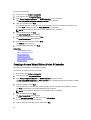
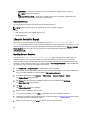
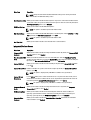
In the Existing Passphrase box, enter the existing passphrase associated with the displayed Encryption Key
Identifier.
6.
In the New Encryption Key Identifier box, enter the new identifier. The Encryption Key Identifier is a passphrase
hint; you must enter the passphrase when Lifecycle Controller prompts for this hint.
7.
In the New Passphrase box, enter the passphrase that will be associated with the new encryption key identifier
Related Links
Local Key Encryption Mode
Removing Encryption and Deleting Data
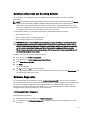
To remove the encryption and delete the data on the virtual disks:
1.
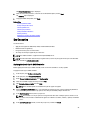
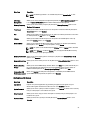
In the left pane, click Hardware Configuration.
2.
In the right pane, click Configuration Wizards and click Key Encryption.
3.
Select the controller on which you must remove the key that was applied and click Next.
4.
In the right pane, select Remove encryption and delete data and click Next.
5.
Select Delete encryption key and all secure virtual disks and click Finish.
CAUTION: The existing encryption, virtual drives, and all the data are permanently deleted.
Related Links
Local Key Encryption Mode
Breaking Mirrored Drives
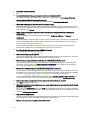
To split the mirrored array of RAID-1 virtual drives:
1.
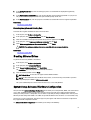
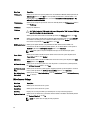
In the left pane, click Hardware Configuration.
2.
In the right pane, click Configuration Wizards.
3.
Under Storage Configuration wizards, click Break Mirror.
The Break Mirror page is displayed with the mirrored virtual drives.
4.
Select the related controller and click Finish.
NOTE: Break Mirror feature does not support software RAID controllers.
NOTE: For more information about the Break-mirror feature, see the Performing a Break-Mirror Operation
Using white paper available at delltechcenter.com/lc.
The system automatically turns off even if one mirrored array is successfully delinked.
System Setup-Advanced Hardware Configuration
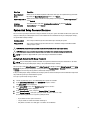
Lifecycle Controller Advanced Hardware Configuration wizards allow you to configure BIOS, iDRAC, and certain devices
such as NIC, and RAID controllers through Human Interface Infrastructure (HII). HII is a UEFI-standard method for
viewing and setting a device's configuration. You can utilize a single utility to configure multiple devices that may have
different pre-boot configuration utilities. The utilities also provide localized versions of devices such as the BIOS setup.
On the basis of system configuration, other device types may also appear under Advanced Hardware Configuration if
they support the HII configuration standard.
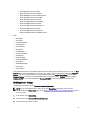
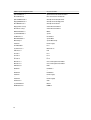
The Advanced Hardware Configuration wizard allows you to configure the following:
51