Transcript
ENGLISH
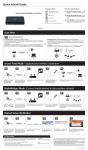
Quick Install Guide
7-Port USB 2.0 Hub
Product Overview
Front Panel
2 USB 2.0
Fast Charging Ports
USB 2.0 Downstream Ports
3. Plug the flat end of the supplied USB 2.0 Cable
(Type A connector) into your computer’s USB
2.0 or USB 1.1 port.
iPad® Sync
Charging and Syncing Your iPAD® At The Same Time (Windows® Only)
• If you want to charge and sync your iPad® simultaneously when it is connected via
the DUB-H7 to a Windows computer, go to the Product Support page for the DUB-H7
(http://www.dlink.com/support/) to download and install the “iPad Charge” utility
onto your computer.
2 USB
2.0 Fast Changing Ports
• After successfully installed, a charger icon will appear in the taskbar.
7 USB 2.0 Downstream Ports
Thank you for purchasing the DUB-H7 7-Port USB 2.0 Hub. Follow the easy steps in
this guide to properly set up your hub. Please verify that all the package contents below
are available.
Back Panel
Package Contents
Power Connector
DUB-H7 USB 2.0 Hub
USB 2.0 Upstream Port (Type B)
Power Adapter
Installation
USB 2.0 Cable
USB 2.0 Upstream Port (Type B)
1. Plug the power adapter into an AC power
source
and connect the other end to the power connector
on the DUB-H7
Power On
4. Your computer will automatically detect the
DUB-H7 and install the necessary drivers.
Once installed, you may plug in your USB
devices.
Two USB fast charging ports provide high
power under Fast-Charge Mode (Green LED),
allowing you to charge your iPad®, iPhone®,
tablets, and other mobile devices.
Note: Plug in each USB device one at a time.
Minimum System Requirements
• Computer with Microsoft Windows® 7, Windows Vista®, Windows® XP SP2, or
Windows® 2000 SP4, Mac OS® X 10.4 or Higher
• Computer with USB 1.1 Port
DUB-H7
2.Plug the square end of the supplied USB 2.0 cable
(Type B connector) into the upstream port on the
DUB-H7.
•
Now you'll be able to sync and charge your iPad® at the same time with the fast
charging port on the DUB-H7.
Note: After the utility is installed, the fast charging port will deliver 1A current to an
iPad when you connect the DUB-H7 to the computer.
*iPad® and iPhone® are the registered trademarks of Apple Inc.
Fast-Charge Mode
Technical Support
1.In Standard Mode (Blue LED), all seven USB ports deliver 0.5A of current per port.
Having trouble installing your new product? D-Link’s website contains the latest
user documentation and software updates for D-Link products. U.S. and Canadian
customers can contact D-Link Technical Support through our website or by phone.
2.In Fast-Charge Mode (Green LED), two USB fast charging ports (Black ports) deliver
1.2A of current per port and five standard USB ports (White ports) will still provide
0.5A of current per port.
If any of the above items are missing, please contact your reseller.
• When an iPad® is plugged into the DUB-H7, the icon will change to the following
figure.
3.Enter the Fast-Charge Mode by disconnecting the DUB-H7 from your computer, or
by powering off your computer. The LED will turn green when the DUB-H7 is under
Fast-Charge Mode.
4.You may now connect your iPad®, iPhone®, tablets, or other mobile devices to the
fast charging ports to charge the battery.
United States
Canada
Telephone: (877) 453-5465
Internet: http://support.dlink.com
Telephone: (800) 361-5265
Internet: http://support.dlink.ca
Copyright ©2011 All rights reserved. D-Link and the D-Link logo are registered trademarks of D-Link Corporation or its subsidiaries. Other
trademarks are the property of their respective owners. Maximum transfer rate based on USB 2.0 specifications. Actual data throughput will
vary. Using a USB 1.1 port will affect device performance. The total power consumption of the connected USB devices must be less than 2.4A.
Product specifications, size and shape are subject to change without notice, and actual product appearance may differ from that depicted on
the packaging. Visit dlink.com (US) or dlink.ca (Canada) for more details.
Version 1.0 | August 31, 2011