1
S330_QSG.book Page 37 Wednesday, March 20, 2002 9:55 AM
Troubleshooting
Problem
Possible Cause
Try This
Cannot install
printer
hardware
Missing
components
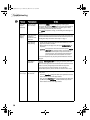
See Step 1 of the Easy Setup Instructions for a list of components
included with your printer.
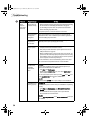
Printer makes
grinding
noise
Ink tanks/
cartridges are not
seated properly
1. See Step 4 of the Easy Setup Instructions for how to install the ink
tanks correctly.
2. Check that the ink tanks have been firmly seated. Verify that the
ink tanks/cartridges are in the correct color slot. Press down on the
ink tanks until they click into place.
To review an electronic copy of your Easy Setup Instructions, visit
www.canontechsupport.com, select the S330 printer, then go to the
Easy Setup Instructions.
Troubleshooting Printer Performance
Problem
Possible Cause
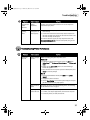
Printer will
not print
Previous print job
in queue
Try This
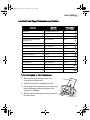
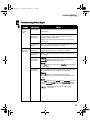
Delete any existing print jobs in the printer queue.
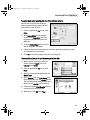
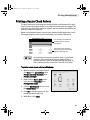
Windows XP
1. To delete the print job from the printer queue, click Start, then
Control Panel, then Printers and Other Hardware, then Printers and
Faxes.
2. Double-click the Canon S330 printer icon. The Print Manager
window will appear.
3. Select the document in the printer queue to be deleted, then press
Delete to cancel the print job.
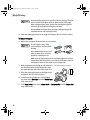
Mac OS
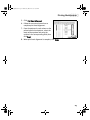
1. Go to the BJ Print Monitor window (click Finder, then BJ Print
Monitor).
2. Highlight the job to be canceled.
3. Click the Stop Printing icon in the Print Queue dialog box. The print
job will be canceled and the paper ejected.
Printer not set as
default
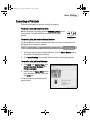
Verify that your S330 is the selected (default) printer. See “Selecting
the S330 Printer for Use” on page 2.
Computer/printer
needs to be reset
Reboot the computer and/or reset the printer.
• To reboot, close all open applications, then restart the computer.
• To reset the printer, turn it off, then back on.
37