1
Troubleshooting
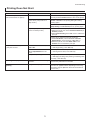
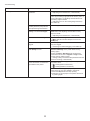
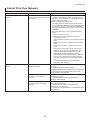
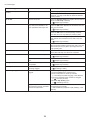
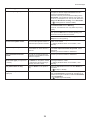
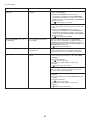
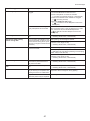
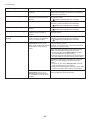
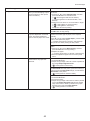
Printing Does Not Start
Phenomenon
Cause
Corrective Action
The Data Reception Lamp on the
Control Panel does not light up
The printer is not on.
Make sure the power cord is securely plugged in, all
the way. Press the Power button to turn on the printer.
The printer is not selected in the
printer driver. (The printer is in
Sleep mode.)
In Windows, select the printer by clicking Select
Printer or Printer in the printing dialog box and try
printing again.
In Mac OS X, select the printer by clicking Printer
Setup Utility (or Print Center) and try printing again.
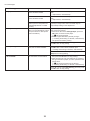
The print job is paused. (The
printer is in Sleep mode.)
In Windows, restart the print job as follows.
1. Select the printer icon in the Printers and Faxes (or
Printers) window.
2. Clear Pause Printing in the File menu to restart the
print job.
In Mac OS X, restart the print job as follows.
1. Click Print & Fax. (This is identified as Printer
Setup Utility in some versions of Mac OS X.)
2. Select the printer, and then Start Jobs in the
Printers menu to restart the print job.
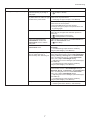
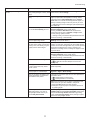
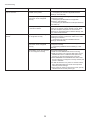
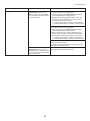
The printer does not respond even
if print jobs are sent
In the Control Panel menu, Pause Set Pause Print to Off.
Print is On.
(→"Pausing Printing," User Manual)
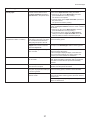
You have selected Save in mail
box in Output Method on the
printer.
Print the job saved on the printer's hard disk.
(→"Printing Saved Jobs," User Manual)
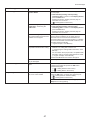
Print jobs are pending.
Manage the jobs on hold and print as needed.
(→"Managing Pending Jobs (Printing or Deleting Jobs
on Hold)," User Manual)
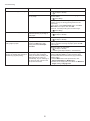
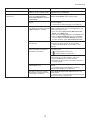
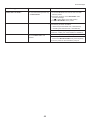
Ink Filling.. is displayed
The printer was forced off during
operation.
Wait until the system has been filled with ink. This
process may take about 12 minutes.
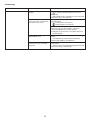
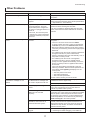
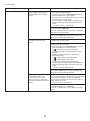
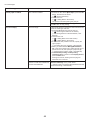
The display screen indicates
Agitating
Ink agitation is in progress.
Please wait until ink agitation is finished.
The time for agitation varies depending on how long
the printer was off. (Between about 30 seconds and
two minutes.)
3