1
Initializing your mailbox
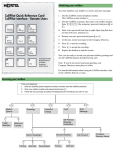
You must initialize your mailbox to receive and store messages.
Norstar Voice Mail
Quick Reference Card - Remote Users
1. Dial the CallPilot extension, then enter your mailbox number.
If y o u d o n o t k n o w th e C allP ilo t ex te n sio n , a sk y o u r S y stem
C o o rd in ato r.
2. Enter ‚‚‚‚ (the temporary password) and press £.
1
2
3
New
Messages
Record
Messages
3. Enter a new password from four to eight digits long that does
not start with zero, and press £.
4. Reenter your new password and press £.
4
5
6
5. At the tone, record your name in the Company Directory.
Saved
Messages
6. Press £ to end the recording.
7. Press £ to accept the recording.
7
8
8. Press ® to end the session.
9
Mailbox
Commands
Now you are ready to record your personal mailbox greetings and
use the CallPilot features described in this card.
0
*
#
Note: If you do not record a personal greeting, your
Company Directory name plays to callers.
© 2003 Nortel Networks
P0605666 01
18 September 2003
For detailed information about using the Norstar Voice Mail,
interface, refer to the CallPilot Reference Guide.
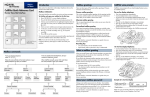
Accessing your mailbox
From your telephone:
1. Enter the CallPilot extension.
2.
3.
Enter your mailbox number and password and press £.
Follow the voice prompts and press the dialpad keys for the features you want to use.
¤
‹
Listen to New
Messages
⁄
Company
Directory
fl
Listen to Saved
Messages
Record
Message
¤
›
fi
Greetings and
Call Forward
Options
Change
Password
Target
Attendant
°
Off-Premise
Message
Notification
¤
Record Greetings
Choose Greeting
¤
Primary
Alternate
‹
Personalized
Mailbox
Administration
fl
⁄
⁄
°
⁄
Primary
Outbound
Transfer
Options
•
Return to
Main
Menu
‹
Call Forward
¤
Alternate
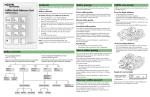
Playing messages
From your telephone:
1. Enter the CallPilot extension.
2.
3.
Enter your mailbox number and password and press £.
Follow the voice prompts and press the dialpad keys for the features you want to use.
‹
¤
Record Message
Listen to New Messages
⁄⁄
⁄*
Skip
Backward
‹*
¤*
Pause/
Continue
fl
Previous
Message
Mailbox Administration
Listen to Saved Messages
fi
fl
‡
Forward
Copy
Next
Message
Message
Envelope
‹‹* ›
Skip
Forward
°
Skip to
End
* Applies only when message is playing.
‡‡
°
·
Delete
Message
Reply to
Message
Save
Message
Replay
••*
Return to
Main Menu
To retrieve a deleted message
To forward your calls
You can retrieve a deleted message if you are still in a CallPilot session. A deleted
message remains in your mailbox until you end your current CallPilot session.
1.
From your telephone press ≤›.
2.
Enter the extension you want to forward your calls
to, or the CallPilot extension if you want to forward
your calls to your mailbox. (Press ≤·°fi to
display the CallPilot extension.)
3.
The display shows your calls are forwarded.
4.
To cancel forwarding, press ≤£›.
Press ¤ to listen to your deleted messages. When you play your deleted message,
you have the option to save it. If you end the session without saving the deleted
message, it is permanently deleted from your mailbox.
Sending messages
From your telephone:
1. Enter the CallPilot extension.
2.
3.
Enter your mailbox number and password and press £.
Follow the voice prompts and press the dialpad keys for the features you want to use.
‹
¤
Listen to New Messages
fl
Record Message
°
Mailbox Administration
Listen to Saved Messages
£
End Recording
⁄
Replay
¤
£
Erase
Accept
Enter Mailbox Number
⁄
Certified
£
‹
Send
Delivery
Options
¤
Urgent
›
Add
Recipients
‹
›
Private
Timed
Delivery