1
22
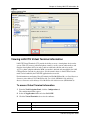
Chapter 3 Viewing LAN CTE information
Populating the LAN CTE Client Privileges
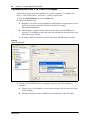
You must map any one of the three identifiers to associate a computer to a telephone. See
Figure 2 "LAN CTE Identifiers" and Figure 3 "Adding telephone DNs".
1
From the Client Privileges tab, click the Add button.
2
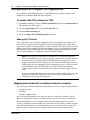
Choose the identifier type:
a
Domain\User Account: enter the Windows network domain associated with the user for
the PC account where the LAN CTE client is installed. For example,
NetworkDomain\JohnDoe.
b
Machine Name: enter the machine name for the PC where the LAN CTE client is
installed.. Use the WINS version of the name, do not include the Active Directory (AD)
suffix. For example, JohnPC
c
IP Address: Enter the IP address of the PC where the LAN CTE client is installed.
Figure 2
LAN CTE Identifiers
3
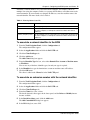
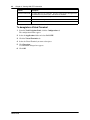
To map any LAN CTE Client PC to a telephone, using any of the Client Privileges
identifier:
a
Click to select a Client identifier. A new section will appear below showing the details
for this identifier.
b
Click the Add button to add a valid DN to be controlled by the LAN CTE Client.
NN40010-601