1
Initiating a conference call
1. During a call, press the Conf soft key.
2. Enter the SIP address or phone number or select an
entry from the Address Book or Inbox and complete the
call.
3. Press the Join soft key, select Conference and press
the OK soft key to create a conference call. You can
continue to add more callers to the conference call by
repeating the above steps.
Sending an Instant Message (IM)
Press the Expand key or press Msgs > Instant
Messaging to access the Instant Messaging menu.
1. Press New IM.
2. Enter the address or do the following:
• Press the Address Book key or Inbox key.
• Use the navigation keys to scroll to the required
entry.
• Press the Select soft key.
3. Enter the message and press Send IM.
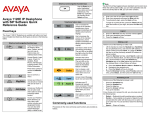
Context-sensitive soft keys
This section describes the context-sensitive soft keys for the idle IP
Deskphone display and for the active call display.
Idle IP Deskphone display
The following context sensitive soft keys are displayed when the IP
Deskphone is idle.
Redial or NewCal
If there is no stored redial number, NewCal appears and
has the same effect as pressing the primary user line key
(dial prompt).
Active call IP Deskphone display
The following context-sensitive soft keys are displayed when the you
are on an active call.
abc or 123
Toggle between alpha and numeric input modes.
•
•
To type letters, abc must be displayed.
To type numbers, press the abc soft key to display 123
on the menu list.
When the More.. soft key is pressed, the following soft keys are
displayed.
Msgs
Display the Messages menu.
1. Voice Mail—Use to access your Voice Mail. The IP
Deskphone connects to the server to retrieve your
Voice Mail.
2. Instant Messaging—Use to access your IM box. From
the IM box you can:
•
•
•
view received Instant Messages
delete Instant Messages
send Instant Messages.
Note:
The Unlock soft key appears if you answer a call when the IP
Deskphone is locked with a password protected screensaver.
When you press the More.. soft key for the second time, you return
to the first soft key display.
The following describes the soft keys available when the IP
Deskphone is on an active call.
CallFw
Conf
Forward all calls to a specified number or address.
Obtain a dial tone to place another call during an active call.
DND
Block all calls.
•
•
Use to make a conference call.
Behaves like the NewCal soft key.
Trnsfr
Presnc
Configure the presence status for your IP Deskphone.
When the More.. soft key is pressed, the following soft keys are
displayed.
Audio
ScrnSv
Activate the screensaver (only if the screensaver feature is
enabled).
Prefs
When the More.. soft key is pressed again , the following soft keys
are displayed.
Transfer the current call to another location or contact.
1. Change audio codec — Use to change the audio
settings based on the available bandwidth.
2. Monitor audio quality — Diagnostic tool to monitor the
audio quality.
1. Display — Adjust screen display settings.
NewCal
2. Audio — Adjust tones and volume settings.
3. Feature Options — Program feature keys, call ignore
actions, call subjects, call fwd notification.
4. Language — Change language.
Obtain a dial tone to place another call during an active call.
•
•
Use to make a conference call.
Behaves like the Conf context-sensitive soft key.
5. Misc Options — Configure alpha dialing, search
method, privacy settings, # Ends dialing, location, and time.
When you press the More.. context-sensitive soft key for the third
time, you return to the first soft key display.
6. Network — Access Server Settings, Device Settings,
Diagnostics and Lock.
The following describes the context-sensitive soft keys available
when the IP Deskphone is idle.
7. User Settings — Modify call settings, IM settings, voice
mail setting, and remembering settings.
Redial or NewCal
Redial the last dialed number.
More..
Select a new menu list.
Prefs
Access Display, Audio, Feature Options, Language,
Misc Options, Network, and User Settings.
More..
Select a new menu list.