1
TELL ME MORE® Education
Installation Guide
4.
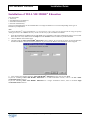
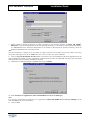
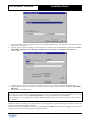
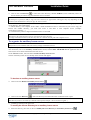
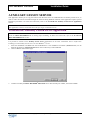
Confirm and/or modify the installation directory into which you want to copy the files necessary for the auxiliary
lesson server to function.
5. Select the directory into which you want to copy the lessons. This directory must be shared with complete access
and accessible through a network path.
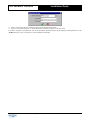
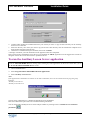
6. Check there is sufficient disk space available, then click on Install.
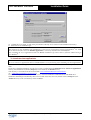
A message will inform you when installation of the application has been completed.
If the system requires the database access drivers to be updated, the MDAC application will be suggested as a means of
doing this. Follow the various instructions to update the drivers.
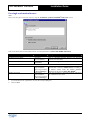
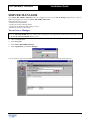
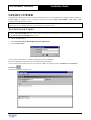
To run the Auxiliary Lesson Server application
Caution!
Check the TELL ME MORE Server is running before running any other application. To know more about this, refer to
the To start the TELL ME MORE Server section.
Ø
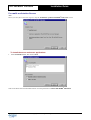
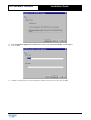
Go into the Start menu.
Ø
Select Programs\TELL ME MORE Education\Applications.
Ø
Select Auxiliary Lesson Server.
Note:
If the application is installed several times on the same workstation, the icons are numbered in the program group.
Example:
Auxiliary Lesson Server
Auxiliary Lesson Server 2
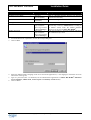
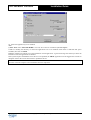
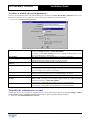
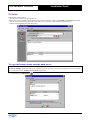
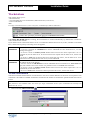
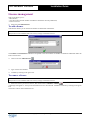
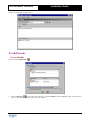
The user name ‘Administrator’ is defined by default and is non-modifiable.
Enter the Administrator password if one was defined during installation.
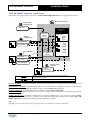
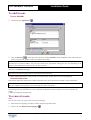
You can check and/or modify the server name and port number by clicking on the icon Define server connection
parameters
.
Copyright 2003 Auralog S.A. All rights reserved.
32