1
TELL ME MORE® EDUCATION
Admin Tools
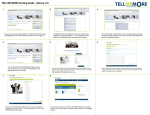
To modify a language group
You may need to modify the name, description or Tutor assigned to a language group.
Caution!
You cannot modify the lesson language of a language group. If you want to change the lesson language, you must
remove the existing language group and create a new one choosing the new lesson language.
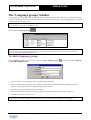
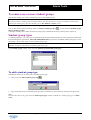
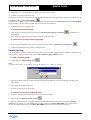
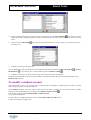
In the Language groups window, select the language group you want to modify. You must then either double-click on
.
the corresponding line or click on the icon Modify a language group
You can also select the menu Language groups/Modify a language group.
Carry out the modifications and confirm by clicking on the green tick.
To know more about this, refer to the To add a language group section.
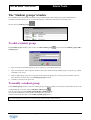
To remove one or more language groups
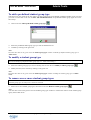
In the Language groups window, select the language group(s) you want to remove. You can then do this either by
clicking on the icon Remove one or more language groups
or more language groups.
, or select the menu Language groups/Remove one
Caution!
You cannot remove a language group containing students. You must first move or remove the student accounts before
removing the language group. For more details, refer to The ‘Students’ window section.
Copyright 2003 Auralog S.A. All rights reserved.
10