1
TouchMix™ How To
Register and Update
STOP
We know you want to get right to using your TouchMix, but before you do please stop and take a moment to visit www.qsc.com and register your
TouchMix. By registering you can…
• Download TouchMix firmware so that your mixer has all the latest features, refinements and performance enhancements.
• Sign up to be notified of future updates.
• Check to see if you are eligible for free extended warranty coverage.
While you’re there, you can also find videos and other tools to help you get the most from your TouchMix.
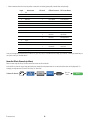
TouchMix Package Contents
1. Quick-Start Guide (TD-000445)
1. USB Wi-Fi adaptor (installed in mixer’s USB port)
1. Warning Information Sheet
1. Power supply with IEC cable (AC connector type varies by region)
1. Limited Warranty (TD-000453-01 English)
1. TouchMix carrying case
1. TouchMix-16 or TouchMix-8
Getting Started
You just got your new TouchMix and can’t wait to try it out on your next show. But since TouchMix is a digital mixer there are lots of things you can do
off-line to save time during setup and help you get acquainted with your mixer. We highly recommend spending a little quality time with the mixer
before taking it to a show for the first time.
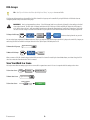
Turn off Demo Mode
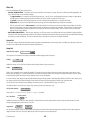
Demo mode is a looping slide show that plays on the TouchMix as a factory default to give prospective buyers an overview of the mixer. Once you
have purchased your TouchMix, you’ll probably want to turn Demo Mode off – even though our graphics guys are really proud of how it looks.
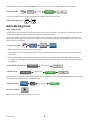
To Disable Demo Mode:
Menu
Mixer Setup
Demo Mode: Off
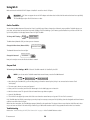
Recall a Factory Scene
What is a Scene?
A Scene is a group of settings that are saved and can be recalled at a later time. A Scene includes all channel-processing settings, channel Names,
Phantom Power settings, Effects selections, DCA and Mute Group assignments. Scenes also include level settings. Factory scenes are stored with input
faders at minimum to prevent any surprises (feedback, music at 20 dB above the threshold of pain, etc.) when the scene is recalled.
QSC loads TouchMix with pre-defined scenes for various kinds of performances. You can find the one that’s most like the show you’ll be mixing and
start there.
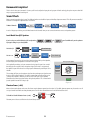
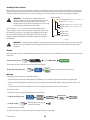
Select a Scene:
Contemporary Band
Scenes
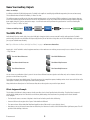
To Recall a Factory Scene: Menu
Recall
Yes
Horn Band...
You’ll see a list of Factory programmed scenes. Select one and touch Recall. Once you’ve recalled a scene you can make modifications to suit the show
you’re mixing.
TD-000472-00-A
1



















![[Manual Makeup] - inverter & Plc](http://vs1.manualzilla.com/store/data/005906079_1-ccf407c70ed6dc9ae9bfcbd31676317c-150x150.png)