1
6
Table of Contents
Table of Contents
1
Getting Started
2
Safety Information
8Introduction
8
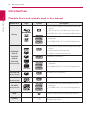
– Playable Discs and symbols used in
this manual
9
– About the “7” Symbol Display
9
– Regional Code
9
– System Select
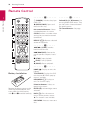
10 Remote Control
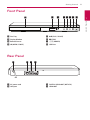
11 Front Panel
11 Rear Panel
2Connecting
12
13
13
14
15
15
16
16
16
18
18
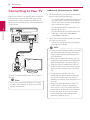
Connecting to Your TV
– What is SIMPLINK?
– Resolution Setting
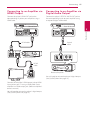
Connecting to an Amplifier
– Connecting to an Amplifier via HDMI
Output
– Connecting to an Amplifier via Digital
Audio Output
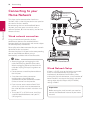
Connecting to your Home Network
– Wired network connection
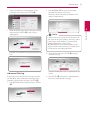
– Wired Network Setup
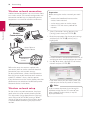
– Wireless network connection
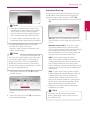
– Wireless network setup
3 System Setting
21 Initial Setup
22Settings
22 – Adjust the Setup Settings
22 – [NETWORK] Menu
23 – [DISPLAY] Menu
25 – [LANGUAGE] Menu
25 – [AUDIO] Menu
27 – [LOCK] Menu
28 – [OTHERS] Menu
4Operating
30
30
30
31
31
31
32
33
34
34
34
35
35
36
36
36
36
37
37
38
38
39
40
40
40
40
41
41
41
41
42
42
42
43
43
44
44
45
45
46
46
47
47
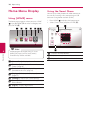
Home Menu Display
– Using [HOME] menu
– Using the Smart Share
Playing the Linked Devices
– Playing a Disc
– Playing Blu-ray 3D disc
– Playing a file on disc/USB device
– Playing a file on a network server
Using Home Network Server for PC
– Installing Nero MediaHome 4
Essentials
– Sharing files and folders
– About Nero MediaHome 4 Essentials
– System requirements
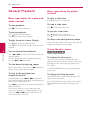
General Playback
– Basic operations for video and audio
content
– Basic operations for photo content
– Using the disc menu
– Resume playback
– Last Scene Memory
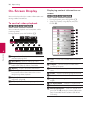
On-Screen Display
– To control video playback
– To control photo view
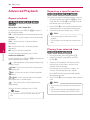
Advanced Playback
– Repeat playback
– Repeating a specific portion
– Playing from selected time
– Selecting a subtitle language
– Hearing a different audio
– Watching from a different angle
– Changing the TV Aspect Ratio
– Changing subtitle Code Page
– Changing the Picture Mode
– Viewing content information
– Changing content list view
– Selecting a subtitle file
– Listening to music during slide show
– Setting the [3D] option
Advanced Features
– Wi-Fi Direct™
– Enjoying Miracast™
– Enjoying BD-Live™
– LG Tag On
– LG AV Remote