1
36
Part I ✦ SUSE Linux Basics
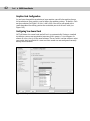
Assuming that your modem is supported, YaST asks you for the necessary information to set up the modem and your dial-up connection. In the first screen of the
setup you are asked for a dial prefix if necessary (a prefix you might need to get
an outside line, for example) and to choose between tone dialing and pulse dialing
(tone dialing will be the correct choice unless your telephone exchange is very
antiquated). The other two choices here (Speaker on and Detect Dial tone) you will
almost certainly want to leave as they are (selected by default).
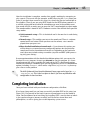
The next screen asks you for your country and offers a small selection of preconfigured providers (ISPs). This means that the access number is already known to the
system for these providers. One or two have gone further and enable you to use a
preconfigured username and password to sign up with them, or even to get full
anonymous access with payment being collected through your phone charges.
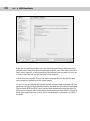
If you already have an account with an ISP that is not listed, you need to press the
New button and add the details of the provider’s name, the access phone number,
and your username and password.
When this is done, press Finish and the modem configuration should be complete.
You will then be able to connect using the kinternet program, which you can access
through the KDE menu (Internet ➪ Dialup). You can set kinternet to run whenever
you log in to KDE; if you do this, you can log in by clicking its tiny icon, which will
be resident in the system tray area of the KDE panel (by default in the bottom-right
corner of the screen).
Note
More information about using winmodems under Linux can be obtained from w w w
.linmodems.org. You may be able to obtain a driver for your modem from this site,
even if it is not supported by SUSE. You can also download a tool called scanModem,
which detects the exact type of modem that you have. When you
know this, you can search the site for information about whether it is possible to get
it working.
ISDN and ADSL Connections
SUSE has very good support for internal Integrated Services Digital Network (ISDN)
cards, and these can also be set up at this point in the installation. In most cases,
the card will be automatically set up, and you just have to provide the specific
information given to you by your ISP.
Asymmetric digital subscriber line (ADSL) providers sometimes offer a particular
hardware device to connect with. These are sometimes USB devices. Unfortunately,
there are a large number of different types and not all of them work with Linux.
There are also different standards in different countries, and as a result, getting
these devices to work on Linux has always been something of a problem. If YaST
detects such a device during the installation, it attempts to set it up, but there are
still many cases in which USB ADSL devices fail to work with SUSE Linux.
If at all possible, rather than using a USB device for ADSL, you should choose one of
the ADSL routers with Ethernet output. This type of ADSL connection will always