1
Installing the USB Driver for the
PowerLine USB Adapter
Proceed to the instructions for your operating system: Windows 98, 2000,
Millennium, or XP. Note: Your Windows operating system may ask for its
Windows Installation Files.
Windows 98
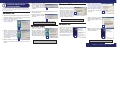
A. Windows 98 will automatically detect the presence of the PowerLine
USB Adapter hardware in your computer once you have completed
the hardware installation. Click the Next button.
E. Windows will ask you to supply
your Windows 98 Installation Files.
Insert the Windows 98 CD-ROM
into the CD-ROM drive of your
computer. Then click the OK button
to continue.
Windows Millennium
E
F. Windows will tell you when it has finished installing the new driver.
Click the Finish button.
G. Click the Yes button to restart your
computer, or click the No button to
restart later.
G
B. Click the radio button next to
Search for the best driver for your
device. (Recommended).
A
Your driver installation is complete. For setup information or any other
questions, refer to the User Guide.
Your driver installation is complete. For setup information or any other
questions, refer to the User Guide.
B
A. Windows 2000 will automatically
detect the presence of the
PowerLine USB Adapter in your
computer after you have completed
the hardware installation. Windows
will inform you that there was no
digital signature found. Click the
Yes button to install the USB driver.
A
A. Windows XP will automatically
detect the presence of the
PowerLine USB Adapter in your
computer after you have completed
the hardware installation. Click the
radio button next to Install from a
list or specific location (Advanced).
Then click the Next button.
B
C. Windows will notify you that the
driver has not passed Windows Logo
testing. Click the Continue Anyway
button.
Windows XP
Windows 2000
C. Windows will look for new drivers
and ask you which locations you
want to search. Select Specify a
location:, and enter C:\Program
Files\Linksys\USB Drivers in the
location field (if “C” is the letter of
your hard drive). Click the Next
button to continue.
A. Windows Millennium will automatically detect the presence of the
PowerLine USB Adapter in your
computer after you have completed
the hardware installation. Windows
will ask you the location of the USB
driver files. Enter C:\Program Files\Linksys\USB Drivers in the Copy
files from: field (if “C” is the letter of your hard drive). Then click the
OK button to install the USB driver.
B. Click the radio button next to
Search for the best driver in these
locations. Select Include this location in the search:, and enter
C:\Program Files\Linksys\USB Drivers
in the location field (if “C” is the letter
of your hard drive). Then click the
Next button.
C
D. Windows will tell you when it has
finished installing the new driver.
Click the Finish button.
A
D
C
D. Windows will display a screen announcing that it is ready to install
the driver for the PowerLine USB Adapter. Click the Next button to
continue.
Your driver installation is complete. For setup information or any other
questions, refer to the User Guide.
Your driver installation is complete. For setup information or any other
questions, refer to your product’s User Guide.
QI-PLUSB1-012802NC-JL
W W W . L I N K S Y S . C O M