1
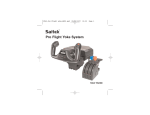
SAITEK PRO FLIGHT THROTTLE QUADRANT
Installing the throttle quadrant
Congratulations on buying the Saitek Pro Flight Throttle Quadrant. The Pro Flight
Throttle Quadrant features realistic controls configurable for all the major flight
simulation software to make your flying experiences more realistic.
First, screw the mounting plate to the throttle quadrant using the four screws provided.
You can screw the plate to one of two sides of the quadrant depending on how you
want to mount the quadrant - either in front and below your table or on top of it. Please
note that whichever way you choose to mount the quadrant, ensure that as you look at
the unit the rocker switches are at the bottom. Now tighten the throttle unit clamp’s
screw mechanism until it is firmly attached to your table (be careful not to overtighten
the screw as you may damage the clamp).
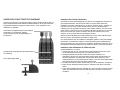
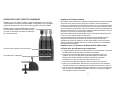
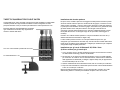
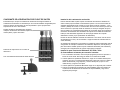
Detachable lever knobs to configure any
combination of throttle, flaps, mixture or prop pitch.
Plug the throttle quadrant’s USB cable into one or your PC’s free USB ports (or Saitek
Pro flight yoke USB hub).
Your throttle quadrant comes supplied with additional lever knobs to configure any
combination of throttle, flaps, mixture or prop pitch. You can also buy additional
quadrants to link together for more complex multi-engined aeroplane configurations
and we have included a 4-way throttle knob which links 4 quadrant levers for control of
4-engined aircraft.
Software installation for users of Windows® XP, XP64 and Vista
Smooth travel levers with 0 button detent
A) Drivers Only For Typical Users
1. With your computer switched on, close down any programs that are currently
running and insert the Installation CD into your CD-ROM drive.
2. When the Introduction Screen appears, click Install Software to continue. If the CD
does not run automatically, select Start from the Windows® Taskbar, then Run and
type D:\Setup.exe and click OK - where D:\ is letter of your CD-ROM drive.
Three 2-way rocker switches
3. When the Welcome screen appears, click Next to continue.
4. After reading the Disclaimer, select the I accept the terms of the Disclaimer
option and click Next to continue.
5. At the Driver Setup screen, if you haven't already done so, plug the USB cable into
one of your computer's USB ports and click on Next.
6. At the Driver Setup screen, click Next to test your controller.
2
3