1
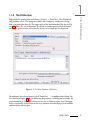
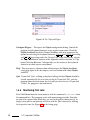
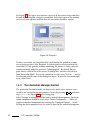
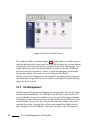
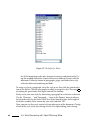
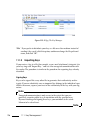
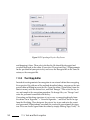
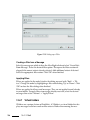
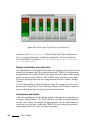
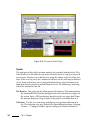
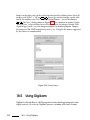
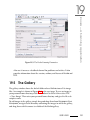
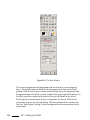
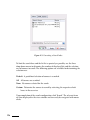
Figure 19.2: The Kooka Preview Window
File Use this menu to start the KPrinter printing assistant, to create a new folder
for your images, and to save, delete, and close files. The OCR results of
a scanned text document can be saved here. Also use this menu to close
Kooka.
Image The ‘Image’ menu allows starting a graphics application for postprocessing or optical character recognition of an image. The recognized text from
an OCR operation is displayed in its own frame. Various tools for scaling,
rotating, and flipping an image are available. These functions can also be
accessed from the toolbar. The submenu ‘Create From Selection’ allows saving an area of an image previously marked with the mouse.
Settings ‘Settings’ adjusts of the look and feel of Kooka. The toolbar and status
bar can be switched on and off and keyboard shortcuts for menu entries can
be defined. ‘Configure Toolbars’ provides a list of all the functions available to the toolbar. ‘Configure Kooka’ opens a configuration dialog in which
to modify the look and feel of Kooka. Normally, however, the defaults are
sufficient. In ‘Tool Views’, enable and disable the thumbnail viewer, the preview, the gallery, the scanning parameters, and the OCR result window.
Help The ‘Help’ menu provides access to the online help manual for Kooka.
230
19.4. The Menus