1
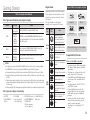
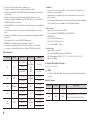
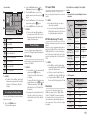
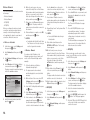
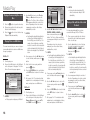
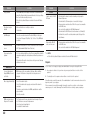
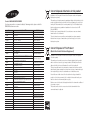
•• Home Menu
6
1
Play Disc
Photos
Videos
Music
2
7
No Disc
8
App 1
1
App 2
App 3
App 4
App 5
App 6
Screen Mirroring Change Device
3
4
5
Selects Videos.
2
Selects Music.
3
Selects Settings.
4
Selects Change Device.
5
Selects Screen Mirroring.
6
Selects Photos.
7
Selects Play disc.
8
Settings
Selects applications.
✎✎ NOTES
`` The Videos, Photos, and Music options require
that you have an appropriate disc inserted into
the player or a USB flash device attached to
the player.
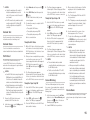
Accessing the Settings Menu
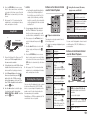
To access the Settings menu and sub-menus,
follow these steps:
111 Press the POWER button.
The Home Menu appears.
222 Press the ▲▼ ◄► buttons to select
Settings, and then press the v button.
333 Press the ▲▼ buttons to select the
desired submenu, and then press the v
button.
444 Press the ▲▼ buttons to select the desired
item, and then press the v button.
555 Press the EXIT button to exit the menu.
✎✎ NOTES
`` The access steps may differ depending on
the menu you selected. The OSD (On Screen
Display) may change in this player after you
upgrade the software version.
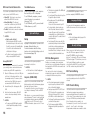
Picture Settings
You can configure various display options
such as the TV Aspect Ratio, Resolution, etc.
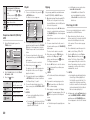
3D Settings
Select whether to play a Blu-ray Disc with 3D
contents in 3D Mode.
✎✎ NOTES
`` For some 3D discs, to stop a movie during 3D
playback, press the 5 button once.
The movie stops and the 3D mode option is
de-activated.
To change a 3D option selection when you are
playing a 3D movie, press the 5 button once.
The Blu-ray menu appears. Press the 5
button again, then select 3D Settings in the
Blu-ray menu.
`` Depending on the content and the position of
the picture on your TV screen, you may see
vertical black bars on the left side, right side,
or both sides.
TV Aspect Ratio
Depending on the type of television you
have, you may want to adjust the screen size
setting.
✎✎ NOTES
`` Depending on the disc type, some aspect
ratios may not be available.
`` If you select an aspect ratio and option which is
different than the aspect ratio of your TV screen,
the picture might appear to be distorted.
BD Wise (Samsung TVs only)
BD Wise is Samsung’s latest inter-connectivity
feature.
When you connect a Samsung player and a
Samsung TV with BD Wise to each other via
HDMI, and BD Wise is on in both the player
and TV, the player outputs video at the video
resolution and frame rate of the Blu-ray Disc/
DVDs.
✎✎ NOTES
`` When BD Wise is on, the Resolution setting
automatically defaults to BD Wise and BD Wise
appears in the Resolution menu.
`` If the player is connected to a device that does not
support BD Wise, you cannot use the BD Wise function.
`` For proper operation of BD Wise, set the BD
Wise menu of both the player and the TV to On.
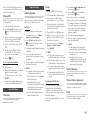
Resolution
Lets you set the output resolution of the
HDMI video signal to Auto, 1080p, 1080i,
720p or 576p/480p. The number indicates
the number of lines of video per frame. The
i and p indicate interlaced and progressive
scan, respectively. The more lines, the higher
the quality.
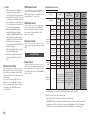
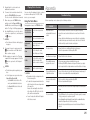
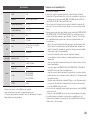
Resolution according to the output
mode
•• Blu-ray Disc/E-contents/Digital Contents
playback
HDMI / connected
Output
HDMI Mode
Setup
Blu-ray Disc
BD Wise
Auto
1080p@60F
(Movie Frame : Off)
Resolution of
Blu-ray Disc
E-contents/
Digital
contents
1080p
Max. Resolution Max. Resolution
of TV input
of TV input
1080p@60F
1080p@60F
Movie Frame :
Auto (24 Fps)
1080p@24F
1080p@24F
1080i
720p
1080i
1080i
576p/480p
720p
576p/480p
576p/480p
•• DVD playback
Output
Setup
BD Wise
720p
HDMI / connected
HDMI Mode
576i/480i
Auto
Max. Resolution of TV input
1080i
1080i
1080p
720p
576p/480p
1080p
720p
576p/480p
11