1
book.book Page 159 Wednesday, May 16, 2012 2:37 PM
32
Flashing the BIOS
The BIOS may require flashing when an update is available or when replacing
the system board. To flash the BIOS:
1 Turn on the computer.
2 Go to support.dell.com/support/downloads.
3 Locate the BIOS update file for your computer:
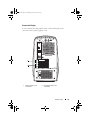
NOTE: The Service Tag for your computer is located on a label at the back of
your computer.
If you have your computer’s Service Tag:
a
Click Enter a Tag.
b
Enter your computer’s Service Tag in the Enter a service tag: field,
click Go, and proceed to step 4.
If you do not have your computer’s Service Tag:
a
Click Select Model.
b
Select the type of product in the Select Your Product Family list.
c
Select the product brand in the Select Your Product Line list.
d
Select the product model number in the Select Your Product Model
list.
NOTE: If you have selected a different model and want to start over again,
click Start Over on the top right of the menu.
e
Click Confirm.
4 A list of results appears on the screen. Click BIOS.
5 Click Download Now to download the latest BIOS file.
The File Download window appears.
6 Click Save to save the file on your desktop. The file downloads to your
desktop.
7 Click Close if the Download Complete window appears.
The file icon appears on your desktop and is titled the same as the
downloaded BIOS update file.
Flashing the BIOS
159