1
®
Spider Jam
with version 2 firmware features
Pilot’s Handbook
Manuel de pilotage
Pilotenhandbuch
Pilotenhandboek
Manual del Piloto
Please visit www.line6.com/manuals
to download information on SD Card features.
Get free lessons and tones! Join Spider Online!
www.line6.com/spideronline
40-00-0134
Electrophonic Limited Edition available @ www.line6.com/manuals
Rev I
Important Safety Instructions
C A UT I O N
RISK OF ELECTRIC
SHOCK DO NOT OPEN
WARNING : TO REDUCE THE RISK OF FIRE OR ELECTRIC SHOCK, DO NOT REMOVE SCREWS.
NO USER-SERVICEABLE PARTS INSIDE. REFER SERVICING TO QUALIFIED SERVICE PERSONNEL.
WARNING : TO REDUCE THE RISK OF FIRE OR ELECTRIC SHOCK, DO NOT EXPOSE THE
APPLIANCE TO RAIN OR MOISTURE.
CAUTION: This equipment has been tested and found to comply with the limits for a Class B digital device pursuant to Part 15
of FCC Rules. Operation is subject to the following two conditions: (1) This device may not cause harmful interference, and (2)
this device must accept any interference received, including interference that may cause undesired operation.
The lightning symbol within a triangle means
“electrical caution!” It indicates the presence of
information about operating voltage and potential
risks of electrical shock.
The exclamation point within a triangle means
“caution!” Please read the information next to all
caution signs.
SERIAL NO:
Please Note:
All product names referred to in this manual are trademarks of their
respective owners, which are in no way associated or affiliated with
Line 6. These trademarks of other manufacturers are used solely
to identify the products of those manufacturers whose tones and
sounds were studied during Line 6’s sound model development.
Line 6, Inc.:
The POD, Clifton House, Butler’s leap.
Rugby, Warwickshire, United Kingdom, CV 21 3RQ
26580 Agoura Road,
Calabasas, CA 91302-1921 USA
You should read these Important Safety Instructions
Keep these instructions in a safe place
•
•
•
•
•
•
•
•
•
•
•
•
•
•
•
•
•
•
•
Read these instructions.
Keep these instructions. Heed all warnings.
Follow all instructions. Do not use this apparatus near water. Clean only with dry cloth.
Do not block any ventilation openings. Install in accordance with the manufacturer’s instructions.
Do not install near any heat sources such as radiators, heat registers, stoves, or other apparatus (including amplifiers) that
produce heat.
This apparatus shall be connected to a MAINS socket outlet with a protective earthing connection.
Do not defeat the safety purpose of the polarized or grounding-type plug. A polarized plug has two blades with one wider
than the other. A grounding type plug has two blades and a third grounding prong. The wide blade or the third prong are
provided for your safety. If the provided plug does not fit into your outlet, consult an electrician for replacement of the
obsolete outlet.
Protect the power cord from being walked on or pinched particularly at plugs, convenience receptacles, and the point where
they exit from the apparatus.
Only use attachments/accessories specified by the manufacturer.
Use only with the cart, stand, tripod, bracket, or table specified by the manufacturer, or sold with the apparatus. When a
cart is used, use caution when moving the cart/apparatus combination to avoid injury from tip-over.
Unplug this apparatus during lightning storms or when unused for long periods of time.
Refer all servicing to qualified service personnel. Servicing is required when the apparatus has been damaged in any way,
such as power-supply cord or plug is damaged, liquid has been spilled or objects have fallen into the apparatus, the apparatus
has been exposed to rain or moisture, does not operate normally, or has been dropped.
The apparatus shall not be exposed to dripping or splashing and that no objects filled with liquids, such as vases, shall be
placed on the apparatus.
WARNING: To reduce the risk of fire or electric shock do not expose this apparatus to rain or moisture.
The appliance coupler is used as the disconnect device, the disconnect device shall remain readily operable.
Connect only to AC power outlets rated: 100/120V 220/240V 50/60Hz (depending on the voltage range of the included
power supply).
• Prolonged listening at high volume levels may cause irreparable hearing loss and/or damage. Always be sure to practice “safe
listening.”
• Service is required when the apparatus has been damaged in any way, such as:
• power-supply cord or plug is damaged. • liquid has been spilled or objects have fallen into the apparatus.
• the unit has been exposed to rain or moisture. • the unit is dropped or the enclosure is damaged.
• the unit does not operate normally or changes in performance in a significant way.
Spider Jam Pilot’s Handbook © 2009 Line 6, Inc.
Controls & Connections
Controls & Connections
1•1
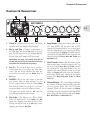
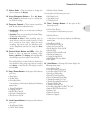
1. Guitar In – Plug your guitar in here. The Guitar
input has dedicated Amp and FX processing.
2. Mic In and Trim – Connect a microphone to
this XLR input and use the Trim knob to adjust its
gain. The Mic input has its own independent EQ,
Reverb, Delay and Compressor FX processing.
Note: When not using a mic, always turns this all
the way left (clockwise) to minimum to avoid any
noise from the unconnected mic preamp.
3. Aux In – This 1/4-inch input can be used for a
second guitar, mic or just about any other audio
source. You can choose whether this input gets
processed and recorded with the Guitar input or
Mic input.
4. CD/MP3 – Plug in any audio source to jam with
your favorite music or drum machine. Use the
device’s output control to adjust its volume. Note:
Start with the volume on your device at it’s lowest
setting and bring it up to the volume you desire.
This input gets mixed with the Mic input for
recording, but without any processing.
5. Clip Light – This lights to say, “Whoa, Nelly!
That’s too much input!” If the Guitar and Aux
inputs cause clipping, turn down the device that’s
feeding your Spider Jam. If the Mic input causes
clipping, turn down the Mic Trim.
6. Amp Models – Spin this knob to select one of
(12) Amp Models. All the guitar tone and FX
controls will automatically be set to sound great
with that Amp Model, so you can just play! When
you turn this knob, the Display will briefly show the
currently-loaded Amp Model name, along with the
current settings of the Drive, Bass, Mid, Treble, and
Chan Vol knobs.
7. Tone Controls – Drive is like the volume or gain
knob on other amps; controls how much “dirt” you
get in your sound. Bass, Mid, and Treble controls
are customized for each Amp Model to give you
optimal tonal control. When you turn any of these
knobs, the Display will briefly show the currentlyloaded Amp Model name, along with the current
settings of the Drive, Bass, Mid, Treble, and Chan
Vol knobs.
8. Channel Volume – This control helps you balance
the volumes of different amp-and-effect setups that
you store in your Spider Jam’s (36) User preset
channels. When you turn this knob, the Display
will briefly show the currently-loaded Amp Model
name, along with the current settings of the Drive,
Bass, Mid, Treble, and Chan Vol knobs.
Controls & Connections
2
tone. The current setting is briefly shown in the
9. Smart Control FX – Spin one of these knobs to
get great FX, fast and easy:
Display when you turn this knob.
Knob A selects Chorus/Flange, Phaser or Tremolo,
with a range of settings for each effect. The LED
shows the active effect.
12. Tap / Hold for Tuner – Tap on the Tap button a
few times to set the delay time. The Display will
briefly show the delay time you tapped in BPM.
Knob B selects Delay, Tape Echo or Sweep echo,
with a range of mix settings from low to high. The
LED indicates the active effect. To change the
delay time, tap the Tap button.
When you turn either knob, the Display will briefly
show you the current settings. Turning a knob all
the way down turns its effect off.
10. Reverb – Dial up more or less virtual room. While
turning the knob, the Display will show you the
current setting.
11. Master Volume – You can choose the overall
volume of the amplifier, without affecting your
Hold the Tap button for 3 seconds to activate the
built-in chromatic tuner.
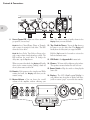
13. FBV Pedal – See Appendix B for more info.
14. Phones – To listen with headphones, plug in here.
The speakers are muted when this jack is in use.
15. Power Switch – Flip the switch to bring Spider
Jam to life.
16. Display – The LCD (liquid crystal display) is
your window into the power of Spider Jam. Here,
you’ll see various “pages” as you work the controls.
Controls & Connections
17. Select Knob – Turn this knob to change the
selected item on the Display.
•Mic/Aux Track Volume
A second press of this button gives you:
•Mic Input Level
•Aux Input Level
•CD Input Level
18. 4-way Navigation Button – Press Up, Down,
Left, or Right on this button to get to a setting that
you’d like to change.
19. Transport Controls – These buttons control the
built-in jam and recording functions:
• Rec/Overdub – Press to start and stop recording or
overdubbing.
• Play/Stop – Press to start and stop the loaded Song,
Drum Loop or Recording.
• Undo/Hold to Clear – After recording, press to
undo (delete) your last recorded section, or hold
for 3 seconds to clear (erase) either the entire
recording, the Guitar track, the Mic/Aux track,
or the Song/Drum selection by using the Clear
menu.
20. Record Select Button and LEDs – Press this
button to select an input for recording, either
Guitar or Mic/Aux. The Display and corresponding
text will light up to show what’s been selected.
Press and hold for 2 seconds to choose whether the
Aux should feed the guitar tone and get recorded
with Guitar, or feed the Mic FX and get recorded
with the Mic.
21. Song / Drums Button – A first press of this button
gives you:
•Song Select
•Drums Select
•Recording Select
A second press of this button displays the following
menu items:
•Tempo/Pitch Modes
•Looping On/Off
•Endless Play On/Off
•Recorder Overdub Level
•Play Preview On/Off
22. Level / Inputs Button – A first press of this button
gives you:
•Song/Drums Volume
•Guitar Track Volume
23. Tone / Settings Button – A first press of this
button gives you:
•Guitar Tone Presets
A second press of this button gives you:
•Mic/Aux Presets
A third press of this button displays the following
menu items:
•Gate/Boost On/Off
•FX Auto Select On/Off
•Songs Set Tone On/Off
•Recordings Set Tone On/Off
•Mic/Aux EQ
•Mic/Aux Delay And Reverb
•Mic/Aux Compressor
•Output Routing Mode
•Pitch/Tempo Preview Mode
•FBV Mode
24. Save Button – Pressing this button displays the
following menu items:
•Save Guitar Tone
•Save Recording To Internal
•Save Recording To SD Card
•Erase Saved Recording
•Erase SD Card Recording
•Erase All Internal Recordings
•Transfer Recording To Card
•Transfer Recording From Card
•Transfer All To Card
•Transfer All From Card
•Save Recording Mix As WAV To Card
•Import WAV File From Card
•Format Card
•Firmware Version
•Firmware Upgrade
3
Controls & Connections
4
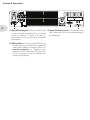
25. Direct/Recording Out – This pair of RCA jacks
is perfect for connecting Spider Jam to an external
recorder or computer to capture your jams. Or,
connect them to your sound system to hear Spider
Jam through it.
26. SD Card Slot – You can use standard SD Cards, up
to 2GB capacity, to store Spider Jam recordings and
transfer them to/from your computer. Please visit
www.line6.com/manuals to download more
information on SD Card features. This slot is also
used at our factory to install the firmware that
controls your Spider Jam.
27. Power Connector & Fuse – The included power
cable connects here. See the rear panel markings for
fuse information.
Spider Jam the Amp
Spider Jam
the
Amp
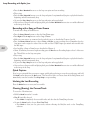
Recalling Amp Presets
Your new Spider Jam amplifier is loaded with over 300 amp-and-effect presets to cover a wide range of tones
and styles. Many presets have been dialed-in by some of today’s influential artists!
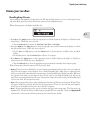
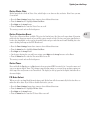
When selecting presets, the display looks like this:
2•1
•Press Up on the 4-way button to select the top left area (it will be shown in the display as a black box with
inverted text). While this area is selected:
•Turn the Select knob to choose the Artist Bank, Style Bank, or User Bank.
•Now press Right on the 4-way button to select the top right area (it will be shown in the display as a black
box with inverted text). While this area is selected:
•For the Artist and Style presets, turn the Select knob to choose from the available Artist and Style
folders.
•For the User presets, turn the Select knob to choose a User preset.
•Press Down on the 4-way button to select the preset name (it will be shown in the display as a black box
with inverted text). While this area is highlighted:
•Turn the Select knob to select the next/previous presets from the currently selected preset group.
Want to know more about these presets? We’re glad you asked:
• Artist – These presets were dialed-in by a team of insane guitar slinging rock stars that cover a great range of
styles. We sent an amp to each of them to create a bank of inspiring tones. Some chose to capture the tone
of their records, while some explored the insane range of tonal possibility that Spider Jam offers. Whatever
the outcome, their work is at your disposal. It’s as if they came to your home and helped you dial in your
amp! There are separate folders for each artist. These presets cannot be erased, but they can be modified and
saved to one of the 36 User preset locations.
• Style – Presets organized by style or song, including based on the top 200 guitar rock songs of all time. There
are separate folders for each style and year that the song came out. These, too, are read-only and cannot be
erased, but can be modified and saved to any of the 36 User presets.
• User – 36 great-sounding presets that you can overwrite with your own custom tones. The User presets are
numbered 1A - 9D and can also be recalled using an optional FBV foot controller. Check out Appendix B
for more info. A factory reset will restore these presets to their factory defaults.
Spider Jam the Amp
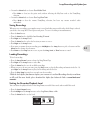
Saving Guitar Tone Presets
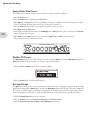
You can store your current settings to one of the 36 User preset locations as follows:
2•2
•Press the Save button.
•Turn the Select knob to highlight Save Guitar Tone.
•Press Right on the 4-way button. If you’ve modified a User preset, you’ll be taken to that User preset location.
If you’ve modified any other preset, you’ll go to User preset location 1A.
•Turn the Select knob to select the User preset location you want to store to.
•Press Right on the 4-way button.
•If you want to rename the new preset, use Left/Right on the 4-way button to pick a character and the Select
knob to change that character.
•Press Down on the 4-way button to save, or press the Song, Level, or Tone buttons to cancel.
•The settings of all these controls are stored:
Mic/Aux FX Presets
The Microphone input has its own FX. If you’ve chosen to mix the Aux input with the Microphone input, the
Aux input will share this processing, too. To select a preset for these FX:
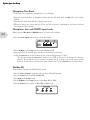
•Press the Tone / Settings button twice to show this display:
•Turn the Select knob to select from the presets.
Aux Input Assign
The Aux input can be used for a second guitar or any other audio source. This input can either share the Amp
and FX processing with the Guitar input, or share the Microphone input’s EQ, Reverb, Delay and Compressor
FX. You get to decide. If you’re connecting a second guitar, you’ll want to share the Guitar processing. For just
about everything else, you’ll want to share the Microphone processing. Here’s how you make that choice:
•Hold the Record Select button for two seconds.
•Turn the Select knob to select Mixed with Microphone or Mixed with Guitar.
•Press the Song / Drums, Level / Inputs or Tone/Settings button to exit.
Spider Jam the Amp
Guitar Noise Gate
Spider Jam includes a built-in Noise Gate, which helps to cut down on hiss and noise. Here’s how you turn
it on and off:
•Press the Tone / Settings button three times to show additional functions.
•Turn the Select knob to highlight Guitar Gate/Boost.
•Press Right on the 4-way button.
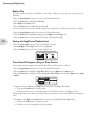
•Turn the Select knob to turn the Noise Gate on or off.
This setting is stored and recalled with presets.
Guitar Distortion Boost
There’s also a Distortion Boost available. This gives the kind of extra ‘dirt’ that you’d expect from a Distortion
pedal with the distortion control set low and the output control set high. It boosts your guitar signal before it
reaches the Amp Model, so that you hit the model harder and get a more distorted sound. Enabling this is the
same as kicking on Stomp on the FBV Shortboard.
•Press the Tone / Settings button three times to show additional functions.
•Turn the Select knob to highlight Guitar Gate/Boost.
•Press Right on the 4-way button.
•On the page showing the gate and boost settings, press Right on the 4-way button to select Boost.
•Turn the Select knob to turn the Distortion Boost on or off.
This setting is stored and recalled with presets.
Guitar Tuner
Press and hold the Tap button (or Tap footswitch on an optional FBV footswitch) for 2 seconds or more and
you get an instant digital Tuner. The volume is muted during tuning so you won’t hear anything coming out
of the amp. Press any button to exit Tuner Mode. The display on the top panel of the Spider Jam will work as
the tuner display.
FX Auto Select
When you select an Amp Model from the front panel, Spider Jam will also automatically dial-in the effects to
make that effect shine. If you’d like to disable this feature, you can:
•Press the Tone / Settings button three times to show additional functions.
•Turn the Select knob to highlight FX Auto Select.
•Press Right on the 4-way button.
•Turn the Select knob to turn the FX Auto Select on or off.
2•3
Spider Jam the Amp
Microphone Trim Knob
The first step after connecting a microphone is to set this knob:
•Sing into your microphone at maximum volume and turn this knob until the Clip light starts to light
slightly.
•Turn the knob back down slightly so clipping won’t occur.
•When not using a mic, always turns this all the way left (clockwise) to minimum to avoid any noise from
the unconnected mic preamp.
Microphone, Aux, and CD/MP3 Input Levels
2•4
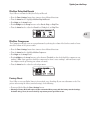
Before using the Mic, Aux and CD/MP3 inputs, set their levels as follows:
•Press the Level / Inputs button twice to show this display:
•Press Left/Right on the 4-way button to select Mic, Aux, or CD.
•Sing or play into the selected input and observe the readings on the meter.
•Adjust the Select knob so that the meter shows a peak reading between -20 and 0.
Tip: Start by turning the Select knob until you see +0 dB on the screen (as shown in the previous
graphic). Then, turn whatever is connected to Spider Jam up or down to get a peak meter reading
between -20 and 0. If you can’t get there from the other unit, use the Select knob as described above.
Mic/Aux EQ
If you’d like to customize the Mic/Aux EQ yourself:
•Press the Tone / Settings button three times to show additional functions.
•Turn the Select knob to highlight Mic/Aux EQ.
•Press Right on the 4-way button.
•Press Left/Right on the 4-way button to select Bass, Mid, or Treble.
•Turn the Select knob to adjust the Bass, Mid, or Treble levels.
BASS
MID
TREBLE
Spider Jam the Amp
Mic/Aux Delay And Reverb
If you’d like to customize the Mic/Aux Delay and Reverb:
•Press the Tone / Settings button three times to show additional functions.
•Turn the Select knob to highlight Mic/Aux Delay And Reverb.
•Press Right on the 4-way button.
•Press Left/Right on the 4-way button to select Reverb, Delay, or Delay Time.
•Turn the Select knob to adjust the Reverb level, Delay level, or Delay Time.
2•5
Mic/Aux Compressor
The Compressor will help even out your performance by reducing the volume of the loudest sounds to better
match the volume of the quieter sounds.
•Press the Tone / Settings button three times to show additional functions.
•Turn the Select knob to highlight Mic/Aux Compressor.
•Press Right on the 4-way button.
•Press Left/Right on the 4-way button to select between Threshold (at what level should the compressor start
working?), Ratio (how aggressive should the compressor be when it starts working?) and Level (turn it up if
the compressor ends up lowering your volume too much).
•Turn the Select knob to adjust the selected parameter.
Factory Reset
If you’d like to reset your Spider Jam to its factory-fresh state, discarding all your own adjustments to the User
presets and restoring the factory-standard settings, do the following:
•Power up while holding the Tone / Settings button.
• Warning: a Factory Reset will replace all your customized User presets with the factory-standard settings.
So before doing a reset, be sure to back up any custom presets you’d like to save.
Jamming with Spider Jam
Jamming
with
Spider Jam
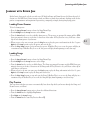
Spider Jam is always ready to back you with over 100 built-in Songs and Drum Grooves laid down by top L.A.
session aces. No MIDI here! From country to funk, and blues to punk, these authentic backing tracks are the
perfect accompaniment and inspiration for practicing, composing or simply having fun playing guitar.
Loading Drum Grooves
To load a drum groove:
•Press the Song / Drums button to show the Song/Drums Page.
•Press Left/Right on the 4-way button to select Drums.
•Turn the Select knob to see the available drum grooves. The grooves are arranged by tempo and the BPM
(beats per minute) shows up as the first 3 characters of the name. If Play Preview is on, you’ll hear a short
clip of each drum groove as you browse.
•When you get to the one you want, press the Play button to play the groove and remain in the list. Or, press
Right on the 4-way button to play the groove and exit the list.
•Press the Play / Stop button to stop and start the groove. If Endless Play is set to on, the groove will play in
a continuous loop. If Endless Play is set to off, the groove will play from beginning to end, then stop.
Loading Songs
To load a Song:
•Press the Song / Drums button to show the Song/Drums Page.
•Press Left/Right on the 4-way button to select Songs.
•Turn the Select knob to see the available Songs. The Songs are arranged by tempo and the BPM (beats per
minute) shows up as the first 3 characters of the Song name. If Play Preview is on, you’ll hear a short clip of
each Song as you browse.
•When you get to the one you want, press the Play button to play the Song and remain in the list. Or, press
Right on the 4-way button to play the Song and exit the list.
•Press the Play / Stop button to stop and start the Song. If Endless Play is set to on, the Song will play in a
continuous loop. If Endless Play is set to off, the Song will play from beginning to end, then stop.
Play Preview
You can choose whether you want to automatically hear short clips while you browse through the Songs and
Drum Grooves, as follows:
•Press the Song / Drums button twice to show the additional functions.
•Turn the Select knob to highlight Play Preview.
•Press Right on the 4-way button.
•Turn the Select knob to turn Play Preview On or Off.
3•1
Jamming with Spider Jam
Endless Play
To choose whether the Songs and Drum Grooves “loop” endlessly or just play once and stop, do the
following:
•Press the Song / Drums button twice to show the additional functions.
•Turn the Select knob to highlight Endless Play.
•Press Right on the 4-way button.
•Turn the Select knob to turn Endless Play On or Off.
You can also choose whether a free time Recording “loops” endlessly or just plays once then stops, as follows:
•Press the Song / Drums button twice to show the additional functions.
•Turn the Select knob to highlight Looping, then press Right on the 4-way button.
•Turn the Select knob to turn Looping for Recording or Playback On or Off.
3•2
Setting the Song/Drums Playback Level
•Press the Level / Inputs button to show the Playback Levels page.
•Press Left/Right on the 4-way button to select Song/Drums.
•Turn the Select knob up or down to set the playback level.
GUITAR
MIC/AUX/WAV
Time Stretch/Transpose a Song or Drum Groove
You can time stretch or transpose the currently-loaded Song or Drum Groove as follows:
•Press the Song / Drums button twice to show the additional functions.
•Turn the Select knob to highlight Tempo/Pitch Modes, then press Right on the 4-way button.
•Turn the Select knob to display the Time Stretching And Pitch Shifting screen then press Right on the 4-way
button.
TIME STRETCH PITCH SHIFT
TEMPO
ORIG SEMI KEY
100 BPM 95 BPM
0
B
•To time stretch, press Left on the 4-way button, if necessary, to highlight Time Stretch.
•Then turn the Select knob to change tempo.
•If a Song or Drum is active, the original tempo is also shown for reference, and will not change.
If no Song or Drum is active, time stretch will be shown as a percentage, rather than a BPM (beats per minute
value.
•To transpose, press Right on the 4-way button, if necessary, to highlight the Pitch Shift heading.
•Then turn the Select knob to transpose up/down.
•If a Song is active, the resulting key will also be shown.
Jamming with Spider Jam
•If a Drum is active, no key will be shown.
If no Song or Drum is active, transpose will be shown as a percentage, rather than semi-tones.
Changing the Speed/Pitch of a Song or Drum Groove
You can change the tempo of the currently-loaded Song or Drum Groove as follows:
•Press the Song / Drums button twice to show the additional functions.
•Turn the Select knob to to highlight Tempo/Pitch Modes, then press Right on the 4-way button.
•Turn the Select knob to highlight Varispeed and press Right on the 4-way button.
•For Drum Grooves, the default tempo in BPM (beats per minute) will be displayed. Turn the Select knob
to select a new tempo.
•For Songs, a transposition amount will be displayed, along with the current tempo in BPM. Turn the Select
knob to pick a new pitch in 1/2 steps; the resulting tempo will be displayed.
Note that once you’ve made a recording, you can’t change the speed/pitch.
*For more details on Tempo/Pitch Modes, please download the Spider Jam Advanced Guide at www.line6.
com/manuals.
Setting Guitar Tones with Songs
By default, loading a Song will automatically load a custom-crafted guitar tone, too. You can choose whether
you want a Song to automatically set the guitar tone, as follows:
•Press the Tone / Settings button three times to show the additional functions.
•Turn the Select knob to highlight Songs Set Tone.
•Press Right on the 4-way button.
•Turn the Select knob to select On or Off.
Output Routing for RCA Jacks
You can choose what signals are sent to the RCA jacks on the back of the unit:
•Press the Tone / Settings button three times to show the additional functions.
•Turn the Select knob to highlight Output Routing.
•Press Right on the 4-way button.
•To have everything come out of both Spider Jam’s on-board speakers and the RCA jacks, turn the Select
knob to select Normal.
•To have the Guitar come out of Spider Jam’s 12-inch speaker and everything else come out of the RCA
jacks, turn the Select knob to select Performance.
Setting the FBV Mode
Plugging in an optional Line 6 FBV foot controller lets you control Spider Jam with your feet. There are two
FBV Modes of operation. Normal Mode allows you to use your FBV for User bank and channel switching,
while Jam Control Mode gives you access to Transport Controls and Song selection.
Depending on which FBV you choose to use, both modes give you access to effects on/off, distortion boost on/
off, wah/volume pedals, and tap tempo for setting delay times.
3•3
Jamming with Spider Jam
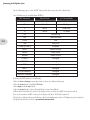
On the following page is a table of FBV functionality when using one with a Spider Jam.
*(not all functions are available from all FBVs).
3•4
FBV Footswitch
Normal Mode
Jam Control Mode
A
Tone A
Rec/Overdub
B
Tone B
Play/Stop
C
Tone C
Undo/Clear
D
Tone D
1/2 Speed
UP
Tone Bank Up
DN
Tone Bank Down
LOOP
N/A
TAP
Delay Time
STOMP (STOMP 1)
Dist Boost
MOD
Mod FX On/Off
DELAY
Delay On/Off
REVERB
Reverb On/Off
STOMP 2
unassigned
STOMP 3
unassigned
AMP 1
unassigned
AMP 2
unassigned
PITCH/TREMOLO
unassigned
FAVORITE CHANNEL
unassigned
To change the FBV mode, do the following:
•Press the Tone / Settings button three times to show the additional functions.
•Turn the Select knob to highlight FBV Mode.
•Press Right on the 4-way button.
•Turn the Select knob to choose Normal Mode or Jam Control Mode.
•When Jam Control Mode is selected, the display shows you what the ABCD footswitches will do.
If you try this without an FBV connected, the display will show “No Pedal Connected”.
*For details on Alternate Footswitch Modes, which were implemented in the v2.09 firmware, please download
the Spider Jam Advanced Guide at www.line6.com/manuals.
Loop Recording with Spider Jam
Loop Recording
with
Spider Jam
Loop Recording 101
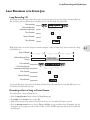
Spider Jam’s on-board loop recorder allows you to record your guitar (or any other input), automatically loop
that recording, and overdub into that recorded loop. You can also think of it graphically:
First recording
First recording also
determines loop length
First Overdub
Second Overdub
Third Overdub
With Spider Jam, you can also loop record with or without a Song or Drum Loop. If you record with a Song
or Drum Groove:
Time in Minutes
3 Minute Song or Drum
Groove
This portion will loop
with the recording
First recording
First recording also
determines loop length
First Overdub
Second Overdub
Third Overdub
As the recording loops, the portion of the Song or Drum Groove that matches the recording will loop, too, as
if it had been recorded with the loop.
Recording without a Song or Drum Groove
To record without a Song or Drum Groove:
•Press the Song / Drums button to show the Song/Drums page.
•Press Right on the 4-way button to select Rec.
•Make sure your sources are connected and your levels are set as described in Chapters 3 and 4.
•Press the Record Select button to choose Guitar or Mic/Aux as your recording source. Remember that the
Aux input can be assigned to either Guitar or Mic and the CD/MP3 input gets mixed and recorded with
the Mic input.
4•1
Loop Recording with Spider Jam
•Press the Rec / Overdub button to set the loop start point and start recording.
•Play or sing.
•Press the Rec / Overdub button to set the loop end point. Loop immediately begins to play back from the
beginning, and will continuously loop.
•Or, press the Play / Stop button to set the loop end point and stop playback.
•Once you have a loop recorded and playing back, press the Rec / Overdub button twice to overdub additional
audio on top of the loop.
Recording with a Song or Drum Groove
To record with a Song or Drum Groove:
4•2
•Press the Song / Drums button to show the Song/Drums page.
•Press Right on the 4-way button to select Song or Drums.
•Make sure your sources are connected and your levels are set as described in Chapters 3 and 4.
•Press the Record Select button to choose Guitar or Mic/Aux as your recording source. Remember that the
Aux input can be assigned to either Guitar or Mic and the CD/MP3 input gets mixed and recorded with
the Mic input.
•Load and play a Song or Drum Loop as described in Chapter 4.
•About 1 bar before you want to begin recording, press the Rec button. Recording begins at beat 1 of the next
bar. This will also set the loop start point.
•Play or sing.
•Press the Rec / Overdub button to set the loop end point. Loop immediately begins to play back from the
beginning, and will continuously loop.
•Or, press the Play / Stop button to set the loop end point and stop playback.
•Once you have a loop recorded and playing back, press the Rec / Overdub button twice to overdub additional
audio on top of the loop.
Quick Capture
If you’ve got a guitar riff that you want to capture quickly without having to set up the recorder, press and hold
the Undo button then press the Rec button. This forces Rec Select to Guitar, turns off the Song/Drums, and
immediately starts the recorder. Press Play / Stop to stop recording.
Undoing the Last Recording
Press the Undo button to erase your last overdub.
Clearing (Erasing) the Current Track
To access the Clear functions:
•Hold the Undo button for 2 seconds.
•Clear All is initially selected:
•Press Undo to completely clear recorded audio, and also clear the Drum/Song selection.
•Or turn the Select knob to choose Clear Guitar Track:
•Press Undo to clear just the guitar track, without affecting the Mic/Aux track or the Drum/Song
selection.
Loop Recording with Spider Jam
•Or turn the Select knob to choose Clear Mic/Aux Track:
•Press Undo to clear just the guitar track, without affecting the Mic/Aux track or the Drum/Song
selection.
•Or turn the Select knob to choose Clear Song/Drum Track:
•Press Undo to clear the current Drum/Song selection, but leave any current recorded audio
undisturbed.
Saving Recordings
When you save a recording, your complete setup is saved, including any recorded audio, which Song is selected,
your levels, Aux setup, Mic FX and guitar tone preset. To save a recording to internal memory:
•Press the Save button.
•Turn the Select knob to highlight Save Recording To Internal.
•Press Right on the 4-way button.
•Turn the Select knob to select the location you want to save to.
•Press Right on the 4-way button.
•If you want to rename the new recording, press Left/Right on the 4-way button to pick a character and the
Select knob to change that character.
•Press Down on the 4-way button to save, or press the Song, Level, or Tone buttons to cancel.
Loading Recordings
To load a recording:
•Press the Song / Drums button to show the Song/Drums Page.
•Press Right on the 4-way button to select Rec.
•Turn the Select knob to see the available recordings.
•When you get to the one you want, press the Play button to play the Recording and remain in the list. Or,
press Right on the 4-way button to play the Recording and exit the list.
•Press the Play / Stop footswitch to stop and start the recording.
*With the latest Spider Jam firmware update, you can now save and load Recordings directly to and from
an SD card. For more details, please download the Spider Jam Advanced Guide at www.line6.com/
manuals.
Setting the Recorder Playback Level
You can adjust the playback levels of the Song/Drums, recorded Guitar track and recorded Mic track:
•Press the Level / Inputs button.
•Press Left/Right on the 4-way button to select Song/Drums, Guitar, or Mic.
•Turn the Select knob to set the level.
GUITAR
MIC/AUX/WAV
4•3
Loop Recording with Spider Jam
Setting the Recorder Overdub Level
You can choose how loud you want previously recorded material to be when you’re overdubbing:
•Press the Song / Drums button twice to show the additional functions.
•Turn the Select knob to highlight Recorder Overdub, then press Right on the 4-way button.
•Turn the Select knob to set the level.
Erasing Recordings
To erase a recording, do the following:
4•4
•Press the Save button.
•Turn the Select knob to highlight Erase Saved Recording.
•Press Right on the 4-way button.
•Turn the Select knob to select the Recording you want to erase.
•Press Right on the 4-way button.
•Press the Down button to erase, or press the Song, Level, or Tone buttons to cancel.
You can also select and erase the Demo, just like any recording, to free up some additional recording time.
*Additionally, there are new Erase commands included with the latest Spider Jam firmware update, such
as Erase All Internal Recordings and Erase SD-Card Recording. For details, please see the Spider Jam
Advanced Guide at www.line6.com/manuals.
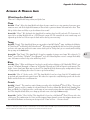
Appendix A: Modeled Amps
Appendix A: Modeled Amps
Which Amps Are Modeled?
There are 12 Amp Models living within your Spider Jam.
Clean
Red LED: “Clean”. Select this Amp Model and adjust the tone controls to get crisp, amazing clean tones, great
warm jazz tones, and all the high-end shimmer you’ll need with a generous amount of bottom end to boot. Then
dial up a little chorus and delay to get the ultimate clean sound!
Green LED: “Glassy”. We developed this Amp Model to emulate those late 60’s and early 70’s clean tones. It
started off as an Amp Model based on a 1973 Hiwatt® custom 100. We extended the tone control range and
tightened up the low end. Hit an open A chord and let that big sweet tone ring!
Twang
Red LED: “Twang”. This Amp Model draws on our analysis of mid 60’s Fender® amps, including the blackface
’65 Twin Reverb® and blackface ’64 Deluxe Reverb®. We wanted an Amp Model that has that classic glassy high
end tone, with some snap and bite for some serious chick’n pick’n. Things don’t get too crunchy until reaching
the top range of the Drive knob.
Green LED: “Twin Twang”. This Amp Model is based on a number of vintage tweed amps. We evaluated a ’53
Fender® tweed Deluxe, ’58 Fender® tweed Bassman® and a ’60 Gibson Explorer to create a swingin’ Rockabilly
tone. Add some reverb and a slap echo and Be-bop-alu-la!
Blues
Red LED: “Blues”. What would happen if we based a model on three helpings of ’65 Marshall® JTM-45, one
scoop of ’58 Fender® Bassman®, a schmeer of ’63 Fender® Vibroverb and a dash of Supro for good measure? The
biggest, fattest down home Blues amp ever heard. This Amp Model slides between gritty swamp-infected cleans
to syrupy smooth, walloping drive tones. It’s time to get down and dirty!
Green LED: “Class A”. Ready, steady....GO! This Amp Model is based on a fawn Vox® AC-30 amplifier with
an updated and expanded tone control circuit. We wanted to capture that early British pop rock tone that the
Beatles and the Stones are so well known for.
Crunch
Red LED: “Crunch”. This sound was crafted during our studies of the ‘68 Marshall® Plexi 50 Watt. This type of
Marshall® amp was used by a number of early metal bands. Check out albums like British Steel, Number of the
Beast and Black Out. Crunch provides a wider range of tone control settings than the original Marshall® amp
had. This Amp Model will allow you to bump up the mids even at the highest Drive settings.
Green LED: “On Fire”. Plexi On Fire! This Amp Model is based on a ‘68 Marshall® Plexi 100 watt with a few
added extras; The combination of a Variac and the jumpered input channels creates that infamous brown sound
that will feel like flames are shooting out the input jack! “Come on Dave… Give me a break!”
* All product names are trademarks of their respective owners, which are in no way associated or affiliated with Line 6. These product names, descriptions and images are provided for the
sole purpose of identifying the specific products that were studied during Line 6’s sound model development. Hiwatt® is a registered trademark of Fernandes Company, Inc. FENDER®,
Twin Reverb, Deluxe Reverb and Bassman are registered trademarks of Fender Musical Instruments Corporation.
A•1
Appendix A: Modeled Amps
Metal
Red LED: “Metal”. This Amp Model is based on the Mesa/Boogie® Dual Rectifier®. For JM4 Looper, we made
careful enhancements to this classic tone. The resulting Amp Model has a definite modern flavor. This monster
truck of tone delivers a tight bottom end that’s big, powerful, tight and fast. Use this Amp Model to get a tight
and punchy, high gain Metal sound. Green LED: “Spinal Puppet”. This sound was created to be an aggressive high gain Amp Model with a unique
Mid control that will sweep though an entire spectrum of tone on one knob. The Mid knob for this Amp Model
changes the character of the distortion. When set to minimum, the distortion exhibits Fuzz pedal characteristics.
When the Mid is set to noon, it mimics the creamy modern high gain amp tones. And when the Mid knob is
turned up to max, it’s very much reminiscent of that Class A sound. Of course, then there are all the places inbetween...
Insane
Red LED: “Insane”. This model is our “dialed in for shredding” version of the Mesa/Boogie® Dual Rectifier®
red channel. It combines the intensity and impact of Metal Red, but delivers more midrange and teeth for that
bone-crushing, brain piercing insane grind.
Green LED: “80s Solo”. Our goal with Insane was to provide you with as much input gain distortion as possible
A•2
short of complete meltdown. You get an obscene helping of distortion, while still retaining tonal definition and
character. As a result, you get way more bottom end and cabinet character than other small amps. Crank up the
Drive control and prepare to dominate!
* All product names are trademarks of their respective owners, which are in no way associated or affiliated with Line 6. These product names, descriptions and images are provided for the
sole purpose of identifying the specific products that were studied during Line 6’s sound model development. VOX® is a registered trademark of Vox R&D Limited. MARSHALL® is a
registered trademark of Marshall Amplification Plc. MESA/BOOGIE® and RECTIFIER® are registered trademarks of Mesa/Boogie, Ltd.
Appendix B: Using Your Feet
Appendix B: Using Your Feet
The FBV series of foot controllers includes the original FBV, the more-compact FBV Shortboard, and the FBV
Express. The following pages detail operations with the two most appropriate FBVs for Spider Jam, the FBV
Express and FBV Shortboard (note that the “Line 6 Floor Board” and “FB4” foot controllers will not work
with Spider Jam).
FBV Cable
FBV foot controllers come with an included RJ-45 cable. Connect this cable between the rear panel of the
Spider Jam and the side of the FBV. If you ever need a replacement cable, look for a Category 5, 10 Base-T or
RJ-45 cable with male connectors on both ends. These can be found at almost any computer supply retailer.
Note: Do not use a “cross-over” CAT-5 cable, as it may send voltage to unintended locations of your FBV
controller and damage the unit.
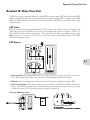
FBV Express
B•1
1. Channel A, B, C & D: In Normal FBV Mode, these select presets and you can tap on the lit switch to set
Delay Time. In Jam Control Mode, these control recorder/song/drum playback and recording.
2. FBV Pedal: Press the pedal forward to click the toe-switch, turning the pedal from Volume to Wah.
3. Wah and Volume Lights: These light to show that a pedal is ready to control Wah or Volume. To switch the
pedal to control Wah or Volume, press the pedal fully forward and shift your weight onto your toe enough
to click the toe-switch. The Tweak function does not apply to Spider Jam.
Using your FBV Express Tuner
Appendix B: Using Your Feet
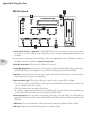
FBV Shortboard
1. Channel A, B, C & D: See page 4•5. In Normal FBV Mode, these select presets and you can tap on the
lit switch to set Delay Time. In Jam Control Mode, these control recorder/song/drum playback and
recording.
B•2
*For details on new Alternate Footswitch Modes, which were implemented in the v2.09 firmware, please see
the Spider Jam Advanced Guide at www.line6.com/manuals.
2. Bank Up - Bank Down: Select any of the 9 Banks of User presets.
3. Stomp/Mod/Delay/Reverb: You guessed it! These switch the Spider Jam effects Mod, Delay and Reverb on
and off kinda like they were stomp boxes on a pedal board. Stomp engages the Distortion Boost.
4.Tap/Tuner: Tap a couple beats to set the tempo. Or press and hold this switch until you see the tuner on the
pedal’s display. Press it again to exit tuner mode.
5. Wah and Volume Lights: These light to show that a pedal is ready to control Wah or Volume. •To switch the pedal to control Wah or Volume, press the pedal fully forward and shift your weight onto
your toe enough to click the toe-switch.
•The Tweak function does not apply to Spider Jam.
•If a separate expression pedal is connected to the Shortboard’s rear panel 1/4-inch jack, the Shortboard
pedal controls Wah only, with the toe switch toggling the Wah on/off.
6. External Pedal Jack: You can connect an expression pedal (such as the Line 6 EX-1) to the Shortboard’s
rear panel 1/4-inch jack, and the connected pedal will control Volume, while the Shortboard pedal controls
Wah only.
7. FBV Pedal: Press the pedal forward to click the toe-switch, turning the pedal from Volume to Wah.
8. FX Loop: Displays the current Recording name if a recording is loaded.