1
AXIS A1001 Network Door Controller & AXIS Entry Manager
System Configuration
•
Range (required) – Enter the bit range of the field map, for example 1, 2–17, 18–33, and 34.
•
Encoding (required) – Select the encoding type of each field map.
-
BinLE2Int – Binary data is encoded as integer numbers in little endian byte order. Integer means that it needs
to be a whole number (no decimals). Little endian byte order means that in a multiple-byte sequence, the
first byte is the smallest.
-
BinBE2Int – Binary data is encoded as integer numbers in big endian byte order. Integer means that it needs
to be a whole number (no decimals). Big endian byte order means that in a multiple-byte sequence, the first
byte is the biggest.
-
BinLE2Hex – Binary data is encoded as hex-lowercase numbers in little endian byte order. The hexadecimal
system, also known as the base-16 number system, consists of 16 unique symbols: the numbers 0–9 and the
letters a–f. Little endian byte order means that in a multiple-byte sequence, the first byte is the smallest.
-
BinBE2Hex – Binary data is encoded as hex-lowercase numbers in big endian byte order. The hexadecimal
system, also known as the base-16 number system, consists of 16 unique symbols: the numbers 0–9 and the
letters a–f. Big endian byte order means that in a multiple-byte sequence, the first byte is the biggest.
For information about which field maps your card format uses, see the manufacturer’s instructions.
Manage Network Door Controllers
The Manage Network Door Controllers in System page shows information about the door controller, its system status, and which
other door controllers are part of the system. It also enables the administrator to change the system setup by adding and removing
door controllers.
To manage door controllers, go to Setup > Manage Network Door Controllers in System.
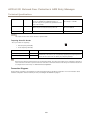
The Manage Network Door Controllers in System page includes the following panels:
•
System status of this controller – Shows the door controller's system status and enables switching between system and
standalone modes. For more information, see Door Controller System Status on page 23.
•
Network door controllers in system – Shows information about the door controllers in the system and includes controls
for adding and removing a controller from the system. For more information, see Connected Door Controllers in the
System on page 24.
Door Controller System Status
If the door controller can be part of a system of door controllers depends on its system status. The door controller’s system status
is displayed in the System status for this controller panel.
If the door controller is not in standalone mode and you want to protect the door controller from being added to a system, click
Activate standalone mode to enter standalone mode.
If the door controller is in standalone mode but you intend to add the door controller to a system, click Deactivate standalone
mode to leave the standalone mode.
System Modes
•
This controller is not part of a system and not in standalone mode – The door controller has not been configured as
part of a system and it is not in standalone mode. This means that the door controller is open and can be added to a
system by any other door controller within the same network. To protect the door controller from being added to a
system, activate the standalone mode.
•
This controller is set to standalone mode – The door controller is not part of a system. It cannot be added to a
system by other door controllers in the network or add other door controllers itself. Standalone mode is typically used
in small setups with one door controller and one or two doors. To allow the door controller to be added into a system,
deactivate the standalone mode.
23