1
6 Wireless Network (WLAN)
In a wireless network (Wireless Local Area Network,
WLAN) at least two computers, printers or other additional devices communicate with each other over radio
waves (high frequency waves). Data transmission in the
radio network is based on the standards 802.11b,
802.11g and 802.11n.
DANGER!
Information on Using WLAN!
The functioning of security systems, medical
equipment or sensitive devices can be disrupted by the transmission power of the
device. Observe any usage regulations (or
restrictions) in the vicinity of such equipment.
The use of this device can affect the operation
of insufficiently shielded medical devices and
hearing aids and pacemakers through the
release of high frequency radiation. Also consult a doctor or the manufacturer of the medical device to establish whether these are sufficiently shielded from external high frequency
radiation.
Infrastructure Wireless Network
In an infrastructure network, multiple devices communicate via a central access point (gateway, router). All
data are sent to the access point (gateway, router) and
distributed from there.
Switching Wireless
Networking (WLAN) on/off
Wireless networking is deactivated by default. You have
the option of turning this function on.
1 Switch the device on using the on/off switch on the
side.
2 After the initial screen the main menu appears.
3
4
5
6
7
8
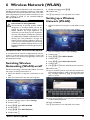
Use the navigation keys to select Settings.
Confirm with à.
Using / select WIFI & DLNA.
Confirm with à.
Using / select WIFI Network.
Confirm with à.
Wireless Network (WLAN)
9 Modify the settings with /.
10 Confirm with à.
The ¿ key takes you one step back in the menu.
Setting up a Wireless
Network (WLAN)
1 Switch the device on using the on/off switch on the
side.
2 After the initial screen the main menu appears.
3 Use the navigation keys to select Settings.
4 Confirm with à.
5 Using / select WIFI & DLNA.
6 Confirm with à.
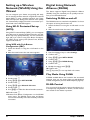
7 Using / select Network Selection.
8 Confirm with à.
9 Use / to select the desired wireless network..
10 Confirm with à.
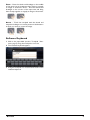
11 If your wireless network is password protected, an
input window appears. Click in the input field (see
also Touchpad / Gestures, page 7) using the touchpad or a mouse.
12 Using the touchpad or a mouse enter the password
on the software keyboard.
13 Click on Connect.
The ¿ key takes you one step back in the menu.
20