1
7 | ENGLISH
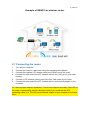
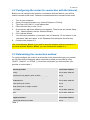
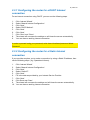
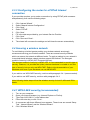
2.3.3 Configuring the router for a PPPoE Internet
connection
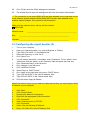
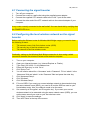
If your provider requires you to make a connection by using PPPoE (with username
and password), then use the following steps.
1.
2.
3.
4.
5.
6.
7.
8.
9.
Click ‘Internet Wizard’.
Select ‘Manual Internet Configuration’.
Click ‘Next’.
Select ‘PPPoE’.
Click ‘Next’.
Fill in the data as provided by your Internet Service Provider.
Click ‘Next’.
Click ‘Save and Close’.
The wizard will now save the settings and will close the screen automatically.
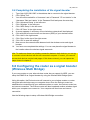
2.4 Securing a wireless network
To avoid having uninvited guests probing your wireless network we strongly
recommend securing your wireless network. There are several security methods
which can secure the network at different levels. To apply a method to your network it
is required that all wireless network devices support this method. The strongest
method of security is WPA2 (WiFi Protected Access).
The strongest method of security is WPA2 AES. It is recommended to use this type of
security. However, it is possible that (older) wireless hardware is not able to use this
type of security, but can only use WPA-TKIP. Refer to the documentation of your
hardware to be sure if your hardware can use WPA2 AES.
If you wish to use WPA2 AES security, continue with paragraph 2.4.1 (recommended).
If you wish to use WEP security, continue with paragraph 2.4.2.
Note: following below steps will set the wireless security for both 2,4Ghz and 5Ghz
bands.
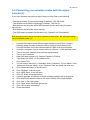
2.4.1 WPA2 AES security (recommended)
1.
2.
3.
4.
5.
6.
Turn on your computer.
Open your Internet browser (e.g. Internet Explorer or Firefox).
Type ‘http://192.168.8.1’ in the address bar.
Press the enter key or click ‘Go to’.
A new screen with three different icons appears. These icons are named ‘Setup
Tool’, ‘Internet Wizard’ and the ‘Wireless Wizard’.
Click ‘Wireless Wizard”.