1
46 Network configuration
If a DHCP server is already present in
the network for giving out IP addresses, have this option enabled so
that the dLAN 1200+ WiFi ac automatically receives an address from it.
This is usually the router.
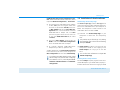
To assign a static IP address, first disable the option
Network settings are automatically retrieved
from a DHCP server and make your individual entries.
Save your entries with OK.
If you happen to forget the IP address of your
dLAN 1200+ WiFi ac, proceed as described under 5.1 Calling up the built-in configuration
interface.
5.6.4 System
Here you can reset the current configuration to the factory defaults, save it to your computer as a file or restore it from there and update the firmware of the
dLAN 1200+ WiFi ac.
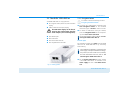
Ensure that the update procedure is
not interrupted. To do so, it is best to
connect your computer to the
devolo dLAN 1200+ WiFi ac
dLAN 1200+ WiFi ac via dLAN or LAN rather
than WiFi.
Automatic firmware update
The firmware of the dLAN 1200+ WiFi ac includes the
software for operating the device. If necessary, devolo
offers new versions on the Internet as a file download,
for example to modify existing functions. If you would
like the dLAN 1200+ WiFi ac to perform firmware updates automatically, enable the Automatic firmware
update option and start the update procedure with
Search for newer firmware and update now.
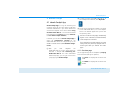
The
icon on the front side of the device flashes red
during the update procedure. After a successful update, the dLAN 1200+ WiFi ac restarts automatically.
Update firmware
To bring the firmware up to the latest version manually,
start by going to the devolo website,
www.devolo.com, and downloading the appropriate
file for the dLAN 1200+ WiFi ac to your computer.
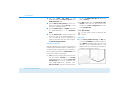
In the Management System area click File
name… and select the downloaded file.
Then start the update procedure with Update firmware. After a successful update, the
dLAN 1200+ WiFi ac restarts automatically.