1
1
2
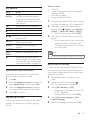
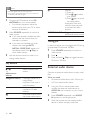
Press .
»» The video options menu is displayed.
Press the Navigation buttons and OK to
select and change:
• [Info]: Display information about what
is playing.
• [Audio language]: Select audio
language for video.
• [Subtitle language]: Select subtitle
language for video.
• [Subtitle shift]: Change the subtitle
position on the screen.
• [Character set]: Select a character set
that supports the DivX subtitle.
• [Time search]: Skip to a specific part
of the video by entering the time of
the scene.
• [2nd audio language]: Select the second
audio language for Blu-ray video.
• [2nd subtitle language]: Select the
second subtitle language for Blu-ray
video.
• [Titles]: Select a specific title.
• [Chapters]: Select a specific chapter.
• [Karaoke]: Change the karaoke
settings.
• [Angle list]: Select a different camera
angle.
• [Menus]: Display the disc menu.
• [PIP selection]: Display Picture-inPicture window when playing a Blu-ray
disc that supports the Bonus View.
• [Zoom]: Zoom into a video scene or
picture. Press the Navigation buttons
(left/right) to select a zoom factor.
• [Repeat]: Repeat a chapter or title.
• [Repeat A-B]: Mark two points within a
chapter or track to repeat play, or turn
off the repeat mode.
• [Picture settings]: Select a predefined
color setting.
Picture options
While viewing a picture, zoom into the picture,
rotate it, add animation to a slideshow, and
change the picture settings.
1
2
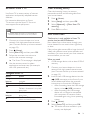
Press .
»» The picture options menu appears.
Press the Navigation buttons and OK to
select and change the following settings:
• [Info]: Display picture information.
• [Rotate +90]: Rotate the picture
90 degree clockwise.
• [Rotate -90]: Rotate the picture
90 degree counter-clockwise.
• [Zoom]: Zoom into a video scene or
picture. Press the Navigation buttons
(left/right) to select a zoom factor.
• [Duration per slide]: Select the display
speed for each picture in a slide show.
• [Slide animation]: Select animation for
the slide show.
• [Picture settings]: Select a predefined
color setting.
• [Repeat]: Repeat a selected folder.
Musical slideshow
If the picture and audio files are from the same
disc or USB storage device, you can create a
musical slideshow.
1
2
3
4
5
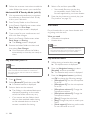
Select an audio track, and then press OK.
Press
, and go to the picture folder.
Select a picture, and then press
start the slideshow.
Press
to stop slideshow.
Press
again to stop music.
(Play) to
Note
•• Make sure that the picture and audio formats are
supported by your home theater (see 'File formats' on
page 31).
Radio
Listen to FM radio on your home theater, and
store up to 40 radio stations.
EN
19