1
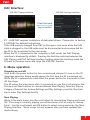
DAC Interface:
USB DAC Playing interface
USB DAC Settings interface
Press the back
key to switch
X5’s USB DAC requires installation of dedicated drivers. Please refer to Section
F: USB DAC for detailed instructions.
If the USB mode is changed from DAC to Storage or vice versa while the USB
cable is plugged in, the USB cable must be disconnected and reconnected for
the X5 to be recognized in the new mode;
When the X5 is connected to the computer in DAC mode, the DAC Playing
interface is displayed by default. Pressing the back key switches between the
DAC Playing and DAC Settings interface; holding down the back key sends the
X5 back to the main menu and stops the USB DAC function.
E. Menu operation
Powering on and off
Hold down the power button for two seconds and release it to turn on the X5
(language selection dialog would appear the first time the X5 is powered on);
While the X5 is powered on, hold down the power button for 3 seconds to turn
off the player.
The X5 enters the main menu after it is powered on; use the scroll wheel or the
Previous and Next buttons to choose between Now Playing, Favorites, Play by
Category, Browse Files, System Settings and Play Settings; press the Shortcuts
key to enter Play Settings directly.
Now Playing
While in the main menu, turn the scroll wheel to choose Now Playing and press
OK. If no song is currently playing you will be shown a list of songs to choose
from*. Use the scroll wheel and OK button to select a song and enter the Now
Playing interface. *Note: songs list only appears after you have updated the
media library.
7