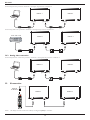
1
BDL4660EL
3. Set DMR as ON.
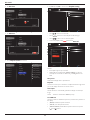
View network settings
Off
Network settings
On
• To clear the list of offline media servers, press [ ] OPTIONS
button. Then, choose Clear offline servers and press [
button.
4.6.
Static IP configuration
Digital Media Renderer - D...
]
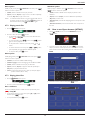
Play multimedia files from USB device
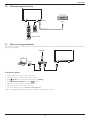
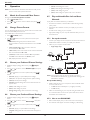
1. Connect your USB device to the USB port on the display.
Network name
Clear Internet memory
USB
4. Set the name of your display.
2. Press [
button.
View network settings
Network settings
] SOURCE button, choose USB, and press [
]
Static IP configuration
Digital Media Renderer - D...
Network name
Network
Clear Internet memory
HDMI 1
HDMI 2
DisplayPort
Browse USB
3. The connected USB device is detected automatically for all its
playable files, which will be automatically sorted into 3 types:
Music,
Movie, and
Photo.
4. Press [
] BACK button to go up to the top layer in the screen.
Press [ ] or [ ] button to choose the file type. Press [
]
button to enter its play list.
testabc
Cancel
Done
5. Choose the file you want. Press [
Clear
6. Follow the on-screen instruction to control the play option.
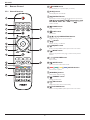
7. Press [PLAY] buttons (H F G I J) to control playing.
] HOME button, and go to Source menu. Then, choose
] button.
Browse network and press [
6. On your PC, go to Network and Sharing Center, and click
Choose homegroup and sharing options.
7. Check the media formats. Then, click Choose media
streaming options.....
8. Go to Advanced sharing settings, and check Turn on
network discovery.
5. Press [
4.7.
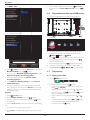
1. Choose
2. Choose one music track, and press [
] button.
• To play all the tracks in a folder, choose one music file. Then,
press [
] to Play All.
• To skip to the next or previous track, press [ ] or [ ] button.
• To pause the track, press [
] button. Press [
] button
again to resume playback.
• To skip backward or forward 10 seconds, press [ ] or [ ]
button.
] SOURCE button.
] button.
3. Choose a file from the content browser, and press [
to start playing.
Music in the top bar.
Music
Play files
2. Choose Browse network, and press [
Play options
4.7.1. Playing music files
9. Now, go to the directory of your media files. Choose the media
file by right click. On the submenu from Play To, You can find all
displays connected to your network. Choose the display, and click
the media file to play..
1. Press [
] button to start playing.
• To search backward or forward, press [G] or [J] button,
press repeatedly to toggle between different speeds.
] button
• To stop the music, press [H] button.
4. Press the [PLAY] buttons on the remote control to control playing.
Tips:
• Choose the top bar to filter your files by type.
• Choose Sort to arrange the files by album name, artist, or other
fields.
18