1
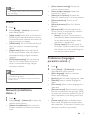
Button
Action
DISC MENU
Access or exit the disc menu
or Pop-up menu.
Access the main menu of a
video disc.
Navigate the menus.
Press
to rotate a picture
clockwise or counter-clockwise
during slideshow.
Confirm a selection or entry.
Return to a previous display
menu.
Access more options during
play.
Select tasks or options for
Blu-ray discs.
Open or close the disc
compartment.
Start or resume play.
Pause play.
Press repeatedly to slow
forward frame by frame.
Stop play.
Skip to the previous or next
track, chapter or file.
Fast backward or forward.
Press repeatedly to change the
search speed.
Press once, and then press
to slow forward.
Select an audio language or
channel.
Select a subtitle language.
Select an item to play.
Enter values.
Enter letters via SMS style
entry.
TOP MENU
OK
Color
buttons
/
/
AUDIO
SUBTITLE
Alphanumeric
buttons
Video, audio and picture
options
More options are available for video or picture
play from a disc or USB storage device.
Video options
2
3
1
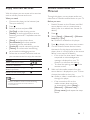
Access more options during video play.
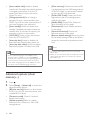
• [Audio language]: Select an audio language.
• [Subtitle language]: Select a subtitle
language.
• [Subtitle shift]: Change the subtitle
position on the screen. Press
to
change the subtitle position.
• [Info]: Display play information.
• [Character set]: Select a character set that
supports the DivX video subtitle (only for
DivX videos).
• [Time search]: Skip to a specific time
via the numeric buttons on the remote
control.
• [2nd audio language]: Select the second
audio language (only for Blu-ray discs that
support BonusView).
• [2nd subtitle language]: Select the second
subtitle language (only for Blu-ray discs that
support BonusView).
• [Titles]: Select a title.
• [Chapters]: Select a chapter.
• [Angle list]: Select a camera angle.
• [Menus]: Display a disc menu.
• [PIP selection]: Display a picture-in-picture
window (only for Blu-ray discs that support
BonusView).
EN
3