1
Printing from PC > Printing from PC
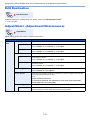
Printer Driver Help
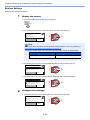
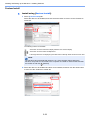
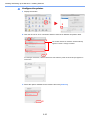
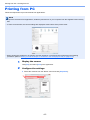
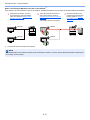
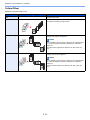
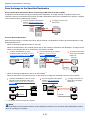
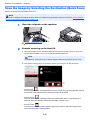
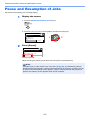
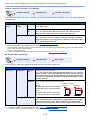
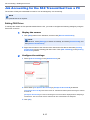
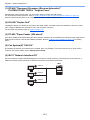
The printer driver includes Help. To learn about print settings, open the printer driver print settings screen and display
Help as explained below.
1
2
•
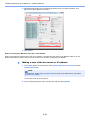
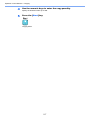
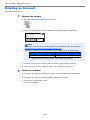
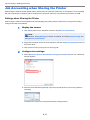
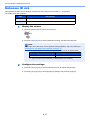
Click [?] in the upper right corner of the screen and then click the item you want to know about.
•
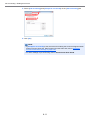
Click the item you want to know about and press the [F1] key on your keyboard.
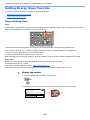
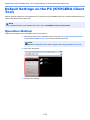
Changing the Default Printer Driver Settings (Windows 7)
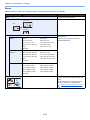
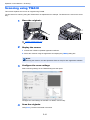
The default printer driver settings can be changed. By selecting frequently used settings, you can omit steps when
printing. For the settings, refer to Printer Driver User Guide.
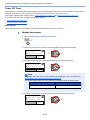
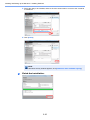
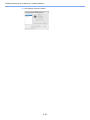
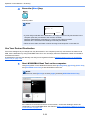
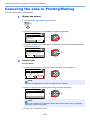
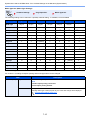
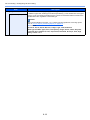
1 Click [Start] button on the Windows, and then click [Devices and Printers].
2 Right-click the printer driver icon of the machine, and click the [Printer properties] menu of
the printer driver.
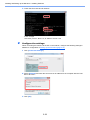
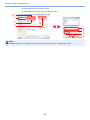
3 Click [Preferences] on the [General] tab.
4 Select the default settings and click [OK].
Canceling Jobs
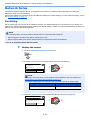
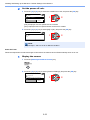
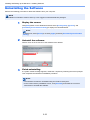
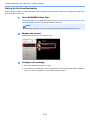
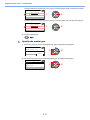
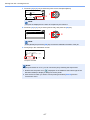
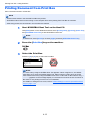
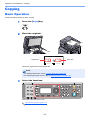
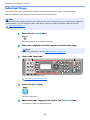
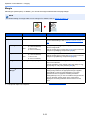
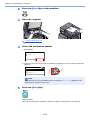
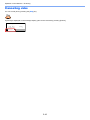
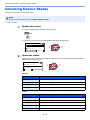
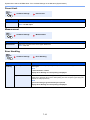
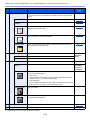
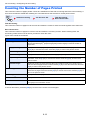
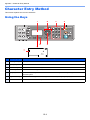
You can cancel jobs by pressing the [Stop] key.
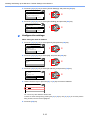
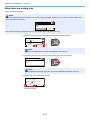
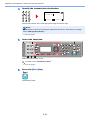
When there are waiting jobs
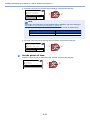
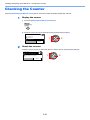
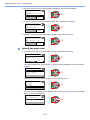
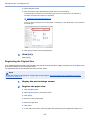
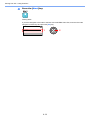
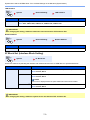
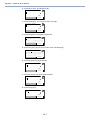
[Print Job List] is displayed.
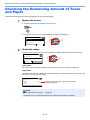
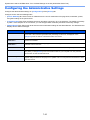
NOTE
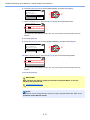
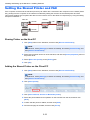
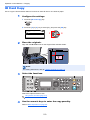
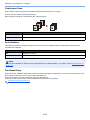
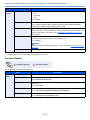
When the optional FAX Kit is installed, [Job Cancel List] is displayed. Press the [▲] or [▼] key to select [Print Job
List], and press the [OK] key.
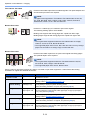
Job Cancel List:
01 Print Job List
02 Send Job List
Exit
FAX jobs that are being transmitted can be canceled by selecting [Send Job List].
4-6