1
6
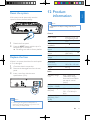
The two-way control is successfully
connected. You can control the
AppsControl app both by your smart
phone and by car audio system.
Check the Bluetooth
connection status
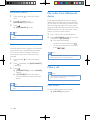
1
Press and hold
menu.
2
Press / to select [BT MODE].
»» [BT MODE PHONE NAME < HFP -A2DP -- APPS>] scrolls on the screen.
to access the system
• If APPS on the above strings is not
displayed, the connection between the
car audio system and the AppsControl
application fails, please try the
Bluetooth connection again.
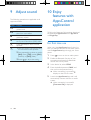
Use the AppsControl
application
Note
•• To enjoy the latest features, update the application on
your phone when an update message prompts.
•• After update, the interface and features may be
different from the description in this section. Follow the
actual operations.
Launch the AppsControl application.
»» The home screen is displayed.
English
1
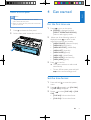
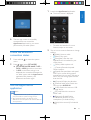
• To switch the interface for more
features, swipe on the screen.
2
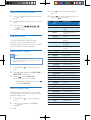
Tap an icon to access its features or change
settings.
•
(Radio): Listen to radio.
•
(Music): Play music.
•
(Navigation): Run the map
application that is installed on your
smart phone.
•
(Phone): Make a phone call.
•
(Camera): Record the speed
camera location.
•
(Speed): Set speed alert and speed
limit. If your current driving speed
exceeds the limit you set, it will pop an
alarm until you driving speed is lower
than the limit.
•
(Compass): Display the direction.
•
(External audio input): Switch the
source to the AUDIO IN.
•
(USB): Switch the source to USB
storage device.
•
(SD card):Switch the source to
SDHC card.
•
(Bluetooth): Enable/Disable
the Bluetooth function on your
smartphone (For Android only).
•
(Voice): Voice control (For Android
only).
EN
19