1
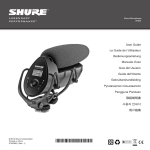
Wired Microphones VP83F User Guide Le Guide de l’Utilisateur Bedienungsanleitung Manuale d’uso Guia del Usuario Guida dell’Utente Gebruikershandleiding Руководство пользователя Pengguna Panduan 取扱説明書 사용자 안내서 用户指南 © 2013 Shure Incorporated Printed in China 27A20681 (Rev. 2) *27A20681* N108 VP83F General Description The Shure VP83F is a professional-quality condenser microphone designed for use with DSLR and video cameras. The VP83F features built-in flash recording and captures crystal-clear, high definition audio, completely independent from other hardware. The intuitive menu makes configuration fast and simple for use in almost any sonic environment. Features ① Exceptional Audio Quality • High-resolution recording (24 Bit/48khz sampling, WAV format) • Supercardioid/lobar pickup pattern rejects unwanted sounds ④ • Interference tube for increased directionality • RF Immunity Built-in Flash Recording ② • Records directly to microSD card (32 GB maximum) • Intuitive menu for easy microphone configuration and track management • Separate outputs for headphone monitoring and camera input with independent volume adjustment ⑤ ③ ⑥ ⑦ Rugged and Reliable • Durable, all-metal housing ① Windscreen ② Camera audio output ③ Camera shoe mount ④ Battery and memory card compartment ⑤ Rycote® integrated shockmount ⑥ Control panel ⑦ Headphone audio output • Rycote® integrated shockmount • Shoemount adapter for easy installation Accessories • Rycote® foam windscreen • 3.5 mm coiled audio cable • (2) AA batteries (except in Argentina) • Rycote® Windjammer™ (optional) 3 Installing the Memory Card and Batteries The VP83F requires two AA batteries to operate (compatible with Alkaline, NiMH, or Lithium). Installing a MicroSD memory card enables recording functionality. ① Audio is still passed through to the camera and headphone outputs if there is no memory card installed. ① Opening the front panel Squeeze the latches on each side and open the front panel to access the memory card and battery compartment. ② Installing the memory card Always turn the power off before removing or installing a memory card. To Install: Insert the card into the slot located above the battery door, with the contacts facing up. When fully inserted, the card locks into place. To Remove: Press the card to unlock it, then pull it from the device. Note: Format the memory card in the device prior to first use. Refer to the memory card requirements section in the user guide for additional information. ② ③ Installing and replacing batteries Open the battery door located inside the front panel by pressing the fastener down. Insert the batteries according to the polarity indicators. ③ Note: The battery door must be closed and latched before closing the front panel. Mounting the Microphone On a Camera: ② ① 1.Slide the microphone onto the camera shoe. 2.Tighten the knurled ring to secure. Tip: In addition to the vibration isolation provided by the shock mount, the low-cut filter can be used to further eliminate handling noise and low frequency rumble. On a Tripod: The 1/4 inch screw hole at the base of the shoe mount is compatible with tripods that have a 1/4 inch center column. Carefully rotate the microphone clockwise to tighten onto a tripod. For other mounting solutions, such as microphone stands or boom poles, an adapter may be required. 4 Audio Connections Headphone Output (Black) Camera Output (Red) Connect a pair of headphones to the headphone output for monitoring recordings and listening during playback. The camera output passes the audio signal for recording a backup track on the camera. Use the 3.5 mm coiled cable to connect the VP83F camera output to the camera's audio input. Important: Never use the microphone gain to adjust the headphone volume, as this may result in poor signal quality or distortion. Control Panel ① Menu Display Displays menu information and settings. ② Power Button Turns the unit on and off. ③ Five-Position Joystick Navigates through the menu. Push the center of the joystick to make a selection. ④ Record Button • Press to begin and pause recording • Press and hold to stop recording • When in the menu, press to return home ⑤ LED Record Indicator • Solid red = recording • Flashing red = paused Menu Navigation Open menu: Press the joystick to the right to open the main menu and to proceed into submenu screens. ① Return to previous screen / select homescreen icons: Press the joystick to the left to back out of the menu. In the homescreen, pushing left will highlight the gain, headphone volume, or low-cut filter and allow them to be adjusted. ② ③ Enter: Press the joystick center button. ④ Scroll / adjust parameters: Press the joystick up or down to scroll through menu items, or to change parameters when selected. ⑤ Home Screen Indicators ① Track information Displays track title and duration ② Low-cut filter icons On: ① ⑦ ② ⑥ Off: ③ Remaining recording time Displays time remaining on the memory card ④ Headphone volume ⑤ Battery meter ③ ④ ⑤ ⑥ Audio meter (Gain) Displays microphone signal level, with range indicator for suggested peak levels ⑦ Microphone gain value 5 Quick adjustments from the home screen The following settings are adjustable when highlighted in the homescreen: • Headphone volume • Microphone gain • Low-cut filter Press the joystick left or right to highlight an icon for adjustment, and use up/down to change the value. Audio Path Headphone and Camera Output Volume The following diagram shows how audio flows through the device: Headphone Volume: Accessible in the menu by selecting HEADPHONE, or in the playback, recording, and home screens by selecting the headphone icon and pressing the joystick up or down. Recording to Memory Card Camera Output Volume: Accessible in the menu by selecting UTILITIES > CAMERA OUT. Level is selectable (LOW, MEDIUM, or HIGH) to accommodate different camera preamp sensitivities. Camera Output Camera Out Level Gain Low-cut Filter Note: Always set the gain to the appropriate level prior to adjusting the headphone or camera output volume. Headphone Volume Headphone Output Low-Cut Filter Important: Follow the directions on setting the gain for the best signal-to-noise performance. Since it is first in the signal path, the gain affects everything following it. The gain should never be used to boost or attenuate the headphone signal; use the headphone volume to adjust monitoring levels. The headphone and camera output level adjustments occur after the signal has reached the recording section of the device, and should not be used to compensate if the gain setting is too low or is clipping. Rolls off low frequencies 170 Hz and below (12 dB per octave) in order to reduce low frequency rumble caused by camera handling and other environmental factors. A custom Rycote® Windjammer (A83-FUR) can be used to further reduce wind noise. Format The Memory Card Before Use Recording Audio Format the memory card in the device prior to first use for best recording performance. Formatting the card after tracks have been exported is recommended. To format the card, enter the menu and select UTILITIES > SD CARD > FORMAT CARD. Adjusting Microphone Gain In order to capture the highest quality audio signal, the microphone gain must be set at the appropriate level. Press the joystick up or down to adjust levels in the MIC GAIN screen in the menu, or from the home screen when the mic gain icon is highlighted. Use the following guidelines to achieve the best results: • Adjust the gain to correspond to the highest anticipated sound level. The loudest sounds should peak between -12 dB and -6 dB. Record: Press the record button to begin recording. The LED indicator illuminates while recording. Pressing record always creates a new track, unless resuming a paused recording. Pause: Press the record button to pause the recording. The LED flashes while recording is paused. Press record again to resume. Stop: Press and hold the record button (2 seconds). Adjusting Settings While Recording • Setting the gain too low will result in more noise in the recording. If set too high, the signal will clip and become distorted. The audio meter will indicate that the signal is clipping when the level reaches the highest bar. Tip: For higher resolution metering, adjust the gain in the MIC GAIN screen to see more precisely where the signal is peaking. 6 If necessary, audio settings (Microphone gain, Headphone volume, and Low-cut filter) can be adjusted while recording to compensate for unexpected changes, such as a volume increase that results in clipping. Press the joystick to the left to highlight an item, and then press the joystick up or down to change the value. For best results, configure all settings prior to recording. Note: The menu is not accessible during recording. Managing Tracks Deleting Tracks Track Playback To listen to recorded tracks, select FILE LIST from the menu screen. Highlight a track and select PLAYBACK to open it. Note: Once tracks have been deleted, they cannot be recovered. Playback Controls Function To delete audio tracks, select FILE LIST from the menu screen and open the track you would like to delete, and select DELETE. Joystick action Previous / next track Press left / right Rewind / fast forward Hold left / right Play / pause Center push Return to track list Press left while paused Return to home screen Press record button Exporting Tracks To export .WAV audio files, turn the device off and remove the MicroSD memory card. Transfer files to a computer using an SD card adapter or USB adapter. All imported tracks include a title and timestamp. Tip: For best performance, format the memory card in the device every time after exporting tracks. Utilities VP83F HOME FILE LIST FILE_001 PLAY RENAME DELETE DETAILS MIC GAIN HEADPHONE LOW-CUT UTILITIES SD CARD FORMAT CARD SET FILE NAME MAX FILE TIME BACKLIGHT TIME/DATE SET TIME SET DATE BATTERY TYPE CAMERA OUT CONTRAST RESET DEFAULTS DEVICE DATA FIRMWARE SD CARD Remaining recording time is displayed and the following settings can be accessed: FORMAT CARD: Formatting the microSD card will erase all data and should be done before first use. MAX FILE TIME: Adjusting the maximum file size determines the partitioning of longer tracks. If the maximum file size is set to 1GB (2 hours), a 6 hour recording will be divided into three separate WAV files. SET FILE NAME: The file name is set to TRACK by default, but can be changed by selecting a character and scrolling up or down to change it. This feature is useful for identifying different sessions or projects. CAMERA OUT Adjusts the volume of the audio signal that is sent to the camera. HIGH (0 dB): For cameras with a low-gain preamp. MEDIUM (-20 dB): Appropriate for most cameras. LOW (-40 dB): For cameras with a sensitive preamp. CONTRAST Adjust the contrast value to change the ratio of light to dark on the display screen. RESTORE DEFAULTS BACKLIGHT Restores all default factory settings except for the time and date. Adjusts the duration that the LED screen backlight will remain on. DEVICE DATA Displays technical device information. TIME/DATE Set the time and date so that tracks include a timestamp when exported. BATTERY TYPE Select the appropriate battery type for the meter to read accurately. 7 UPDATE FW Enables firmware updates from the memory card. Having the latest firmware installed on the unit is recommended. Please visit www. shure.com for details. Battery Life Use the following information for reference when considering which battery type to use with the device. Actual runtime may vary depending on the brand of memory card and batteries, output volume levels, and the type of headphones used. Battery Type (AA) Accessories and Replacement Parts Rycote® replacement foam windscreen A83W Rycote® Windjammer™ A83-FUR Battery Runtime (Hours) When Recording Passing Audio Only Alkaline 9.5 10.5 NiMH 12 15 Lithium 17.5 22.5 Note: The battery icon will begin flashing when the battery has approximately 15 minutes of run time remaining. Memory Card Requirements The VP83F requires a MicroSD card rated class 6 or higher. Always format new memory cards in the device prior to recording. Shure recommends using name brand memory cards, as lower quality or slower memory cards may have a negative effect on performance. Note: If using a UHS-1 microSDHC memory card, format the card from a computer to FAT32 file system, and the allocation size to DEFAULT. Camera and Headphone Output Pin Configuration The camera and headphone outputs send identical, mono audio signals on the tip and ring portions of the connector. Headphones and stereo inputs, which typically use the tip as the left channel and the ring as the right channel, receive the same audio on both channels. Tip Ring Sleeve Audio (mono 1) Audio (mono 2) Ground Tip Ring Sleeve Memory Card Recording Capacity Memory Approximate Recording Time 4 GB 8 Hours 8 GB 16 Hours 16 GB 32 Hours 32 GB (maximum card size) 64 Hours Troubleshooting Issue Resolution Unit does not turn on Replace batteries and make sure that the batteries are installed correctly. Sound is distorted • Microphone gain may be set too high, resulting in clipping. Try lowering the gain. • If gain appears to be adjusted properly, try lowering the headphone output volume or using a different pair of headphones. • Make sure headphone and/or camera outputs are plugged in all the way. No sound • If the audio meter doesn’t register a signal, try increasing the microphone gain. • If the audio meter indicates a signal, check the headphone output level and the headphone connection. • If gain is adjusted correctly with the headphone output turned up and there is still no sound, try a different pair of headphones. Sound is not being recorded • Ensure the MicroSD memory card is installed correctly. • Try formatting the card in the device and ensure the memory card meets listed requirements. Use a new memory card if problem persists. Wind noise Use A83-FUR windscreen and engage low-cut filter Audio dropouts Use a memory card with a higher speed class rating or a different brand Notification screen: SD CARD ERROR Format the memory card or try a new card that meets the requirements. Be sure to export any tracks before formatting the card. Notification screen: SET TIME/DATE? Set the time and date and keep the device on for 30 minutes upon initial power-up to charge the internal clock (RTC) battery. Note: The RTC battery may lose the ability to hold a charge after approximately ten years, in which case the time and date settings will not be saved. This does not affect any other functionality of the device. Notification screen: • BATTERY LOW CANNOT FORMAT • BATTERY LOW CANNOT UPDATE Formatting the memory card and updating the firmware cannot be done when the battery is low. To perform these functions, install a new battery. Notification screen: WAV FILE ERROR The .wav file may be corrupted, or the file format is not supported. Files ripped from a CD that include metadata or files with a sampling rate greater than 48 KHz will not play in the VP83F. Export .wav files to a computer if they are not backed up and remove them from the memory card. 8 Specifications Cartridge Type Electret Condenser Polar Pattern Supercardioid/Lobar Recording Format WAV, 24-bit, 48 kHz Sampling Rate Frequency Response 50 to 20,000 Hz Sensitivity open circuit voltage, @ 1 kHz, typical 0 dB Gain -35.8 dBV/Pa[1] (16.2 mV) +30 dB Gain -5.8 dBV/Pa[1] (512.9 mV) Maximum SPL 0 dB Gain Setting, 1 kHz at 1% THD[2], 1000 Ω load 129.2 dB SPL 78.4 dB Self Noise equivalent SPL, A-weighted, typical, +30 dB Gain Setting 20 15.6 dB SPL-A 10 -18°C (0°F) to 60°C (145°F) Operating Relative Humidity 0 to 95% Housing Cast aluminum Power Requirements 2 AA batteries (Alkaline, NiMH, Rechargeable Li-Ion) 5 dB -29°C (-20°F) to 74°C (165°F) 0.6 m (2 ft.) from sound source 15 Operating Temperature Range Storage Temperature Range 2,500 Hz 2,500 Hz 6,300 Hz 6,300 Hz Hz 10,000 10,000 Hz 250 Hz250 Hz 500 Hz500 Hz 1,000 1,000 Hz Hz Signal-to-Noise Ratio[3] +30 dB Gain Setting 0 -5 -10 -15 -20 -25 -30 20 100 1k 10k Hz Net Weight 215 g (7.6 oz.) Camera Output Connector Type 3.5 mm (1/8") dual mono, Unbalanced Output Impedance 3.8 in (9.7 cm) 47 Ω Headphone Output Connector Type 3.5 mm (1/8") dual mono Output Impedance 5 Ω 1 Pa=94 dB SPL [2] THD of microphone preamplifier when applied input signal level is equivalent to cartridge output at specified SPL [3] S/N ratio is the difference between 94 dB SPL and equivalent SPL of self noise, A-weighted [1] 6.6 in (16.8 cm) 9 2.3 in (5.8 cm) 20k Certifications Information to the user This equipment has been tested and found to comply with the limits for a Class B digital device, pursuant to Part 15 of the FCC Rules. These limits are designed to provide reasonable protection against harmful interference in a residential installation. This equipment generates uses and can radiate radio frequency energy and, if not installed and used in accordance with the instructions, may cause harmful interference to radio communications. However, there is no guarantee that interference will not occur in a particular installation. If this equipment does cause harmful interference to radio or television reception, which can be determined by turning the equipment off and on, the user is encouraged to try to correct the interference by one or more of the following measures: • Reorient or relocate the receiving antenna. • Increase the separation between the equipment and the receiver. • Connect the equipment to an outlet on a circuit different from that to which the receiver is connected. • Consult the dealer or an experienced radio/TV technician for help. This Class B digital apparatus complies with Canadian ICES-003. Cet appareil numérique de la classe B est conforme à la norme NMB-003 du Canada. Note: Testing is based on the use of supplied and recommended cable types. The use of other than shielded (screened) cable types may degrade EMC performance. This product meets the Essential Requirements of all relevant European directives and is eligible for CE marking. The CE Declaration of Conformity can be obtained from Shure Incorporated or any of its European representatives. For contact information please visit www.shure.com The CE Declaration of Conformity can be obtained from: www.shure.com/ europe/compliance Authorized European representative: Shure Europe GmbH Headquarters Europe, Middle East & Africa Department: EMEA Approval Jakob-Dieffenbacher-Str. 12 75031 Eppingen, Germany Phone: 49-7262-92 49 0 Fax: 49-7262-92 49 11 4 Email: [email protected] 10 Europe, Middle East, Africa: Shure Europe GmbH Jakob-Dieffenbacher-Str. 12, 75031 Eppingen, Germany Phone: 49-7262-92490 Fax: 49-7262-9249114 Email: [email protected] PT. GOSHEN SWARA INDONESIA Kompleks Harco Mangga Dua Blok L No. 35 Jakarta Pusat I.16.GSI31.00501.0211