1
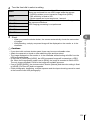
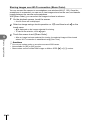
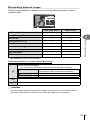
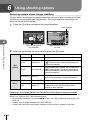
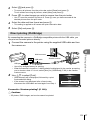
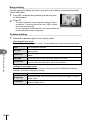
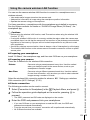
3 Register your Olympus product. 4 Install OLYMPUS Viewer 3. • Click the “Registration” button and follow the on-screen instructions. • Check the system requirements before beginning installation. • Click the “OLYMPUS Viewer 3” button and follow the on-screen instructions to install the software. Operating System Windows XP (Service Pack 2 or later) / Windows Vista / Windows 7 / Windows 8/Windows 8.1 Processor Pentium 4 1.3 GHz or better (Core2Duo 2.13 GHz or better required for movies) RAM 1 GB or more (2 GB or more recommended) Free Hard Drive Space 3 GB or more Monitor Settings 1024 × 768 pixels or more Minimum 65,536 colors (16,770,000 colors recommended) • See online help for information on using the software. Macintosh 1 • The disk contents should automatically be displayed in the Finder. If they are not, double-click the CD icon on the desktop. • Double-click the “Setup” icon to display the “Setup” dialog. Install OLYMPUS Viewer 3. • Check the system requirements before beginning installation. • Click the “OLYMPUS Viewer 3” button and follow the on-screen instructions to install the software. Operating System Mac OS X v10.5–v10.9 Processor Intel Core Solo/Duo 1.5 GHz or better (Core2Duo 2 GHz or better required for movies) RAM 1 GB or more (2 GB or more recommended) Free Hard Drive Space 3 GB or more Monitor Settings 1024 × 768 pixels or more Minimum 32,000 colors (16,770,000 colors recommended) • Other languages can be selected from the language combo box. For information on using the software, see online help. 9 Connecting the camera to a computer and a smartphone 2 Insert the supplied CD in a CD-ROM drive. EN 121