1
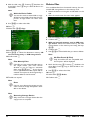
8 Mark the file using Á. Pressing ¿ deselects the
chose file(s). Press Á long to select all files in current folder.
Note
Mark the Entire Folder
You can also mark an entire folder to copy
all files from the folder. Note that the copy
process of large folders can takes some
time.
Delete Files
You can delete files from the internal memory, the connected USB storage device or the memory card.
1 Switch the device on using the on/off switch on the
side.
2 After the initial screen the main menu appears.
9 Use ¡/¢ to select other files.
10 Press à.
11 Select with ¡/¢ Copy.
12 Confirm with à.
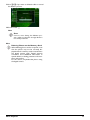
13 Use ¡/¢ to select the destination memory: SD
card, internal memory or USB storage device.
14 Confirm with à.
Note
Files Already Exist
If the files you are copying already exist in
the target folder, you must choose
whether or not you want to overwrite
them using ¡/¢ and à. If you choose
not to overwrite these files, copies will be
created. The copies can be recognised by a
number added to the file names.
15 The files are copied.
3 Use the navigation keys to select Folder View.
4 Confirm with à.
5 With an inserted memory card or USB storage device: Select the internal memory, the USB
storage device or the memory card using the keys
¡/¢.
6 Confirm with à.
7 Use ¡/¢ to select the file that you want to delete.
Note
No Files Found (0 Files)
Only those files that are compatible with
the Projector will be displayed.
8 Mark the file using Á. Pressing ¿ deselects the
chose file(s). Press Á long to select all files in current folder.
9 Use ¡/¢ to select other files.
10 Press à.
11 Select with ¡/¢ Delete.
12 Confirm with à.
Note
Error
If errors occur during the copying process,
make sure that enough free space is available on the device.
Note
Removing Storage Device
Only remove the storage device after the
copy process is complete.
16
Philips · PPX2330 · 2340