1
VIVOTEK
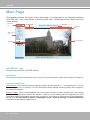
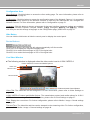
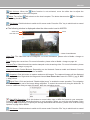
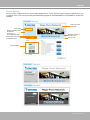
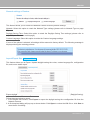
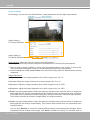
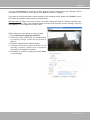
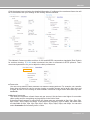
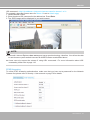
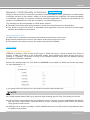
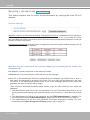
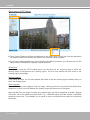
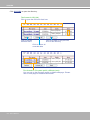
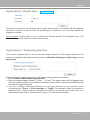
Home page in E-PTZ Mode
x3.1
x3.1
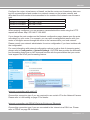
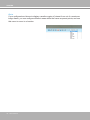
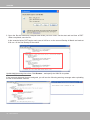
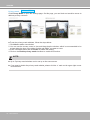
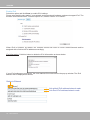
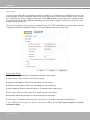
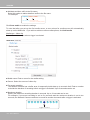
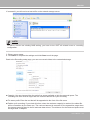
■ The e-Preset Positions will also be displayed on the home page� Select one from the drop-down
list, and the camera’s view area will move to the selected e-preset position�
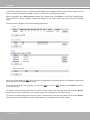
■ If you have configured different e-preset positions for different streams, you can select one of the
video streams to display its separate e-preset positions�
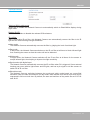
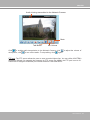
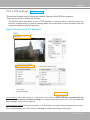
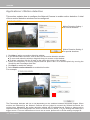
Global View
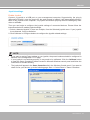
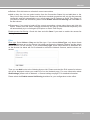
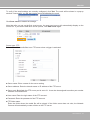
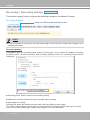
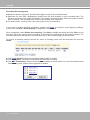
In addition to using the e-PTZ control panel, you can also use the mouse to drag or resize the
floating frame to pan/tilt/zoom the viewing region� The live view window will also move to the
viewing region accordingly�
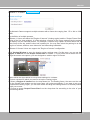
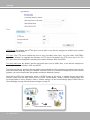
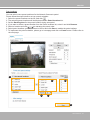
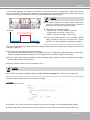
Moving Instantly
If you check this item, the live view window will switch to the new viewing region instantly after you
move the floating frame.
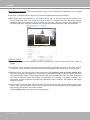
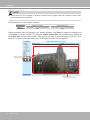
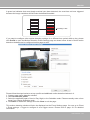
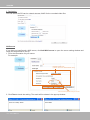
Click on Image
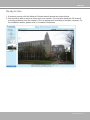
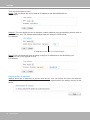
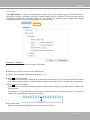
The e-PTZ function also supports “Click on Image“� When you click on any point of the Global View
Window or on the Live View Window, the viewing region will also move to that point�
Note that the”Click on Image” function only applies when you have configured a smaller “Region
of Interest” out of the maximum output frame, e�g�, a 800x600 region from the camera’s 1280x800
maximum frame size� This enables you to travel to other unrevealed areas within the maximum
frame size�
90 - User's Manual