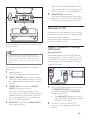
1
a
(Standby-On)
• Switch the home theater on or to
standby.
• When EasyLink is enabled, press
and hold for at least three seconds
to switch all connected HDMI CEC
compliant devices to standby.
b Source buttons
• DISC: Switch to disc source.Access
or exit the disc menu when you play
a disc.
• AUDIO SOURCE: Select an audio
input source.
• RADIO: Switch to FM radio.
• USB: Switch to USB storage device.
c Navigation buttons
• Navigate menus.
• In video mode, press left or right to
fast backward or fast forward; press
up or down to slow forward or slow
backward (for DVD video only).
• In radio mode, press left or right to
search a radio station; press up or
down to fine tune a radio frequency.
d OK
Confirm an entry.
e
BACK
Return to a previous menu screen.
f +/Increase or decrease volume.
g
(Mute)
Mute or restore volume.
h
/ (Previous/Next)
• Skip to the previous or next track,
chapter or file.
• In radio mode, select a preset radio
station.
i Numeric buttons
Select an item to play.
j SOUND
Select a sound mode.
k SURR
Select surround sound or stereo sound.
l
(Play/Pause)
Start, pause or resume play.
m
(Stop)
Stop play.
n
OPTIONS
Access more play options while playing a
disc or a USB storage device.
o (Open/Close)
Open or close the disc compartment.
p
(Home)
Access or exit the home menu.
q AUDIO SYNC
• Select an audio language or channel.
• Press and hold to access audio delay
setting, then press Navigation buttons
(left/right) to delay the audio to match
the video.
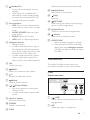
Connectors
This section includes an overview of the
connectors available on your home theater.
Front
Front connectors
a
(USB)
Audio, video or picture input from a USB
storage device.
b MIC
Audio input from a microphone.
EN
5