1
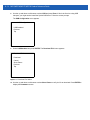
Using the Windows CE Desktop
5-7
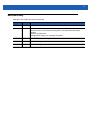
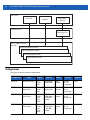
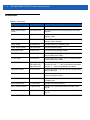
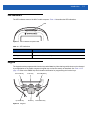
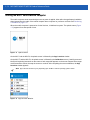
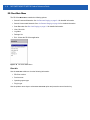
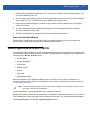
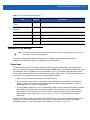
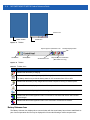
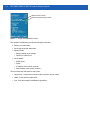
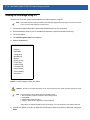
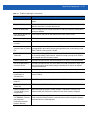
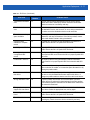
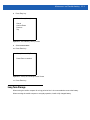
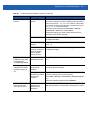
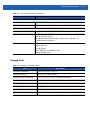
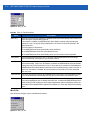
Table 5-1 App Launcher Item Descriptions
Launch
Number
Item
Description
RD (Rapid Deployment)
Client
1
Launches the Rapid Deployment application.
SPB (Symbol Pocket
Browser)
2
Launches the SPB sample application.
Device Info
3
Display information about the MC17series mobile computer.
MC17-Scan
4
Launches a sample scan application with presentation mode.
Reset
5
Performs a warm boot that resets the mobile computer.
Exit
6
Closes the Start Up window.
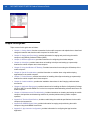
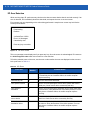
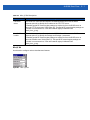
Windows CE 5.0 Desktop
NOTE The Windows CE 5.0 desktop may not be visible because the App Launcher application is active. To view
the desktop, close all running applications.
The following paragraphs describe the Windows CE 5.0 desktop. Depending upon the customer’s
configuration of the mobile computer, the desktop may not be available.
Status Icons
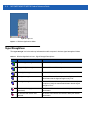
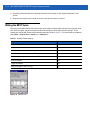
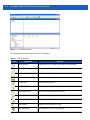
The Taskbar at the bottom of the window displays the active programs, battery status and communication
status. The taskbar (at the bottom of the screen) displays the Start button, active programs, battery status and
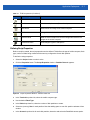
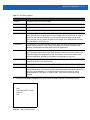
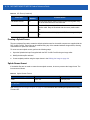
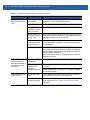
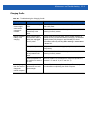
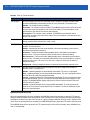
communication status. The taskbar icons are described in Table 5-2. The taskbar icons display the function
status, indicate what programs are active and indicate the battery charge status. The Taskbar buttons are used
to access menus, select/deselect functions or to change display windows.
• Status Icons: The status icons indicate the function key status.
• Active Programs Icons: The active applications icons are displayed on the taskbar. If more than one
program is active, icons can be used to toggle between the open programs (applications). Tap on a
taskbar application to maximize the application.
• AC Power/Battery Status Icons: The AC Power/Battery Status icons are shown in the taskbar to indicate
the present power supply status of the mobile computer. The main battery status icons provide the
battery status in 10% increments from 10% to 100%. The backup battery low icon indicates that the
backup battery charge is low. See Charging the Battery on page 1-9 for backup battery charging
instructions.
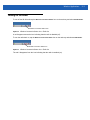
By default, the Taskbar is set to automatically hide below the screen. To display the Taskbar place the cursor
over the portion of the Taskbar that is visible (a thin gray line at the bottom of the screen). The Taskbar
automatically appears. To set the properties of the taskbar, see Properties on page 5-10.