1
EX
EX--44092
44092--3IS
English
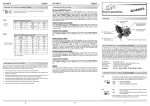
JUMPER SETTING & CONNECTORS:
EX
EX--44092
44092--3IS
English
DRIVER INSTALLATION :
Windows Server 200x:
JP4 and JP5:
S1 + S2
RI
= The pin 9 is connected with the RI signal (Ring Indicator).
as standard RS-232 definition (Factory setting)
PWR
= On pin 9 now is set the 5V DC voltage.
HARDWARE INSTALLATION :
If you are ready with the jumper settings, please proceed with the following installation
instructions. Because the designs of computers are different, only general installation
instructions are given. Please refer your computer’s reference manual whenever in
doubt.
After starting Windows it recognizes a new “PCI Controller“ and opens the hardware
assistant. Please choose manual installation and put the driver CD into your CD-ROM
drive. Now enter the Path "D:\IO\OXFORD2\" and then the directory of your operating
system for Server 2000: “2000“ for Server 2003: “XP32“ or “XP64“ and for Server
2008: “VISTA32“ or “VISTA64“ into the box for the Path/Source and click at >next/
continue<. Now Windows search for the drivers in the specified directory. Follow the
hardware assistant and finish the installation. If Windows recognizes other new devices
repeat the above described steps. Attention! Restart Windows in any case after installing the drivers.
2. Remove the mounting screws located at the rear and/or sides panels of your
Computer and gently slide the cover off.
CHANGE PORT NUMBER:
5. Then connect the card with a screw to the rear panel of the computer case.
6. Gently replace your computer’s cover and the mounting screws.
AUFBAU :
JP5
1. Turn off the power to your computer and any other connected peripherals.
4. Align the card with the expansion slot, and then gently but firmly, insert the card.
Make sure the card is seated and oriented correctly. Never insert the card by
force!
Vers. 1.0 / 28.11.12
CHECK THE INSTALLED DRIVER:
Click at Start<>Run< then enter “compmgmt.msc“ and click at >OK<. In the windows
that open select >Device Manager<. Under "Ports (COM and LPT)“ you should find
one or more new ”PCI Ports“ as sample (LPT2) or (Com3). If you see this or similar
entries the card is installed correctly.
3. Locate an available expansion slot and remove its covers from the rear panel of
your computer. Make sure it is the right expansion slot for the card (see card
description)
Bedienungsanleitung
If you like to change the port number for example COM 3 to COM5, open the >Device
Manager< click at >COM3<, >Settings< and then >Advance<. There you can change
between COM 3 till 256.
LINUX:
There are no drivers available for Linux, but the card is supported by the most versions
of Linux. Because each individual distribution and kernel version of Linux is different,
sadly we cant provide a installation instruction. Please refer to the installation manual
for standard IO ports from your Linux version! In some newer versions the card will
even be installed automatically after starting Linux.
S2 Power auf 9 Pin Stecker Ein/Aus
S2 9 Pin Stecker
Seriell Anschluss
S1 9 Pin Stecker
Seriell Anschluss
JP4
S1 Power auf 9 Pin Stecker Ein/Aus
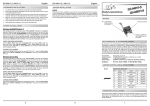
BESCHREIBUNG & TECHNISCHE DATEN :
DRIVER INSTALLATION :
Die EX-44092-3IS ist eine PCI-Express serielle RS-232 Karte mit 2 seriellen FIFO
16C95x Ports, für den Anschluss von High-Speed seriellen RS-232 Peripherie Geräten
(z.B. Terminal, Modem, Plotter usw.). Sie unterstützt ESD Surge Protection bis 15KV auf
allen Leitungen und Optical Isolation bis 2.5KV. Der serielle PCI-Express Bus unterstützt
dabei optimal die Leistung des schnellen 16C95x Chip-Set mit 128byte FIFO Cache.
Die EX-44092-3IS gewährleistet so eine sichere Datenübertragung und exzellente
Performance von bis zu 921KBaud/s für jedes angeschlossene Gerät! Sie unterstützt
alle PCI-Express Slots von x1 bis x16. Es ist nicht möglich die I/O Adressen und Interrupts manuell einzustellen, da die Einstellungen der Karte vom System (BIOS) und
beim Installieren des Betriebssystems automatisch vorgenommen werden. Mit dem
Jumper JP4 & JP5 können Sie 5V auf Pin 9 des seriellen Anschlusses leiten. Achten
Sie bitte darauf dass die Angeschlossenen Geräte dies auch unterstützen.
Windows 2000/XP/Vista & 7:
After starting Windows it recognizes a new “PCI Controller“ and opens the hardware
assistant. Please choose manual installation and put the driver CD into your CD-ROM
drive. Now enter the Path "D:\IO\OXFORD2\" and then the directory of your operating
system “2000“ “XP32“ “XP64“ “Vista32“ “Vista64“ “Win7_32bit“ or “Win7_64bit“
into the box for the Path/Source and click at >next/continue<. Now Windows search
for the drivers in the specified directory. Follow the hardware assistant and finish the
installation. If Windows recognizes other new devices repeat the above described
steps. Attention! Restart Windows in any case after installing the drivers.
CHECK THE INSTALLED DRIVER:
Click at Start<>Run< then enter “compmgmt.msc“ and click at >OK<. In the windows
that open select >Device Manager<. Under ”Ports (COM and LPT)“ you should find
one or more new ”PCI Ports“ as sample (LPT2) or (Com3). If you see this or similar
entries the card is installed correctly.
CHANGE PORT NUMBER:
If you like to change the port number for example COM 3 to COM5, open the >Device
Manager< click at >COM3<, >Settings< and then >Advance<. There you can change
between COM 3 till 256.
Kompatibilität:
Betriebs Systeme:
Anschlüsse:
Lieferumfang:
PCI Express x1 bis x16
WIN 9x/ ME/ 2000/ XP/ Vista/7/ 8/ Server 200x/(Linux vom OS)
2 x 9 Pin Sub-D Stecker
EX-44092-3IS, Treiber CD, Anleitung
Zertifikate:
CE / FCC / RoHS / WEEE
DE97424562 / WHQL
ANSCHLÜSSE:
DB9M:
Seriell 9 Pin D-SUB Stecker (S1 und S2):
Pin
Signal
Pin
Signal
Pin
1
NC
4
NC
7
NC
2
RXD
5
GROUND
8
NC
3
TXD
6
NC
9
NC
NC = Nicht Angeschlossen
5
6
1
Signal
EX
EX--44092
44092--3IS
Deutsch
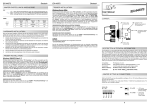
JUMPER EINSTELLUNG & ANSCHLÜSSE:
EX
EX--44092
44092--3IS
Deutsch
TREIBER INSTALLATION :
Windows Server 200x:
JP4 und JP5:
RI
= Am Pin 9 liegt das Standard Signal RI (Ring Indicator).
(Werkseinstellung)
PWR
= Am Pin 9 ist jetzt die Spannung von DC 5V eingestellt.
RI PWR
S1 + S2
HARDWARE INSTALLATION :
Wenn Sie die Karte installieren, beachten Sie bitte die folgenden Hinweise. Da es
grosse Unterschiede bei Computern gibt, können wir Ihnen nur eine generelle Anleitung
zum Einbau geben. Bei Unklarheiten halten Sie sich bitte an die Bedienungsanleitung
Ihres Computersystems.
1.
2.
3.
4.
5.
6.
Schalten Sie Ihren Rechner und alle angeschlossenen Peripheriegeräte aus und
ziehen Sie bei allen Geräten den Netzstecker.
Lösen Sie die Schrauben des Gehäuses auf der Rückseite Ihres Computers und
entfernen Sie vorsichtig das Gehäuse.
Suchen Sie einen freien Steckplatz und entfernen sie das Slot Blech, stecken Sie
die Karte vorsichtig in den ausgewählten Steckplatz ein. Stellen sie sicher das es
sich um den richtigen Steckplatz handelt! (siehe Kompatibilität unter technische
Daten)
Beachten Sie, das die Karte korrekt eingesteckt wird und das kein Kurzschluss
entsteht. Wenden sie keine Gewalt an um die Karte einzustecken!
Danach befestigen Sie die Karte bitte mit einer Schraube am Gehäuse.
Jetzt können das Computergehäuse mit den Schrauben wieder schliessen.
Windows erkennt beim Start einen neuen “PCI Controller“ und öffnet automatisch den
Windows Hardwareassistenten. Wählen sie die manuelle Installation aus und legen Sie
die Treiber CD in Ihr CD-ROM Laufwerk (z.B. Laufwerk D:). Geben sie nun den Pfad
"D:\IO\OXFORD2\" und dann das Verzeichnis ihres Betriebssystems für Server 2000:
"2000" für Server 2003: “XP32“ oder "XP64" und für Server 2008: “VISTA32“ oder
"VIST64" in das jeweilige Feld für die Quelle/Pfad ein und klicken sie auf >weiter<.
Windows sucht nun nach den Treibern in dem angegebenen Verzeichnis. Folgen sie
den Anweisungen des Hardwareassistenten und beenden sie die Installation. Sollte
Windows noch weitere neue Hardware erkennen wiederholen sie die oben angegebenen Schritte. Wichtig! Starten Sie Windows in jedem Fall nach der Installation neu.
User Manual
Vers. 1.0 / 28.11.12
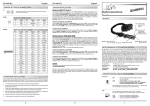
LAYOUT :
JP5: S2 pin 9 power option (enable/disable)
ÜBERPRÜFEN DER INSTALLIERTEN TREIBER:
Klicken Sie auf Start<>Ausführen< geben sie “compmgmt.msc“ ein und klicken sie
auf >OK<. Wählen sie nun >GeräteManager<. Dort müssten Sie unter "Anschlüsse
(COM und LPT)" einen oder mehrere neue “PCI Ports“ z.B. (Com3) sehen. Wenn
Sie diese oder ähnliche Einträge sehen, ist die Karte korrekt installiert.
ÄNDERN DER PORT NUMMER:
Hier können sie die Ports ändern, klicken sie z.B. auf >COM3<
>Anschlusseinstellung< und >Erweitert<. Sie können Sie dann zwischen Com3 und
256 wählen!
S2 9 pin male
serial connector
S1 9 pin male
serial connector
LINUX:
Es gibt für diese Karte keine Linux Treiber, sie wird allerdings unter den meisten Linux
Versionen unterstützt. Da sich die einzelnen Distributionen und Kernelversionen sehr
von einander unterscheiden können wir ihnen leider hier keine Installationsanweisung
geben. Bitte halten sie sich an die Installationsanweisung für Standard IO Ports ihrer
Linux Version. In einigen Versionen wird die Karte automatisch beim Start Installiert.
TREIBER INSTALLATION :
JP4: S1 pin 9 power option (enable/disable)
DESCRIPTION & TECNICAL INFORMATION :
The EX-44092-3IS is a plug & play high-speed serial RS-232 expansion card for the
PCI Express Bus. It provides two 9 pin ultra high speed RS-232 serial ports with ESD
15KV Surge Protection and 2.5KV Optical Isolation and data transfer rates up to
921Kbaud/s. The EX-44092-3IS design utilizes the 16C95x UART with 128byte buffer,
which incorporates the latest in high speed interface technology. In combination with
the fast PCI-Express bus it provides a secure and very high data transfer on each
single port. It supports all PCI-Express slots x1 to x16. It is not possible to change the
address or IRQ settings manually, they will be obtained automatically by the system
BIOS and operating system. Please note if you connection speed above 115.2Kbaud
your peripheral device must support it. Besides you have to manually set the baud rate
and divisor in the device manager. With the jumper JP4 & JP5 you can enable 5V
power to pin 9. Please note if you use power to pin 9 your peripheral device must
support it.
Windows 2000/XP/Vista & 7:
Windows erkennt beim Start einen neuen “PCI Controller“ und öffnet automatisch den
Windows Hardwareassistenten. Wählen sie die manuelle Installation aus und legen Sie
die Treiber CD in Ihr CD-ROM Laufwerk (z.B. Laufwerk D:). Geben sie nun den Pfad
"D:\IO\OXFORD2\" und dann das Verzeichnis ihres Betriebssystems “2000“ “XP32“
“XP64“ “Vista32“ “Vista64“ “Win7_32bit“ oder “Win7_64bit“ in das jeweilige Feld
für die Quelle/Pfad ein und klicken sie auf >weiter<. Windows sucht nun nach den
Treibern in dem angegebenen Verzeichnis. Folgen sie den Anweisungen des Hardwareassistenten und beenden sie die Installation. Sollte Windows noch weitere neue
Hardware erkennen wiederholen sie die oben angegebenen Schritte. Wichtig! Starten
Sie Windows in jedem Fall nach der Installation neu.
ÜBERPRÜFEN DER INSTALLIERTEN TREIBER:
Klicken Sie auf Start<>Ausführen< geben sie “compmgmt.msc“ ein und klicken sie
auf >OK<. Wählen sie nun >GeräteManager<. Dort müssten Sie unter "Anschlüsse
(COM und LPT)" einen oder mehrere neue “PCI Ports“ z.B. (Com3) sehen. Wenn
Sie diese oder ähnliche Einträge sehen, ist die Karte korrekt installiert.
Compatibility:
Operating system:
Connections:
Extent of delivery:
PCI Express x1 to x16
WIN 9x/ ME/ 2000/ XP/ Vista/ 7/ 8/ Server 200x/ (Linux by OS)
2 x 9 Pin D-SUB serial male connector
EX-44092-3IS, Driver CD, Manual
ÄNDERN DER PORT NUMMER:
Certificates:
CE / FCC / RoHS / WEEE
Hier können sie die Ports ändern, klicken sie z.B. auf >COM3<
>Anschlusseinstellung< und >Erweitert<. Sie können Sie dann zwischen Com3 und
256 wählen!
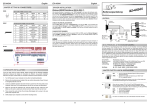
CONNECTORS:
DB 9M:
Serial 9 Pin D-SUB connector (S1 and S2):
Pin
Signal
Pin
Signal
Pin
1
NC
4
NC
7
NC
2
RXD
5
GROUND
8
NC
3
TXD
6
NC
9
NC
NC = No Connection
2
DE97424562 / WHQL
3
4
Signal