1
EX
EX--11092
11092--2 / EX
EX--11092
11092--2L
English
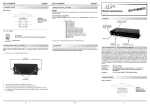
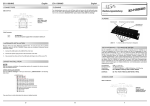
JUMPER SETTING & CONNECTORS
EX
EX--11092
11092--2 / EX
EX--11092
11092--2L
English
DRIVER INSTALLATION
J1-J2:
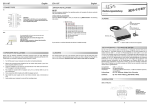
CHECK INSTALLED DRIVER:
USB 3.0 Pin‘s
Pin
Signal
5
SSTX+
6
SSTX-
7
GND
8
SSRX+
9
SSRX-
USB 2.0 Pin‘s
Pin
Signal
1
VCC
2
DATA-
3
DATA+
4
GND
Open the >Device manager<. Now you should see at „USB-Controller“ the following new
entry's:
Bedienungsanleitung
Vers. 1.2 / 16.01.13
AUFBAU
JP4:
Anschluss für Stecker
vom PC-Netzteil
HARDWARE INSTALLATION
Please note the following installation instructions. Because there are large differences between the
PC’s, we can give you only a general installation instructions for the EX-11092-2 / EX-11092-2L.
Please refer your computer’s reference manual whenever in doubt.
1.
Turn off the power to your computer and any other connected peripherals.
2.
Remove the mounting screws located at the rear and/or sides panels of your Computer and
gently slide the cover off.
3.
If necessary please install now the external power supply to the card (see at Jumper
Settings & Connectors at JP1 & JP4).
4.
Locate an available PCI-Express expansion slot and insert the card. Make sure that the card
is plugged in correctly.
5.
Then attach the card with a screw to the rear panel of the computer.
6.
Gently replace your computer’s cover and the mounting screws.
If you see this or a similar information the device is installed correctly.
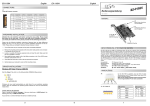
JP1:
Jumper zur Auswahl
der Stromquelle
(Netzteil oder
PCI-Express Bus)
J1 & J2:
2 x externe
USB 3.0 A-Buchse
(verschraubbar)
Windows 8 & Server 2012
Renesas Chip-Set
After the hardware installation, the operating system will recognize the device automatically and
install the drivers.
BESCHREIBUNG & TECHNISCHE DATEN
CHECK INSTALLED DRIVER:
Open the >Device manager<. Now you should see at „USB-Controller“ the following new
entry's:
DRIVER INSTALLATION
Windows XP/ Vista/ 7/ Server 2003 & 2008 R2
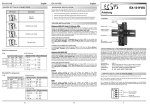
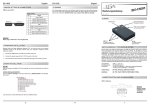
After starting Windows is recognizes a new “USB (Universal Serial Bus)-Controller“. Start
the „SETUP“ file which is in the “uPD720201_202” folder (see picture):
If you see this or a similar information the device is installed correctly.
Follow the installation instructions and complete the installation.
Die EX-11092-2 / EX-11092-2L ist eine USB 3.0 PCI-Express Karte. Sie ist mit 2 externen Ports
ausgestattet, die jeweils 900mA Strom zu Verfügung stellen. Die EX-11092-2 / EX-11092-2L
unterstützt die volle Leistung von 900mA an beiden externen Ports ohne das Sie zusätzlichen
Strom vom PC-Netzteil benötigen. Zusätzlich ist es möglich das USB Kabel an die externen
Ports der Karte zu verschrauben. Sie unterstützt alle PCI-Express Slots von x1 bis x16. Der
serielle PCI-Express Bus unterstützt optimal die Leistung des schnellen Renesas Chipsatz. Die
EX-11092-2 / EX-11092-2L gewährleistet so eine sichere Datenübertragung und exzellente
Performance von bis zu 5Gbit pro Sekunde! Es ist nicht möglich die I/O Adressen und Interrupts manuell einzustellen, da die Einstellungen der Karte vom System (BIOS) und beim installieren des Betriebssystems automatisch vorgenommen werden. Sie unterstützt alle USB Anschlüsse von 1.1 bis 3.0. Bei der EX-11092-2L handelt es sich um eine Low Profile Karte mit
8cm Bügel für schmale Gehäuse.
Kompatibilität:
Betriebssysteme:
Anschlüsse:
Lieferumfang:
PCI-Express x1 bis x16
Windows XP/ Vista/ 7/ 8/ Server 2003 & 2008 R2 & 2012
2x USB 3.0 A-Buchse extern (verschraubbar), 1x 4 pol Molex
EX-11092-2 oder EX-11092-2L, Treiber CD, Anleitung
Zertifikate:
CE / FCC / RoHS / WEEE
DE97424562 / WHQL
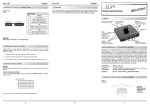
JUMPER EINSTELLUNG & ANSCHLÜSSE
JP1:
Windows will now install automatically you right driver for your particular operating system. After
the installation the operating system detects the card and automatically install them.
AUX
INT
INT = Strom 900mA vom PCI-Express BUS (Werkseinstellung)
AUX = Strom 900mA vom PC-Netzteil des Rechners
(Zur Entlastung des Mainboards und zur stabilen Stromversorgung bei
Verwendung von Endgeräten mit hohem Stromverbrauch)
Anschluss JP4 muss dann mit PC-Netzteil verbunden werden!
JP4:
1 +12V
5
6
2 GND
3 GND
4 +5V
Wenn JP1 auf AUX gestellt ist, muss JP4 mit dem
Stromanschluss vom PC-Netzteil verbunden werden.
Bitte auf die richtige Polarität achten!
Achtung! Stecker nie bei eingeschaltetem PC
ein- oder ausstecken!
1