1
Note
•• For wireless connection, you need to use an optional
Philips Wi-Fi USB adapter (named WUB1110).
•• Te Wi-Fi USB Adapter (WUB1110) is not included. To
purchase this adapter, visit shop.philips.com. If the Philips
online shop is not available in your country, please
contact Philips customer service. For contact details, go
to www.philips.com/support.
1
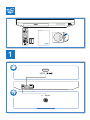
Connect this player to the Internet through
wired (Ethernet) or wireless connection.
• For wired connection, connect a
network cable (not supplied) to the
LAN port on the back panel of this
player.
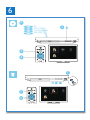
2
Perform the network installation.
1) Press .
2) Select [Setup], and press OK.
3) Select [Network] > [Network
installation], and press OK.
4) Follow the instructions on the TV screen to
complete the installation. If necessary, use the
alphanumeric buttons on the remote control
to enter a password.
Caution
•• Before you connect to a network, familiarize yourself
with the network router, and networking principles. If
necessary, read documentation accompanying network
components. Philips is not responsible for lost, damaged
or corrupt data.
PC (DLNA)
Smartphone control
• For Wi-Fi, connect a Philips Wi-Fi USB
adapter (named WUB1110) to the
(USB) connector on the front
panel of this player.
PC (DLNA)
Use a smartphone to browse, control and play
media files from this player.
What you need
• An iPhone (iOS 3.1.3 and above) or
Android based device (Android 2.1 and
above)
• On your smartphone, download Philips
MyRemote application
• For iPhone, search for the application
in App Store
• For Android based device, search for
the application in Android Market
Before you start
• Connect this player to a home network
(see "Set up a network").
• Connect your smartphone to the same
home network (see the user manual of the
smartphone for details).
• Turn on this player
Control your player
Use a smartphone to browse, control and play
media files from this player.
12
EN