1
Adjusting the screen
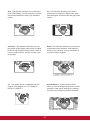
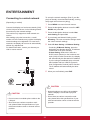
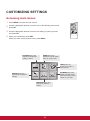
Customizing image options
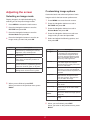
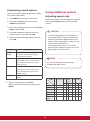
Selecting an image mode
Customize basic and advanced options of each
image mode for the best screen performance.
Display images in its optimized settings by
selecting one of the preset image modes.
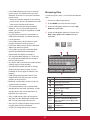
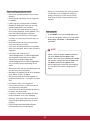
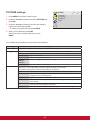
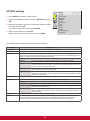
1 Press MENU to access the main menus.
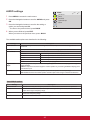
1 Press MENU to access the main menus.
2 Press the Navigation buttons to scroll to
PICTURE and press OK.
3 Press the Navigation buttons to scroll to
Picture Mode and press OK.
4 Press the Navigation buttons to scroll to an
image mode you want and press OK.
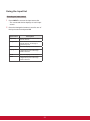
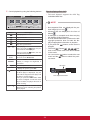
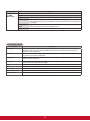
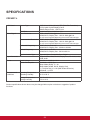
Mode
Vivid
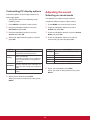
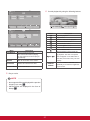
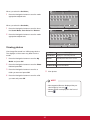
2 Press the Navigation buttons to scroll to
PICTURE and press OK.
3 Press the Navigation buttons to scroll to
Picture Mode and press OK.
4 Press the Navigation buttons to scroll to an
image mode you want and press OK.
5 Select and adjust the following options, and
then press OK.
Description
Adjusts the video image for the retail
environment by enhancing the contrast,
brightness, color, and sharpness.
Standard
Adjusts the image for a normal
environment.
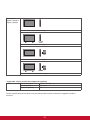
Cinema
Optimizes the video image for a cinematic
look to enjoy movies as if you are in a
movie theater.
Sport
Optimizes the video image for high and
dynamic actions by emphasizing primary
colors such as white, grass, or sky blue.
Game
Optimizes the video image for a fast
gaming screen such as PCs or games.
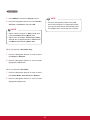
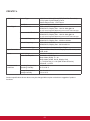
Option
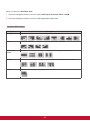
5 When you are finished, press EXIT.
When you return to the previous menu, press
BACK.
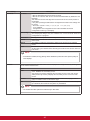
Description
Backlight
Adjusts the brightness of the screen
by controlling the LCD backlight. If
you decrease the brightness level,
the screen becomes darker and the
power consumption will be reduced
without any video signal loss.
Contrast
Increases or decreases the gradient
of the video signal. You may use
Contrast when the bright parts of the
picture are saturated.
Brightness
Adjusts the base level of the signal in
the picture. You may use Brightness
when the dark areas of the picture are
saturated.
Sharpness
Adjusts the level of crispness in the
edges between the light and dark
areas of the picture. The lower the
level, the softer the image.
Color
Adjusts intensity of all colors.
Tint
Adjusts the balance between red and
green levels.
Color Temp.
Set to warm to enhance hotter Colors
such as red, or set to cool to make
picture bluish.
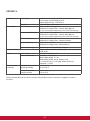
Advanced
Customizes the advanced options.
Refer to the Advanced image options.
(See p.42)
Control
Picture Reset
Restores the options to the default
setting.
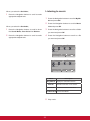
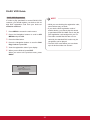
6 When you are finished, press EXIT.
When you return to the previous menu, press
BACK.
17