Transcript
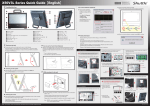
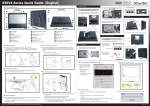
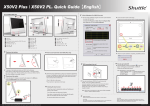
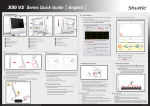
. X70 Series Quick Guide【English】 62R-X70000-0601 X70 English.Spanish.Korean. Traditional Chinese.Japanese. French. German Quick Guide E Front/Rear/Side View E 4 Point Calibration (Optional) Run the screen calibration 02 01 20 03 program and correct 4 point locations on screen with the panel. Click Start / All Programs / eGalax Touch / Configure Utility Select [Tools] tab and click [4 Points Calibration] Touch and hold the center of the target. Repeat on four corners and the screen will adjust automatically. 16 17 04 24 18 05 19 06 07 08 10 09 01 02 03 04 11 12 14 05 Microphone Jack Headphone / Line-out Jack 12 08 Hard Disk Drive LED 09 Lan Ports 07 15 13 USB 3.0 Port HDMI Port USB 2.0 Ports Clear CMOS Button 14 DC in 19 10 11 E Placing on the desk Place the X70 on a flat surface such as a table (Picture 1), and pull the stand upwards to an angle of 30°, the support bracket can be opened to 60 degrees at most(Picture 2). To carry or move your X70, turn back the angle to 0° (Picture 3). 2. 17 18 COM Port Printer Port (Optional) COM Ports (Optional) 20 Stand / Handle Kensington® Lock Port 23 21 22 24 Thermal Vent Power Button USB 2.0 Ports USB 2.0 Ports SD Card Reader E How to use the Touch Panel (Optional) To place the machine on the desk and to carry it, do the following: 1. 16 X70 brings digital life for an easy touch experience.Experience Read the following precautions before setting up a Shuttle X70. CAUTION 1. Dispose of used batteries according to the manufacturer’s instructions. A. Begin Installation Do not walk on the power cord or allow anything to rest on it. The warranty does not apply to the products that have been disassembled by users. 3. Remove the fans and ICE module from the chassis and put them aside. For safety reasons, please ensure that the power cord is disconnected before opening the case. Please note this 1155 pin socket bends easily. Always apply extreme care and little force when installing a CPU and limit the number of times you remove or exchange it. Before installation, make sure to turn off the computer and unplug the power cord from the mains to avoid damage. 1. Remove the cover on the back of X70 first, unscrew three screws of the stand mount and remove the stand. 8. Spread thermal paste evenly on the CPU surface. Thermal Paste application area Metal load plate Retention tab Screw Load lever the ease of managing your digital life with a few touches. The touch of your finger replaces the mouse and is all you need to interact with the X70. Follow the steps below to correctly install the CPU into the motherboard CPU socket. ・Touch = left-click on the mouse ・Touch and hold = right-click on the mouse OK CAUTION 2. Danger of explosion if battery is incorrectly replaced. Replace only with the same or equivalent type recommended by the manufacturer. Cover Hold Touch E Safety Information 13 Power LED Stereo speakers press [OK] to continue. 21 15 Webcam Microphone LCD Display (Optional) (Single/Multi/Non Touch) 06 When the 4 points calibration completed, 23 22 4. First unlock and raise the socket lever. Please do not apply excess amount of thermal paste. 3. As shown, install the HDD & bracket in the chassis and push it towards the direction as indicated by the red arrow. 4. Tighten the HDD & bracket with one screw. 9. Screw the ICE module to the mainboard. Note to press down on the opposite diagonal corner while tightening each screw. 3. HDD 10. Fasten the fans with the four screws and connect the fan connectors. Stand / Handle 2. Unscrew four screws of the back cover and remove it. C. Memory Module Installation 1. Locate the SODIMM slot on the mainboard. 5. Lift the metal load plate on the CPU socket. Tear off the protective membrane from the bottom of ICE module. Remove the protective socket mylar from the CPU socket. Max 60 Follow the steps (1~3) below to connect the AC adapter to the DC in jack. SODIMM slot Serial ATA Cable E VESA mounting it to the wall Press the Power Button to turn on the system. 1. Unscrew the four screws of the VESA Base and remove it first. Serial ATA Power Cable Metal load plate Remove the protective membrane 3. Gently insert the module into the slot in a 45-degree angle. DO NOT touch socket contacts. To protect the CPU socket, always replace the protective socket cover when the CPU is not installed. DCIN 6. Orientate the CPU and socket and please align the CPU notches with the socket alignment keys. Make sure the CPU is perfectly horizontal, insert it into the socket. Power Button 2. Unscrew the four screws of the the fans and unplug the fan connectors(Step 1), then unfasten the four ICE module attachment screws(Step 2). 4 Step 1 E Cleaning the screen Follow these guidelines for cleaning the outside and handling the screen of the computer: Turn off the system and disconnect all cables. Use a damp, or cleaning cloth, soft, lint-free cloth with gentle water only and gently wipe the screen surface. Do not spray liquid directly on the screen. 5. Connect the Serial ATA and power cables to the HDD. B. ICE and CPU Installation E Powering on the system 2. Align the notch of the memory module with the one of the memory slot. If you are mounting your X70 to the wall, remove the cover on the back of X70 first. Unscrew three screws of the stand mount and remove the stand. The VESA standard lets users mount it on to walls easily. Please refer to the user guide of the wall/arm mount kit you bought to install it. Note :X70 can be mounted to a wall using a VESA compatible 100 x 100mm wall/arm bracket. Note: The product’s color and specification will depend upon the actually shipping product. Fan Triangle Pin1 Marking on the CPU Notch on the CPU/ Alignment Key of the CPU Socket Fan ICE module Step 2 1 E. Complete 1. Replace the back cover, stand and refasten seven screws. 2 45-degree angle 4. Carefully push down the memory module until it snaps into the locking mechanism. 5. Repeat the above steps to install additional memory modules, if required. Back Cover Screw Stand / Handle 2. Replace the cover, complete. Socket 1155 CPU 6. Replace the VESA Base and refasten four screws. Please be aware of the CPU orientation, DO NOT force the CPU into the socket to avoid bending of pins on the socket and damage of CPU! 7. Close the metal load plate, lower the CPU socket lever and lock in place. D. HDD Installation 1. Unscrew the screw of the bracket and remove it. 2. Mount HDD into the bracket with four screws. 53R-X70003-2001