1
RAID Setting Notes:
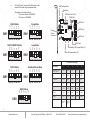
RAID 1& RAID 10 Mode When 2 drives are
Screws
Removing Cover of RAID
Tower IX
SW1
4
5
Clone Mode
2
3
4
5
Individual
Drive Bay
Door
Main Power LED
Drive Power & Activity LED
for Each Drive Bay
Clone’s action is similar to
RAID1. However, all of the
hard drives will be mirrored.
Clone mode is useful
especially when users like
to copy data from a source
hard drive to the drives
connected to the HPM-XA.
f.
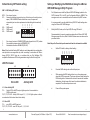
Press the RAID setting button with a ball point pen.
g.
While pressing the RAID setting button turn on the system power
where the HPM is connected. The buzzer will sound while holding the
RAID setting button. Release it after at least 5 seconds for hardware
initialization. A single beep will be heard to indicate initialization is
completed.
h.
Verify if the RAID array is detected by the system.
i.
If the 5-port HPM-XA is connected to the motherboard onboard
SATA, on the CMOS setup utility, the raid array will display as
“Addonics H/W RAID5” if setup as a RAID5 array.
j.
If the 5-port HPM-XA is connected to an eSATA host controller card,
on the RAID BIOS, the raid array will display as “Addonics H/W
RAID0” if setup as a RAID0 array.
k.
If booted into Windows, in Disk Drives under Device Manager, the
raid array will display as “Addonics H/W LARGE” if setup as a
LARGE array.
l.
Once raid array is verified, you can set the buzzer either ON or OFF.
Door Lock
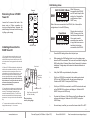
2. Slide a 3.5” SATA hard drive into the drive slot
with the drive connector side facing in. Be sure to
orient the hard drive correctly as shown in the
yellow label on the inside of the drive door – with
drive door swing open at the bottom, the top of
the hard drive should face to the right. The drive
should slide all the way into the slot with very
little resistance. Forcing the drive into the slot
will cause drive damage or permanent
damage to the Disk Array.
1
BZS EZ M2 M1 M0
eSATA Ports
1. Be sure the lock on each drive door is in an
unlock position. If not, use the key that comes
with the Disk Array to unlock the drive door. Pull
on the door lever to swing open the drive door all
the way.
4. To remove the hard drive from the Disk Array,
simply follow the step 2 – 3 in reverse.
3
When 4 drives are connected to the HPM-XA, the 4 drives will be
configured as a 4-drive RAID10 array.
SW1
3. Once the drive is all the way into the drive slot,
close the door all the way till the drive door latch
securely. This will engage power and data
connection with the hard drive. The LED lit for
the drive slot should lit if the Disk Array already
powered on. You may lock the drive door with the
key
2
BZS EZ M2 M1 M0
Loosen the 5 screws at the back of the
tower using a Philips screwdriver by
turning counter-clockwise. Separate the
metal casing of the tower from the housing
by lifting up the casing.
Installing drives into the
RAID Tower IX
1
connected to the HPM-XA,
and DIP switch is set to this
setting, the 2 drives will be
configured as a 2-drive
RAID1 array.
Insert Hard Drives
with Top Facing Right
1
6
www.addonics.com
Technical Support (M-F 8:30am - 6:00pm PST)
Phone: 408-453-6212
Email: www.addonics.com/support/query/