1
AXIS P1204 Network Camera
Troubleshooting
In Windows, type the following from a command/DOS prompt (this may require that you run the command prompt as
an administrator):
arp -s <IP address> <serial number>
ping -l 408 -t <IP address>
2. If the product does not reply in 30 seconds, restart it and wait for a reply. Press CTRL+C to stop Ping.
3. Open a browser and type in the product’s IP address. In the page that appears, use the Browse button to select the upgrade
file to use. Then click Load to restart the upgrade process.
4. After the upgrade is complete (1–10 minutes), the product automatically restarts and shows a steady green on the Status
indicator.
5. Reinstall the product, referring to the Installation Guide.
If the emergency recovery procedure does not get the product up and running again, contact Axis support at www.axis.com/techsup/
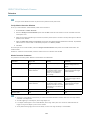
Symptoms, Possible Causes and Remedial Actions
Problems setting the IP address
When using ARP/Ping
Try the installation again. The IP address must be set within two minutes after power has been
applied to the product. Ensure the Ping length is set to 408. For instructions, see Assign IP Address
using ARP/Ping on page 32.
The product is located on a
different subnet
If the IP address intended for the product and the IP address of the computer used to access the
product are located on different subnets, you will not be able to set the IP address. Contact your
network administrator to obtain an IP address.
The IP address is being used
by another device
Disconnect the Axis product from the network. Run the Ping command (in a Command/DOS
window, type ping and the IP address of the product:
• If you receive: Reply from <IP address>: bytes=32; time=10...
this means that the IP address may already be in use by another device on the network.
Obtain a new IP address from the network administrator and reinstall the product.
• If you receive: Request timed out, this means that the IP address is available for
use with the Axis product. Check all cabling and reinstall the product.
Possible IP address conflict
with another device on the
same subnet.
The static IP address in the Axis product is used before the DHCP server sets a dynamic address.
This means that if the same default static IP address is also used by another device, there may
be problems accessing the product.
The product cannot be accessed from a browser
Cannot log in
When HTTPS is enabled, ensure that the correct protocol (HTTP or HTTPS) is used when attempting
to log in. You may need to manually type http or https in the browser’s address field.
If the password for root is lost, the product must be reset to the factory default settings. See
Reset to Factory Default Settings on page 40.
The IP address has been
changed by DHCP
IP addresses obtained from a DHCP server are dynamic and may change. If the IP address has been
changed, use AXIS IP Utility or AXIS Camera Management to located the product on the network.
Identify the product using its model or serial number.
If required, a static IP address can be assigned manually. For instructions, see the Installation and
Management Software CD or the document Assign an IP Address and Access the Video Stream on
Axis Support web at www.axis.com/techsup
Certificate error when using
IEEE 802.1X
For authentication to work properly, the date and time settings in the Axis product should be
synchronized with an NTP server. See Date & Time on page 31.
42