1
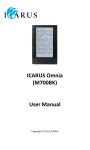
ICARUS Omnia (G2) (M701BK) User Manual Copyright © 2012 ICARUS Table of contents Disclaimer 5 Introduction 5 Inside the box Parts and controls Turning on/and off Charging Inserting a memory card The Home menu Importing and transferring content 12 Importing content Importing DRM content Authorization Transferring DRM ebooks Reading books Opening books Book page interface Turning a page Adjusting font size 15 Zooming in/out Using the Option menu while reading Adding bookmarks Deleting bookmarks Opening bookmarks in the Home menu Opening bookmarks in the current book Go to page Auto flip Book information Screen rotation Display settings Add to favorites Playing music 22 Music player Playing video 24 Using the Option menu during video playback Viewing pictures Zooming in/out Slideshow Thumbnail view 26 File explorer 27 Copy-paste files Deleting files Settings 28 Time and date Standby Format memory About product Power management Restore factory defaults Language Screen rotation Manual Troubleshooting 30 Precaution and maintenance 31 Technical specifications 33 Disclaimer All the information, design and specifications contained in this manual were correct at the time of publication. However, as the product is under development and upgrading, the final device may have a slightly difference in appearance or modified functionality than presented in this manual. Introduction The ICARUS Omnia is an ebook reader with full color display screen. It supports many ebook formats, including content encrypted with Adobe DRM. The Omnia is more than an e-reader though! You can also use it to listen to music, view your pictures or watch movies. Inside the box 1. 2. 3. ICARUS Omnia M701BK LCD e-reader USB cable Quick start guide Parts and Controls Headphone jack – to insert head/earphones Power button - press and hold for 3 second to turn on/off, press and hold 6 seconds to reset 3 LED indicator – shows charging status 4 Menu button – to open the pop-up menu 5 Zoom button – press to adjust font size or to zoom in/out 6 Play/pause button – to start/pause playback 7 Back buttons – to go back one menu / step 8 Previous page button – to go the previous page 9 Joystick / navigation keys – to navigate the menus 10 Next page button – to go to the next page 11 Micro USB port – to connect to a computer/charger 1 2 12 Micro SD card slot – insert micro SD memory cards here for additional storage space 13 Speaker – do not block this area during music playing Turning on and off Press and hold the [Power] button for 3 seconds to turn on the Omnia. It may take a few moments for the Omnia to turn on and loading the content. If the Omnia does not turn on, charging is required. To turn off the Omnia, press and hold [Power] button for 3 seconds. Charging You need to charge the the Omnia prior to using it for the first time or when battery power is low. Charge the Omnia using the USB cable by connecting it to a computer or the optional ICARUS AC USB charger. Please turn the Omnia to standby mode to shorten the charging process. It will take about 6 hours to fully charger the Omnia in standby mode (LCD off) When the Omnia is charging, it will enter into standby mode after remains idle for 60 s. Press the [Power] button to wake up the Omnia. The battery status is displayed at the bottom left corner. Inserting a Memory Card The Omnia supports Micro SD cards in both FAT and NTFS file system. NTFS is needed to copy file with size larger than 4GB. To insert a Memory card: Check that the micro SD card is in the correct position with the contact pin facing upwards as illustrated below. You may damage the card and the Omnia if the micro SD card is not inserted in correct position. Push the micro SD card into the card slot until it clicks. To remove the SD card, push the micro SD card once again until it clicks. When a micro SD card is inserted in or ejected from the Omnia, it may take few seconds for the Omnia to update the content. Please avoid inserting or ejecting an SD card when other operations are running as this may cause the system to hang. Do Not remove the card if the content inside the card is being played. This will halt the operation of the Omnia and cause the Omnia to restart. If the system is not responding, press and hold the <Power> button for 6 seconds to reset and turn it off. Limitations of the NTFS file system: Books in the card are not recognized by ADE when connected to PC. Direct copying of files from the internal memory to the memory card is not supported. The Home menu When the Omnia is turned on, you will enter into the Home Menu. 1. 2. 3. 1. Continue Reading -displays the page of the last read book. Press <OK> button to open the last read page. 2. Library Library -displays the list of books available. Move the cursor to Battery desired book and Indicator press <OK> to open it. Page Number 3. Battery Indicator -displays battery status during operation Time & Date 4. Page Number -displays current page number and total available pages. 5. Time & Date -display current time and date, you can set this from the [Settings] 6. File Directory - indicates the location where the Entering Option Menu filepress is stored. SDbutton – SD card, INT – the To access extra functions available, [Menu] to display internal memory Option Menu as illustrated. Press the directional key to move cursor to desired item. Selected item will be highlighted in dark. Press <OK> to enter. To exit from Option menu, move cursor to and press <OK> to confirm. Alternatively, press the <Return> button to exit. The other options available in the Option menu are: Category, To sort books by different categories: Title, Author, Date, Format To jump to a specific page To read from previously added bookmarks To adjust the brightness of the display screen To open the Video Player To open the Music Player To open the Photo Viewer To open the File Explorer for advanced file management To adjust System settings and to read the user manual To open your favorite book list. Importing and transferring content Importing Content The Omnia supports the USB Mass Storage Device function. To import contents (ebooks, video, audio, photo etc) into the Omnia, connect the Omnia to PC via the supplied USB cable. Upon successful connection to PC, the Omnia will enter USB mode and all operation will be halted. Go to [My Computer], double click on the Omnia’s disk to open. Perform normal file management operation like other USB device. Importing DRM Content The Omnia supports Adobe DRM contents. Adobe Digital Editions (ADE) is required. Installing Adobe Digital Editions (ADE) ADE is a free program by Adobe that is necessary for transferring DRM protected content from your computer to an e-reader You can download the installer from http://www.adobe.com/products/digitaleditions/#fp . For first time user, you will need to get a free adobe ID from adobe website. Click on the [get an Adobe ID online] link as illustrated: Enter your email address and complete the online form as per instructed. Authorization Upon registration, return to the ADE window. Enter the username and password to activate your Adobe account. After activation, connect the Omnia to PC. ADE will detect the Omnia and you are prompted to authorize device. After authorization, you will be able to find the Omnia recognized in ADE as below. Contents inside the Omnia will be displayed on the right hand windows. You can now start downloading or buying ebooks from online Ebook stores supporting Adobe DRM. Purchased or downloaded ebooks will be stored in [My Digital Editions] in [My Documents]. Transferring DRM ebooks From ADE menu, click on [All Items] on the left hand column Items in [My Digital Editions] will be listed down in right window. Select the desired item(s) to be transferred, <Shift> + <Left Click> to select multiple files. Drag and drop the selected item(s) into the Omnia’s Drive located on the last row of the left side column as illustrated below. Notes on using Adobe Digital Editions (ADE) Each ADE ID supports only 6 devices, this includes the master device (the Omnia) and the slave device (SD card). When the Omnia is restored to default settings, ALL DRM activation record and data (including DRM books purchased) will be erased from the Omnia. You are required to authorize the device with your ADE ID again. When the number of authorized device has exceeded the allowable amount, you will come across the following error message: E_ACT_TOO_MANY_ACTIVATIONS To request for extension and reset of your ADE ID, go to http://www.adobe.com/support/digitaleditions/ [Submit a web case]. You are required to key in your ADE ID info. Reading books Opening Books Books transferred to Omnia will be listed in Home Menu. Omnia supports ebooks in epub, pdf, and txt format. Use the <Directional> buttons to move the cursor to select book and press <OK> to open. Book Page Interface Current Page / Total Page Remaining Battery Life Font Size Turning a page While reading a book, press the <Next Page> or <Directional-Right> button to turn to next page. To turn to previous page, press <Previous Page> or <Directional-Left> button. Adjusting Font Size While reading, press the <Zoom> button to enter the font size menu. There a 5 font sizes available: Small, Medium, Large, XLarge, XXLarge. Move the cursor to the desired font size then press <OK> to confirm. It may take some time for the fonts to be resized. Zooming In/Out You will need to use zooming function to enlarge images available in the ebook (epud & pdf file) From the size menu, select [Enlarge] The Zoom menu will appear. Move the cursor to the desired zoom level and press <OK>. In zoom mode, use <Directional> buttons to pan across the zoomed page. Page turning is disabled in zoom mode. Press <Return> to exit the zoom mode and return to the original size and resume normal book reading functions. Using the Option Menu while Reading While reading, press the <Menu> button to enter the Option Menu. Options available: 1. Add / Delete Bookmark 2. Bookmarks 3. Go to Page 4. Music 5. Auto flip 6. Book Information 7. Rotate 8. Display Settings 9. Add to Favorite Adding a Bookmark When reading, turn to the desired page that you would like to bookmark. Press the <Menu> button, move the cursor to [Add Bookmark] and then press <OK>. Deleting a Bookmark Turn to the bookmarked page that needs to be deleted. Press <Menu> and move the cursor to <Delete Bookmark>. Press <OK> to confirm. Alternatively, you can delete a bookmark from the Bookmark List. In the Bookmark list, press <Menu> and select [Delete] to delete selected bookmark. Opening bookmarks in the Home Menu From Home Menu, press <Menu> and select [Bookmarks] to enter Bookmark List. Upper window displays a quick preview of the selected book. Lower window displays the list of books with bookmarks. Press <OK> on the desired book to view the available bookmark list. In the Bookmark List, move the cursor to the desired bookmark, press <OK> to open. To delete a bookmark from the Bookmark List, press <Menu> to display the [Option Menu] and select [Delete] to confirm. Opening a bookmark in the Current Book While reading the book, press <Menu> and select [Bookmarks] to enter into Bookmark List. In the Bookmark List, move the cursor to the desired page and press <OK> to open. To delete a bookmark from the Bookmark List, Press <Menu> to display the Option Menu and select [Delete] to confirm. Go to Page You can jump to pages using the [Go to Page] option. In the Option Menu, select [Go to Page]. In Go to Page menu, move the cursor by the <Directional-Left/Right> button. Input the page number by <Directional –Up/Down> button. Move the cursor to [Apply] then <OK> to apply settings. Auto Flip You can set the Omnia to [Auto Flip] mode. In this mode the book automatically turns pages in set time intervals. The auto flip duration available are: 10s, 20s, 30s, 40s, 50s, 1 min. Book Information You can check the information of the current book from the [Book Information] option. This will show (when saved in the original content of the book by the publisher): Title, Author, Publisher, File Type, Date added, File size, Publisher and Expiration. Depending on the source of ebook that you download/purchase, some of the information may not be available. Screen Rotation The [Rotate] option allows you to rotate the display orientation 90 o in clock wise direction to landscape orientation. To return to original orientation, press <Menu> and enter <Rotate> once again. The Omnia contains a G sensor, simply rotate the Omnia in clock wise direction to rotate the viewing orientation. In landscape view, the Option Menu is divided into 2 pages. To access options in the second page, move the cursor to [More>] icon at the top right corner of the Option Menu and then enter To return to previous page, move the cursor to [< Back] and then enter Display Settings To adjust font color, background color, brightness during reading. Change of font color and background color are only applicable to txt and epub documents. Add to Favorite You can add books to your Favorite List. In Option menu, move the cursor to [Add to Favorite] to add current book into Favorite List. To view books in Favorite List, from Home Menu, press <Menu> button and select [Favorite]. To remove books from the Favorites: 1. Enter the Favorite List from the Home menu. Move the cursor to the desired book title. Press <Menu> button and select [Delete] from the dropdown list. 2. While reading a book, press the <Menu> button and select [Remove from Favorite] from the Option Menu. Playing music Music Player In the Home Menu, press <Menu> to display the Option Menu. Move the cursor to [Music] and press <OK> to confirm. In the Music player, press <OK> to play/pause music playing Press <Directional Right> to play next song, press and hold to Fast Forward Press <Directional Left> to play previous song, Press and hold to Fast Rewind Press <Directional Up> to increase volume Press <Directional Down> to decrease volume Using the Option Menu in the Music Player EQ settings – move the cursor to [EQ Settings] , press [Left] or [Right] button to select desired EQ mode. Play Mode - move the cursor to [Play Mode] , press [Left] or [Right] button to select desired Play mode To view all stored audio files To sort audio files by genre To sort audio files by album To sort audio files by artist Playing video From the Home Menu, open the Option menu and select ‘Video’ to enter into the video library. In the video library move the cursor to your desired video file and press <OK> to start playing. During video playback, the button definition is as below: 1 Enter / Exit Full Screen mode 2 Increase Volume 3 4 5 Decrease Volume Previous video / Fast Rewind Next Video / Fast Forward 6 Play / Pause Using the Option Menu during Video Playback During video playback, press <Menu> button to display Option Menu. Press <Left>/<Right> button to switch between [Loop] & [Repeat] Loop: to play all video files available in the list. Repeat: repeats the current video Press <OK> button to enter [Full Screen] or [Fit to screen] To Display Subtitles during Video Playback The Omnia supports subtitle of sub, ssa, srt, lrc format. The file name of the subtitle must be identical to that of the video file. The subtitle will be loaded automatically during video playback. Viewing pictures Gentle Reminder: Please organize the pictures into a specific folder for the ease of navigation. From the Home Menu, press <Menu> to display Option Menu. Move the cursor to [Photo] and press <OK> to confirm. Upper window displays a quick preview of the selected photo Lower window displays the file list in the reader. Use the <Directional> buttons to navigate through the files/folders. Press <OK> on the selected photo to view a full screen display. In full screen mode, press <Directional Left/Right> to view previous and next picture. Zoom In/Out Picture There are 3 zoom levels available. To zoom in while in full screen mode, press the <Zoom> button to change different zoom level. To return to original size, press the <Return> button to resume normal operation. Slideshow In full screen mode, press <Menu> [Slideshow] to start. To stop slideshow, press <Menu> button once. From the drop down menu, select [Slide Time] to adjust slideshow duration. Thumbnail view In full screen mode, press <Menu> [Thumbnail] to view pictures in thumbnail mode. To exit thumbnail view, press <Menu> once to return to full screen mode. File explorer From the Home menu, press <Menu> [Explorer] Press <Left> / <Right> to select Internal / SD card memory and press [OK] to enter. Press <Return> to exit from current directory and the cursor will move to the top for memory selection. Copy / Paste files You can copy files/folders from SD card to the internal memory and wise versa. From the file list, move the cursor to the desired file to copy. Click <Menu> and select [Copy]. From the explorer, go to the desired directory to store the copied file. Click <Menu> and select [Paste] to start copying files into the new directory/folder. Note: it may take longer time to paste files/folder with big file size. Deleting Files From the explorer, move the cursor to desired file to delete. Press [Menu] and select [Delete] to start deleting file. Note: it may take longer time to delete files/folder with big file size and quantity. Settings Time & Date To set the clock and date, press the <Directional Left/Right> buttons to move the cursor. Press the <Directional Up/Down> buttons to input value. Time zone setting is needed to calculate the expiry duration for book borrowing / returning. Device Standby To enable / disable auto standby mode. Press the <Power> button to manually set the Omnia to standby mode Press the <Power> button once to wake up the Omnia from standby mode. Format Memory To format internal memory and memory card. All data will be lost. Please backup your data before performing this. About Product Displays product information of the Omnia. Power Management Displays real time battery status of the Omnia. Restore Factory Defaults To restore the Omnia’s settings to defaults. All settings will be restored. All DRM contents and activation will be deleted. You are required to authorize the Omnia again through ADE (Adobe Digital Editions) after the system is restored. Language To set the system language of the Omnia. Screen Rotation To set screen rotation mode to auto or manual mode. User’s Manual Opens the user manual on the Omnia. Troubleshooting If the Omnia does not function as it is expected, please try the following steps. The Omnia is not responding or can’t be turned on. Reset the Omnia by pressing and holding the power button for 6 seconds. The Omnia will be forced to shutdown if it is on and you are required to restart the Omnia again. Battery has been fully depleted. Please charge the Omnia via USB or the (optional) USB AC Adapter. Battery Life seems short The operating temperature is below 5oC. this is due to the characteristics of battery and not a malfunction The battery is not used for prolonged period. Please recharge the battery of the Omnia again The battery is not fully charged. Please charge the Omnia for at least 4 hours. The battery needs to be replaced. Please consult the authorized dealer for service. A Book cannot be read Copyright protected books cannot be read on any device other than the authorized one. Check if the book has expired. Check if the book format is supported by the Omnia. The Omnia cannot be operated during USB connection The Omnia cannot be operated while it is connected to PC. Eject the Omnia from computer to resume operation. To use the Omnia while charging, click on the [Safely Remove Hardware] icon located on the left lower corner to disconnect data connection with computer. After the Omnia is safely removed, computer will only charge the Omnia and you can now resume normal operation. Precautions and maintenance On Battery Charge the battery only in temperature that ranges from 0 to 35 degree Celsius. Do not charge Omnia if the battery is found damaged or leaking. On Operation Never subject the Omnia to extremes of light, temperature, moisture or vibration. Never wrap the Omnia in anything when it is being used or charged. Heat may build up in the Omnia while charging or if it used for an extended period of time. Do not use or store the Omnia in a location subject to: A. Extreme high temperature, such as in a sun-heated car B. Direct sunlight C. High humidity or places with corrosive substances D. Sub-zero condition, especially during winter On the Headphone Listening to audio at high volume for extended periods of time can cause hearing damage. To avoid damage to your hearing, keep the volume at moderate level. Do not use headphones while driving, cycling or operating any motorized vehicles. It can also be potentially dangerous to play at a high volume while walking, especially at pedestrian crossings. On Cleaning and Maintenance If the Omnia does get wet, turn it off immediately. Wait for it to dry completely before turning on again. Clean the screen with a soft cloth; be careful not to wipe it with anything abrasive. When carrying your Omnia in a bag, keep it in the protecting case supplied to avoid scratches If the Omnia needs service, please consult the authorized dealer through the contact information provided in the warranty card. Faulty service may void the warranty. On Micro SD memory cards After inserting a micro SD card, if the Omnia does not respond, please take out and insert again. Do not remove a micro SD card or turn off the Omnia during data writing or reading to prevent damage to data and to the Omnia. Make sure the micro SD card is unlocked before writing or deleting data in the micro SD card. Backup your files and data before formatting the micro SD card. Please format the micro SD card in FAT. Technical specifications Display 7 inch TFT-LCD Display, 800x480 pixels Brightness: 250cd/m2 Storage memory Built in memory: 32GB Supports TF card up to 16GB (FAT & NTFS format) Media File Format supported eBook: EPUB, PDF, TXT, FB2, PDB, HTML Audio: MP3, WMA, AAC, WAV, OGG Photo: jpg, bmp, gif Video: MPEG-1, MPEG-2, MPEG-4(Xvid), Divx, H.263, H.264, RM/ RMVB, MKV, MOV, VOB, FLV, WMV 7 (v1), WMV 9(v3), WMV 9AP(vc1) up to HD 720p resolution Connectivity Data transfer: USB 2.0 High Speed Audio: 3.5mm audio jack Power: USB jack Miscellaneous Built in stereo speaker G Sensor Clock / Date Real time battery indication Battery life Reading – up to 8 hours Music – up to 40 hours (with backlight off) Ebook + Music-up to 7 hours Video- up to 7 hours Charging Power: DC 5.0V, 1.2A Duration: 6 hours (approx) Minimum system requirement (USB Mass Storage) Windows 98, 2K, XP, Vista, Win 7, Mac OS 10x, Linux Physical properties Dimension: 187.4 x 128.5 x 11.8 mm (approx) Weight: 280g (approx) **Design and specifications are subject to change without prior notice. Copyrights and Trademark Notice Copyright laws prohibit copying the data of this product or the contents of this manual (illustrations, related documents, etc.) in whole or in part without the permission of the copyright holder. Additionally, use of the data of this product or the contents of this manual is not allowed without ICARUS’ permission except for personal use. Microsoft, Windows, Windows Vista and Windows Media are trademarks or registered trademarks of Microsoft Corporation in the United States and / or other countries. Macintosh and Mac OS are trademarks of Apple Inc., registered in the U.S. and other countries. Adobe, the Adobe logo, Omnia and PDF are either registered trademarks or trademarks of Adobe Systems Incorporated in the United States and/or other countries. MPEG Layer-3 audio coding technology and patents licensed from Fraunhofer IIS and Thomson. The Omnia contains Adobe® Reader® Mobile software under license from Adobe Systems Incorporated, Copyright © 1995-2009 Adobe Systems Incorporated. All rights reserved. Adobe and Reader are trademarks of Adobe Systems Incorporated. © 2011 ICARUS Reader