1
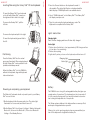
Charge the ZAGGfolio
FOLD
BACK
FRONT
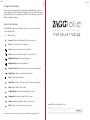
First remove the keyboard, then plug the micro-USB cable into the
micro-USB port on the keyboard. Plug the other end of the cable into a
powered USB port on a computer, your iPad® wall charger, or any other
USB compatible charger.
Special function keys
The ZAGGfolio has special function keys to give you more control
of your Galaxy Tab™.
Esc
Esc Escape
A STATE OF THE ART TABLET ACCESSORY
>
FOR GALAXY TAB
™
10.1
Search Displays the Galaxy Tab™ search screen
Cut Cuts selected text to clipboard
Copy Copies selected text to clipboard
Paste Pastes clipboard content in selected field
Brightness Down Decrease brightness
Brightness Up Increase brightness
Previous Track Skips to previous track on current playlist
Play/Pause Starts or stops current playlist
Stop Stops current playlist
Next Track Skips to the next track on the current playlist
Mute Mutes Galaxy Tab™ audio
Volume Down Decreases Galaxy Tab™ volume
Volume Up Increases Galaxy Tab™ volume
Home Displays the Galaxy Tab™ home screen
Back Takes you back to previous activity
Frequently asked questions answered at www.ZAGG.com/zaggfolio/faq
www.ZAGG.com/zaggfolio/faq
©2005 - 2011 ZAGG Inc. All Rights Reserved.
PATENT PENDING | NASDAQ: ZAGG | MADE IN CHINA | Designed by ZAGG® in Utah
Samsung™ and Galaxy Tab™ 10.1 are trademarks of Samsung Group.
ZAGG, invisibleSHIELD, invisibleSHIELD with design, and ZAGGfolio, are trademarks or registered trademarks of ZAGG, Inc.
The Bluetooth word mark and logos are owned by the Bluetooth SIG, Inc. and any use of such marks by ZAGG is under license.