1
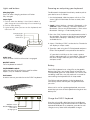
Lights and buttons
Powering on and pairing your keyboard
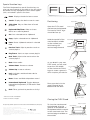
Charging light:
Turns on when charging and turns off when
fully charged
The Bluetooth® keyboard should only need to pair to
your device once as follows:
Status light:
1. Flashes when the battery is low (there’s about a
20% charge or two to four days of use remaining)
2. Flashes when pairing
3. Lights briefly when you turn on the keyboard, and
then turns off
Charging light
Status light
CAPS lock
1. On the keyboard, slide the power switch on. The
status light will illuminate for four seconds, then
turn off.
2. Apple®: Select Settings > General > Bluetooth® > On.
Android™: Apps > Settings > Wireless Networks >
Bluetooth® (to turn on the Bluetooth®.) Then select
Bluetooth® Settings > Find Nearby Devices.
3. Press the “Pair” button on the keyboard to make it
discoverable. The status light flashes on keyboard
and the device displays “ZAGGkeys FLEX” as an
available device.
CAPS
status
4. Select “ZAGGkeys FLEX” on the device. The device
will display a unique code*.
5. Type the code using the FLEX keyboard and press
Enter. The keyboard is now paired to the device.
CAPS lock:
Turns on when CAPS lock function is engaged
ON/OFF switch:
Turns keyboard on and off
*If your device initially asks for a code, create a
4-digit code and enter it in your device. Then enter
the same 4-digit code into your FLEX keyboard
and press enter.
Battery
iOS/ANDROID switch:
Makes the special function keys work for either
Apple® (iOS) or Android™ software
Pair button:
Used to connect your device to the FLEX™ keyboard
The FLEX Keyboard uses a long-life, rechargeable
battery that gives you several weeks of normal use.
The keyboard goes into sleep mode if it’s left on and
not being used. Press any key and wait a second or
two to bring the keyboard out of sleep mode.
The lithium-polymer battery in the keyboard has
no memory effect and may be charged whenever
you wish.
When not in use for a prolonged period, we recommend that you turn off the keyboard to lengthen the
battery life.
ON
ON/OFF switch
iOS/ANDROID switch
Pair button
Charging port
iOS
PAIR
Charge the ZAGG® Keyboard
Plug the micro-USB cable into the micro-USB port
on the keyboard. Plug the other end of the cable into
a powered USB port on a computer, your device wall
charger, or any other USB compatible charger.