Download Addonics RT93DAHXML
Transcript
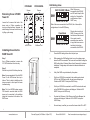
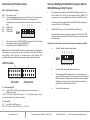
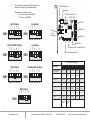
Setting or Modifying the RAID Mode Using the JMicron HW RAID Manager Utility Program: 1. 2. Recommended to be used on operating system without JMicron HW RAID Manager support like Linux, Mac & Solaris. Windows users can also use the procedure below. BZS EZ M2 M1 M0 Note: Steps A to D need to be performed each time the raid mode is modified. Note: When the default factory RAID setting is used, independent drive configuration and optical drive are supported only when connecting to controllers with Silicon Image Sil3124, Sil3132 chip set or controllers that are Port Multiplier (PM) compatible. Simultaneous DVD writing was tested using the Nero Burning Rom. a. SW1 LED Pin Header J3 Set the DIP switch to factory default setting. OFF Error buzzer function is ENABLED (BZS) when dip switch is in OFF position Auto-rebuilding to spare drive is DISABLED (EZ) Individual drive mode is ENABLED (M0~M2) OFF 1. 2. 3. Modify the RAID mode on the 5-port HPM-XA using DIP switch OFF SW1 For Windows users, install the JMicron HW RAID Manager located on the SATA Controller CD. In the CD, go to Configuration Utilities > JMB393. This manager can be use to create and monitor the status of the RAID volume. It is recommended to use the default factory RAID DIP switch setting when using the JMicron HW RAID Manager. OFF OFF OFF OFF OFF BZS – Error buzzer function EZ – Automatic rebuilding to spare drive (one of the drives on the raid is set as a spare). If EZ is ENABLED anda drive failure occurs, the spare will automatically act as a drive replacement and rebuilding will automatically start. M2 – RAID mode 2 M1 – RAID mode 1 M0 – RAID mode 0 1 2 3 4 5 OFF SW1 – RAID Setting DIP Switch OFF Default factory DIP Switch setting: 1 2 3 4 5 BZS EZ M2 M1 M0 J1 P5 P0 P1 P2 P3 P4 P5 P0 P1 P2 P3 P4 Error LED Activity LED J1 – Drive Activity LED P5 – Activity LED for eSATA host port lights up when it is connected to a SATA controller card. P0, P1, P2, P3 & P4 - Activity LEDs for port 0, 1, 2, 3, 4 & 5 light up when a drive is connected and blinks when there’s drive activity. b. Press the RAID setting button with a ball point pen. c. While pressing the RAID setting button turn on the system power where the HPM is connected. The buzzer will sound while holding the RAID setting button. Release it after at least 5 seconds for hardware initialization. A single beep will be heard to indicate initialization is completed. The above steps act as a reset. d. Power off the system power. J3 – Error LED P5 – error LED for eSATA host port P0, P1, P2, P3 & P4 - error LED for port 0, 1, 2, 3, 4 & 5 3 4 www.addonics.com Technical Support (M-F 8:30am - 6:00pm PST) Phone: 408-453-6212 Email: www.addonics.com/support/query/