1
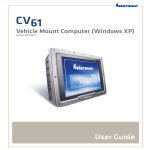
CV61
Vehicle
Mount Computer (Windows 7)
Model 1011CM01
User Guide
Intermec Technologies Corporation
Worldwide Headquarters
6001 36th Ave.W.
Everett, WA 98203
U.S.A.
www.intermec.com
The information contained herein is provided solely for the purpose of allowing customers to
operate and service Intermec-manufactured equipment and is not to be released, reproduced, or
used for any other purpose without written permission of Intermec Technologies Corporation.
Information and specifications contained in this document are subject to change without prior
notice and do not represent a commitment on the part of Intermec Technologies Corporation.
© 2012 by Intermec Technologies Corporation. All rights reserved.
The word Intermec, the Intermec logo, Norand, ArciTech, Beverage Routebook, CrossBar,
dcBrowser, Duratherm, EasyADC, EasyCoder, EasySet, Fingerprint, i-gistics, INCA (under license),
Intellitag, Intellitag Gen2, JANUS, LabelShop, MobileLAN, Picolink, Ready-to-Work, RoutePower,
Sabre, ScanPlus, ShopScan, Smart Mobile Computing, SmartSystems, TE 2000, Trakker Antares,
and Vista Powered are either trademarks or registered trademarks of Intermec Technologies
Corporation.
There are U.S. and foreign patents as well as U.S. and foreign patents pending.
ii
CV61 Vehicle Mount Computer (Windows 7) User Guide
Contents
Contents
Before You Begin. . . . . . . . . . . . . . . . . . . . . . . . . . . . . . . . . . . . . . . . . . . . . . . . . . . . . . . . . . . . . . . . . . v
Safety Information . . . . . . . . . . . . . . . . . . . . . . . . . . . . . . . . . . . . . . . . . . . . . . . . . . . . . . . . v
Global Services and Support . . . . . . . . . . . . . . . . . . . . . . . . . . . . . . . . . . . . . . . . . . . . . . . v
Warranty Information. . . . . . . . . . . . . . . . . . . . . . . . . . . . . . . . . . . . . . . . . . . . . v
Web Support . . . . . . . . . . . . . . . . . . . . . . . . . . . . . . . . . . . . . . . . . . . . . . . . . . . . . v
Send Feedback. . . . . . . . . . . . . . . . . . . . . . . . . . . . . . . . . . . . . . . . . . . . . . . . . . . vi
Telephone Support . . . . . . . . . . . . . . . . . . . . . . . . . . . . . . . . . . . . . . . . . . . . . . vi
Related Documents . . . . . . . . . . . . . . . . . . . . . . . . . . . . . . . . . . . . . . . . . . . . . . . . . . . . . . vi
Patent Information . . . . . . . . . . . . . . . . . . . . . . . . . . . . . . . . . . . . . . . . . . . . . . . . . . . . . . vii
1 About the Vehicle Mount Computer
................................... 1
About the CV61 Vehicle Mount Computer . . . . . . . . . . . . . . . . . . . . . . . . . . . . . . . . . . . . . . . . . . 2
Overview of CV61 Features . . . . . . . . . . . . . . . . . . . . . . . . . . . . . . . . . . . . . . . . . . . . . . . . . . . . . . . . 2
CV61 Accessories. . . . . . . . . . . . . . . . . . . . . . . . . . . . . . . . . . . . . . . . . . . . . . . . . . . . . . . . . . . . . . . . . . 4
Mount the CV61 . . . . . . . . . . . . . . . . . . . . . . . . . . . . . . . . . . . . . . . . . . . . . . . . . . . . . . . . . . . . . . . . . . 6
Connect the CV61 to Power . . . . . . . . . . . . . . . . . . . . . . . . . . . . . . . . . . . . . . . . . . . . . . . . . . . . . . . . 6
Understand the Backup Power System . . . . . . . . . . . . . . . . . . . . . . . . . . . . . . . . . . . . . . . . . . . . . . 7
Check the Status of the Backup Battery . . . . . . . . . . . . . . . . . . . . . . . . . . . . . . . . . . . . . 7
About the Ready-to-Work Indicator . . . . . . . . . . . . . . . . . . . . . . . . . . . . . . . . . . . . . . . . . . . . . . . . 8
Adjusting the Volume . . . . . . . . . . . . . . . . . . . . . . . . . . . . . . . . . . . . . . . . . . . . . . . . . . . . . . . . . . . . . 9
About the Touch Screen . . . . . . . . . . . . . . . . . . . . . . . . . . . . . . . . . . . . . . . . . . . . . . . . . . . . . . . . . . 10
Adjust the Screen Brightness . . . . . . . . . . . . . . . . . . . . . . . . . . . . . . . . . . . . . . . . . . . . . . 10
Enable the Heated Touch Screen Defroster . . . . . . . . . . . . . . . . . . . . . . . . . . . . . . . . . 11
Install an External Antenna . . . . . . . . . . . . . . . . . . . . . . . . . . . . . . . . . . . . . . . . . . . . . . . . . . . . . . . 12
Force the Use of an External Antenna Connection . . . . . . . . . . . . . . . . . . . . . . . . . . 13
Attach an External Keyboard . . . . . . . . . . . . . . . . . . . . . . . . . . . . . . . . . . . . . . . . . . . . . . . . . . . . . . 14
CV61 Vehicle Mount Computer (Windows 7) User Guide
iii
Contents
2 Understand the User Interface and Intermec Applications
. . . . . . . . 15
About the User Interface. . . . . . . . . . . . . . . . . . . . . . . . . . . . . . . . . . . . . . . . . . . . . . . . . . . . . . . . . . 16
About the Desktop Screen . . . . . . . . . . . . . . . . . . . . . . . . . . . . . . . . . . . . . . . . . . . . . . . . 16
Learn the Basic Skills . . . . . . . . . . . . . . . . . . . . . . . . . . . . . . . . . . . . . . . . . . . . . . . . . . . . . 17
Use the Touch Screen . . . . . . . . . . . . . . . . . . . . . . . . . . . . . . . . . . . . . . . . . . . . 17
Calibrate the Screen . . . . . . . . . . . . . . . . . . . . . . . . . . . . . . . . . . . . . . . . . . . . . . 17
About the Taskbar . . . . . . . . . . . . . . . . . . . . . . . . . . . . . . . . . . . . . . . . . . . . . . . . . . . . . . . 17
About Pop-Up Menus . . . . . . . . . . . . . . . . . . . . . . . . . . . . . . . . . . . . . . . . . . . . . . . . . . . . 18
Enter Information . . . . . . . . . . . . . . . . . . . . . . . . . . . . . . . . . . . . . . . . . . . . . . . . . . . . . . . 18
Use Transcriber . . . . . . . . . . . . . . . . . . . . . . . . . . . . . . . . . . . . . . . . . . . . . . . . . . 19
About Intermec Applications . . . . . . . . . . . . . . . . . . . . . . . . . . . . . . . . . . . . . . . . . . . . . . . . . . . . . 20
Applications Available on the CV61. . . . . . . . . . . . . . . . . . . . . . . . . . . . . . . . . . . . . . . . 20
Applications You Can Download . . . . . . . . . . . . . . . . . . . . . . . . . . . . . . . . . . . . . . . . . . . . . . . . . . 21
About Intermec Browser . . . . . . . . . . . . . . . . . . . . . . . . . . . . . . . . . . . . . . . . . . . . . . . . . . 21
About Intermec Launcher . . . . . . . . . . . . . . . . . . . . . . . . . . . . . . . . . . . . . . . . . . . . . . . . 21
About Intermec Session Persistence Server (SPS). . . . . . . . . . . . . . . . . . . . . . . . . . . . 21
About Intermec Terminal Emulator (ITE) . . . . . . . . . . . . . . . . . . . . . . . . . . . . . . . . . . 21
About SmartSystems Foundation . . . . . . . . . . . . . . . . . . . . . . . . . . . . . . . . . . . . . . . . . 22
3 Manage the Computer
. . . . . . . . . . . . . . . . . . . . . . . . . . . . . . . . . . . . . . . . . . . . . . . . . 23
Manage the Computer in Your Network . . . . . . . . . . . . . . . . . . . . . . . . . . . . . . . . . . . . . . . . . . . 24
Manage the Computer Using SmartSystems Foundation . . . . . . . . . . . . . . . . . . . . 24
Develop and Install Applications . . . . . . . . . . . . . . . . . . . . . . . . . . . . . . . . . . . . . . . . . . . . . . . . . . 25
Package Your Application. . . . . . . . . . . . . . . . . . . . . . . . . . . . . . . . . . . . . . . . . . . . . . . . . 25
Install Applications Using SmartSystems Foundation Console. . . . . . . . . . . . . . . 25
Install Applications Using a USB Storage Device. . . . . . . . . . . . . . . . . . . . . . . . . . . . 26
Install Applications Using an SD Card . . . . . . . . . . . . . . . . . . . . . . . . . . . . . . . . . . . . . 26
Install Applications By Mapping To a Network Drive . . . . . . . . . . . . . . . . . . . . . . . 26
Update the System Software . . . . . . . . . . . . . . . . . . . . . . . . . . . . . . . . . . . . . . . . . . . . . . . . . . . . . . 27
Update Individual or Multiple Computers Using the SmartSystems Console . . 27
Updating Individual Computers Using a USB Storage Device . . . . . . . . . . . . . . . . 28
4 Configure the Computer
. . . . . . . . . . . . . . . . . . . . . . . . . . . . . . . . . . . . . . . . . . . . . . . 31
How to Configure the Computer . . . . . . . . . . . . . . . . . . . . . . . . . . . . . . . . . . . . . . . . . . . . . . . . . . 32
iv
CV61 Vehicle Mount Computer (Windows 7) User Guide
Before You Begin
Use Intermec Settings on the Computer. . . . . . . . . . . . . . . . . . . . . . . . . . . . . . . . . . . . . . . . . . . . 32
Start Intermec Settings . . . . . . . . . . . . . . . . . . . . . . . . . . . . . . . . . . . . . . . . . . . . . . . . . . . 33
About the Structure of Intermec Settings . . . . . . . . . . . . . . . . . . . . . . . . . . . . . . . . . . 33
Navigate in Intermec Settings . . . . . . . . . . . . . . . . . . . . . . . . . . . . . . . . . . . . . . . . . . . . . 38
Restore Default Settings . . . . . . . . . . . . . . . . . . . . . . . . . . . . . . . . . . . . . . . . . . . . . . . . . . 38
Hide Menu Items in Intermec Settings . . . . . . . . . . . . . . . . . . . . . . . . . . . . . . . . . . . . . 38
Use Intermec Settings Remotely With SmartSystems Foundation . . . . . . . . . . . . 39
Create and Enable Custom Profile Settings . . . . . . . . . . . . . . . . . . . . . . . . . . . . . . . . . . . . . . . . 39
About Network Communications . . . . . . . . . . . . . . . . . . . . . . . . . . . . . . . . . . . . . . . . . . . . . . . . . 40
Configure 802.11a/b/g/n (Wi-Fi) Radio Communications . . . . . . . . . . . . . . . . . . . 40
Configure Bluetooth Communications . . . . . . . . . . . . . . . . . . . . . . . . . . . . . . . . . . . . 41
Connect to a Bluetooth Printer. . . . . . . . . . . . . . . . . . . . . . . . . . . . . . . . . . . . 42
Create a VPN Server Connection . . . . . . . . . . . . . . . . . . . . . . . . . . . . . . . . . . . . . . . . . . 43
Connect a Scanner to the CV61 . . . . . . . . . . . . . . . . . . . . . . . . . . . . . . . . . . . . . . . . . . . . . . . . . . . 44
Connect to a USB Scanner . . . . . . . . . . . . . . . . . . . . . . . . . . . . . . . . . . . . . . . . . . . . . . . . 44
Connect the SR30 or SR61T USB Scanner . . . . . . . . . . . . . . . . . . . . . . . . . 44
Connect to a Serially Tethered Scanner . . . . . . . . . . . . . . . . . . . . . . . . . . . . . . . . . . . . 45
Connect to a Bluetooth Scanner. . . . . . . . . . . . . . . . . . . . . . . . . . . . . . . . . . . . . . . . . . . 47
About Wireless Security . . . . . . . . . . . . . . . . . . . . . . . . . . . . . . . . . . . . . . . . . . . . . . . . . . . . . . . . . . 48
Choose Between Microsoft and Wireless Security . . . . . . . . . . . . . . . . . . . . . . . . . . . 49
Select a Wireless Security Profile . . . . . . . . . . . . . . . . . . . . . . . . . . . . . . . . . . 49
Select Microsoft as Your Security Choice . . . . . . . . . . . . . . . . . . . . . . . . . . . 54
Load a Certificate . . . . . . . . . . . . . . . . . . . . . . . . . . . . . . . . . . . . . . . . . . . . . . . . . . . . . . . . 59
5 Troubleshoot and Maintain the Computer
. . . . . . . . . . . . . . . . . . . . . . . . . . . 61
Troubleshoot Your Computer . . . . . . . . . . . . . . . . . . . . . . . . . . . . . . . . . . . . . . . . . . . . . . . . . . . . . 62
Troubleshoot the Wi-Fi Connection . . . . . . . . . . . . . . . . . . . . . . . . . . . . . . . . . . . . . . . 62
Troubleshoot 802.1x Security . . . . . . . . . . . . . . . . . . . . . . . . . . . . . . . . . . . . . . . . . . . . . 63
Check 802.11 Network Status . . . . . . . . . . . . . . . . . . . . . . . . . . . . . . . . . . . . . . . . . . . . . 63
Troubleshoot Reading Bar Codes. . . . . . . . . . . . . . . . . . . . . . . . . . . . . . . . . . . . . . . . . . 64
Troubleshoot Operating the Computer . . . . . . . . . . . . . . . . . . . . . . . . . . . . . . . . . . . . 67
Call Product Support. . . . . . . . . . . . . . . . . . . . . . . . . . . . . . . . . . . . . . . . . . . . . . . . . . . . . . . . . . . . . 68
Find Your Configuration Number . . . . . . . . . . . . . . . . . . . . . . . . . . . . . . . . . . . . . . . . . 68
Find Your System Component Versions . . . . . . . . . . . . . . . . . . . . . . . . . . . . . . . . . . . . 69
Find Your Operating System, BIOS and MCU Versions. . . . . . . . . . . . . . . . . . . . . . 69
Find Your Service Pack Version. . . . . . . . . . . . . . . . . . . . . . . . . . . . . . . . . . . . . . . . . . . . 70
Restart Your Computer . . . . . . . . . . . . . . . . . . . . . . . . . . . . . . . . . . . . . . . . . . . . . . . . . . . . . . . . . . . 70
CV61 Vehicle Mount Computer (Windows 7) User Guide
v
Contents
Reboot the Computer . . . . . . . . . . . . . . . . . . . . . . . . . . . . . . . . . . . . . . . . . . . . . . . . . . . . 70
Reset the Computer . . . . . . . . . . . . . . . . . . . . . . . . . . . . . . . . . . . . . . . . . . . . . . . . . . . . . . 71
Clean the Computer. . . . . . . . . . . . . . . . . . . . . . . . . . . . . . . . . . . . . . . . . . . . . . . . . . . . . . . . . . . . . . 71
6 Upgrade the CV61 Vehicle Mount Computer
. . . . . . . . . . . . . . . . . . . . . . . . . 73
Upgrade the CV61 . . . . . . . . . . . . . . . . . . . . . . . . . . . . . . . . . . . . . . . . . . . . . . . . . . . . . . . . . . . . . . . 74
Upgrade the Hard Drive . . . . . . . . . . . . . . . . . . . . . . . . . . . . . . . . . . . . . . . . . . . . . . . . . . 74
Upgrade Memory . . . . . . . . . . . . . . . . . . . . . . . . . . . . . . . . . . . . . . . . . . . . . . . . . . . . . . . . 78
Install an SD Card . . . . . . . . . . . . . . . . . . . . . . . . . . . . . . . . . . . . . . . . . . . . . . . . . . . . . . . 81
ASpecifications and Default Settings
. . . . . . . . . . . . . . . . . . . . . . . . . . . . . . . . . . 85
Physical and Environmental Specifications . . . . . . . . . . . . . . . . . . . . . . . . . . . . . . . . . . . . . . . . . 86
Physical Dimensions . . . . . . . . . . . . . . . . . . . . . . . . . . . . . . . . . . . . . . . . . . . . . . . . . . . . . 86
Environmental Specifications . . . . . . . . . . . . . . . . . . . . . . . . . . . . . . . . . . . . . . . . . . . . . 86
Power and Electrical Specifications . . . . . . . . . . . . . . . . . . . . . . . . . . . . . . . . . . . . . . . . 86
Hardware . . . . . . . . . . . . . . . . . . . . . . . . . . . . . . . . . . . . . . . . . . . . . . . . . . . . . . . . . . . . . . . 86
Touch Screen Specifications . . . . . . . . . . . . . . . . . . . . . . . . . . . . . . . . . . . . . . . . . . . . . . 87
Standard Communications . . . . . . . . . . . . . . . . . . . . . . . . . . . . . . . . . . . . . . . . . . . . . . . 87
Wireless LAN . . . . . . . . . . . . . . . . . . . . . . . . . . . . . . . . . . . . . . . . . . . . . . . . . . . . . . . . . . . . 87
Default Configuration . . . . . . . . . . . . . . . . . . . . . . . . . . . . . . . . . . . . . . . . . . . . . . . . . . . . . . . . . . . 88
Data Collection Settings. . . . . . . . . . . . . . . . . . . . . . . . . . . . . . . . . . . . . . . . . . . . . . . . . . 88
Communications . . . . . . . . . . . . . . . . . . . . . . . . . . . . . . . . . . . . . . . . . . . . . . . . . . . . . . . . 91
Device Settings . . . . . . . . . . . . . . . . . . . . . . . . . . . . . . . . . . . . . . . . . . . . . . . . . . 92
Core Messaging Service Settings. . . . . . . . . . . . . . . . . . . . . . . . . . . . . . . . . . . . . . . . . . . 93
RFID Settings . . . . . . . . . . . . . . . . . . . . . . . . . . . . . . . . . . . . . . . . . . . . . . . . . . . . . . . . . . . 93
Virtual Wedge Settings . . . . . . . . . . . . . . . . . . . . . . . . . . . . . . . . . . . . . . . . . . . . . . . . . . . 93
Common Lockdown Service Settings . . . . . . . . . . . . . . . . . . . . . . . . . . . . . . . . . . . . . . 94
Device Monitor Settings . . . . . . . . . . . . . . . . . . . . . . . . . . . . . . . . . . . . . . . . . . . . . . . . . . 95
Port Pin Assignments. . . . . . . . . . . . . . . . . . . . . . . . . . . . . . . . . . . . . . . . . . . . . . . . . . . . . . . . . . . . . 95
COM 1 and COM 2 Ports . . . . . . . . . . . . . . . . . . . . . . . . . . . . . . . . . . . . . . . . . . . . . . . . . 95
USB Port . . . . . . . . . . . . . . . . . . . . . . . . . . . . . . . . . . . . . . . . . . . . . . . . . . . . . . . . . . . . . . . . 96
CANBUS Port . . . . . . . . . . . . . . . . . . . . . . . . . . . . . . . . . . . . . . . . . . . . . . . . . . . . . . . . . . . 97
Power Connector . . . . . . . . . . . . . . . . . . . . . . . . . . . . . . . . . . . . . . . . . . . . . . . . . . . . . . . . 97
B ScanNGo Wi-Fi Configuration Bar Codes
. . . . . . . . . . . . . . . . . . . . . . . . . . . . . 99
Radio Configuration Bar Codes . . . . . . . . . . . . . . . . . . . . . . . . . . . . . . . . . . . . . . . . . . . . . . . . . .100
vi
CV61 Vehicle Mount Computer (Windows 7) User Guide
Contents
2D Configuration Bar Codes. . . . . . . . . . . . . . . . . . . . . . . . . . . . . . . . . . . . . . . . . . . . .100
1D Configuration Bar Codes. . . . . . . . . . . . . . . . . . . . . . . . . . . . . . . . . . . . . . . . . . . . .101
CV61 Vehicle Mount Computer (Windows 7) User Guide
vii
Contents
viii
CV61 Vehicle Mount Computer (Windows 7) User Guide
Before You Begin
Before You Begin
This section provides you with safety information, technical support
information, and sources for additional product information.
Safety Information
Your safety is extremely important. Read and follow cautions in this
document before handling and operating Intermec equipment. You
can be seriously injured, and equipment and data can be damaged if
you do not follow the safety cautions.
This section explains how to identify and understand cautions and
notes that are in this document.
A caution alerts you to an operating procedure, practice,
condition, or statement that must be strictly observed to prevent
equipment damage or destruction, or corruption or loss of data.
Note: Notes either provide extra information about a topic or contain
special instructions for handling a particular condition or set of
circumstances.
Global Services and Support
Warranty Information
To understand the warranty for your Intermec product, visit the
Intermec website at www.intermec.com and click Support >
Returns and Repairs > Warranty.
Disclaimer of warranties: The sample code included in this document
is presented for reference only. The code does not necessarily
represent complete, tested programs. The code is provided “as is with
all faults.” All warranties are expressly disclaimed, including the
implied warranties of merchantability and fitness for a particular
purpose.
Web Support
Visit the Intermec website at www.intermec.com to download our
current manuals (in PDF).
CV61 Vehicle Mount Computer (Windows 7) User Guide
ix
Before You Begin
Visit the Intermec technical knowledge base (Knowledge Central) at
www.intermec.com and click Support > Knowledge Central to
review technical information or to request technical support for your
Intermec product.
Send Feedback
Your feedback is crucial to the continual improvement of our
documentation. To provide feedback about this manual, please
contact the Intermec Technical Communications department directly
at [email protected].
Telephone Support
In the U.S.A. and Canada, call 1-800-755-5505.
Outside the U.S.A. and Canada, contact your local Intermec
representative. To search for your local representative, from the
Intermec website, click About Us > Contact Us.
Related Documents
This is a list of related Intermec documents.
•
Intermec Settings Command Reference Manual
•
Intermec Developer Library (IDL) Resource Kit Developer’s Guide
The Intermec website at www.intermec.com contains our documents
(as PDF files) that you can download for free.
To download documents
1 Visit the Intermec website at www.intermec.com.
2 Click the Products tab.
3 Using the Products menu, navigate to your product page. For
example, to find the CV61 computer product page, click
Computers > Fixed Vehicle Computers > CV61.
4 Click the Manuals tab.
If your product does not have its own product page, click Support >
Manuals. Use the Product Category, the Product Family, and
Product to find your documentation.
x
CV61 Vehicle Mount Computer (Windows 7) User Guide
Before You Begin
Patent Information
Product is covered by one or more of the following patents:
5,218,191; 5,233,172; 5,241,488; 5,243,602; 5,258,606; 5,288,985;
5,308,966; 5,342,210; 5,359,185; 5,389,770; 5,397,885; 5,414,251;
5,416,463; 5,442,167; 5,464,972; 5,468,947; 5,468,950; 5,477,044;
5,486,689; 5,500,516; 5,502,297; 5,504,367; 5,514,858; 5,534,684;
5,536,924; 5,539,191; 5,541,419; 5,548,108; 5,550,362; 5,550,364;
5,565,669; 5,572,007; 5,576,529; 5,594,230; 5,598,007; 5,608,578;
5,616,909; 5,619,027; 5,640,001; 5,659,431; 5,672,860; 5,684,290;
5,719,678; 5,729,003; 5,742,041; 5,761,219; 5,764,798; 5,777,308;
5,777,309; 5,777,310; 5,786,583; 5,798,509; 5,798,513; 5,804,805;
5,811,776; 5,811,777; 5,818,027; 5,821,523; 5,834,749; 5,837,987;
5,841,121; 5,842,070; 5,854,478; 5,862,267; 5,869,840; 5,873,070;
5,877,486; 5,878,395; 5,886,338; 5,895,906; 5,902,987; 5,902,988;
5,912,452; 5,923,022; 5,936,224; 5,949,056; 5,969,321; 5,969,326;
5,979,768; 5,987,192; 5,992,750; 6,003,775; 6,012,640; 6,016,960;
6,018,597; 6,024,289; 6,034,379; 6,036,093; 6,039,252; 6,064,763;
6,095,422; 6,097,839; 6,102,289; 6,102,295; 6,119,941; 6,128,414;
6,138,915; 6,149,061; 6,149,063; 6,152,370; 6,155,490; 6,158,661;
6,164,542; 6,164,545; 6,173,893; 6,195,053; 6,234,393; 6,234,395;
6,249,008; 6,328,214; 6,330,975; 6,345,765; 6,356,949; 6,367,699;
6,375,075; 6,375,076; 6,435,411; 6,484,944; 6,641,046; 6,669,087;
6,681,994; 6,688,523; 6,732,930; 6,879,428; 6,889,903; 6,974,085;
7,035,466; 7,143,941; 7,185,819; 7,190,835; 7,232,072; 7,322,526;
6,847,620; 6,857,013; 6,944,446; 6,970,459; 6,976,062; 7,125,743;
7,139,870; 7,159,764; 7,206,338; 7,208,916; 7,210,633; 7,271,679;
7,298,791; 7,325,741; 7,327,988; 7,336,853; 7,451,441; 7,564,799;
7,572,990; 7,580,395; 7,590,425; 7,633,550; 7,669,201; 7,761,864;
7,888,913; 7,895,267; 7,924,346; 7,962,104; 8,002,173; 8,014,354;
8,064,924.
There may be other U.S. and foreign patents pending.
CV61 Vehicle Mount Computer (Windows 7) User Guide
xi
xii
CV61 Vehicle Mount Computer (Windows 7) User Guide
1
About the Vehicle Mount Computer
This chapter introduces the CV61 Vehicle Mount Computer
with Windows® 7 operating system. Use this chapter to learn
about the basic features and available accessories.
1
Chapter 1 — About the Vehicle Mount Computer
About the CV61 Vehicle Mount Computer
The rugged CV61 Vehicle Mount Computer is designed for real-time
data collection applications in warehousing, distribution,
work-in-process, time and attendance, and stationary applications.
The CV61 is highly configurable and runs on the Microsoft Windows
7 or Microsoft Windows XP Professional operating system.
Additionally, the CV61 supports the use of terminal emulation
applications, browser-based applications, or custom applications.
CV61 Vehicle Mount Computer
Overview of CV61 Features
The CV61 includes these standard features:
•
•
•
2
12.1” color sunlight-readable XGA display
two USB ports, two COM ports, a CANBUS port, keyboard
connector, an Ethernet port, a speaker output jack, and a
microphone/line stereo jack
40 GB solid-state hard drive
CV61 Vehicle Mount Computer (Windows 7) User Guide
Chapter 1 — About the Vehicle Mount Computer
•
•
•
•
•
1 GB of RAM for Windows XP, 2 GB of RAM for Windows 7, both
expandable to 3 GB of RAM
Customer-accessible SD slot for memory cards up to 32 GB
802.11a/b/g/n and Bluetooth® radios
Accelerometer
Intel D425 1.8 GHz processor
The CV61 Vehicle Mount Computer has an IEEE
802.11a/b/g/n radio installed and is Wi-Fi® certified for
interoperability with other 802.11a/b/g/n wireless LAN
devices.
CV61 Ports and Buttons
Power
connector
Ethernet
port
Keyboard
connector
Power
button
Reset
switch
COM 1
port
COM 2
port
CANBUS
port
CV61 Vehicle Mount Computer (Windows 7) User Guide
USB
port
Microphone/line
stereo jack
Speaker
output jack
3
Chapter 1 — About the Vehicle Mount Computer
CV61 Port and Buttons
Port and Buttons
Description
Power button
Turns the CV61 on or off.
Power connector
Connect the CV61 to a vehicle battery, DC/DC
external power supply, or an AC power supply.
Reset button
Perform a hard reset to the CV61.
Keyboard connector
Connect a PS2 keyboard to the CV61.
COM 1 and COM2
port
Connect RS-232 devices such as a printer or scanner
to the CV61.
CANBUS port
Connect a CANBUS cable to allow devices to
communicate with each other within a vehicle
without a host computer.
USB port
Connect the CV61 USB cable accessory to allow two
devices to communicate using the USB interface.
Ethernet port
Connect the CV61 to an Ethernet interface.
Speaker output jack
Connect headphones to the CV61.
Microphone/line out
jack
Connect a microphone to the CV61.
CV61 Accessories
The CV61 does not ship with any accessories. All accessories are sold
and ordered separately. For help, contact your local Intermec sales
representative.
CV61 Accessories
4
Accessory
Description
AC Power Supply
Use this power supply kit to supply AC
power to the CV61. The AC power supply
comes with a North American power
cord. You need to purchase a
country-specific power cord for your local
power source.
CV61 Adapter Cable Kit
Use the CV61 adapter cable to connect
the CV61 to an existing CV60 DC/DC
power supply connection.
CV61 Vehicle Mount Computer (Windows 7) User Guide
Chapter 1 — About the Vehicle Mount Computer
CV61 Accessories (Continued)
Accessory
Description
DC/DC (6-60 VDC) Power Supply Use this power supply kit with 6-60 V
powered vehicles requiring a 60 V or
higher DC interface. This kit also
provides power to the defroster.
DC/DC (15-96 VDC) Power
Use this power supply kit with 15-96 V
Supply for Non-Heated Displays powered vehicles requiring a DC interface
that is higher than 60 V. This kit does not
provide power to the defroster.
DC/DC (15-96 VDC)
High-Voltage Power Supply for
Heated Displays
Use this power supply kit with 15-96 V
powered vehicles requiring a DC interface
that is higher than 60 V, and provide
power to the defroster.
Direct Wiring Kit (9-60 VDC)
Use the direct wiring kit with 9-60 V
powered vehicles. This kit provides a
direct connection between the CV61 and
the vehicle battery.
Keyboard
Use the CV61 keyboard to input text. The
keyboard is rugged and has an IP65 seal
rating.
Desktop Mounting Kit
Use the desktop mounting kit to attach
the CV61 to a flat surface such as a
desktop.
Vehicle Mounting Kit
Use the vehicle mounting kit to attach the
CV61 to a vehicle such as a forklift or
truck.
Keyboard Mounting Kit
Use the keyboard tray mounting kit to
attach the CV61 keyboard to the CV61.
Screen Protector Kit
Use the screen protector to protect the
CV61 screen from scratches and debris.
SDRAM Upgrade Kit
Use the SDRAM upgrade to add memory
to the CV61. You can purchase a 1 or 2 GB
upgrade.
External 802.11 a/b/g antenna
Dual band 2.4 GHz and 5.0 GHz sealed
remote mount antenna. Supports 802.11
a/b/g only.
Omnidirectional antenna
Single-band omnidirectional remote
mount antenna. Supports 802.11 b/g/n
only.
CV61 Vehicle Mount Computer (Windows 7) User Guide
5
Chapter 1 — About the Vehicle Mount Computer
CV61 Accessories (Continued)
Accessory
Description
Cable Retention Kit
Use the cable retention kit to keep your
cables secure and prevents accidental
access to the power switch.
Backup Battery Replacement Kit If the CV61 backup battery fails, purchase
this kit to replace the internal backup
battery.
Replacement Touch Panel Kit
If the CV61 touch panel stops
responding, you may need to purchase
this kit to replace the touch panel.
CV61 USB Cable
Use the USB cable to connect USB devices
and peripherals to the CV61. The USB
cable provides dual USB type A host
connectors and includes cable restraints.
Mount the CV61
To properly mount the CV61 to a desktop or vehicle, you must
purchase a mounting kit. Use of any other kits for the CV61 may
prematurely damage the computer or void the product warranty. For
more information, contact your local Intermec representative.
There are two types of mounting kit options sold separately:
• Standard Vehicle Mounting Kit
• Desktop Mounting Kit
For more information on installing the mounting kits, see one of the
mounting kit instructions located on the Intermec website at
www.intermec.com.
Connect the CV61 to Power
For the CV61 to operate, you must provide power to the CV61 through
a DC/DC or AC/DC power supply. There are a variety of power options
for the CV61. You must order one of these power options separately:
•
•
•
6
DC/DC Power Supply Kit (6-60 VDC) for heated displays
DC/DC Power Supply Kit (15-96 VDC) for non-heated displays
DC/DC Dual Power Supply Kit (15-96 VDC) for heated displays
CV61 Vehicle Mount Computer (Windows 7) User Guide
Chapter 1 — About the Vehicle Mount Computer
• Direct Wiring Kit (9-60 VDC)
• CV61 Adapter Cable Kit
• AC Power Supply Kit
Use the CV61 adapter cable to connect the CV61 to an existing CV60
DC/DC installation. If you are using the CV61 with the Desktop
Mounting Kit, use the AC power supply and power cord. For more
information on power supply options, contact your local Intermec
representative.
Understand the Backup Power System
The CV61 has backup battery that has enough capacity to maintain a
network connected state for up to 30 minutes if power is removed (for
example, during a forklift battery change). When power is restored, the
CV61 resumes normal operation.
An internal charger automatically charges the backup battery within 8
hours when external power is supplied. If the backup battery fails, a
fault is displayed in the CV61 Properties screen.
Check the Status of the Backup Battery
Check the status of the internal battery to know how much battery life
you have left.
1 Tap Start > Control Panel.
2 In the View by: drop-down menu, select either Large or Small
icons.
3 Double-tap CV61 Properties. The backup battery status is shown
in the System Information section of the CV61 Properties screen.
CV61 Vehicle Mount Computer (Windows 7) User Guide
7
Chapter 1 — About the Vehicle Mount Computer
If the Backup Battery Status displays Fault, you need to replace
the backup battery.
About the Ready-to-Work Indicator
The Ready-to-Work indicator shows the status of the CV61.
Ready-to-Work Indicator Location
Ready-to-Work
indicator
8
CV61 Vehicle Mount Computer (Windows 7) User Guide
Chapter 1 — About the Vehicle Mount Computer
Use the following table to learn about the indicator default status. For
further customization, you can enable or disable the Ready-to-Work
indicator in Intermec Settings. For more information, see “Start
Intermec Settings” on page 33.
Ready-to-Work Indicator Status
LED
Description
On
The CV61 is powered on.
Blinking
The indicator blinks when:
• the CV61 is in state maintenance mode.
• DC power is disconnected.
• attempting to boot at -20 °C (-4 °F) or below.
Off
The CV61 is off.
Adjusting the Volume
You can change the CV61 volume, for sounds you hear when you tap
the screen or scan bar codes with a scanner.
1 Tap the speaker icon in the taskbar.
2 Move the speaker slider up or down, or tap the speaker icon in the
slider to turn the volume on or off.
CV61 Vehicle Mount Computer (Windows 7) User Guide
9
Chapter 1 — About the Vehicle Mount Computer
About the Touch Screen
The CV61 has a 12.1” color XGA touch screen display with a resolution
of 1024 x 768 pixels. The display may also come with an optional
heated touch screen defroster to reduce condensation on the external
surface of the display when moving between sub-freezing
temperatures and normal temperatures.
If you are going to use the CV61 in extreme cold conditions for an
extended period of time, you should turn on the power at room
temperature for at least 15 minutes prior to using it. This process of
“warming up” helps preserve the lighting on the display.
Adjust the Screen Brightness
You can adjust the brightness of the screen manually or enable the
ambient-light sensor to automatically adjust the brightness of the
CV61.
1 Tap Start > Control Panel.
2 In the View by: drop-down menu, select either Large or Small
icons.
3 Double-tap CV61 Properties. The screen brightness is shown in
the Screen Control section of the CV61 Properties screen.
10
CV61 Vehicle Mount Computer (Windows 7) User Guide
Chapter 1 — About the Vehicle Mount Computer
4 To manually adjust the screen brightness, make sure Adaptive
Brightness Control is not selected and use the slider to change the
screen brightness.
To enable the ambient light sensor, select Adaptive Brightness
Control and enter a response time in the text box.
5 Tap Apply to save your changes.
6 Tap OK to exit the CV61 Properties menu.
Enable the Heated Touch Screen Defroster
If you have a heated touch screen defroster, use it to help reduce
condensation on the display when you are moving between
sub-freezing and normal temperatures.
Use the following procedure to learn how to turn the heater on, off, or
leave it on an automatic setting. When the defroster is set to
automatic, the defroster automatically turns on when the external
temperature reaches 3 °C (37 °F) and below, and turns off when the
temperature reaches 5 °C (41 °F).
1 Tap Start > Control Panel.
2 In the View by: drop-down menu, select either Large or Small
icons.
CV61 Vehicle Mount Computer (Windows 7) User Guide
11
Chapter 1 — About the Vehicle Mount Computer
3 Double-tap CV61 Properties. The heater information is shown in
the Heater section of the CV61 Properties screen.
4 Select Heater On, Heater Off, or Automatic On/Off.
5 Tap Apply to save your changes.
6 Tap OK to exit the CV61 Properties menu.
Install an External Antenna
You can purchase an antenna to mount on a wall, forklift, or other flat
surface using either screws or small patches of adhesive-backed hook
and loop fastener material.
Since system performance and antenna polarization are
site-dependent, a permanent mounting location may require some
experimentation. In most fixed installations, you should mount the
antenna initially in a vertically-polarized position, with the cable from
the antenna parallel to the floor and ceiling.
1 Remove the antenna cover.
12
CV61 Vehicle Mount Computer (Windows 7) User Guide
Chapter 1 — About the Vehicle Mount Computer
2 Secure the antenna to the CV61 antenna plug.
3 Using your own hardware, secure the external antenna to a wall,
forklift, or other flat surface.
Force the Use of an External Antenna Connection
If an external antenna is connected, the CV61 automatically detects
the connection and disables the internal antenna and uses the external
antenna. However, if the external antenna is not detected, you can
force the use of the external antenna through the CV61 Properties
screen.
1 Tap Start > Control Panel.
2 In the View by: drop-down menu, select either Large or Small
icons.
3 Double-tap CV61 Properties. The external antenna information is
shown in the External Antenna section of the CV61 Properties
screen.
4 Select Force External Antenna.
CV61 Vehicle Mount Computer (Windows 7) User Guide
13
Chapter 1 — About the Vehicle Mount Computer
5 Tap Apply to save your changes.
6 Tap OK to exit the CV61 Properties menu.
Attach an External Keyboard
You can use either a PS/2 or USB keyboard with the CV61. Intermec
recommends you use the CV61 rugged keyboard to input text. For
more information on purchasing an Intermec keyboard, contact your
local Intermec representative.
CV61 External PS/2 Keyboard
14
CV61 Vehicle Mount Computer (Windows 7) User Guide
2
Understand the User Interface and Intermec
Applications
Use this chapter to learn about the Windows 7 user interface
and how to interact with the screen. You can also use this
chapter to learn about the Intermec applications on the CV61,
as well as additional Intermec applications you can download.
15
Chapter 2 — Understand the User Interface and Intermec Applications
About the User Interface
The user interface for the Windows 7 operating system is similar to
using your desktop PC. The interface is touch-friendly and easy to
navigate. Use the following sections to understand how to interact
with Windows 7 on the CV61.
About the Desktop Screen
When you turn on your computer, the Desktop screen is the first
screen that appears, unless Intermec Terminal Emulator (ITE) is
configured to automatically launch. The Desktop screen contains the
Desktop and the Taskbar.
Windows 7 Default Screen
Windows
Desktop
Windows 7
Taskbar
Start
button
Tap Start > Help and Support, then select a topic on the computer to
find additional information on Windows 7 components.
16
CV61 Vehicle Mount Computer (Windows 7) User Guide
Chapter 2 — Understand the User Interface and Intermec Applications
Learn the Basic Skills
Learning to use the computer is easy. This section describes the basic
concepts of using and customizing the vehicle mount computer and
Windows 7.
Use the Touch Screen
Use your finger or stylus to move around the CV61 user interface.
Touch Screen Navigation
Action
Description
Tap
Tap the screen once with your stylus or finger to select
options, open or close applications, or launch menus.
Double-tap
Double-tap the screen with your stylus or finger to
launch applications.
Drag
Hold your stylus or finger on the screen and drag across
the screen to select text and images.
Tap and hold
Tap and hold your stylus or finger, when the circle
appears, remove the stylus or finger from the screen to
see a menu of actions available for that item. On the
pop-up menu that appears, tap the action you want to
perform.
Calibrate the Screen
You may need to calibrate your screen if you tap on one area and it
registers in a different area of the screen. Make sure you use the stylus
to complete the alignment process.
1 Tap Start > All Programs > UPDD > Calibrate. The Calibration
Wizard appears.
2 Follow the prompts on the screen to complete the alignment
process.
About the Taskbar
The Taskbar is located at the bottom of the screen. It displays
information such as the Start menu icon, the current time, the Input
panel icon, and the current status of information such Wi-Fi signal
strength or Bluetooth connectivity.
CV61 Vehicle Mount Computer (Windows 7) User Guide
17
Chapter 2 — Understand the User Interface and Intermec Applications
Windows 7 Taskbar
For more information on Windows 7 icons, tap Start > Help, then
select a topic on the computer to find additional information on
Windows 7 components.
About Pop-Up Menus
Use pop-up menus to quickly perform an action on an item. For
example, you can use a pop-up menu to delete or make a copy of an
item. To access a pop-up menu, tap and hold the item on which you
want to perform the action. When the menu appears, tap the action
you want to perform, or tap anywhere outside the menu to close the
menu without performing the action.
Windows 7 Pop-Up Menu
Enter Information
If you do not use the external keyboard, enter information on the
vehicle mount computer by using the onscreen keyboard or write
using Transcriber.
1 Make sure that the Input Panel icon is displayed on the taskbar.
18
CV61 Vehicle Mount Computer (Windows 7) User Guide
Chapter 2 — Understand the User Interface and Intermec Applications
Input panel
If the input panel is not displayed, tap and hold your stylus or
finger on the taskbar until a circle appears, and remove your stylus
or finger from the screen. A pop-up menu appears.
2 Select Toolbars and select Tablet PC Input Panel. The input
panel is placed on the taskbar.
3 Tap the Input Panel icon to bring up the onscreen keyboard.
Use Transcriber
Use Transcriber to write on the screen using a stylus just as you would
on paper. You can write an entire sentence of information, and then
pause to let Transcriber change the written characters to typed
characters.
1 Tap the Input Panel icon on taskbar.
2 Tap the Transcriber icon.
CV61 Vehicle Mount Computer (Windows 7) User Guide
19
Chapter 2 — Understand the User Interface and Intermec Applications
Transcriber
3 Write anywhere on the transcriber window. Pause and let
Transcriber change the written characters to typed characters.
About Intermec Applications
Intermec provides many useful applications to help you configure,
troubleshoot, and connect your computer to other devices and
networks. You can also download additional applications from the
Intermec website to help you use all of the features of your computer.
Applications Available on the CV61
Use this table to understand some of the Intermec applications on the
CV61.
Intermec Applications Available on the CV61
Icon
Application
Description
Intermec Settings Use Intermec Settings to configure your
computer. You can use Intermec Settings to
individually configure a computer or you can
use it through SmartSystems to configure all of
your computers.
20
Bluetooth
Printing
Use the Bluetooth Printing application to
connect to a Bluetooth printer.
Bluetooth
Scanning
Use the Bluetooth Scanning application to
connect to a Bluetooth scanner.
CV61 Vehicle Mount Computer (Windows 7) User Guide
Chapter 2 — Understand the User Interface and Intermec Applications
Applications You Can Download
You can download several Intermec applications from the Intermec
website to extend the capabilities of the CV61. All of the applications
listed below are available from the Intermec website. Some of the
applications require the purchase of a license to run. To find the
application you want, go to www.intermec.com > Support >
Downloads and then enter the information to find the CV61 software
that you can download.
About Intermec Browser
Intermec Browser is a locked-down web application for your computer
that is compatible with Internet Explorer 6.0. You can configure
Intermec Browser for your specific application requirements and
design your own web pages. You can download and use Intermec
Browser for a 60-day evaluation period. After the evaluation period
expires, you will need to purchase a license.
About Intermec Launcher
Intermec Launcher is a Microsoft Windows application, designed for
Intermec computers, that provides a platform from which other
applications may be launched while attempting to provide a
locked-down environment. You can configure Intermec Launcher for
your specific application requirements. You can download and use
Intermec Launcher for a 60-day evaluation period. After the evaluation
period expires, you will need to purchase a license.
About Intermec Session Persistence Server (SPS)
Intermec Session Persistence Server enables persistence of an ITE
session on a computer when a client is momentarily disconnected,
which includes Intermec computers that go out of range, go to sleep,
or are suspended.
About Intermec Terminal Emulator (ITE)
Intermec Terminal Emulator (ITE), part of Intermec Client Pack (ICP),
is a terminal emulation client designed for enterprise-level data
collection.
CV61 Vehicle Mount Computer (Windows 7) User Guide
21
Chapter 2 — Understand the User Interface and Intermec Applications
ITE is packed with enhancements that improve productivity, reduce
errors, and deliver fast return on investment. It supports multiple
emulation protocols in a single client and has new features such as
session persistence, remote management and configuration, and offers
a maintenance plan to keep you up-to-date with the latest releases and
upgrades. You can download and use ITE for a 60-day evaluation
period. After the evaluation period expires, you will need to purchase a
license and a maintenance plan.
About SmartSystems Foundation
SmartSystems™ Foundation is an easy-to-use software platform that
provides IT Administrators and Integrators a single, integrated portal
for hands-free provisioning, deployment, and management of
Intermec devices minimizing the effort spent on software upgrades,
equipment monitoring, maintenance and troubleshooting.
SmartSystems Foundation provides a consistent way to manage
Intermec devices including mobile computers, vehicle mount
computers, RFID readers, printers and bar code scanners, located
on-site or remote, to make the most of limited IT resources, and lower
the total cost of ownership for Intermec data collection equipment.
SmartSystems Foundation can be downloaded at no charge from the
Intermec website. For more information, visit
www.intermec.com/SmartSystems.
22
CV61 Vehicle Mount Computer (Windows 7) User Guide
3
Manage the Computer
Use this chapter to learn how to remotely update, configure,
and monitor the CV61. You will also find information on
installing and developing software applications as well as how
to upgrade the system software.
23
Chapter 3 — Manage the Computer
Manage the Computer in Your Network
When you have multiple computers and peripherals in your network,
it is essential to have an easy way to manage updates, configure all of
the devices, and remotely troubleshoot problems. Intermec provides a
free device management software platform called SmartSystems™
Foundation to help you manage your devices. You can also purchase
third-party device management software through a vendor.
Manage the Computer Using SmartSystems Foundation
SmartSystems Foundation is a software platform that lets you manage
all of your SmartSystems-enabled devices simultaneously from a
central server. The SmartSystems Foundation console displays all
SmartSystems-enabled computers and peripherals in your network.
Intermec SmartSystems Foundation Console
Through the console, you can:
•
•
•
24
drag-and-drop configuration bundles, operating system updates,
and firmware upgrades to multiple computers.
save configuration settings from a single device and deploy those
settings to many devices simultaneously.
remotely change settings on SmartSystems-enabled computers and
peripherals.
CV61 Vehicle Mount Computer (Windows 7) User Guide
Chapter 3 — Manage the Computer
The SmartSystems Foundation console can report on asset locations
and battery status, making it easier to manage your devices.
With a Provisioning license, SmartSystems Foundation can
automatically push software, configuration settings, and other files to
connected computers. The license also enables ScanNGo, which makes
connecting additional computers to your wireless network as easy as
reading bar codes. You can download SmartSystems Foundation from
the Intermec website at no charge. For more information, visit
www.intermec.com/SmartSystems. To purchase a Provisioning
license, contact your local Intermec sales representative.
Develop and Install Applications
Use the Intermec Resource Kits to develop applications to run on the
computer. The Resource Kits are a library of C++, .NET, Java, and web
components grouped by functionality that you can use to create
applications for the computer. The Resource Kits are part of the
Intermec Developer Library (IDL), and can be downloaded from the
Intermec website at www.intermec.com/idl.
For more information, see the Intermec Developer Library Resource Kit
Developer Guide.
Package Your Application
For very simple applications, the executable file may be the only file
you need to deploy. More typically, you will have a set of files to install.
Intermec recommends using .exe files to install your applications. The
computer uses standard .exe files and will install third-party .exe files.
Install Applications Using SmartSystems Foundation Console
You can use the SmartSystems console to drag-and-drop Intermec
applications onto your computer. The console is part of SmartSystems
Foundation.
1 Download your application file from the Intermec website and
unzip it on your desktop PC.
CV61 Vehicle Mount Computer (Windows 7) User Guide
25
Chapter 3 — Manage the Computer
2 Double-click the application file to install it. The application file
should appear in the Software Vault.
3 From the SmartSystems console in the Software Vault,
drag-and-drop the application onto each computer in your
network, or drop the application on a group of computers
contained in a folder.
Install Applications Using a USB Storage Device
You can use a USB storage device to install applications onto your
computer one at a time or if you have no network connection. To
connect a USB storage device to the CV61, you need to purchase a
CV61 USB cable. For more information, contact your local Intermec
representative.
1 Copy your application file to the USB storage device.
2 Connect the CV61 USB cable and the USB storage device into the
computer.
3 Click Open folder to view files when the pop-up screen appears.
4 Click the executable file to install the application to the computer.
Install Applications Using an SD Card
Use an SD card to install applications on one computer at a time or if
you have no network connection.
1 Copy your application file to the storage card.
2 Install the SD card in the CV61.
3 On the CV61, browse to the SD Card folder and run your
application.
Install Applications By Mapping To a Network Drive
Map to a network drive so that you can transfer files to your computer.
Note: You may need to contact your IT department to map to certain
drives.
26
CV61 Vehicle Mount Computer (Windows 7) User Guide
Chapter 3 — Manage the Computer
1 On the computer, select Start > Computer > Map Network Drive.
The Map Network Drive screen appears.
2 In the Drive menu, select the drive letter you want to assign the
network drive.
3 In the Folder menu, type in the directory you want to map. You can
also browse for the directory by tapping on the Browse button.
4 Tap Finish to map the network drive.
5 Browse to the network drive and transfer any files you want to
install to your computer.
Update the System Software
The computer uses SmartSystems bundles to update system software.
You can use these methods to update your computer:
You can update individual computers, or multiple computers at
the same time using the SmartSystems console. For help, see the
next section, Update Individual or Multiple Computers Using
the SmartSystems Console.
• You can update individual computers using a USB storage device.
Note: To learn how to update Windows 7, see the Microsoft website
at www.microsoft.com.
•
Update Individual or Multiple Computers Using the
SmartSystems Console
You can use the SmartSystems console to update the operating system
or system software on your computer. The console is part of
SmartSystems Foundation and is available from the Intermec website.
Before you can update your computer, you need:
•
•
SmartSystems Foundation. To download SmartSystems
Foundation, go to www.intermec.com/SmartSystems and click
the Downloads tab.
the SmartSystems bundles you want to install. These
SmartSystems bundles are available from the Intermec website at
CV61 Vehicle Mount Computer (Windows 7) User Guide
27
Chapter 3 — Manage the Computer
www.intermec.com. Go to Support > Downloads >
OS/Firmware/Drivers list.
After you have located these items, you can update your computer
using SmartSystems Foundation.
1 Open the SmartSystems console.
2 Make sure the computer is Discovered.
3 Download the SmartSystems bundle to your PC.
4 Double-click the SmartSystems bundle on your PC to extract the
update files to the Software Vault.
5 From the SmartSystems console, locate the bundle to install and
drag them to each computer (or group in a folder) you want to
update. The SmartSystems console installs the update on your
computers.
After the download is complete, your computer begins the update
process and automatically reboots and installs the bundle onto
your computer.
Note: The SmartSystems console indicates that your computer is
offline, by displaying a red stop symbol, until the computer reboots
and reconnects to the system.
Updating Individual Computers Using a USB Storage Device
You can transfer upgrade bundles from your desktop PC to your
computer using a USB storage device. Before you can update your
computer, you need:
the SmartSystems bundles you want to install. These
SmartSystems bundles are available from the Intermec website at
www.intermec.com. Go to Support > Downloads >
OS/Firmware/Drivers list.
• a USB storage device.
After you have located these items, you can update your computer.
•
1 Download the SmartSystems bundle to your PC and note the
download location.
2 Transfer the bundle file to the USB storage device.
28
CV61 Vehicle Mount Computer (Windows 7) User Guide
Chapter 3 — Manage the Computer
3 Insert the USB storage device into the CV61.
4 Run the CV61 installer .exe from within the bundle.
5 Follow the onscreen instructions to update your computer.
CV61 Vehicle Mount Computer (Windows 7) User Guide
29
Chapter 3 — Manage the Computer
30
CV61 Vehicle Mount Computer (Windows 7) User Guide
4
Configure the Computer
Use this chapter to learn about the available methods for
configuring the CV61 and how to use Intermec Settings. You
can also use this chapter to learn how to configure network
communications and wireless security.
31
Chapter 4 — Configure the Computer
How to Configure the Computer
You can configure many parameters on the computer such as the bar
code symbologies it decodes or the network settings. The values you
set for these parameters determine how the computer operates.
There are several ways to configure the computer:
•
Directly on the computer. You can use Intermec Settings directly
on the computer to change only the settings on that computer. For
more information, see the next section.
Remotely using Intermec SmartSystems Foundation. When you
use SmartSystems, you can remotely configure all of your CV61
Vehicle Mount Computers as well as other SmartSystems-enabled
Intermec computers and peripherals. For more information, see
“Use Intermec Settings Remotely With SmartSystems
Foundation” on page 39.
You can also configure the computer with configuration bundles that
you create using SmartSystems Foundation. For more information,
see the SmartSystems Foundation Online Help.
•
Use Intermec Settings on the Computer
Use Intermec Settings to configure parameters for Intermec
applications on the computer as well as some device-specific
parameters like the screen brightness. You can configure parameters
for important functions like data collection and communications.
External bar code scanners are supported by connecting the scanner to
a COM port, USB port, or by Bluetooth. When configuring a scanner
using Intermec Settings, the scanner symbologies can be updated
through the CV61 data collection software.
32
CV61 Vehicle Mount Computer (Windows 7) User Guide
Chapter 4 — Configure the Computer
Start Intermec Settings
Intermec Settings is located in the Control Panel.
1 Tap Start > Control Panel.
2 In the View by: drop-down menu, select either Large or Small
icons.
3 Double-tap the Intermec Settings icon. The Intermec Settings
Main Menu appears.
About the Structure of Intermec Settings
Use the tables below to help find the parameters in Intermec Settings
that you want to configure. Each table contains the parameters for one
of the Intermec Settings Main Menu options.
If you see > next to a menu option, there are more screens available in
the next level. If you see ... next to a menu option, there is only one
more screen available.
Most parameters are saved as soon as you tap OK. Some settings
require you to reboot the computer for the changes to take effect.
CV61 Vehicle Mount Computer (Windows 7) User Guide
33
Chapter 4 — Configure the Computer
Data Collection Menu
Data Collection Options
Parameters You Can Configure
Tethered Scanner (COM 1)
•
•
•
•
•
•
•
•
•
•
•
•
•
•
•
•
•
•
•
•
•
•
•
•
Tethered Scanner (COM 2)
Bluetooth Scanner
USB Scanner
Enable scanner port
Symbologies
Symbology options
Scanner port settings
Imager settings
Decode security
Enable scanner port
Symbologies
Symbology options
Scanner port settings
Imager settings
Decode security
Symbologies
Symbology options
Scanner settings
Bluetooth scanner settings
Scanner port settings
Decode security
Symbologies
Symbology options
Scanner settings
Bluetooth scanner settings
Scanner port settings
Decode security
BT-Configure on Connect
Bluetooth-configure on connect
Enable USB scanner
auto-detect
Enable USB scanner auto-detect
Communications Menu
34
Communications Options
Parameters You Can Configure
Device Name
Device name
CV61 Vehicle Mount Computer (Windows 7) User Guide
Chapter 4 — Configure the Computer
Communications Options
Parameters You Can Configure
802.11 Radio
•
•
•
•
•
•
•
Ethernet Adapter
IP settings (DHCP, DHCP client
identifier, IP address, subnet mask,
default router, primary DNS, and
secondary DNS)
Bluetooth
Bluetooth settings (power, discoverable,
connectable, and so on)
Radio enabled
Security choice
Wireless security
IP Settings
Certificates
Radio bands
Allow security changes
Device Settings Menu
Device Settings Options
Parameters You Can Configure
Antenna
Force external antenna
Date and Time
Date and time settings
IDL Runtime Versions
• ITC 50 (read-only)
• ITCScan (read-only)
Power Management
Tethered device power
PS/2
PS/2 port access
Screen
• Brightness
• Adaptive brightness
• Screen blanking on motion
System Component Versions
System component versions (read-only)
Printer Menu
Printer Options
Parameters You Can Configure
Printer (if connected through
Bluetooth)
Printer settings (Auto detect printer,
memory, display, and so on)
Note: The Printer menu displays settings for Bluetooth connected
printers. The settings that appear in the menu are dependent on the
printer that is paired with the device. The printer needs to be using the
Wireless Printing application.
CV61 Vehicle Mount Computer (Windows 7) User Guide
35
Chapter 4 — Configure the Computer
RFID Menu
RFID Options
RFID
Enable RFID service
Virtual Wedge Menu
Virtual Wedge Options
Parameters You Can Configure
Enable Virtual Wedge
Enable virtual wedge
Virtual Wedge Method
Virtual wedge method
Bar Code Scanner Wedge
•
•
•
•
•
•
•
•
•
•
RFID Reader Wedge
Bar code scanner grid
Label encoding (code page)
Read command
User-defined read command
Date and time
Tag separator
User-defined tag separator
End of message
User-defined end of message
RFID reader grid
Common Lockdown Service Menu
Common Lockdown Service Options Parameters You Can Configure
•
•
•
•
•
•
•
•
•
•
Server
Lockable Keys
Port
Maximum client connections
Enable server
Enable Windows key
Enable Task Manager key
Enable Task Switcher key
Enable Windows Security Dialog key
Enable Closing Applications key
Enable Minimize key
Enable New Session key
License Manager Menu
36
License Manager Options
Parameters You Can Configure
About
About settings (read-only)
CV61 Vehicle Mount Computer (Windows 7) User Guide
Chapter 4 — Configure the Computer
License Manager Options
Parameters You Can Configure
License Vault
None (displays applications that are
licensed)
Device Monitor Menu
Device Monitor Options
Parameters You Can Configure
Device Health Controls
•
•
•
•
Enable health data collection
Enable Blue light (LED)
Set rule file location
Set data refresh periods
SmartSystems Information Menu
SmartSystems Information Options Parameters You Can Configure
Identity
Identity information (hardware
version, firmware version, OS version,
and so on) (read-only)
Administrator
Administrator settings (name, phone,
and email)
Location
Location settings (country, state, city,
campus, and detail)
Information
Device Notes (read-only)
Core Messaging Service Menu
Core Messaging Service Options
Parameters You Can Configure
Server IP
Server IP (read-only)
Associated Server IP
Associated server IP
Broadcast Name
Broadcast name
Port
Port (read-only)
Keep Alive Ping Interval
Keep alive ping interval
For more information on all parameters in Intermec Settings, see the
Intermec Settings Command Reference Manual.
CV61 Vehicle Mount Computer (Windows 7) User Guide
37
Chapter 4 — Configure the Computer
Navigate in Intermec Settings
You can easily navigate through the screens in Intermec Settings to
find the parameter you need to configure.
To move down a level in Intermec Settings:
•
Tap the menu item in the list.
To move back a level in Intermec Settings:
•
Tap Back or Cancel on the Tile bar.
To save a parameter setting:
•
Tap OK.
To exit Intermec Settings:
•
Tap Menu > Exit or OK.
Restore Default Settings
You can easily restore a menu to its default settings or all of the
Intermec Settings parameters to their default settings if necessary.
1 Navigate to the menu that you want to restore to defaults.
2 Tap Menu > Restore Menu Defaults.
3 When prompted, tap Yes to restore the menu default settings.
4 If prompted to refresh the computer, tap Yes.
You can restore defaults settings for all parameters.
1 Tap Menu > Restore All Defaults. The applications asks if you are
sure you want to restore all defaults.
2 Tap Yes.
After several minutes, all of the default settings are restored.
Hide Menu Items in Intermec Settings
You can hide items in the Intermec Settings menus if you do not want
to have them available for other users to access. Hidden items are not
saved when you back up your settings in the SmartSystems console.
38
CV61 Vehicle Mount Computer (Windows 7) User Guide
Chapter 4 — Configure the Computer
On the computer, you can:
•
hide menu items by tapping and holding the item, and then
choosing Hide Menu Item from the popup list. When asked if you
want to hide the menu, tap Yes.
restore all hidden items in all menus, by tapping Menu > Unhide
All Items.
Note: When you restore default settings in Intermec Settings, only the
settings for visible items are restored to defaults. The settings for
hidden menu items are not affected.
•
Use Intermec Settings Remotely With SmartSystems
Foundation
Your computer is SmartSystems-enabled, which lets you open
Intermec Settings from the SmartSystems console to remotely
configure all of your computers. For more information on
SmartSystems, see “Manage the Computer Using SmartSystems
Foundation” on page 24.
1 In the SmartSystems console, select a computer and right-click.
2 From the menu, select Start Intermec Settings.
3 Configure the settings you need to change. As you choose
parameters from the tree structure, help for each parameter
appears in the upper right pane of Intermec Settings.
4 When you are done making changes, choose File > Save Settings.
For help using Intermec Settings, click Help > Contents. For
information on all of the parameters in Intermec Settings, see the
Intermec Settings Command Reference Manual.
Create and Enable Custom Profile Settings
You can create custom profile settings to ensure optimal performance
of the CV61 in specific scenarios. Once you create a custom profile
setting, enable it with Intermec Settings.
CV61 Vehicle Mount Computer (Windows 7) User Guide
39
Chapter 4 — Configure the Computer
Note: For more information on how to create your own custom
profiles, go to the Intermec Developer Center website at
www.intermec.com/developer/resources/CustomProfiles.aspx
1 Make sure you have created a custom profile for your computer.
2 Tap Start > All Programs > Intermec > Profile Settings.
3 Select the profile you want to enable.
About Network Communications
You can easily add the computer to your wireless or wired data
collection network. You can connect your computer using:
•
802.11a/b/g/n radio communications.
•
Bluetooth communications.
•
USB and serial communications.
Configure 802.11a/b/g/n (Wi-Fi) Radio Communications
Make sure all components with antennas are at least 30 cm (1 ft)
apart when power is applied. Failure to comply could result in
equipment damage.
The computer contains an 802.11 radio to transfer data using wireless
communications and to support the TCP/IP network protocols. This
section of the manual assumes that your wireless network is set up,
including your access points.
By default, the 802.11 radio is enabled. If it is disabled, use the
following procedure to enable the Wi-Fi radio using Intermec Settings.
1 From the Intermec Settings main menu, tap Communications >
802.11 Radio > Radio Enabled.
40
CV61 Vehicle Mount Computer (Windows 7) User Guide
Chapter 4 — Configure the Computer
2 Select the Radio Enabled check box and tap OK. By default, the
computer uses Microsoft security and enables DHCP.
3 Use Intermec Settings to configure any other parameters you need
to use for communication with your network.
4 Configure 802.11 security. For help, see “About Wireless
Security” on page 48.
Configure Bluetooth Communications
Your computer is Bluetooth™-enabled, which lets you connect to
other Bluetooth devices, such as scanners or printers.
The Bluetooth radio needs to be on before you can discover and
connect to other Bluetooth devices. By default, the radio is turned on.
You can configure Bluetooth communications using Intermec
Settings or from the Start menu.
1 From the Intermec Settings main menu, tap Communications >
Bluetooth.
CV61 Vehicle Mount Computer (Windows 7) User Guide
41
Chapter 4 — Configure the Computer
2 Select the On check box.
3 Tap OK.
The Bluetooth radio maintains its state through a reboot or cold
boot and maintains virtual COM ports.
Connect to a Bluetooth Printer
To configure your computer for Bluetooth wireless printing, you need
to:
•
•
create an application that opens the wireless printing COM port on
your computer. For help, see the Bluetooth Resource Kit, which is
part of the Intermec Developer Library (IDL), available from the
Intermec website at www.intermec.com/idl.
select the current wireless printer on your computer. For help, see
the next procedure.
Note: You can also print wirelessly using Microsoft APIs with
Bluetooth extensions for Winsock and Bluetooth. For help, see the
Bluetooth Resource Kit documentation.
1 Tap Start > Control Panel. The Control Panel appears.
2 In the View by: drop-down menu, select either Large or Small
icons.
42
CV61 Vehicle Mount Computer (Windows 7) User Guide
Chapter 4 — Configure the Computer
3 Tap Bluetooth Printing.
4 Select Search, Manual, Previous Devices, Bluetooth COM Port
and tap Acquire Printer. Follow the onscreen instructions to
select the current wireless printer.
5 (Optional) Tap Print Test Page. The printer prints out a test page.
Create a VPN Server Connection
You can create a Virtual Private Network (VPN) connection to securely
connect to servers, such as a corporate network, through the Internet.
Before you can create a VPN connection, you need this information
from your network administrator:
• User name
• Password
• Domain name
• TCP/IP settings
• Host name or IP address of the VPN server
After you have located this information, you can create a VPN server
connection.
1 Tap Start > Settings > Control Panel.
2 Double-tap Network and Dial-up Connections.
3 Double-tap Make New Connection.
CV61 Vehicle Mount Computer (Windows 7) User Guide
43
Chapter 4 — Configure the Computer
4 Double-tap either Virtual Private Network (PPTP) or Virtual
Private Network (L2TP).
5 Step through the screens to set up your VPN connection.
Connect a Scanner to the CV61
You can connect a scanner to the CV61 through:
• USB communications
• serial communications
• Bluetooth
After you have connected a scanner, you can configure certain
parameters such as bar code symbologies through the CV61. If you are
using an Intermec scanner, you can configure it using EasySet™. For
more information, go to www.intermec.com/EasySet.
Connect to a USB Scanner
To use a USB scanner with the CV61, you need to enable HID. When
you enable HID, any data handling must be programmed into the
scanner since the data transmits to an active window as a keystroke
message. You can program the scanner by:
•
•
scanning the configuration bar codes from the scanner
manufacturer.
installing an application that accepts the incoming data.
Connect the SR30 or SR61T USB Scanner
To connect SR30 or SR61T through USB, make sure you use the
following USB cables:
•
•
For SR61T (Gen 1), you need USB cable P/N 236-182-001.
For SR61T (Gen 2), you need USB cable P/N 236-240-001.
1 From the Intermec Settings main menu, tap Data Collection >
Enable USB Scanner Auto-Detect and select Enable USB
Scanner Auto-Detect.
2 Connect the scanner to the CV61.
44
CV61 Vehicle Mount Computer (Windows 7) User Guide
Chapter 4 — Configure the Computer
3 Enable the HID profile.
•
For the SR30, scan the following bar code to enable the generic
HID profile:
•
For the SR61T, scan the following bar code to enable the
keyboard HID profile:
4 Refresh Intermec Settings.
5 Configure the scanner using Intermec Settings.
Connect to a Serially Tethered Scanner
Use this procedure to connect your computer to connect a tethered
scanner and enable RS-232 communications.
1 Connect the scanner to the COM1 or COM2 port.
2 From the Intermec Settings main menu, select Tethered Scanner
(COM 1 or COM 2).
CV61 Vehicle Mount Computer (Windows 7) User Guide
45
Chapter 4 — Configure the Computer
3 Tap Scanner Settings.
46
CV61 Vehicle Mount Computer (Windows 7) User Guide
Chapter 4 — Configure the Computer
4 Perform one of these items based on the type of scanner you are
connecting:
•
For an SR30 or SR61T scanner, tap Scanner Settings, select SR
Intermec Scanner, and then tap OK.
•
For an ASCII scanner, tap Scanner Settings, select ASCII, and
then tap OK. Set up the appropriate COM port settings by
selecting Scanner Port Settings.
5 Tap Enable scanner port.
6 Check the Enable scanner port check box and tap OK.
Connect to a Bluetooth Scanner
You can connect the computer to an Intermec Bluetooth scanner, such
as the SF51 or SR61.
1 Enable Bluetooth communications.
2 Tap Start > Control Panel. The Control Panel appears.
3 In the View by: drop-down menu, select either Large or Small
icons.
4 Tap Bluetooth Scanning. The Bluetooth Scanning application
appears.
5 Tap Add Scanner.
CV61 Vehicle Mount Computer (Windows 7) User Guide
47
Chapter 4 — Configure the Computer
6 Select Search, Manual, Quick Connect, or Previous Devices.
Follow the onscreen instruction to add a wireless scanner.
About Wireless Security
The computer provides five types of security for your wireless network:
•
Wi-Fi Protected Access 2 (WPA2™)
•
Wi-Fi Protected Access (WPA)
•
802.1x
• WEP
This section explains how to configure wireless security on your
computer. Intermec recommends that you implement WPA2 security
using PSK (Personal) or 802.1X (Enterprise) key management as
appropriate.
You must use either Wireless or Microsoft security to implement your
security solution. For details, see the next section, “Choose Between
Microsoft and Wireless Security.” Intermec recommends that you
always implement WPA2 security using PSK (Personal) or 802.1X
(Enterprise) key management.
If you are using WPA-802.1x, WPA2-802.1x, or 802.1x security, this
section also assumes that your authentication server and
authenticators are properly configured.
48
CV61 Vehicle Mount Computer (Windows 7) User Guide
Chapter 4 — Configure the Computer
Note: Your security choice does not depend on your authentication
server. For example, you can choose Wireless security if you use
Microsoft Active Directory® to issue certificates.
Choose Between Microsoft and Wireless Security
The computer supports both Wireless security and Microsoft security,
which dynamically select wireless networks based on your preferences.
The option you choose depends on your network security needs.
•
If you are using the computer in a static environment that requires
a high level of security, you should use Wireless security, which
offers CCX v4.0 compliance, support for LEAP,EAP-FAST, TLS,
and TTLS, and configuration for up to twenty profiles.
To use Wireless security, you need to select a profile. For help, see
the next section, “Select a Wireless Security Profile.”
•
If you are primarily using the computer to connect to Wi-Fi
hotspots, you may want to use Microsoft security.
Microsoft security is enabled by default. If you want to use Wireless
security you need to select it as your security choice. For help, see
“Select Microsoft as Your Security Choice” on page 54.
Select a Wireless Security Profile
You can define up to twenty profiles for Wireless security. Different
profiles let your computer communicate in different networks
without having to change all of your security settings. For example,
you may want to set up one profile for the manufacturing floor and
one for the warehouse. By default, the active profile is Profile 1.
Select a Wireless Security Profile
Use the following procedure to select a Wireless security profile.
1 Start Intermec Settings. For help, see “Start Intermec Settings”
on page 33.
2 Choose Communications > 802.11 Radio > Security Choice.
3 From the Security Choice list, select Wireless Security. An alert
box appears telling you that you must save your settings and reboot
the computer for the new security choice to take effect.
CV61 Vehicle Mount Computer (Windows 7) User Guide
49
Chapter 4 — Configure the Computer
4 (Optional) In the Profile Label text box, enter a meaningful name
for your profile.
5 Configure your security settings. For help, see the next sections.
6 Repeat Steps 3 through 5 for each profile you want to define.
7 Set an active profile by choosing it from the Active Profile list in
the Profile Manager.
8 Save your settings.
Configure WPA or WPA2 Enterprise (802.1x) Security With
Wireless Security
Use these procedures to set WPA-802.1x or WPA2-802.1x security on
your computer with Wireless security.
1 Make sure the communications and radio parameters on your
computer are configured.
2 Make sure Wireless security is selected as your security choice.
3 Start Intermec Settings.
4 Choose Communications > 802.11 Radio > Wireless Security.
5 Select the profile you want to configure.
6 For Association, choose WPA or WPA2. Encryption
automatically defaults to TKIP or AES, respectively.
7 For 8021x, choose TTLS, PEAP, EAP-FAST, or TLS.
8 If you choose TTLS, EAP-FAST, or PEAP:
a For Prompt for Credentials, choose Enter credentials now.
b Enter a User Name and User Password.
c
For Validate Server Certificate, choose Yes.
Note: The correct date must be set on your computer when you
enable Validate Server Certificate.
50
CV61 Vehicle Mount Computer (Windows 7) User Guide
Chapter 4 — Configure the Computer
9 If you choose TLS:
a Load a user and root certificate on your computer. For help, see
“Load a Certificate” on page 59.
b Enter a User Name and Subject Name.
c
For Validate Server Certificate, choose Yes.
Configure WPA or WPA2 Personal (PSK) Security With Wireless
Security
Use the following procedure to configure WPA-PSK or WPA2-PSK
with Wireless security.
1 Make sure the communications and radio parameters on your
computer are configured.
2 Make sure Wireless security is selected as your security choice.
3 Start Intermec Settings.
4 Choose Communications > 802.11 Radio > Wireless Security.
5 Select the profile you want to configure.
6 For Association, choose WPA or WPA2.
7 For 8021x, choose None.
8 For Pre-Shared Key, enter the pre-shared key or passphrase.
The pre-shared key must be a value of 32 hex pairs preceded by 0x
for a total of 66 characters. The value must match the key value on
the access point. The passphrase must be from 8 to 63 characters.
After you enter a passphrase, the computer internally converts it to
a pre-shared key. This value must match the passphrase on the
authenticator.
9 Save your settings.
CV61 Vehicle Mount Computer (Windows 7) User Guide
51
Chapter 4 — Configure the Computer
Configure 802.1x Security With Wireless Security
Use the following procedure to configure 802.1x-WEP security with
Wireless security. Intermec recommends that you use WPA2-802.1x
instead of 802.1x-WEP if possible.
1 Make sure the communications and radio parameters on your
computer are configured.
2 Make sure Wireless security is selected as your security choice.
3 Start Intermec Settings.
4 Choose Communications > 802.11 Radio > Wireless Security.
5 Select the profile you want to configure.
6 For Association, choose Open.
7 For Encryption, choose WEP.
8 For 8021x, choose TTLS, PEAP, or TLS.
9 If you chose TTLS or PEAP:
a Enter a User Name.
b For Prompt for Credentials, choose Enter credentials now.
c
Enter a User Password.
d For Validate Server Certificate, choose Yes.
10 If you choose TLS:
a Load a user and root certificate on your computer. For help, see
“Load a Certificate” on page 59.
b For Validate Server Certificate, choose Yes.
c
Enter a User Name and Subject Name.
11 Save your settings.
Configure LEAP Security With Wireless Security
After you configure the communications and radio parameters on
your computer and select Wireless Security as your security choice,
you can configure LEAP.
1 Start Intermec Settings.
52
CV61 Vehicle Mount Computer (Windows 7) User Guide
Chapter 4 — Configure the Computer
2 Choose Communications > 802.11 Radio > Wireless Security.
3 Select the profile you want to configure.
4 For 8021x, choose LEAP.
5 For Association, choose Open, WPA, WPA2, or Network EAP.
Encryption automatically defaults to TKIP if you choose WPA,
AES if you choose WPA2, and WEP if you choose Open or
Network EAP.
6 For Prompt for Credentials, choose Enter credentials now.
7 Enter a User Name and User Password.
8 Save your settings.
Configure Static WEP Security With Wireless Security
Use the following procedure to configure static WEP security with
Wireless security. Intermec recommends that you use WPA2-PSK
instead of WEP if possible.
1 Make sure the communications and radio parameters on your
computer are configured.
2 Make sure Wireless Security is selected as your security choice.
3 Start Intermec Settings.
4 Choose Communications > 802.11 Radio > Wireless Security.
5 Select the profile you want to configure.
6 For 8021x choose None.
7 For Association, choose Open.
8 For Encryption, choose WEP.
9 Define a value for the keys you want to use. You can define up to
four keys (Key 1 through Key 4).
Enter an ASCII key or a hex key that is either 5 bytes or 13 bytes
long depending on the capability of the radio. Set a 5-byte value for
64-bit WEP or a 13-byte value for 128-bit WEP. Hex keys must be
preceded by 0x and contain 5 or 13 hex pairs.
CV61 Vehicle Mount Computer (Windows 7) User Guide
53
Chapter 4 — Configure the Computer
10 For Transmit key, choose the key you want to use for transmitting
data.
11 Save your settings.
Use Open (No Security) Associations with Wireless Security
Use the following procedure to configure your computer for open
security using Wireless security.
1 Start Intermec Settings.
2 Choose Communications > 802.11 Radio > Wireless Security.
3 Select the active profile you are using.
4 For Association, choose Open.
5 For Encryption, choose None.
6 Tap OK. Your settings are saved.
Select Microsoft as Your Security Choice
The default security setting is Microsoft security. If you are currently
using Wireless security and want to use Microsoft Wireless Zero
Configuration (WZC) security, you need to select it as your security
choice. After you select Microsoft as your security choice, you will be
prompted to save your settings and reset the computer for your change
to take effect.
With Microsoft as your security choice, you can configure:
•
WPA or WPA2 (Personal or Enterprise)
•
802.1x
•
Static WEP
Select Microsoft Security
Use the following procedure to select Microsoft security.
1 Start Intermec Settings. For help, see “Start Intermec Settings”
on page 33.
2 Choose Communications > 802.11 Radio > Security Choice.
54
CV61 Vehicle Mount Computer (Windows 7) User Guide
Chapter 4 — Configure the Computer
3 From the Security Choice list, select Microsoft Security. An alert
box appears telling you that you must save your settings and reboot
the computer for the new security choice to take effect.
4 Tap Yes. The computer resets and starts with Microsoft Security as
the Security Choice.
Configure WPA or WPA2 Enterprise (802.1x) Security With
Microsoft
Use these procedures to set WPA-802.1x security on your computer
with Microsoft security.
1 Make sure the communications and radio parameters on your
computer are configured.
2 Tap Start > Control Panel. The Control Panel appears.
3 In the View by: drop-down menu, select either Large or Small
icons.
4 Tap Network and Sharing Center > Manage Wireless
Networks.
5 Select the wireless connection you want to configure and tap the
Security tab.
6 For Security type, choose WPA-Enterprise or WPA2-Enterprise
and select TKIP or AES. The Encryption type automatically
defaults to AES.
7 In the Choose a network authentication method, choose either
LEAP, EAP-FAST, PEAP, or Smart Card or other certificate.
8 If you choose LEAP:
a Tap Settings. The Properties screen appears.
b Enter a User Name and a Password. When you are finished,
type in your password again in Confirm Password.
c
Tap OK to exit the Properties screen.
d Tap OK again to save the Microsoft Security Settings.
CV61 Vehicle Mount Computer (Windows 7) User Guide
55
Chapter 4 — Configure the Computer
9 If you choose PEAP or EAP-FAST:
a Load a root certificate of the authentication server on your
computer. For help, see “Load a Certificate” on page 59.
b Tap Settings. The Properties screen appears.
c
Select Validate server certificate.
d Tap the User Credentials tab.
e Select Use saved user name and password, and enter a User
Name and a Password. When you are finished, type in your
password again in Confirm Password.
f
Tap OK to exit the Properties screen.
g Tap OK to save the Microsoft Security settings.
10 If you choose Smart Card or other certificate:
a Load a root certificate of the authentication server on your
computer. For help, see “Load a Certificate” on page 59.
b Tap Settings. The Properties screen appears.
c
Select Validate server certificate.
d Tap OK to exit the Properties screen.
e Tap OK to save the Microsoft Security settings.
Enable WPA or WPA2 Personal (PSK) Security With Microsoft
Use the following procedure to enable WPA-PSK With Microsoft
Security.
1 Make sure the communications and radio parameters on your
computer are configured.
2 Tap Start > Control Panel. The Control Panel appears.
3 In the View by: drop-down menu, select either Large or Small
icons.
4 Tap Network and Sharing Center > Manage Wireless Networks
and select the wireless network you want to configure.
56
CV61 Vehicle Mount Computer (Windows 7) User Guide
Chapter 4 — Configure the Computer
5 For Security type, choose WPA-Personal or WPA2-Personal and
select TKIP or AES. The Encryption type automatically defaults to
AES.
6 For Network Security Key, enter the pre-shared key or the
passphrase.
The pre-shared key must be a value of 32 hex pairs preceded by 0x
for a total of 66 characters. The value must match the key value on
the authenticator. The passphrase must be from 8 to 63 characters.
After you enter a passphrase, the computer internally converts it to
a pre-shared key.
7 Tap OK to save the Microsoft Security settings.
Configure 802.1x Security with Microsoft
Use the following procedure to configure 802.1x security with
Microsoft security. Intermec recommends that you use WPA2-802.1x
instead of 802.1x-WEP if possible.
1 Make sure the communications and radio parameters on your
computer are configured.
2 Tap Start > Control Panel. The Control Panel appears.
3 In the View by: drop-down menu, select either Large or Small
icons.
4 Tap Network and Sharing Center > Manage Wireless Networks
and select the wireless network you want to configure.
5 For Security type, choose 802.1x.
6 In the Choose a network authentication method, choose either
LEAP, EAP-FAST, PEAP, or Smart Card or other certificate.
7 If you choose LEAP:
a Tap Settings. The Properties screen appears.
b Enter a User Name and a Password. When you are finished,
type in your password again in Confirm Password.
c
Tap OK to exit the Properties screen.
d Tap OK again to save the Microsoft Security Settings.
CV61 Vehicle Mount Computer (Windows 7) User Guide
57
Chapter 4 — Configure the Computer
8 If you choose PEAP or EAP-FAST:
a Load a root certificate of the authentication server on your
computer. For help, see “Load a Certificate” on page 59.
b Tap Settings. The Properties screen appears.
c
Select Validate server certificate.
d Tap the User Credentials tab.
e Select Use saved user name and password, and enter a User
Name and a Password. When you are finished, type in your
password again in Confirm Password.
f
Tap OK to exit the Properties screen.
g Tap OK to save the Microsoft Security settings.
9 If you choose Smart Card or other certificate:
a Load a root certificate of the authentication server on your
computer. For help, see “Load a Certificate” on page 59.
b Tap Settings. The Properties screen appears.
c
Select Validate server certificate.
d Tap OK to exit the Properties screen.
e Tap OK to save the Microsoft Security settings.
Configure Static WEP Security With Microsoft
Use the following procedure to configure static WEP security with
Microsoft security. Intermec recommends that you use WPA2-PSK
instead of WEP if possible.
1 Make sure the communications and radio parameters on your
computer are configured.
2 Tap Start > Control Panel. The Control Panel appears.
3 In the View by: drop-down menu, select either Large or Small
icons.
4 Tap Network and Sharing Center > Manage Wireless Networks
and select the wireless network you want to configure.
5 In the Security type, choose No authentication (Open).
58
CV61 Vehicle Mount Computer (Windows 7) User Guide
Chapter 4 — Configure the Computer
6 In Encryption type, choose WEP.
7 In Network Security Key, enter the pre-shared key or the
passphrase.
8 Tap OK to save the Microsoft Security settings.
9 For Network Key Setting, choose Enter Key and Index.
Use Open (No Security) Associations With Microsoft
Use the following procedure to configure your computer for open
security using Microsoft WZC.
1 Make sure the communications and radio parameters on your
computer are configured.
2 Tap Start > Control Panel. The Control Panel appears.
3 In the View by: drop-down menu, select either Large or Small
icons.
4 Tap Network and Sharing Center > Manage Wireless Networks
and select the wireless network you want to configure.
5 In the Security type, choose No authentication (Open).
6 In Encryption type, choose None.
7 Tap OK to save the Microsoft Security settings.
Load a Certificate
To use transport layer security (TLS) with WPA or 802.1x security, you
need a unique client certificate on the computer and a trusted root
certificate authority (CA) certificate. Certificates are pieces of
cryptographic data that guarantee a public key is associated with a
private key. They contain a public key and the entity name that owns
the key. Each certificate is issued by a certificate authority.
1 Click the Start button and type certmgr.msc into the Search box
and then click the Certificate Manager application. If you are
prompted for a password, type the password and continue.
2 In the menu tree, select where you want to import the certificate.
3 Tap Actions > All Tasks > Import. Follow the onscreen
instruction to import a certificate to the CV61.
CV61 Vehicle Mount Computer (Windows 7) User Guide
59
Chapter 4 — Configure the Computer
60
CV61 Vehicle Mount Computer (Windows 7) User Guide
5
Troubleshoot and Maintain the Computer
If you encounter any problems while using the computer, look
in this chapter to find a possible solution. You will also find
information on routine maintenance.
61
Chapter 5 — Troubleshoot and Maintain the Computer
Troubleshoot Your Computer
Use the troubleshooting tables in this section to fix problems with the
Wi-Fi connection, 802.1x security, or general problems with operating
the computer.
Note: If you send the computer in for service, it is your responsibility
to save the computer data and configuration. Intermec is responsible
only for ensuring that the hardware matches the original
configuration when repairing or replacing the computer.
Troubleshoot the Wi-Fi Connection
Use this troubleshooting table to help solve problems with your
802.11 radio connection.
Problems With the Wi-Fi Connection
Problem
Solution
When you turn on the computer after it
was suspended for a while (10 to 15
minutes or longer), it can no longer send
or receive messages over the network.
Host may have deactivated or lost current terminal
emulation session. In a TCP/IP direct connect network,
turn off the “Keep Alive” message from host to
maintain the TCP session while the computer is
suspended.
The computer is connected to the network Move closer to an access point or to a different location
and you move to a new site to collect data. to reestablish communications until you reconnect
with the network.
Your computer now shows you are not
connected to the network.
The computer appears to be connected to
the network, but you cannot establish a
terminal emulation session with the host
computer.
There may be a problem with the host computer, or
with the connection between the access point and the
host computer. Check with the network administrator
to make sure the host is running and allowing users to
log in to the system.
The computer appears to be connected to
the network, but the host computer is not
receiving any information from the
computer.
There may be a problem with the connection between
the access point and the host computer. Check with the
network administrator or use your access point user’s
manual.
A network connection icon appears in the The computer may not be communicating with the
toolbar, but then disappears.
intended access point. Make sure the network name
matches the access point network name.
The access point may not be communicating with the
server. Ensure the access point is turned on, properly
configured, and has 802.1x security enabled.
62
CV61 Vehicle Mount Computer (Windows 7) User Guide
Chapter 5 — Troubleshoot and Maintain the Computer
Troubleshoot 802.1x Security
Use the following table to troubleshoot problems with your 802.1x
security that will prevent you from connecting to your network, such
as an incorrect password.
Problems With 802.1x Security
Problem
Solution
The computer indicates it is not
authenticated.
Make sure that:
• the User Name and Password parameters on the computer
must match the user name and password on authentication
server. You may need to reenter the password on both the
computer and authentication server.
• on your authentication server, the user and group are
allowed and the group policy is allowed to log into the
server. For help, see the documentation that shipped with
your authentication server software.
• the IP address and secret key for access point must match the
IP address and secret key on the authentication server. You
may need to reenter the IP address and secret key on both
your access point and authentication server.
• the authentication server software is running on the server
PC.
You receive a message saying “The Date and time are not saved when you perform a clean boot.
server certificate has expired or Reenter the date and time, and then save your changes.
your system date is incorrect”
after you perform a clean boot on
the computer.
Check 802.11 Network Status
If you have trouble connecting to your 802.11 wireless network:
•
•
Make sure you have correctly set network parameters on the
computer.
Check your wireless security settings.
CV61 Vehicle Mount Computer (Windows 7) User Guide
63
Chapter 5 — Troubleshoot and Maintain the Computer
Follow the next procedure to verify available access points and
networks, check signal strength, and view other diagnostics. If you
need to contact Intermec Product Support, this information can be
helpful in troubleshooting wireless network connection issues.
1 Tap Start > Programs > Summit Client Utility. The Summit
Client Utility application launches.
The Main tab shows:
•
the current active profile.
• network association status.
2 Tap the Profile tab to view the current active profile security
settings.
Tap the Scan button to view a list of available 802.11 networks.
The list includes the signal strength and security information.
3 Tap the Status tab to view the current active profile status.
•
The Status tab shows:
•
the current active profile.
•
network association status.
•
the IP and MAC addresses.
•
the access point IP and MAC addresses.
•
the DTIM and beacon period.
• the radio transmit power and signal strength information.
4 Tap the Diags tab to run a ping test to the host.
a In the text field, enter the IP address of the host.
b Tap Start Ping. The graph shows the amount of time it takes
for the host to return the ping.
5 Tap the Global tab to view the global property values of the Wi-Fi
connection.
Troubleshoot Reading Bar Codes
Use this section to troubleshoot problems that may prevent you from
being able to read a bar code with an Intermec scanner. If you cannot
64
CV61 Vehicle Mount Computer (Windows 7) User Guide
Chapter 5 — Troubleshoot and Maintain the Computer
find the solution in the following table, refer to your scanner user
guide for more information.
Problems with Connecting Scanners or Reading Bar Codes
Problem
Solution
You cannot see the illumination • You may be too far away from the bar code label. Try moving
beam or frame from the scanner
closer to the bar code label and scan it again.
when you press the Scan button • You may be reading the bar code label “straight on.” Change
and aim the imager at a bar code
the reading angle and try again.
label.
• The imager hardware trigger might be disabled in Intermec
Settings. To check the setting go to Intermec Settings and
select Data Collection > Scanner Settings. Hardware
trigger should be checked.
When you release a Scan button The Good Read light remains on if you configure the
or handle trigger, the Good Read computer to use continuous/edge triggering. If you configure
light does not turn off.
the computer for level triggering and the Good Read light
remains on, there may be a problem. Press one of the Scan
buttons or pull the trigger again without scanning a bar code
label. If the light is still on, contact your local Intermec
representative.
The scanner will not read the bar • Aim the scanner beam to cross the entire bar code label in
code label.
one pass. Vary the scanning angle.
• Check the quality of the bar code label. Scan a bar code label
that you know will scan. Compare the two bar code labels to
see if the bar code quality is too low. You may need to replace
the label that you cannot scan.
• Make sure the bar code symbology is enabled and
configured correctly. Use Intermec Settings to check the
symbologies. Expand Data Collection > Symbologies
beneath devices listed (scanner, virtual wedge) to check and
enable symbologies, then scan the bar code label again.
• Make sure the computer application is expecting input from
a bar code. You may need to type this information instead
• Check to see if the right scanner model is selected. To check
the setting go to Intermec Settings and select Data
Collection > Scanner Settings.
• Check to see if the scanner cable is damaged.
CV61 Vehicle Mount Computer (Windows 7) User Guide
65
Chapter 5 — Troubleshoot and Maintain the Computer
Problems with Connecting Scanners or Reading Bar Codes (Continued)
Problem
Solution
The scanner does not read the bar The scanner window may be dirty. Clean the window with a
solution of ammonia and water. Wipe dry. Do not allow
code labels quickly, or the
scanning beam seems to be faint abrasive material to touch the window.
or obscured.
When Enable Scanner Port is
checked in Intermec Settings, the
“COM port is busy. Another
application may be using the
port” error message appears.
Confirm that no other application is currently using the COM
port or select another COM port for the scanner. If that does
not work, try to restart the computer to see if the COM port
becomes available.
The scanner does not read the bar • Check to see if the Scanner Port Settings in Intermec
code or is corrupted when it is
Settings match those settings programmed in the scan
enabled as an ASCII scanner.
engine.
• The scanner may be in an unknown state. Reset the scanner
to the factory default settings by scanning the
manufacturer’s configuration bar code, and reconnect the
scanner. For the SR30 or SR61T (Gen II), scan one of the
following bar codes to restore factory defaults:
SR30 Scanner
SR61T (Gen II) Scanner
You scan a valid bar code label to
enter data for your application.
The data decoded by the scanner
does not match the data encoded
in the bar code label.
The scanner may have decoded the bar code label in a
symbology other than the label’s actual symbology. Try
scanning the bar code label again. Make sure you scan the
entire label.
The input device attached to the Set the Scanner Model command to the specific attached input
computer does not work well or device. Check enabled bar code symbologies and enable only
read bar code labels very quickly. the symbologies being used.
66
CV61 Vehicle Mount Computer (Windows 7) User Guide
Chapter 5 — Troubleshoot and Maintain the Computer
Problems with Connecting Scanners or Reading Bar Codes (Continued)
Problem
Solution
When connected to USB, the
Make sure that:
SR30 or SR61T (Gen II) does not • USB Auto-detect is enabled on the CV61. For more help, see
show up in Intermec Settings.
“Use Intermec Settings on the Computer” on page
32.
• Enable the HID profile, by scanning one of the following bar
codes:
SR30 Scanner
SR61T (Gen II) Scanner
Troubleshoot Operating the Computer
Use this section to troubleshoot problems that may prevent you from
being able to operate the computer.
Problems Operating the Computer
Problem
Solution
You press the Power button and Make sure that power is connected to the computer.
nothing happens.
The computer appears to be
locked up and you cannot enter
data.
You tap the screen and nothing
happens.
Restart the computer. For help, see “Restart Your
Computer” on page 70.
Align your screen. For help, see “Calibrate the Screen” on
page 17.
CV61 Vehicle Mount Computer (Windows 7) User Guide
67
Chapter 5 — Troubleshoot and Maintain the Computer
Call Product Support
If you cannot find the answer to your problem in the
“Troubleshooting the Computer” section, you can visit the Intermec
technical knowledge base (Knowledge Central) at
intermec.custhelp.com to review technical information or to request
technical support. If you still need help after visiting Knowledge
Central, you may need to call Product Support.
To talk to an Intermec Product Support representative, call:
1-800-755-5505
Before you can call Intermec Product Support, make sure you have the
following information ready:
Configuration number
Serial number
Operating system, BIOS, and MCU versions
Service pack version
System component versions
If you are using security, know the type and the full set of
parameters
• If you are using Intermec Terminal Emulator (ITE), know the
version and protocol. If you are not using ITE, know the language
your custom application was written in and the tools you used to
create it.
You can find most of the information listed above in Intermec
Settings. Consult your application developer for information on your
custom application.
•
•
•
•
•
•
Find Your Configuration Number
Use the following procedure to help you find the configuration
number of your computer.
•
68
Look at the label on the side of the computer.
CV61 Vehicle Mount Computer (Windows 7) User Guide
Chapter 5 — Troubleshoot and Maintain the Computer
Find Your System Component Versions
Use the following procedure to find your system component versions
on your computer.
•
From the Intermec Settings main menu, tap Device Settings >
System Component Versions. The System Component Version
screen appears.
Find Your Operating System, BIOS and MCU Versions
Use the following procedure to find your operating system, BIOS and
MCU versions.
•
Tap Start > Control Panel > CV61 Properties. The OS, BIOS, and
MCU versions are shown in the System Information section of the
CV61 Properties screen.
CV61 Vehicle Mount Computer (Windows 7) User Guide
69
Chapter 5 — Troubleshoot and Maintain the Computer
Find Your Service Pack Version
Use the following procedure to find your Service Pack version.
1 Tap Start > Control Panel. The Control Panel appears.
2 In the View by: drop-down menu, select either Large or Small
icons.
3 Tap System. The System screen appears.
Restart Your Computer
If the CV61 or an application locks up, you may need to restart the
computer. There are two ways to restart the computer:
•
•
Reboot
Reset
Reboot the Computer
If the computer seems to be locked up, try rebooting the computer.
1 Hold down the Power button until the CV61 turns off.
2 Press the Power button again to turn on the CV61.
70
CV61 Vehicle Mount Computer (Windows 7) User Guide
Chapter 5 — Troubleshoot and Maintain the Computer
Reset the Computer
If the computer does not reboot, reset the computer. When you reset
the computer, the CV61 does a full shutdown and removes power from
the processor.
1 Using a small pointed object such as a paper clip, push in hold the
Reset button and the Power button.
2 Release the Reset button while continuing to hold down the
Power button.
3 When the blue Ready-to-Work indicator turns on, release the
Power button and your computer resets.
Clean the Computer
To keep the computer in good working order, you may need to clean
the touch screen. Clean the touch screen as often as needed for the
environment in which you are using the computer. To clean the
computer, use a solution of ammonia and water.
1 Turn off the computer.
2 Dip a clean cloth towel in the ammonia solution and wring out the
excess.
3 Wipe off the touch screen. Do not allow any abrasive material to
touch these surfaces.
4 Wipe dry.
CV61 Vehicle Mount Computer (Windows 7) User Guide
71
Chapter 5 — Troubleshoot and Maintain the Computer
72
CV61 Vehicle Mount Computer (Windows 7) User Guide
6
Upgrade the CV61 Vehicle Mount Computer
Use this chapter to learn how to upgrade the CV61 hard drive,
memory, or install an SD card.
73
Chapter 6 — Upgrade the CV61 Vehicle Mount Computer
Upgrade the CV61
Upgrade certain components on the CV61 to increase system
performance or file storage space on the CV61. The CV61 allows you to
upgrade the the hard drive, memory, or install an SD card.
Upgrade the Hard Drive
You can upgrade the CV61 hard drive to increase file storage on the
CV61. To upgrade the hard drive, you need the following parts, tools,
and software:
• SATA 2.5” solid state hard drive
• Small Phillips torque screwdriver
After you install the hard drive, you also need to load Microsoft
Windows 7 and the Intermec system software.
1 Turn off the CV61.
2 Remove the power cable.
3 Remove the eight screws that secure the back cover to the CV61.
74
CV61 Vehicle Mount Computer (Windows 7) User Guide
Chapter 6 — Upgrade the CV61 Vehicle Mount Computer
x8
4 Disconnect the two cables connected to the CV61.
5 Remove the four screws that secure the hard drive bracket to the
CV61.
CV61 Vehicle Mount Computer (Windows 7) User Guide
75
Chapter 6 — Upgrade the CV61 Vehicle Mount Computer
x4
6 Remove the four screws that secure the hard drive to the hard drive
bracket.
x4
7 Remove the two cables that are connected to the hard drive.
76
CV61 Vehicle Mount Computer (Windows 7) User Guide
Chapter 6 — Upgrade the CV61 Vehicle Mount Computer
8 Install the new hard drive and close the CV61. Use the next
illustration for the tightening sequence for the back cover. Tighten
the screws to a final value of 0.73 Nm (6.5 lbf-in).
1
5
7
3
4
8
6
2
9 Reconnect the power cable.
10 Install Microsoft Windows 7.
11 Install the Intermec system software. For more information, see
“Update the System Software” on page 27.
CV61 Vehicle Mount Computer (Windows 7) User Guide
77
Chapter 6 — Upgrade the CV61 Vehicle Mount Computer
Upgrade Memory
Upgrade the CV61 system memory to increase system performance.
The CV61 supports a maximum of 3 GB of SODIMM memory. You
can purchase your own SODIMM memory or purchase it from
Intermec. For more information, contact your local Intermec
representative. To upgrade the memory, you need the following parts
and tools:
•
•
SODIMM memory
Small Phillips torque screwdriver
1 Turn off the CV61.
2 Remove the power cable.
3 Remove the eight screws that secure the back cover to the CV61.
78
CV61 Vehicle Mount Computer (Windows 7) User Guide
Chapter 6 — Upgrade the CV61 Vehicle Mount Computer
x8
4 Remove the memory by pushing on the two prongs that secure the
memory onto the CV61.
5 Remove the memory from the CV61.
CV61 Vehicle Mount Computer (Windows 7) User Guide
79
Chapter 6 — Upgrade the CV61 Vehicle Mount Computer
6 Insert the new memory and close the CV61. Use the next
illustration for the tightening sequence for the back cover. Tighten
the screws to a final value of 0.73 Nm (6.5 lbf-in).
1
5
7
80
3
4
8
6
2
CV61 Vehicle Mount Computer (Windows 7) User Guide
Chapter 6 — Upgrade the CV61 Vehicle Mount Computer
Install an SD Card
You can use an SD card to increase file storage and install software.
The computer supports an optional 32 GB maximum capacity SD
card. To install an SD card, you need to have a small Phillips
screwdriver.
1 Turn off the CV61.
2 Remove the power cord.
3 Using a small Phillips screwdriver, remove the eight screws that
secure the radome cover to the CV61.
CV61 Vehicle Mount Computer (Windows 7) User Guide
81
Chapter 6 — Upgrade the CV61 Vehicle Mount Computer
Screw
(8 places)
4 Gently lift up the radome cover to expose the SD card slot.
5 Insert the SD card into place.
6 Close the radome cover and replace the 8 screws.
7 Reattach the power cord.
82
CV61 Vehicle Mount Computer (Windows 7) User Guide
Chapter 6 — Upgrade the CV61 Vehicle Mount Computer
8 Press the Power button. The computer turns on.
CV61 Vehicle Mount Computer (Windows 7) User Guide
83
Chapter 6 — Upgrade the CV61 Vehicle Mount Computer
84
CV61 Vehicle Mount Computer (Windows 7) User Guide
A
Specifications and Default Settings
85
Appendix A — Specifications and Default Settings
Physical and Environmental Specifications
Physical Dimensions
CV61 dimensions
27.4 x 34.3 x 8.4 cm (10.8 x 13.5 3.3 in)
CV61 weight
5.2 kg (11.5 lbs)
Environmental Specifications
Standard operating
temperature
Non-condensing: -20 °C to 50 °C
(-4 °F to 122 °F)
Extreme operating
temperature
Condensing: -30 °C to 50 °C
(-22 °F to 122 °F)
Storage temperature
Non-condensing: -30 °C to 60 °C
(-22 °F to 140 °F)
Relative humidity
Up to 90% non-condensing at 40 °C (104 °F)
with extended temperatures up to 100%
Water and dust
IP66
Vibration
MIL-STD-810F, composite wheeled vehicles
Power and Electrical Specifications
Input power
DC input voltage: 9 to 60 VDC
External power supply
AC adapter: 90 to 240 VAC
DC power supply: 15 to 96 VDC
Backup battery (CMOS)
Field replaceable, rechargeable lithium-ion
battery, 30 minutes of life at -20 °C (-4 °F).
Electrical rating
x 12 V, 4 A + 12 V, 4 A
Hardware
Processor
86
Intel Atom D425 1.8 GHz
CV61 Vehicle Mount Computer (Windows 7) User Guide
Appendix A — Specifications and Default Settings
Memory
• Standard 1 GB DDR2 (Windows XP)
• Standard2 GB DDR2 (Windows 7)
User-upgradeable to 3 GB DDR2 memory.
Mass storage
• 16, 26, or 36 GB solid state drive (Windows XP)
• 26 or 36 GB solid state drive (Windows 7)
Removable storage
Up to 32 GB user-accessible SD card slot
Accelerometer
Integrated accelerometer
Interfaces
Audio port, microphone port, two USB ports, two
RS-232 COM ports, a CANBUS port, and a DC
power input.
Antennas
Internal antenna or optional external antenna.
Removable storage
Secure Digital
Operating system
Microsoft Windows XP or 7 Professional
Touch Screen Specifications
XGA color display with high-durability touch screen and 500 NIT
brightness; 1024 x 768 pixels; 30.7 cm (12.1 in) diagonal active area;
LED backlight and ambient light sensor; field replaceable touch
screen; optional heated touch screen defroster.
Standard Communications
•
•
•
•
•
•
802.11a/b/g/n
Ethernet
Bluetooth
USB
Serial
CANBUS
Wireless LAN
Data rates
Supports all 802.11a/b/g/n data rates.
Security
WPA, WPA2, 802.1x (EAP-TLS, TTLS, LEAP,
PEAP, EAP-FAST), WEP
Cisco compatibility
CCX v4 certified
CV61 Vehicle Mount Computer (Windows 7) User Guide
87
Appendix A — Specifications and Default Settings
Default Configuration
The following tables list the default values of the configuration
settings supported on the computer. If you restore the computer to
factory default settings, the computer uses these values.
The settings are grouped by function and reflect the organization of
Intermec Settings. Not all of the configuration settings are listed in
this appendix. For detailed information on most of the settings, see the
Intermec Settings Command Reference Manual.
Data Collection Settings
Use data collection settings to configure the Bluetooth or tethered
scanner and to configure the bar codes that you want the imager to be
able to read.
Data Collection Settings
Data Collection Setting
Default Value
Enable Scanner
Off
BT-Configure On Connect
Overwrite with computer
settings
Enable USB scanner auto-detect
Off
Symbology Settings
88
Symbology
Default Value
AustraliaPost
Disable
Aztec
Disable
BPO
Disable
CanadaPost
Disable
Codabar
Disable
Codablock A
Disable
Codablock F
Disable
Code 11
Disable
Code 39
Enable
Code 93
Disable
CV61 Vehicle Mount Computer (Windows 7) User Guide
Appendix A — Specifications and Default Settings
Symbology Settings (Continued)
Symbology
Default Value
Code 128/GS1-128
Enable Code 128, GS1-128,
GS1-128 identifier
DataMatrix
Enable
DutchPost
Disable
EAN/UPC
Enable UPC A, UPC E, EAN
8, EAN 13
GS1 Composite
Disable
GS1 DataBar Expanded
Disable
GS1 DataBar Limited
Disable
GS1 DataBar Omni-Directional
Disable
JapanPost
Disable
KoreaPost
Disable
Matrix 2 of 5
Disable
Maxicode
Disable
Micro PDF417
Disable
MSI
Disable
PDF417
Enable
Planet
Disable
Plessey
Disable
Postnet
Disable
QR Code
Disable
Standard 2 of 5
Disable
Telepen
Disable
TLC 39
Disable
Symbology Option Settings
Symbology Option Settings
Default Value
Preamble
None (Disable)
Postamble
None (Disable)
Symbology Identifier
Disable
Multicode
Disable
CV61 Vehicle Mount Computer (Windows 7) User Guide
89
Appendix A — Specifications and Default Settings
Scanner Settings
Scanner Settings
Default Value
Scanner Model
SR Intermec Scanner
Trigger Mode
Level
Aimer Mode
Typical aimer
Hardware Trigger
Enable
Trigger Timeout (sec)
2
Aiming Duration (msec)
500
Turn Off After Good Read
Enable/One-shot
Number of Good Read Beeps
One
Scanner Port Settings
Scanner Port Settings
Default Value
Baud Rate
57600
Imager Settings
90
Scanner Port Settings
Default Value
Predefined Modes
1D and 2D standard
Sticky Aimer LED Duration
0
Imager Decode Mode
2D imager
Ligthing Mode
Illumination LED priority
Lighting Goal
40
Top Position
0
Bottom Position
479
Aimer LEDDuration
0
Aimer Flashing
Flashing
Illumination Mode
Always on
Illumination Level
Brightest
Initial 1D Search Area
Center
Horizontal Focus Factor
Disabled
Horizontal Focus Threshold
30
Vertical Focus Factor
Disabled
CV61 Vehicle Mount Computer (Windows 7) User Guide
Appendix A — Specifications and Default Settings
Imager Settings (Continued)
Scanner Port Settings
Default Value
Veritcal Focus Threshold
30
Direct Part Marking Mode
Disable
Damaged 1D Codes
Disable
Decode Security Settings
Decode Security Settings
Default Value
Consecutive Data Validation
0
Identical Consecutive Timeout
300 ms
Different Consecutive Timeout
0
Center Decoding
Disable
Center Decoding Tolerance
0
Communications
Use communications settings to configure how the computer
communicates with the network.
Communications Settings
Communications Setting
Default Value
Device Name
Intermec CV61
802.11 Radio Settings
802.11 Radio Setting
Default Value
Radio Enabled
Off
Security Choice
Microsoft Security
Microsoft Security
Disable
Active Profile
Profile 1
DHCP
Enable
DHCP Client Identifier
None
Primary DNS
None
Secondary DNS
None
Import Root Certificate
False
CV61 Vehicle Mount Computer (Windows 7) User Guide
91
Appendix A — Specifications and Default Settings
802.11 Radio Settings (Continued)
802.11 Radio Setting
Default Value
Import User Certificates
False
Radio Bands
a/b/g/n (2.4 and 5.0 GHz)
Allow Security Changes
Enabled
Bluetooth Settings
Bluetooth Setting
Default Value
Bluetooth Power
On
Device Settings
Use device settings to configure settings on the computer.
Antenna Settings
Antenna Setting
Default Value
Force External Antenna
Disable
Power Management Settings
Power Management Setting
Default Value
COM1 5 Volt Power
Enable
COM2 5 Volt Power
Enable
PS/2 Settings
Antenna Setting
Default Value
PS/2 Port Access
Enable
Heater Settings
92
Screen Setting
Default Value
Screen Heater
Disabled
CV61 Vehicle Mount Computer (Windows 7) User Guide
Appendix A — Specifications and Default Settings
Screen Settings
Screen Settings
Default Value
Screen Brightness
100
Adaptive Brightness
Disable
Screen Blanking On Motion
Disable
Screen On Delay After Motion Stops (sec) 1.0
Core Messaging Service Settings
Use core messaging service settings to configure the message routers
between client and server software applications.
Core Messaging Service Settings
Core Messaging Service Setting
Default Value
Associated Server IP
Null
Broadcast Name
INTERMEC
Port
62241
Keep Alive Ping Interval
30 Seconds
RFID Settings
Use RFID settings to enable the RFID service.
RFID Settings
RFID Settings
Default Value
Enable RFID Service
Off
Virtual Wedge Settings
Use virtual wedge settings to configure the virtual wedge.
Virtual Wedge Settings
Virtual Wedge Settings
Default Value
Virtual Wedge
Enable
Virtual Wedge Method
Adapt to Application
CV61 Vehicle Mount Computer (Windows 7) User Guide
93
Appendix A — Specifications and Default Settings
Virtual Wedge Settings (Continued)
Virtual Wedge Settings
Default Value
Barcode Scanner Wedge
Barcode Scanner Grid
Label Encoding
Null
1252(D)-ANSI Win3.1 US
RFID Reader Wedge
Read Command
User-Defined Read Command
Date (YYYY-MM-DD)
Time (HH_MM_SS)
Tag Separator
End of Message
RFID Reader Grid
READ REPORT = DIRECT
Read
Disable
Disable
SP (Space)
CRKF (Return Line Feed)
Null
Common Lockdown Service Settings
Use common lockdown service settings to configure the common
lockdown service.
Common Lockdown ServiceSetting
94
Common Lockdown Service Settings
Default Value
Port
7243
Maximum Client Connections
10
Enable Server
Enable
Enable Windows Key
Disable
Enable Task Manager Key
Disable
Enable Task Switcher Key
Disable
Enable Windows Security Dialog Key
Disable
Enable Closing Application Key
Disable
Enable Minimize Key
Disable
Enable New Session Key
Disable
Enable Server
Enable
Enable Windows Key
Disable
CV61 Vehicle Mount Computer (Windows 7) User Guide
Appendix A — Specifications and Default Settings
Device Monitor Settings
Use device monitor settings to configure how the computer monitors
the network.
Device Health Controls
Device Health Setting
Default Value
Enable Health Data Collection
On
Enable Blue Light (LED)
Off for Ready-to-Work
Set Rule File Location
\SmartSystems\HealthRules.txt
Set Data Refresh Periods
Asset Msg Send Period
System Device Health
Network Device Health
Printer
0 seconds
90 seconds
45 seconds
0
Port Pin Assignments
Use this section to learn about the ports pin assignments on the CV61.
COM 1 and COM 2 Ports
By default, Pin 9 is configured to provide + 5 V for an external bar code
scanner, or it can be configured to provide RI.
1
5
9
6
COM 1 and COM 2 Port Pin Assignments
Pin
Signal
1
DCD
Data carrier detect (input)
2
RXD
Receive data (input)
3
TXD
Transmit data (output)
4
DTR
Data terminal ready (output)
CV61 Vehicle Mount Computer (Windows 7) User Guide
Description
95
Appendix A — Specifications and Default Settings
COM 1 and COM 2 Port Pin Assignments
Pin
Signal
Description
5
GND
Signal/power ground
6
DSR
Data set ready (input)
7
RTS
Request to send (output)
8
CTS
Clear to send (input)
9
+5 VDC or RI
Bar code scanner power (500 mA max) or
Ring indicator (input)
Shell
CGND
Chassis ground
USB Port
1
5
10
6
15
11
USB Ports
Pin
Signal
1
-
2
-
3
-
4
-
5
-
6
USB1_D-
7
8
9
10
11
12
13
96
Description
USB client data signal
USB1_D+
USB client data signal
USB1_VBUS
USB host 1 (5 V output power)
GND
Common ground
GND11USB2_VBUS USB host 2 (5 V output power)
GND
Common ground
USB2_DUSB client data signal
USB2_D+
USB client data signal
CV61 Vehicle Mount Computer (Windows 7) User Guide
Appendix A — Specifications and Default Settings
USB Ports (Continued)
Pin
Signal
Description
14
GND
15
GND
Common ground
Common ground
CANBUS Port
1
5
9
6
CANBUS Port
Pin
Signal
Description
1
-
No connect
2
CAN_L
CAN_L bus line dominant low
3
GND
Ground
4
-
No connect
5
GND
Ground
6
GND
Ground
7
CAN_H
CAN_H bus line dominant high
8
-
No connect
9
CAN V+
Optional CAN external power supply
Power Connector
If you are connecting to an external DC/DC supply, you must apply
power to DC+. If you are connecting to 10 to 60 V vehicle power,
connect power to V In+
CV61 Vehicle Mount Computer (Windows 7) User Guide
97
Appendix A — Specifications and Default Settings
4
5
6
3
2
1
Power Supply Connector
98
Pin
Signal
Description
1
GND
Chassis ground
2
DC+
12 V, 4 A from external DC supply
3
DC-/V In-
Input -
4
HTR-
Input -
5
HTR+
12 V, 4 A from external DC supply (only
required if the CV61 has optional heated
defroster)
6
V In+
10 to 60 V (Input to internal DC/DC power
supply)
CV61 Vehicle Mount Computer (Windows 7) User Guide
B
ScanNGo Wi-Fi Configuration Bar Codes
You can use the ScanNGo Wi-Fi configuration bar codes to
quickly configure the 802.11 radio in your computer.
99
Appendix B — ScanNGo Wi-Fi Configuration Bar Codes
Radio Configuration Bar Codes
Use the following ScanNGo bar codes to enable the 802.11 radio and
set the defaults for either Wireless security or Microsoft security. After
you scan the bar codes, you will still need to use Intermec Settings or
another configuration program to set network-specific settings on
your computer and to configure the wireless security.
Note: If you are using Microsoft security, you can only use the 1D
configuration bar codes.
The following ScanNGo bar codes were created using SmartSystems
Foundation. For more information on SmartSystems Foundation, see
“Manage the Computer Using SmartSystems Foundation” on
page 24.
2D Configuration Bar Codes
You can configure the computer with a 2D imager.
1 Scan the appropriate bar code from the table and wait for the
program to start.
2 Follow any instructions on the device.
2D Imager Radio Configuration Bar Codes
When You Want To:
Scan This Bar Code
• Set all communication settings to defaults
(Wi-Fi, WWAN if applicable)
• Enable Wi-Fi - set Wireless security to defaults
100
CV61 Vehicle Mount Computer (Windows 7) User Guide
Appendix B — ScanNGo Wi-Fi Configuration Bar Codes
1D Configuration Bar Codes
You can configure the computer with a 1D imager.
1 Scan the START HERE bar code from the table and wait for the
program to start.
2 Scan the 1/9 bar code.
3 Scan the rest of the bar codes in any order.
4 Follow any instructions on the device.
CV61 Vehicle Mount Computer (Windows 7) User Guide
101
Appendix B — ScanNGo Wi-Fi Configuration Bar Codes
1D Imager Radio Configuration Bar Codes
When You Want To:
Scan This Bar Code
• Set all communication settings to
defaults (Wi-Fi, WWAN if applicable)
• Enable Wi-Fi - set Wireless security to
defaults
102
CV61 Vehicle Mount Computer (Windows 7) User Guide
Appendix B — ScanNGo Wi-Fi Configuration Bar Codes
When You Want To:
Scan This Bar Code
• Set all communication settings to
defaults (Wi-Fi, WWAN if applicable)
• Enable Wi-Fi - set Wireless security to
defaults
CV61 Vehicle Mount Computer (Windows 7) User Guide
103
Appendix B — ScanNGo Wi-Fi Configuration Bar Codes
When You Want To:
Scan This Bar Code
• Set all communication settings to
defaults (Wi-Fi, WWAN if applicable)
• Enable Wi-Fi - set Microsoft security
to defaults
104
CV61 Vehicle Mount Computer (Windows 7) User Guide
Appendix B — ScanNGo Wi-Fi Configuration Bar Codes
When You Want To:
Scan This Bar Code
• Set all communication settings to
defaults (Wi-Fi, WWAN if applicable)
• Enable Wi-Fi - set Microsoft security
defaults
CV61 Vehicle Mount Computer (Windows 7) User Guide
105
Appendix B — ScanNGo Wi-Fi Configuration Bar Codes
106
CV61 Vehicle Mount Computer (Windows 7) User Guide
Worldwide Headquarters
6001 36th Avenue West
Everett, Washington 98203
U.S.A.
tel 425.348.2600
fax 425.355.9551
www.intermec.com
© 2012 Intermec Technologies
Corporation. All rights reserved.
CV61 Vehicle Mount Computer (Windows 7) User Guide
*935-043-001*
P/N 935-043-001