1
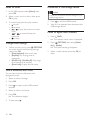
Set TV speakers to EasyLink mode
If you connect an HDMI-CEC compliant device
that includes speakers, you can choose to hear
the TV from those speakers instead of the TV
speakers.
When you play content from an EasyLink
compliant home theatre, if you want to mute
the TV speakers automatically, turn on EasyLink
mode.
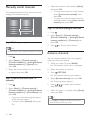
1. Connect an HDMI-CEC compliant device
to the HDMI connector.
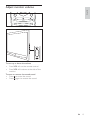
2. Connect an audio cable from the SPDIF
OUT connector to the EasyLink-compliant
device’s AUDIO IN connector (see ‘Back
connections’ on page 5).
3. Configure the HDMI-CEC compliant device
properly (see the device user manual).
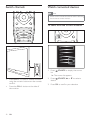
4. Press
.
5. Select [Setup] > [TV settings] >
[EasyLink] > [EasyLink].
6. Select [On], then press OK.
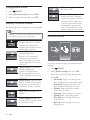
7. Select [TV speakers], then press OK.
8. Select one of the following, then press OK.
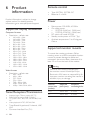
Switch off TV speakers.
Switch on TV speakers.
Stream TV audio through
the connected HDMI-CEC device.
Switch the TV audio to the connected
HDMI-CEC audio device through the
adjust menu.
Turn off TV
speakers automatically and streams TV
audio to the connected HDMI-CEC
audio device.
Note
To mute the TV speakers, select [TV speakers]
> [Off].
8
EN
Select speaker output with Adjust
menu
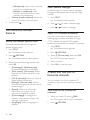
If [EasyLink] or [EasyLink autostart] are
selected, access the adjust menu to switch the
TV audio.
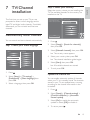
1. While you watch TV, press
ADJUST.
2. Select [Speaker], then press OK.
3. Select one of the following, then press OK:
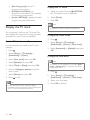
[TV]: On by default. Stream TV audio
through TV and the connected HDMICEC audio device until the connected
device switches to system audio
control. TV audio is then streamed
through the connected device.
Stream audio through
the connected HDMI-CEC device. If
system audio mode is not enabled on
the device, audio continue to stream
from the TV speakers. If [EasyLink
autostart] was enabled, the TV
prompts the connected device to
switch to system audio mode.