1
Backup to OpenStack
An administrator can back up the contents of the DataGuard Appliance
to an OpenStack Object Storage cloud.
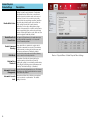
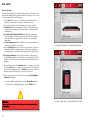
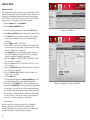
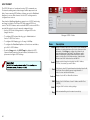
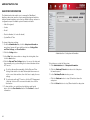
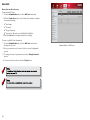
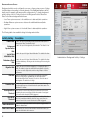
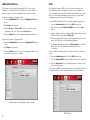
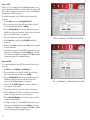
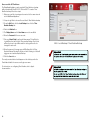
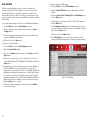
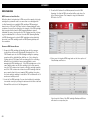
To create an OpenStack backup, follow these steps:
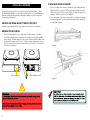
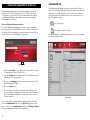
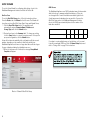
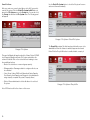
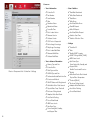
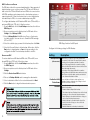
1. From the NAS tab, click the Cloud Backup menu item, then click
the OpenStack tab.
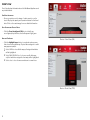
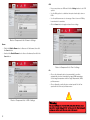
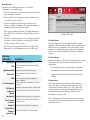
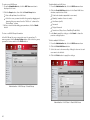
2. Click the Create button and complete the required settings in the
Create OpenStack Backup menu.
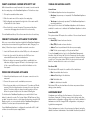
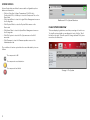
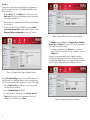
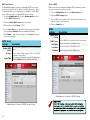
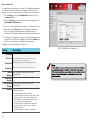
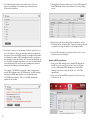
3. Select the Direction of the data transfer (Upload or Download).
4. Enter the URL of the Authentication Server for the account and
place a check in the Verify SSL Certificate if SSL is to be enabled.
5. Enter the OpenStack User Name and API Key.
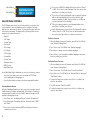
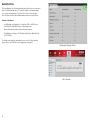
6. OpenStack backup options available include Incremental Backup
and Full Backup (see description in table).
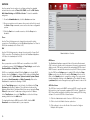
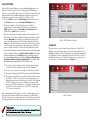
7. Select the schedule type you want for the backup then click the
Next button.
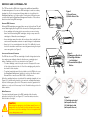
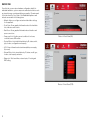
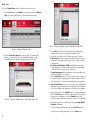
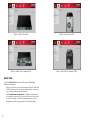
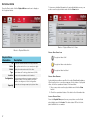
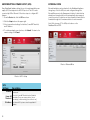
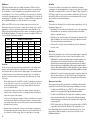
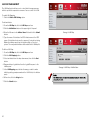
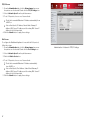
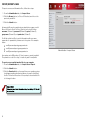
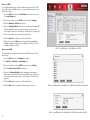
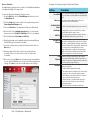
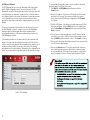
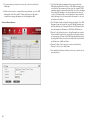
8. Determine what local folder or folders are used for backup
or transfer. Click to check the selection box for folders used
for backup.
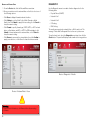
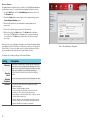
9. When done, click the Run button to begin backing up immediately.
You can click the Test button to test the server before applying the
settings. Click Save to save the schedule and account settings.
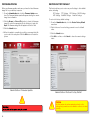
NAS > Cloud Backup > OpenStack
71
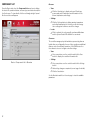
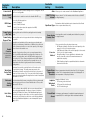
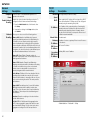
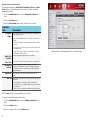
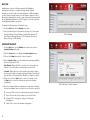
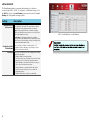
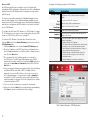
Configure the following settings for OpenStack Backup:
Setting
Description
Local Path
Direction
Click to select the folders to back up to OpenStack, or
choose the folder to transfer data from the OpenStack
cloud.
Select Download (from OpenStack to device) or
Upload (from device to OpenStack).
Authentication
Server The URL used for the OpenStack account connection.
User Name
API Key
The OpenStack account user name. This is created
when the OpenStack account is set up.
This is the secret key used for the account. The user
should obtain this when the account is set up.
Incremental An incremental backup is used in order to preserve
data without creating multiple copies, that is, without
Backup duplication of existing backups. Backups completed in
increments, taking into account what has been backed
up in the previous incremental backup sessions.
Initially a full backup is completed, and subsequent
backups will take place backing up only data folders
that have changed since the previous backup.
Full Overwrites existing folders and files with identical
names and adds new folders and files. Any folders or
Backup files that exist and are not identical to the folders and
files of the backup job are left intact.
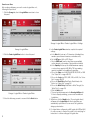
Schedule
Choose the schedule option and configure the desired
schedule for backups:
• Disable—Disables OpenStack backup.
• Time interval by hour—Backup is done at the hourly
interval you choose from the drop-down menu.
• Daily—Backup is scheduled at the time of day you
choose from the drop-down menus.
• Weekly—Backup is scheduled at the day of the
week, at the time of day you choose from the
drop-down menus.
• Default—Disabled (no backup is scheduled).