1
Lexmark
W840
Panasonic
WORKiO DP-6530
Imaging at Work
tm
Product Dynamics
Hardware Installation:
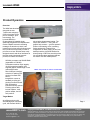
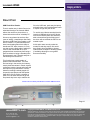
We found this departmental device as easy
to install and set-up as Lexmark’s less
complex workgroup printers. We did come
across one issue during installation of the
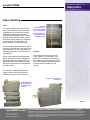
finisher unit. To get the paper from the left
output path of the main engine over to the
right-mounted finisher unit requires a
bridge unit. We installed the bridge unit,
installed the finisher only to find when we
turned on the power that a message told us
to shut the door G. Door G was displayed,
using the new large screen to be the door
providing access to paper within the bridge
unit. However, the door in the bridge unit
was no the issue here. In fact, after a
period of trial and error we found out that
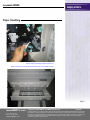
the real problem was that the power cable
connecting the bridge unit to the finisher
had come unattached. While this issue
caused us some irritation, we estimate that
the entire hardware installation should
have taken under one hour. No special
tools were required, and the procedure
could be tasked to a non-technical support
person.
Device Driver Installation:
The installation of the device onto a PC
was equally simple and quick. The
Lexmark installation CD wizard asks users
or the administrator to follow simple
instructions that guide them through the
process.
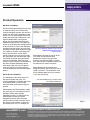
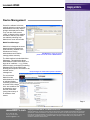
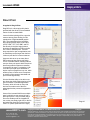
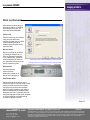
The driver installation software for the Lexmark
W840 automatically discovers the
Lexmark printers.
administrator could set up a list of all the
PCs under the second floor sales
department. He/she could give them
access to the Lexmark W840, a process
that, with Lexmark’s installation wizard, can
be achieved in a matter of seconds.
Administrators can at the same time
designate which of the drivers they want to
install on each PC. The installation of the
driver software added only a few minutes
to our total set-up time.
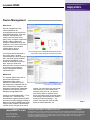
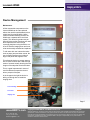
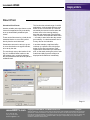
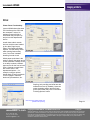
The Lexmark W840 lets you install the driver
onto multiple workstations.
Administrators will like the ability to install
the driver onto one or multiple remote PC
desktop locations within a single
installation process. To achieve this the
administrator chooses the remote
installation and then either enters the
specific network location, browses across
the network to the location or specifies a
pre-defined list of PCs. For example, an
www.BERTL.com
tel. (1) 732-761-2311
fax. (1) 732-761-2312
[email protected]
Copyright © 2005 BERTL, Inc./MCA Internet, LLC.
Page22
Page Number
5-Aug-05
All Rights Reserved. The license under which this document is made available and applicable law prohibit any
reproduction or further transmission of any portion of this document. This document may only be viewed electronically through the www.BERTL.com Web site and may not be stored in electronic or hard copy format. Any
reproduction of trademarks is strictly prohibited. BERTL accepts no responsibility for any inaccuracies or
omissions contained in this document.